
Disclosure: VPNFin is reader-supported. If you buy a VPN through links on this page, we may earn a commission at no extra cost to you. This never affects our ratings — here’s our full disclosure.
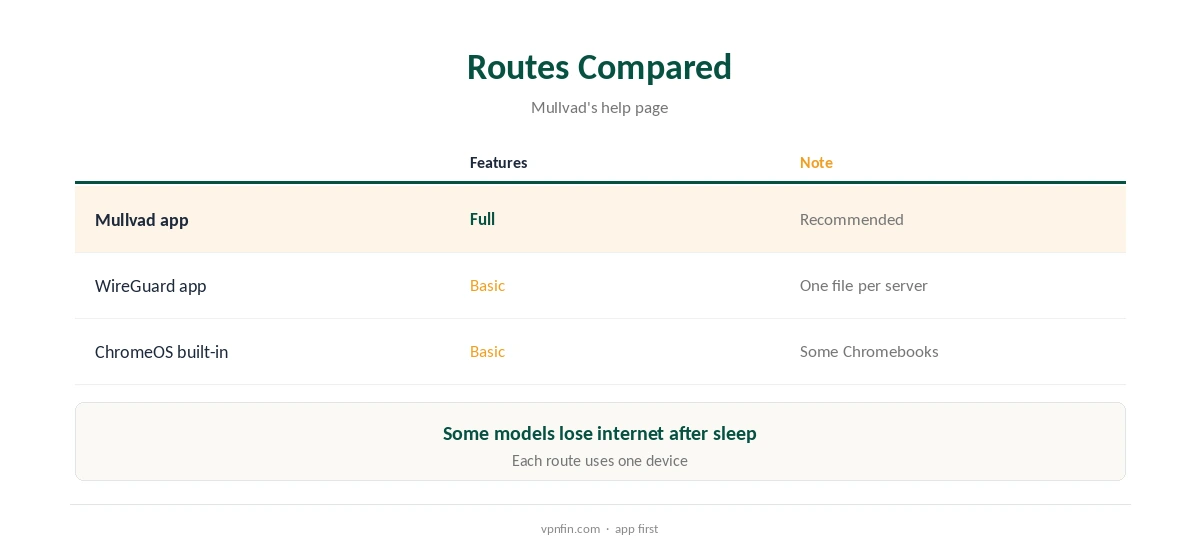
A Mullvad Chromebook setup has three routes, Mullvad’s help page explains. You can use its Android app from Google Play, the official WireGuard app with a Mullvad file, or, on some Chromebooks, ChromeOS’s own built-in WireGuard support. Mullvad warns of a known problem on some models, where the internet stops after the lid closes or the Chromebook sleeps, which the built-in route can avoid.
This guide covers each route, the sleep problem, settings, school devices and how to pay.
Mullvad Chromebook With the Android App
On a Chromebook with Google Play, install Mullvad VPN, log in with your account number and connect. The app needs Android 9 or newer support, Mullvad’s install guide notes, and brings DAITA, multihop, split tunnelling and lockdown mode.
One Play Store reviewer using Mullvad on a Chromebook notes sometimes checking that it reconnected after a restart. That check is worth a habit. Our Mullvad Android guide covers the app’s settings.
The Sleep Problem
Mullvad’s help page, updated in May 2026, warns of a problem on some Chromebooks. With either the Mullvad app or the WireGuard app, the internet may stop working after the lid closes or the device sleeps.
If that happens, disconnect and reconnect, or try the built-in WireGuard route below, which ChromeOS handles itself. Updating ChromeOS and the app is also worth trying.
Built-In WireGuard on ChromeOS
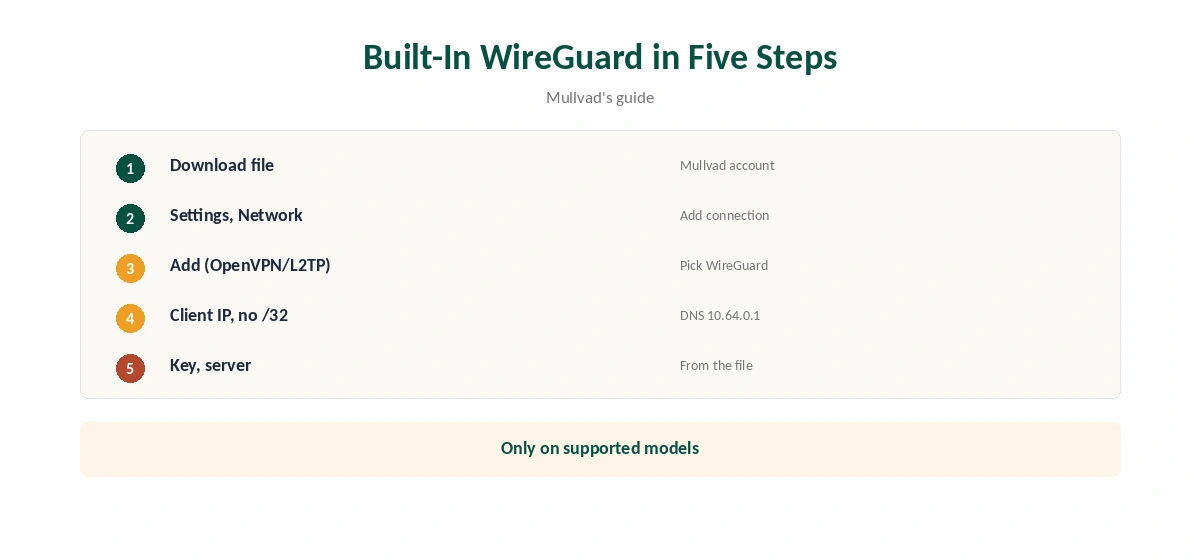
Some Chromebooks support WireGuard natively. Download a WireGuard file from your Mullvad account, then open Settings, Network, Add connection, and choose Add next to OpenVPN / L2TP, Mullvad’s guide shows. Mullvad supports neither of those, but the same dialog offers WireGuard.
Set the provider type to WireGuard and enter the Address from the downloaded file as the client IP, without /32. Set the name server to 10.64.0.1, and fill in the key and server details from the file.
The WireGuard App Route
The official WireGuard app from Google Play can import a Mullvad WireGuard file, Mullvad’s guide lists as the second option. Each file covers one server, so download a few for the locations you use.
Like the Mullvad app, it can hit the sleep problem on some models, Mullvad warns, and it lacks DAITA, multihop and lockdown.
Which Route to Choose
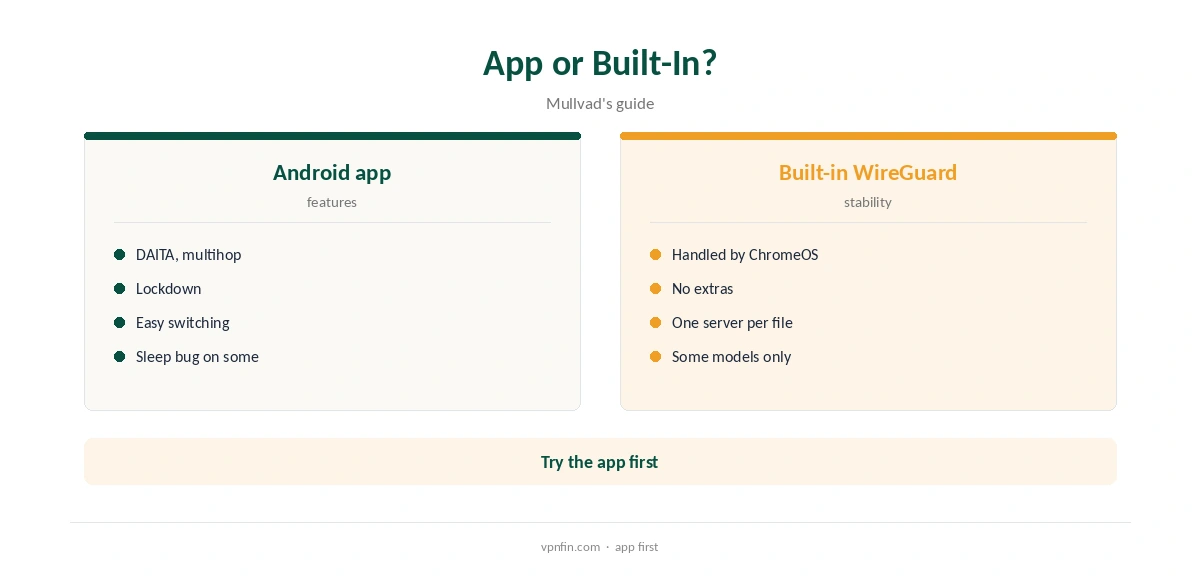
The Android app gives the most features, including DAITA and multihop, and easy location changes. The built-in route lacks DAITA, multihop and the app’s lockdown, but may behave better through sleep on affected models.
Each route uses one of your five devices, so remove old ones in your account first. Our Chromebook VPN guide compares other providers.
Split Tunnelling, Lockdown and Speed
With the Android app, split tunnelling lets you keep chosen apps outside the tunnel, and lockdown mode blocks traffic whenever the VPN is off. Test lockdown after closing the lid, given the sleep problem some models show.
The built-in WireGuard connection has neither feature, so it suits simpler needs, such as protecting browsing on home Wi-Fi.
WireGuard is light enough for modest Chromebook processors, and Mullvad runs only WireGuard since January 2026. Pick a nearby location for the best speed, especially on video calls and large downloads.
DAITA and multihop add overhead, so leave them off unless you need them.
School Chromebooks and Turning It Off
Managed school and work Chromebooks often block Google Play or VPN connections, and administrators can see that a VPN is in use. Ask before installing one on a device you do not own, since rules may forbid it.
Our IPVanish Chromebook guide covers another provider’s approach.
Paying for Mullvad
Mullvad costs a flat €5 a month for five devices, with an account number instead of an email, and has more than 10 audits in our table. You cannot buy Mullvad time through Google Play, its help page notes. Pay on Mullvad’s website by card, cash or cryptocurrency, then log in with the account number on the Chromebook.
Our Mullvad cost guide covers payment methods.
Disconnect in the Mullvad app, or remove the WireGuard connection in ChromeOS’s network settings, where it sits alongside Wi-Fi. Log the Chromebook out in your Mullvad account to free its device slot.
Our guide to turning off a VPN on a Chromebook covers each case.
Restrictive Networks
On networks that block VPNs, such as some schools or workplaces, the Android app’s QUIC and LWO obfuscation can help, our tables record; Mullvad added them to Android in late 2025.
The built-in ChromeOS connection has no obfuscation, so it will fail where a network blocks WireGuard.
Privacy
Mullvad asks for no email and lets you pay with cash, and it has more than 10 audits in our table, more than NordVPN’s six or Proton’s five. Its servers run only WireGuard since January 2026.
Our Mullvad vs NordVPN page compares its record with a larger rival.
How We Research
This page draws on Mullvad’s Android and Chromebook help pages, its Android install guide, its Google Play listing and our Mullvad tables. We cross-checked these sources against each other, and where they conflict or something can’t be verified, we say so in the text rather than guessing. We checked time-sensitive figures, including prices in US dollars, on 8 October 2026. The main source we relied on is Mullvad’s Android and Chromebook guide. Our full approach lives on the About Us page.
Mullvad Chromebook FAQ
Yes, through its Android app, the WireGuard app or built-in WireGuard.
Mullvad notes a known problem on some models; try the built-in route.
Some Chromebooks do, Mullvad’s guide says.
No; pay on Mullvad’s website.
Often not; administrators may block it.
The Verdict
A Mullvad Chromebook setup is easiest with the Android app. If your model loses internet after sleep, try ChromeOS’s built-in WireGuard.