
Disclosure: VPNFin is reader-supported. If you buy a VPN through links on this page, we may earn a commission at no extra cost to you. This never affects our ratings — here’s our full disclosure.
A Mullvad VPN Steam Deck setup works best without Mullvad’s app, for one practical reason. Mullvad’s Linux repository covers deb and rpm systems, not the Arch-based SteamOS. The clean route is a WireGuard file from Mullvad’s configuration generator, imported into the Deck’s KDE network settings, as the ArchWiki describes. Since January 2026 Mullvad supports only WireGuard. A connection made in Desktop Mode stays active in Gaming Mode, Comparitech notes.
This guide covers why the app is not the route, the WireGuard setup, Gaming Mode, updates and what a VPN does for gaming.
Why Not Mullvad’s App
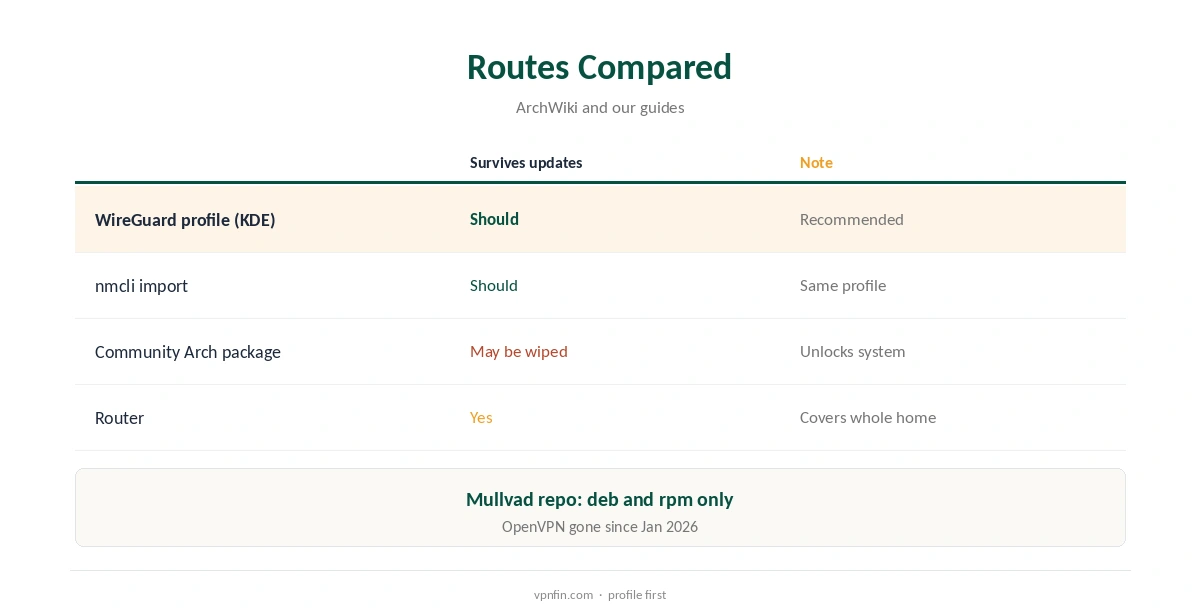
Mullvad’s official Linux packages come from its repository for Debian, Ubuntu and Fedora, its download page lists, while the Deck runs SteamOS. SteamOS is a customised Arch Linux with a read-only system partition, and Valve warns that updates can wipe changes made inside that image, Ars Technica reported.
Community Arch packages exist, but installing them means unlocking the read-only system. A SteamOS update can then remove them. A WireGuard profile lives in NetworkManager’s settings instead and needs no system changes. Our Mullvad Linux guide covers the app on supported distributions.
Mullvad VPN Steam Deck Setup
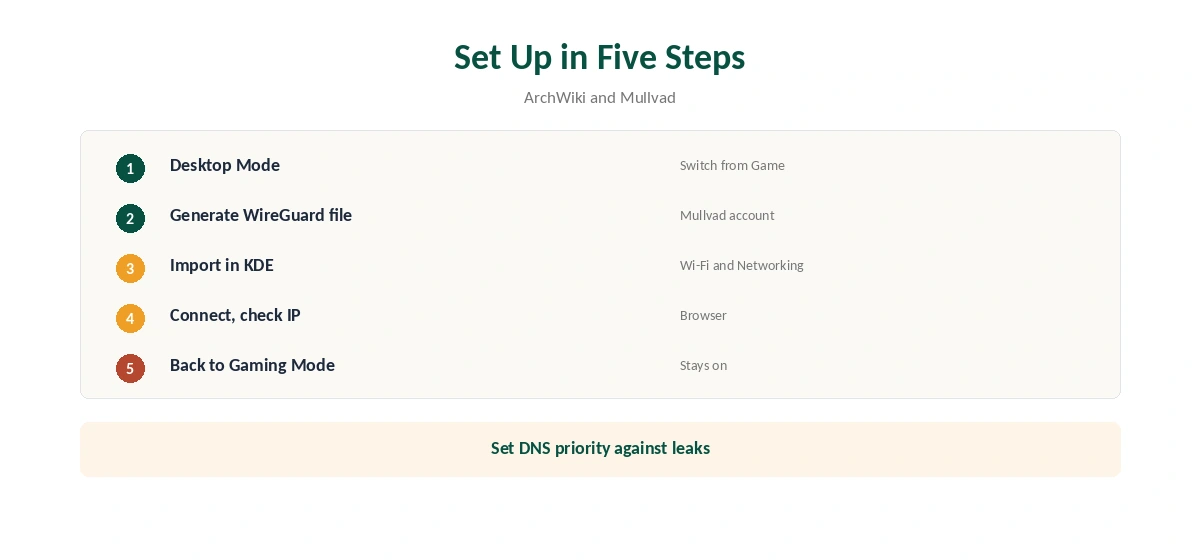
Switch to Desktop Mode from the power menu. In a browser, sign in to Mullvad’s WireGuard configuration generator with your account number. Generate a key for the Deck, choose a location and download the file.
Open System Settings, then Wi-Fi and Networking, add a connection and import the WireGuard file. KDE’s network settings can import Mullvad’s files directly, the ArchWiki notes. Switch the connection on and check your address in a browser; it should show the Mullvad location you chose rather than your home city.
The Command-Line Alternative
In Konsole, the command nmcli connection import type wireguard file followed by the file name adds the same connection, the ArchWiki shows. Bring it up with nmcli connection up and the connection name. The command line suits anyone who prefers typing to the touchscreen keyboard in Desktop Mode.
Set the connection’s DNS priority so lookups use Mullvad’s resolver, the ArchWiki advises, to avoid DNS leaks. Our DNS leak guide explains the test.
Gaming Mode
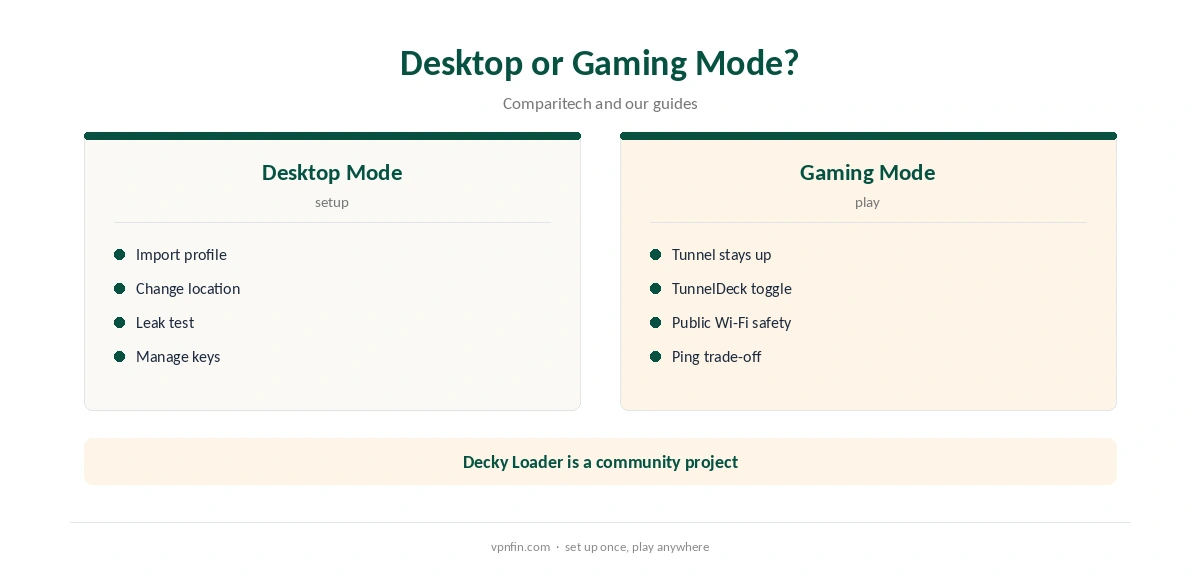
A VPN connected in Desktop Mode stays active when you return to Gaming Mode, Comparitech notes. To switch it on or off without leaving the game, use TunnelDeck. That plugin for the Decky Loader controls WireGuard and OpenVPN connections from Gaming Mode.
Decky Loader is a community project, not a Valve feature, so install it only if you are comfortable with that. Our Steam Deck VPN guide covers the plugin.
Choosing and Switching Servers
The configuration generator lets you pick a country or city for each file. Choose a nearby server for everyday use, since distance adds latency. Download a second file for another location if you travel, and a third for home if you take the Deck abroad.
Each file appears as its own connection in KDE’s network list, so switching location means turning one off and another on. Name them by city to keep them apart, and delete files for places you no longer visit.
Updates and Keys
Because the WireGuard profile sits in NetworkManager rather than the system image, SteamOS updates should leave it alone, unlike packages installed after unlocking the system. Re-check the connection after major updates anyway, by switching it on and confirming your address in a browser.
The Deck uses one of Mullvad’s five device slots. If you regenerate keys, delete the old one in your account first.
Will It Help Your Games?
A VPN adds a hop, so ping usually rises rather than falls, as our gaming VPN guide explains. Use Mullvad on the Deck for privacy on public Wi-Fi, such as hotels and trains, rather than to chase lower ping. At home, switch it off for online matches if latency matters more.
Mullvad’s DAITA and multihop belong to its apps, not a plain WireGuard profile, so the Deck gets a standard WireGuard tunnel. That still encrypts everything leaving the Deck.
Removing It
Delete the connection in KDE’s network settings, or with nmcli connection delete and its name. Then remove the Deck’s key in your Mullvad account so the slot is free for another device. Without that step, the key keeps counting against your five.
Our guide to turning off a VPN on Linux covers NetworkManager commands in more detail.
Price and Privacy
Mullvad costs a flat €5 a month for five devices, its terms say, with account numbers instead of emails. It has more than 10 audits in our table. Police who visited its office with a warrant left with nothing, because there were no user records.
Our Mullvad cost guide covers payment methods, including cash.
How We Research
This page draws on the ArchWiki’s Mullvad page, Mullvad’s Linux download page and terms, Comparitech’s Steam Deck guide, Ars Technica on SteamOS and our Steam Deck and Mullvad tables. We cross-checked these sources against each other, and where they conflict or something can’t be verified, we say so in the text rather than guessing. We checked time-sensitive figures, including prices in US dollars, on 8 October 2026. The main source we relied on is the ArchWiki’s Mullvad page. Our full approach lives on the About Us page.
Mullvad VPN Steam Deck FAQ
Mullvad’s packages target deb and rpm systems; a WireGuard profile is the cleaner route.
Import a WireGuard file from Mullvad’s generator into KDE’s network settings.
A connection made in Desktop Mode stays active in Gaming Mode.
A NetworkManager profile should survive; recheck after updates.
No; Mullvad removed OpenVPN in January 2026.
The Verdict
A Mullvad VPN Steam Deck setup is simplest as a WireGuard profile in Desktop Mode, carried into Gaming Mode. Skip the app, use the configuration generator and check DNS.