
Disclosure: VPNFin is reader-supported. If you buy a VPN through links on this page, we may earn a commission at no extra cost to you. This never affects our ratings — here’s our full disclosure.
Mullvad Firefox support comes as the Mullvad Browser Extension, a free add-on for Firefox and Firefox-based browsers that Mullvad still labels beta. Mullvad is clear that it is not a VPN app and does not replace one. It checks your connection for IP, WebRTC and DNS leaks. While the Mullvad VPN app runs, it also lets you send browser traffic through a SOCKS5 proxy in another location in one click.
This guide covers what the extension does, setup, the proxy, DNS settings and how it fits with the Mullvad app and Mullvad Browser.
What the Extension Is
The extension improves browsing while you use Mullvad VPN, Mullvad’s guide says. It comes pre-installed in Mullvad Browser and works in Firefox 91.1 or later on desktop and other Firefox-based browsers. Mullvad still labels it beta and invites feedback by email.
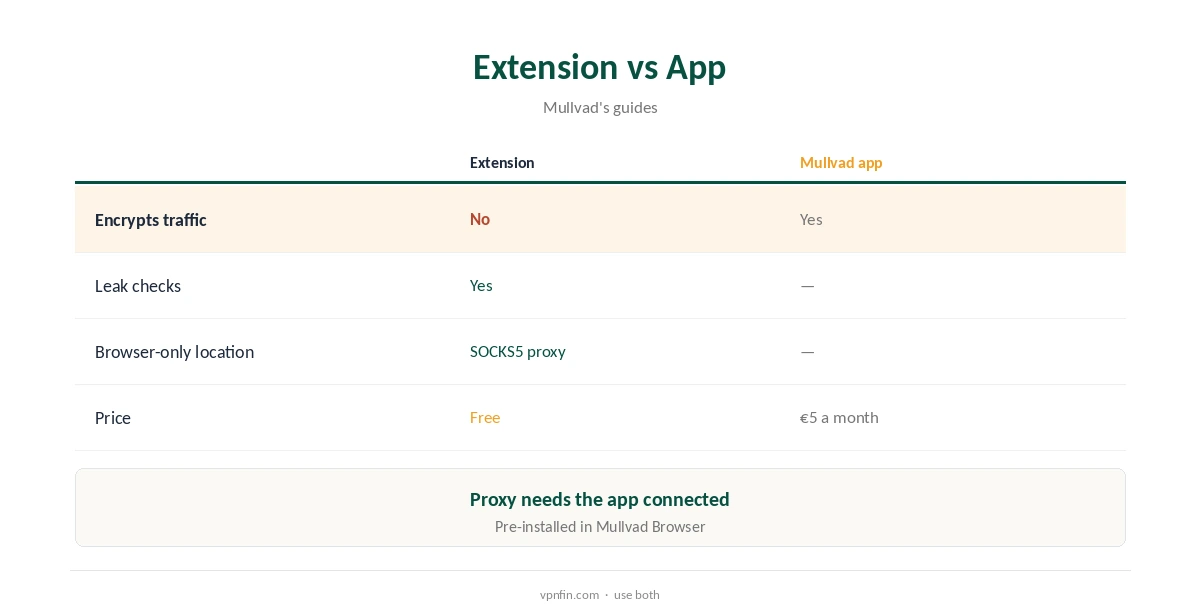
It does not encrypt anything on its own and has no servers of its own to connect to. For protection, you need the Mullvad app running, as our VPN vs proxy guide explains.
Mullvad Firefox Setup
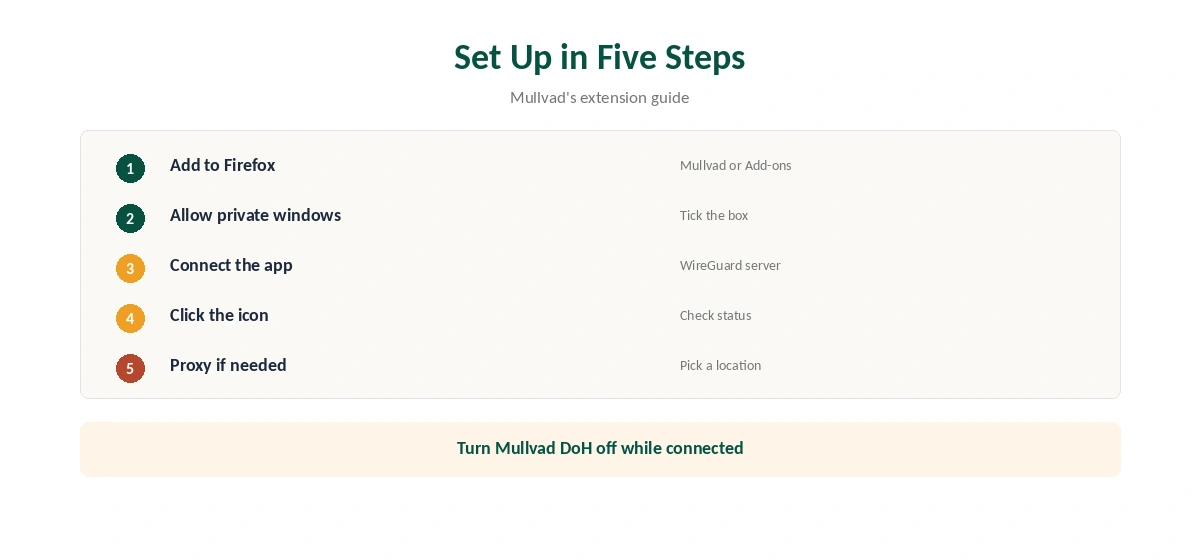
Open the extension’s page on Mullvad’s site or Firefox Add-ons and choose Add to Firefox, then Add. Tick Allow this extension to run in Private Windows, as Mullvad’s guide advises, so private tabs get the same checks. Pin its icon to the toolbar so the status is always one click away.
Connect the Mullvad app first, on any platform it supports, then click the extension’s toolbar icon. It checks your connection and shows the result, including whether your traffic is going through Mullvad.
Leak Checks
The extension verifies that your IP address, WebRTC and DNS are not leaking, Mullvad’s download page lists. That turns a manual leak test into a click. Run it after connecting, after app updates and after joining a new network, since each can change what Firefox exposes.
It also recommends Firefox’s HTTPS-Only mode and the uBlock Origin extension. Our WebRTC leak guide explains why browser leaks matter even with a VPN running.
The SOCKS5 Proxy
Once the app connects to a WireGuard server, the extension can route Firefox through the SOCKS5 proxy on another Mullvad server, so the browser exits in a different location from the rest of the computer. Choose the location in the extension; switching takes a click and does not disturb the app’s own connection.
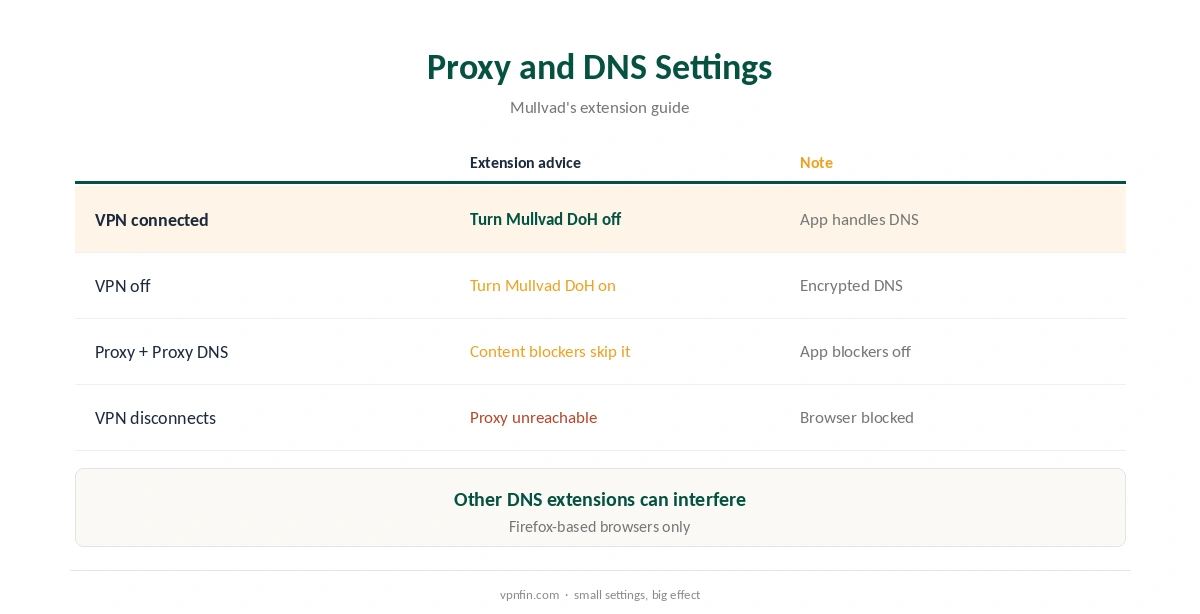
The proxy works only while the Mullvad VPN connection stays up. If you disconnect, the browser cannot reach the proxy, Mullvad notes. Our SOCKS5 VPN guide explains how SOCKS5 differs from a VPN.
DNS Settings
The extension recommends turning Mullvad’s encrypted DNS over HTTPS off while the VPN runs, and on when it does not, Mullvad’s guide says. That public encrypted DNS closes on 2 November 2026, so outside the VPN switch Firefox to Quad9, which Mullvad now sponsors. With the VPN running, the app handles DNS inside the tunnel.
If you use the proxy with Proxy DNS turned on, the Mullvad app’s DNS content blockers do not apply to that browser traffic. Another extension using the DNS permission may also stop some requests going through the proxy, Mullvad warns.
Mullvad Browser
Mullvad Browser, which Mullvad’s download page describes as built against fingerprinting and without telemetry, ships with the extension already installed. On Ubuntu, Debian and Fedora it installs from the same repository as the Mullvad app, Mullvad’s guide says.
Use Mullvad Browser for private research and Firefox for everyday browsing, with the extension checking both. Keeping the two apart also keeps logged-in sessions out of private research. Our Mullvad Linux guide covers the repository.
Using It Without the VPN
Without the VPN, the extension still runs its connection and leak checks, which show what websites can see. It has recommended Mullvad’s encrypted DNS so lookups travel encrypted, but that public service closes on 2 November 2026; Mullvad points users to Quad9 instead.
It cannot hide your address on its own. For that, connect the Mullvad app, or treat the extension as a diagnostic tool on computers where the app is not installed.
Chrome and Other Browsers
The extension supports Firefox and Firefox-based browsers only, Mullvad’s guide says. On Chrome, Edge or Brave, rely on the Mullvad app, which covers every browser on the computer at once. A manual leak test in those browsers, as our DNS leak guide describes, replaces the extension’s check.
If you want a browser-only proxy in Chrome, providers such as Proton offer Chrome extensions, as our Proton VPN Chrome guide explains.
Price and Privacy
The extension is free for anyone, including people who do not use Mullvad VPN, though its proxy needs a Mullvad connection. The VPN it pairs with costs a flat €5 a month, with an account number instead of an email and cash accepted, Mullvad’s terms say.
Mullvad has more than 10 audits in our table. Our Mullvad cost guide covers payment methods and the 14-day refund.
How We Research
This page draws on Mullvad’s browser extension guide and download page, its Mullvad Browser installation guide, its terms of service and our Mullvad tables. We cross-checked these sources against each other, and where they conflict or something can’t be verified, we say so in the text rather than guessing. We checked time-sensitive figures, including prices in US dollars, on 8 October 2026. The main source we relied on is Mullvad’s browser extension guide. Our full approach lives on the About Us page.
Mullvad Firefox FAQ
No; Mullvad says it does not replace the VPN app.
It is free for anyone; the VPN costs €5 a month.
Firefox traffic exits through another Mullvad location while the VPN runs.
It verifies IP, WebRTC and DNS leaks.
Firefox 91.1+ on desktop and Firefox-based browsers.
The Verdict
Mullvad Firefox support is a helper, not a VPN: leak checks and a one-click browser proxy that work alongside the Mullvad app. Install it, allow it in private windows and keep the app connected.