Disclosure: VPNFin is reader-supported. If you buy a VPN through links on this page, we may earn a commission at no extra cost to you. This never affects our ratings — here’s our full disclosure.
On a phone or a laptop, switching a VPN off is one tap and the worst case is that it comes back on. On a router the worst case is that every device in the house loses the internet at once, including the one you would use to look up why.
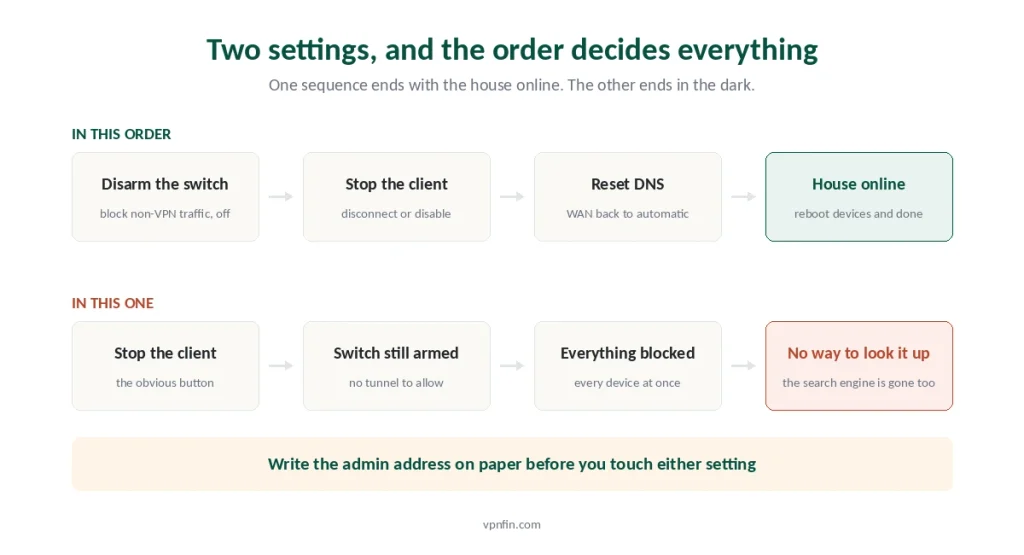
That happens for a specific reason. The kill switch and the VPN client are two separate settings, and turning off the second while the first is armed tells the router to block everything that is not going through a tunnel that no longer exists.
So the order matters more than the steps. Disarm the kill switch first, then stop the client — and read the rest of this before you touch either, since you may lose the ability to load this page halfway through.
How Do You Turn Off a VPN on a Router?
Open the router’s admin page, find the kill switch and turn it off first. It may be called Block Non-VPN Traffic, Block routed clients if tunnel goes down, or Enhanced Kill Switch. Only then disconnect or disable the VPN client itself. Reverse that order and every connected device goes offline until you get back in.
Do It in This Order
Four steps, and the first one is the one people skip.
One: reach the admin page. Type the router’s local address in a browser — commonly 192.168.1.1 or 192.168.8.1. This works without internet access, because you are talking to the router rather than through it.
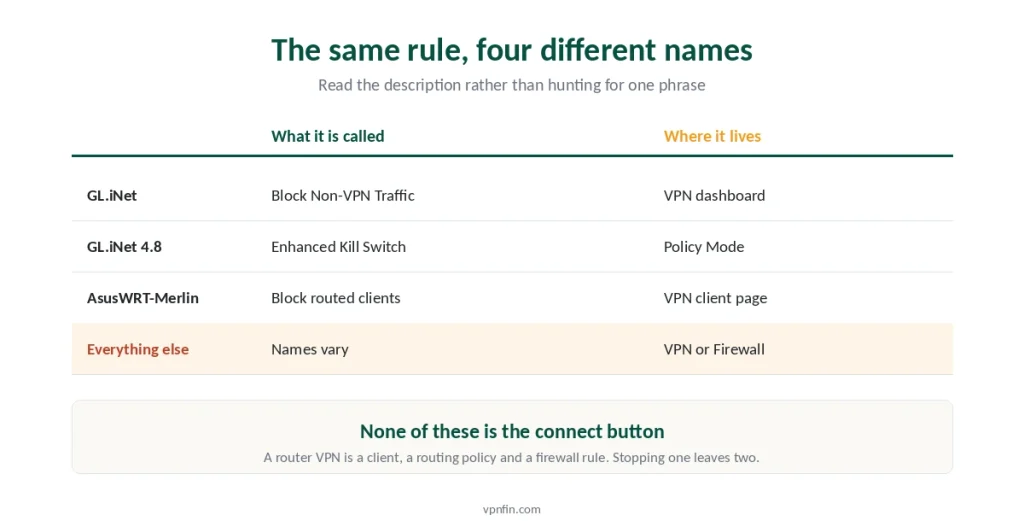
Two: disarm the kill switch. Look under the VPN section, and under Firewall on some firmware. Vendors name it differently, so read the descriptions rather than hunting for one phrase.
Three: stop the VPN client. Disconnect, or switch the client off entirely if you do not plan to use it again.
Four: fix DNS and renew the leases. More on that below, because this is the step that explains why the internet still looks broken afterwards.
⚠️ Do steps two and three in that order, not the other way round. Reversed, the router does exactly what you configured it to do: block every device that is no longer protected.
The Kill Switch Is a Separate Setting
Worth understanding rather than memorising, because the naming varies and the behaviour does not.
Vendors document this plainly. GL.iNet’s own documentation states that with Block Non-VPN Traffic enabled, a disabled or disconnected VPN leaves every device on the router without internet access. That is the feature working as designed.
On AsusWRT-Merlin the equivalent pair is “Force Internet traffic through tunnel” together with “Block routed clients if tunnel goes down”. The second is the kill switch, and it stays set whatever the client does.
Some firmware splits it further still. Newer GL.iNet builds separate a standard kill switch from an enhanced one, and add a default route for traffic the tunnel does not cover. Switch that default route off and only VPN traffic reaches the internet at all.
⚠️ None of these are the same control as the connect button. A router VPN is a client plus a routing policy plus a firewall rule, and turning off one leaves the other two exactly where they were. The parallel on a computer is what happens when you delete a Mac VPN app before removing its extension — one part comes away and the other keeps running.
If You Are Already Locked Out
No internet, no obvious way back. Three routes in, in order of how much you lose.
Use the local address. The admin page lives on the router itself, so 192.168.1.1 still loads. Most people assume otherwise and stop trying.
Plug in with a cable. If Wi-Fi is not cooperating, an Ethernet cable to a LAN port gives you a direct path.
Reset only as a last resort. Holding the reset button restores factory settings, which clears the rule and also clears your Wi-Fi name, password and every other configuration you set up. That is a big hammer for a small nail.
⚠️ Note the admin address before you change anything. Write it on paper. A router’s own page is the one thing that still works when nothing else does, and finding it without a working search engine is unnecessarily hard.
Why the Internet Still Looks Broken Afterwards
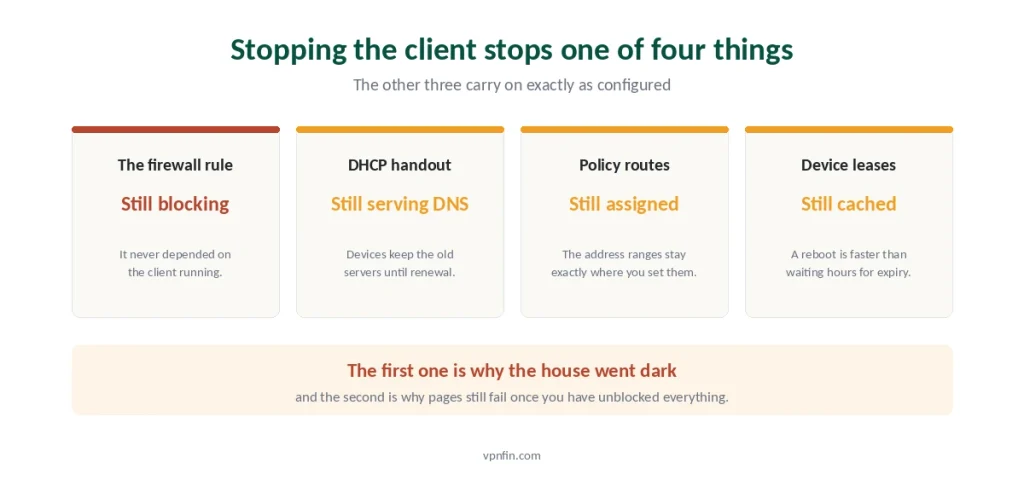
You disarmed the kill switch, stopped the client, and pages still fail. This is usually DNS, and it is the most common leftover.
The router hands out DNS servers over DHCP. When you set up the VPN you probably pointed it at the provider’s resolvers and cleared your ISP’s. Those settings sit in the router, not in the VPN client.
Devices keep the old servers until their lease renews. A laptop that was given a DNS address an hour ago carries on using it, even though nothing is listening there anymore.
So do two things. Set DNS back to automatic in the router’s WAN settings, then reboot the devices — or wait for the lease to expire, which can take hours.
⚠️ This is the same class of problem as the DNS settings a Windows VPN client leaves behind, one layer up. If pages still fail after that, our connection troubleshooting guide works through the remaining causes in order.
“Off” Might Not Mean What You Expect
Router VPNs often route selectively, which changes what turning one off actually does.
Policy routing sends only some addresses through the tunnel. A configuration might cover 192.168.1.20 to 192.168.1.40 and leave everything else on the plain connection.
So switching the client off changes those devices only. If your phone was never in the range, nothing about it changes and nothing was ever protected.
And two VPNs can stack. An app running on a laptop that sits behind a VPN router produces a tunnel inside a tunnel. Turning off one leaves the other, and the speed does not recover the way people expect — we cover what a VPN actually costs you in throughput.
⚠️ Check the client list before you conclude anything. Five tests confirm what is actually happening on a given device, which beats reasoning about the configuration from memory.
The Gap the Kill Switch Does Not Cover
One documented behaviour that is worth knowing, because it inverts what the feature seems to promise.
A kill switch protects against a drop, not always against a restart. Router owners running Merlin firmware have reported that between a cold boot and the first successful tunnel, traffic goes out unprotected — the blocking rule has not been applied yet.
Which means a power cut is the risky moment, not the one everybody plans for. The router comes back, devices reconnect, and for a short window they use the plain connection.
⚠️ Test yours rather than trusting the label. Reboot the router, then check your address immediately on a device that should be tunnelled. This is the same principle we apply to app kill switches: an indicator reports an intention, not a measurement — and most of them do not fire during a reboot either.
Before You Turn It Off for Good
Often the reason points somewhere more useful than removal.
If it was for devices without VPN apps, that was a good reason and it still is. Smart TVs and set-top boxes like Roku cannot run a client, so the router is the only place to put one.
If it was for streaming, a router setup makes location changes clumsy, since switching servers means reconfiguring rather than tapping. Our streaming guide covers which providers handle that better.
If everything felt slow, consumer router hardware is usually the limit rather than the provider. Encryption on a router processor costs far more than on a laptop.
And if you set it up and forgot why, that is a fair reason to stop. We answer the do-I-need-one question honestly rather than commercially, and what a VPN actually hides is narrower than most setups assume. If you decide to rebuild it later, our router setup guide starts from the beginning.
How We Research
This guide follows vendor documentation on how router kill switches behave when a tunnel stops — including GL.iNet’s statement that blocking non-VPN traffic leaves every connected device offline when the VPN is disabled — alongside the setting names used by AsusWRT-Merlin and community reports of kill switch behaviour between a cold boot and the first connection. Firmware differs enough that we describe what to look for rather than a single menu path. We don’t run our own speed tests, and we flag community-reported behaviour as reported rather than documented. The same job on other devices follows different rules on each, and a browser extension is a different thing again. Our full approach lives on the About Us page.
Turning Off a Router VPN FAQ
Because the kill switch is still armed. It is a separate setting from the VPN client, and it blocks any traffic not passing through a tunnel. With the client stopped, no tunnel exists, so everything is blocked. Disarm the kill switch first, then stop the client.
Type the router’s local address into a browser, commonly 192.168.1.1 or 192.168.8.1. That page lives on the router itself, so it loads without any internet connection. If Wi-Fi will not cooperate, connect an Ethernet cable to a LAN port instead.
Usually DNS. The router hands out your VPN provider’s DNS servers over DHCP, and devices keep using them until their lease renews. Set the router’s WAN DNS back to automatic, then reboot your devices rather than waiting for the leases to expire.
Only those the configuration covered. Many router setups use policy routing, which sends a specific range of addresses through the tunnel and leaves the rest alone. Check the client list or rules in the VPN section to see which devices were actually included.
Only as a last resort. A factory reset clears the VPN configuration and the firewall rule, but it also erases your Wi-Fi name, password and every other setting. Reaching the admin page at its local address solves the same problem without the collateral damage.
The Short Version
Disarm the kill switch before you stop the client. They are two separate settings, and doing it the other way round takes every device offline at once.
Reach the admin page at the router’s local address, typically 192.168.1.1 or 192.168.8.1. That still works with no internet, because you are talking to the router rather than through it.
Then fix DNS. Set the router’s WAN DNS back to automatic and reboot your devices, otherwise they keep using servers that nothing is answering.
Check whether the VPN covered everything. Policy routing means some devices may never have been in the tunnel, so turning it off changes nothing for them.
And reset only if you must. It clears the rule, and your Wi-Fi settings with it.