
Disclosure: VPNFin is reader-supported. If you buy a VPN through links on this page, we may earn a commission at no extra cost to you. This never affects our ratings — here’s our full disclosure.
Dragging the app to the Trash feels like the finish line. On a Mac it is closer to the worst possible move.
Most VPN apps install a network extension, and that extension outlives the app. Remove the app first and macOS keeps the extension loaded with nothing left to manage it. Your traffic still passes through a filter you can no longer switch off, and the usual tools refuse to help.
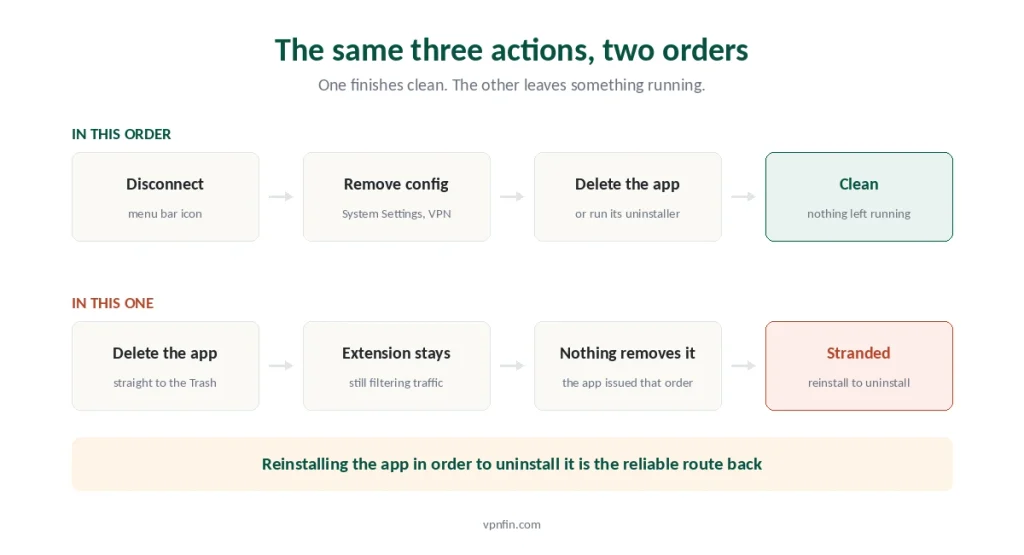
So the order matters more than the steps. Disconnect, then remove the configuration, then uninstall — in that sequence, every part comes away cleanly.
How Do You Turn Off a VPN on a Mac?
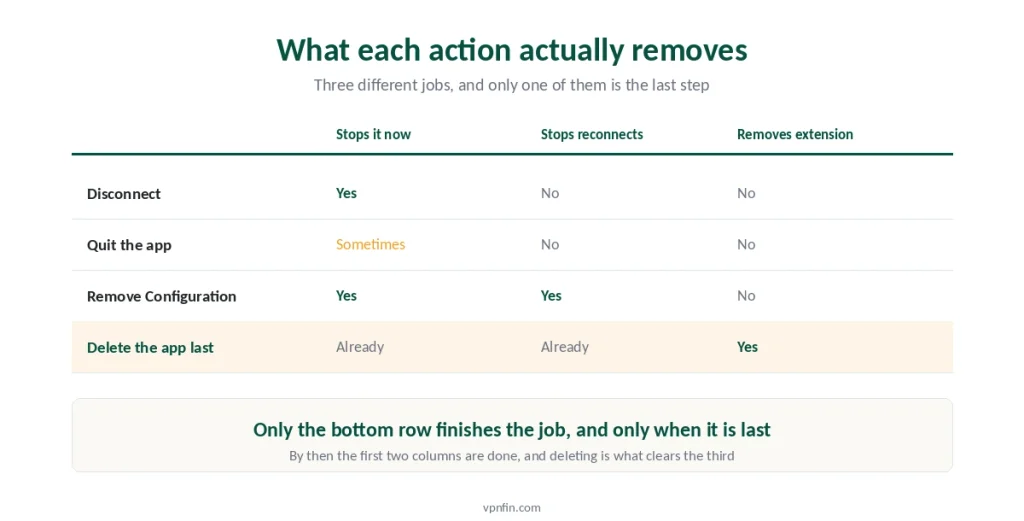
Click the VPN icon in the menu bar and choose Disconnect. That handles the immediate problem. To stop it reconnecting, open System Settings, click VPN in the sidebar, press the Info button beside the service and choose Remove Configuration. Only after that should you delete the app itself.
Step One: Disconnect
Start with the least drastic option, because it is often enough.
Use the menu bar icon. Click it, then choose Disconnect. The connection drops immediately.
Or use System Settings. Open it, click VPN in the sidebar, and switch off the toggle beside the service. You may need to scroll — Apple placed VPN in its own pane rather than inside Network.
Or quit the app. Most VPN apps disconnect on quit, though not all of them do. Check the menu bar afterwards rather than assuming.
⚠️ Quitting is not always disconnecting. Some apps leave the tunnel up so a reconnect is instant. If the icon survives the quit, the tunnel probably did too — and a leak test settles it faster than guessing.
Step Two: Stop It Coming Back
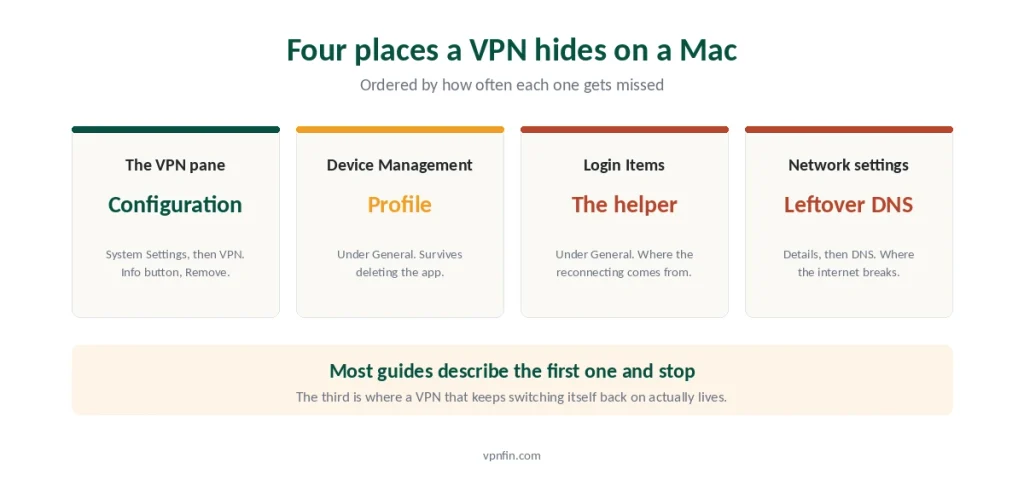
If the VPN reconnects on its own, something is telling it to. Three things usually are.
A saved configuration. System Settings → VPN → Info button → Remove Configuration. This deletes the connection profile rather than the app.
A configuration profile. System Settings → General → Device Management, select the profile, click Remove. Older versions of macOS keep this under System Preferences → Profiles. Apps that set up VPN this way survive being deleted, which surprises people.
A background helper. System Settings → General → Login Items & Extensions. Turn off anything under Apps and Background Activity that names your VPN. Then open the Extensions section, press the Info button, and switch off any Network Extension belonging to it.
⚠️ That third one is where the reconnecting usually comes from. The app is gone, the icon is gone, and a launch helper keeps restarting a service that no longer has an interface. The pattern matches the always-on switch on Android and the on-demand rules on iPhone — different systems, same idea.
Step Three: Uninstall, and Only Now
With the configuration gone and the extensions off, removing the app is safe.
Use the vendor’s uninstaller if one exists. Look inside the app’s folder in Applications. Vendors that ship one usually ship it because dragging the app leaves debris.
Otherwise drag the app to the Trash, then check Login Items & Extensions once more. Restart afterwards, because an extension can stay loaded until you do.
Then reopen System Settings → VPN and confirm nothing remains in the list.
⚠️ macOS asks you to authenticate before removing a system extension. That prompt is the system working correctly, not a virus warning.
Why the Order Matters So Much
Here is the failure everyone hits, and it is worth understanding rather than memorising.
A system extension is removed by the app that installed it. Delete the app first and nothing is left to issue that instruction. The extension stays loaded and becomes an orphan.
The command-line escape hatch does not work either. systemextensionsctl uninstall exists, and it refuses to run while System Integrity Protection is on. It prints a message saying the limitation is temporary and asks you to re-enable protection afterwards.
⚠️ Apple has been calling that limitation temporary since 2020. Administrators have documented the same message across six years of macOS releases. Turning off System Integrity Protection to delete a VPN is a poor trade, so the practical answer is not to create the problem.
If you already have. Reinstall the same VPN app, let it register, then remove the extension through the app and follow the order above. Reinstalling to uninstall feels absurd and it is the reliable route.
When the Internet Stops Working
The Windows version of this problem comes from leftover adapters and reset sockets. On a Mac it looks different, and it is usually simpler.
Check DNS first. System Settings → Network → your connection → Details → DNS. A VPN may have written its own servers there and left them behind. Remove the leftovers, or switch the service to automatic.
Check for a stray network service. In the same Network pane, look for entries you do not recognise. Anything created by a VPN and left orphaned belongs in the bin.
Check Login Items & Extensions again. A content filter still running will happily block traffic for a service that no longer exists.
⚠️ Restart before you conclude anything is broken. Extensions unload on restart, and a surprising share of “my internet died” reports end there. If it persists, our connection troubleshooting guide covers the rest — and the Windows version of this failure is worth reading if you also run one.
When Your Mac Refuses to Let You
Sometimes removal is blocked on purpose, and no amount of clicking changes it.
A work Mac may be managed. Employers deploy VPN settings through configuration profiles, and a managed profile can be locked against removal.
Apple designed it that way. In an unmanaged environment the user controls the Mac and nothing can prevent removal. In a managed one, an administrator can.
So the fix is a conversation, not a setting. Ask your IT team. Removing a managed profile by force tends to break other things they deployed alongside it.
Before You Turn It Off for Good
Worth a moment, since the reason usually points at a fix.
If a site started blocking you, the server is the problem rather than the VPN. Switching locations often clears it, and streaming platforms change their blocks monthly.
If everything feels slow, protocol and distance explain most of it. We cover how much speed you actually lose, and the honest figure is smaller than the complaints suggest.
If you switched it on and forgot why, that is a fair reason to stop. We answer the do-I-need-one question honestly rather than commercially, and for a lot of people at home the answer is no.
And if you only need one occasionally, keep the app and leave it disconnected. What a VPN actually hides is narrow enough that part-time use makes sense — hotel and airport networks being the clearest case.
⚠️ Do not replace a paid VPN with a free one on the way out. Only three free tiers are worth trusting, and a service funded by selling data defeats the purpose of installing anything.
Troubleshooting: our fix guides cover a VPN not working on Mac.
How We Research
This guide follows Apple’s documented paths for removing a VPN configuration and a configuration profile, Apple developer guidance on why managed Macs can block removal while unmanaged ones cannot, and the behaviour of the systemextensionsctl tool as reported by Mac administrators across successive macOS releases. Menu names differ between versions, so we describe the route rather than a single screenshot. We don’t run our own speed tests, and we say when something is a reported pattern rather than documented behaviour. For what macOS does differently while a VPN is connected, our Mac guide covers it. Our full approach lives on the About Us page.
Turning Off a VPN on Mac FAQ
Something is restarting it. Check three places in order: System Settings → VPN for a saved configuration, General → Device Management for a configuration profile, and General → Login Items & Extensions for a background helper. The helper is the usual culprit, because it survives deleting the app.
No, and it can make things worse. Network extensions are removed by the app that installed them. Delete the app first and macOS keeps the extension loaded with nothing left to manage it. Remove the configuration and the extensions first, then uninstall.
Open System Settings, click VPN in the sidebar, press the Info button beside the service, then choose Remove Configuration and confirm. Scroll if you cannot see VPN — Apple gives it its own pane rather than nesting it inside Network settings.
Because an administrator locked it. Employers deploy VPN settings through managed configuration profiles, which can block removal by design. On a personal Mac nothing prevents you from removing a profile. Ask your IT team rather than trying to force it.
Restart first, since extensions unload on restart and that resolves many cases. If it persists, check System Settings → Network → Details → DNS for servers the VPN left behind, and look for orphaned network services in the same pane.
The Short Version
Disconnect from the menu bar. That solves the immediate problem in one click.
Remove the configuration next, through System Settings → VPN → Info → Remove Configuration. This is what stops it reconnecting.
Delete the app last. Reverse those two and macOS strands the network extension, which then keeps filtering traffic with nothing left to remove it. Our page on how to turn off Surfshark covers disconnecting and uninstalling Surfshark cleanly.
Check three more places before you call it done: Device Management for a profile, Login Items & Extensions for helpers, and Network → DNS for servers left behind. Our page on how to turn off NordVPN covers disconnecting, quitting and fully removing the app on each platform.
And on a work Mac, ask IT. A locked profile is a deliberate setting rather than a fault, and forcing it usually breaks something else. The same job on other devices follows a different logic on each one.