Disclosure: VPNFin is reader-supported. If you buy a VPN through links on this page, we may earn a commission at no extra cost to you. This never affects our ratings — here’s our full disclosure.
The icon turns green and the app says Connected. Most people stop there, and the app has not told them what they think it has.
A green indicator confirms that a tunnel was established. It says nothing about whether your DNS queries are going through it, whether your browser is announcing your real address separately, whether your IPv6 traffic is tunnelled at all, or whether the kill switch will actually fire when the connection drops.
Those are four separate questions with four separate answers, and each has a test that takes two minutes. This guide covers all five, in the order that finds problems fastest.
The Short Answer
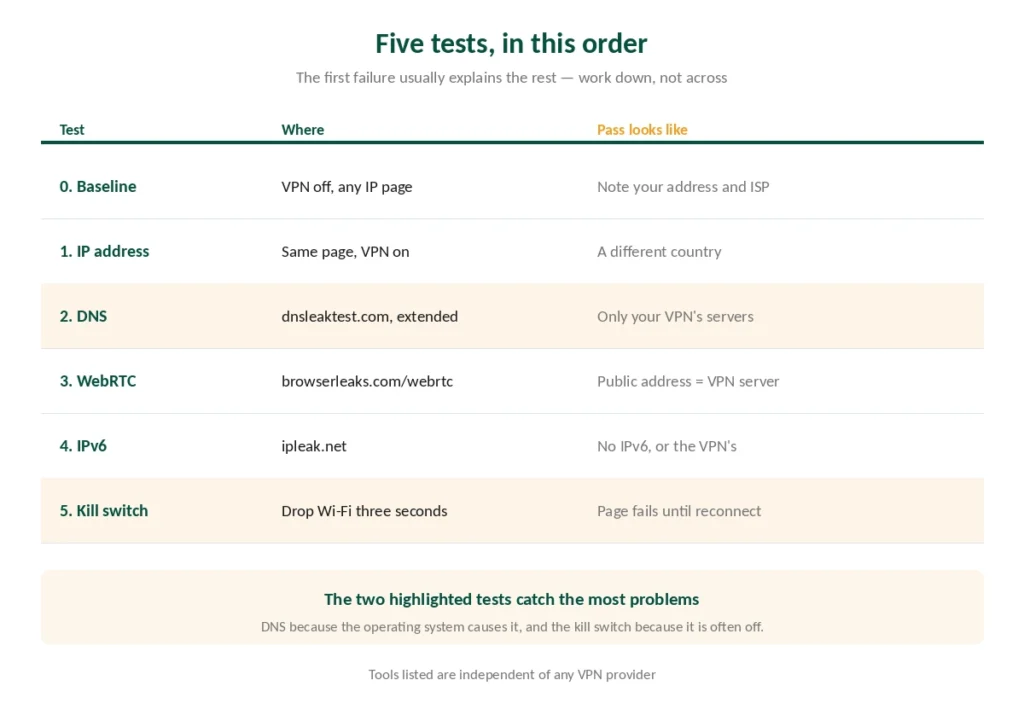
Five tests, ten minutes total. IP address, DNS, WebRTC, IPv6, kill switch.
Run them twice — once at home, once on a network you do not control. Setups that pass at home routinely fail on a hotspot, and that is where it matters.
Then retest after every operating system update. Windows feature updates in particular re-enable a setting that sends your DNS outside the tunnel.
And know what is not a leak before you panic at the WebRTC results.
Before You Start: Record a Baseline
Two minutes, and it makes every later test readable.
Disconnect the VPN. Open any what-is-my-IP service and write down two things: the IP address shown, and the name of your internet provider.
That is what the internet sees when you are unprotected. Every test below compares against it.
⚠️ Do this on the network you actually use. A baseline recorded on mobile data will not help you diagnose a problem on home broadband.
Test 1: Your IP Address
Connect the VPN, then reload the same page.
Pass: a different address, in the country of the server you chose.
Fail: the same address as your baseline, or your own country when you selected another.
⚠️ A fail here means the tunnel is not carrying your traffic at all. Check that the app actually connected rather than sitting on “connecting”, then work through our troubleshooting guide.
Test 2: DNS
This is the test that catches the most problems, and the one people skip.
With the VPN connected, open dnsleaktest.com and run the extended test. It takes about thirty seconds.
Pass: every server listed belongs to your VPN provider.
Fail: your internet provider appears anywhere in the results.
Why it matters. DNS is how your device turns a domain name into an address. If those lookups go to your ISP instead of through the tunnel, your provider has a list of every site you visited — which is most of what a VPN is supposed to prevent, as what a VPN actually hides explains.
⚠️ On Windows this is usually the operating system rather than your VPN. Since Windows 8, DNS queries have been sent to every network adapter simultaneously, and the fastest reply wins — which on a home network is usually your ISP. Our Windows guide covers the fix and why it stops working after feature updates. Four other causes exist, including two that have nothing to do with your operating system.
Test 3: WebRTC
Open browserleaks.com/webrtc with the VPN connected.
Pass: the public address shown matches your VPN server.
Fail: your real public address appears.
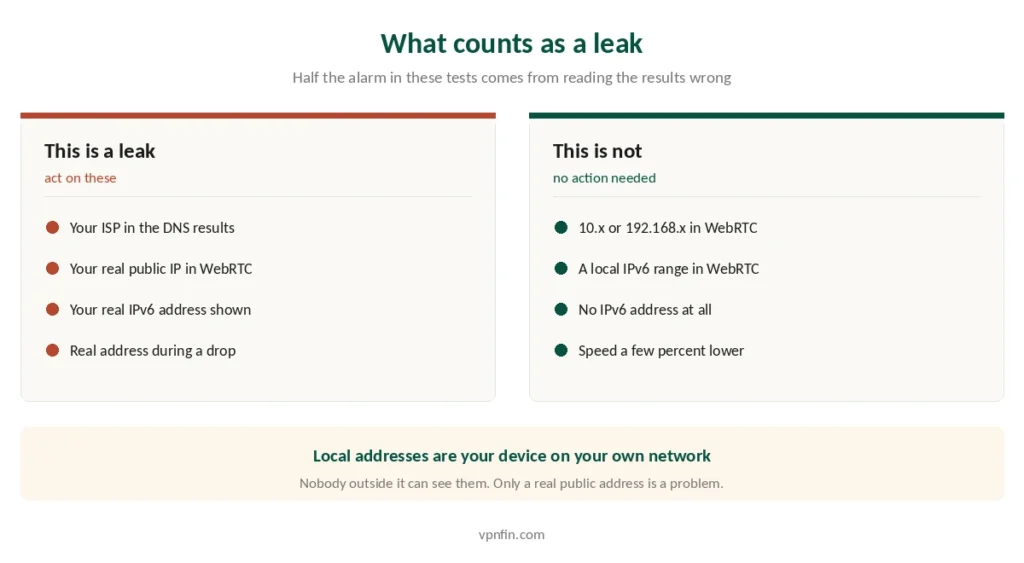
⚠️ Here is what most guides get wrong, and it causes needless alarm. The results will show local addresses beginning with 10., 192.168. or a local IPv6 range. Those are not leaks. They are your device’s address on your own network, visible to nobody outside it. Only a real public address in the WebRTC section is a problem.
What WebRTC is. A browser feature for video calls and peer-to-peer connections that can query your network directly, bypassing the tunnel. It is a browser behaviour rather than a VPN failure.
If it fails: Brave blocks WebRTC by default. In Firefox, set media.peerconnection.enabled to false in about:config. In Chrome, uBlock Origin has a WebRTC setting, or use the WebRTC Network Limiter extension.
Test 4: IPv6
Use a test that checks both — ipleak.net shows IPv4 and IPv6 together.
Pass: either no IPv6 address is shown, or the one shown belongs to your VPN.
Fail: your real IPv6 address appears.
Why this happens. Most home connections now provide both IPv4 and IPv6. Many VPNs tunnel only IPv4, so IPv6 traffic leaves in the clear — and browsers prefer IPv6 when a site supports it, which most large sites now do. Our page on whether VPNs work covers what a VPN protects, what it does not and how to check it.
If it fails: enable “block IPv6” or “IPv6 leak protection” in your VPN app. If there is no such setting, disabling IPv6 on the network adapter works, at some cost to speed on IPv6-capable sites.
Test 5: The Kill Switch
The one worth doing properly, because failure here is invisible until it matters.
- Connect the VPN with the kill switch enabled
- Open a what-is-my-IP page and confirm the VPN address
- Disconnect your Wi-Fi for three seconds, then reconnect
- Reload the page immediately
Pass: the page fails to load until the VPN reconnects.
Fail: your real address appears, even briefly.
⚠️ On many apps the kill switch is off by default. Check the setting before concluding it is broken — and in testing of thirty providers, fourteen failed this test outright.
⚠️ And treat the indicator as a claim rather than a measurement. A bug in macOS 14 caused firewall rules of the type many kill switches rely on to be silently ignored — the app reported that traffic was blocked while packets left the interface. Apple fixed it, and the lesson generalises: a switch that says “protected” is reporting its own intention, as our Mac guide covers.
Why VPNs Leak, and Why It Is Usually Not the Provider
Four causes, and three of them sit in your operating system or browser.
Your operating system helps in ways nobody updated for tunnels. Windows sends DNS to every adapter at once. iOS leaves connections opened before you connected running outside the tunnel, and no app can close them. macOS once exempted around fifty Apple applications entirely, removed the list, and now offers a checkbox that does the same thing with your consent.
Your browser does its own DNS. Chrome and Firefox support DNS over HTTPS, which resolves domains independently of the operating system and therefore of your VPN. ⚠️ And a browser extension is its own separate layer — a Chrome proxy add-on covers the browser and nothing else, so a test that passes in one browser can fail in another on the same machine.
IPv6 was an afterthought for VPN clients built when IPv4 was the whole internet.
And the kill switch may simply be off, or may be reporting rather than enforcing. ⚠️ The same switch causes the opposite symptom when it stays armed after a reconnection, leaving you connected with nothing loading at all.
⚠️ Android is the exception worth knowing about: it ships a system-level kill switch in Settings that survives crashes and reboots, which no app-level version can match.
Retest, and Retest Somewhere Else
This is the part that separates a working setup from one that worked once.
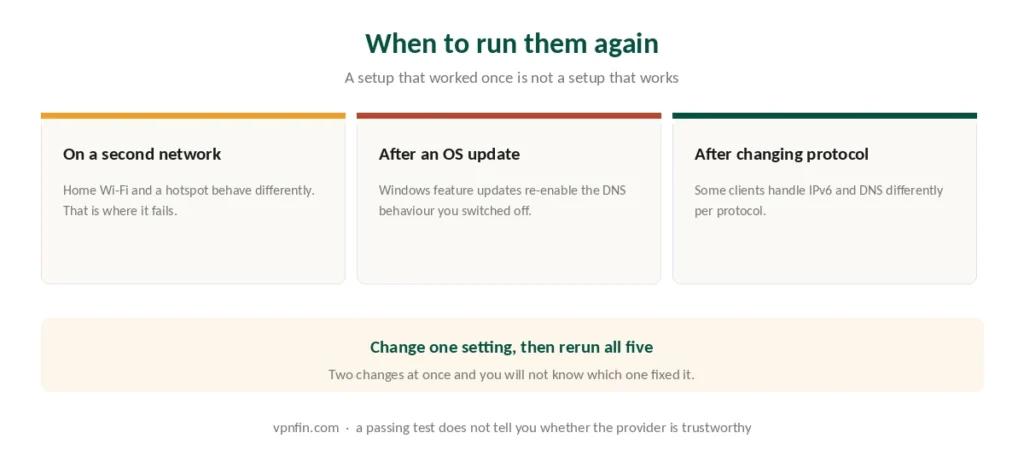
Test on a second network. Home Wi-Fi and a café or hotel connection behave differently, because the active adapters differ and captive portals interfere. A configuration that passes at home routinely fails on a hotspot — which is exactly where the risk is higher.
Retest after operating system updates. Not security patches — the large ones that change the version number. On Windows those re-enable the DNS behaviour described above.
Retest after VPN app updates and after changing protocol. Switching between WireGuard and OpenVPN changes how IPv6 and DNS are handled in some clients.
⚠️ Change one thing at a time and rerun all five. Two changes at once and you will not know which one fixed it — or which one broke something else.
If It Still Leaks
Contact support with specifics, not symptoms. Which test failed, which site you used, which server and protocol, your operating system version, and the time. Vague reports get vague answers.
If support cannot resolve a DNS or IPv6 leak, that is a product problem rather than a configuration one. The providers we rate highest handle both at the client level so you do not have to.
And check what you are trusting in the first place. A VPN that leaks nothing still sees everything you do — which is why published audits matter more than any leak test. Free services are the most common source of trouble here, and the least accountable.
For deeper checks, see our WebRTC leak guide and our IPv6 leak guide.
How We Research
This guide draws on published leak-testing methodology from named technical sources, provider documentation on DNS and IPv6 handling, our own reviews of the providers named, and the platform behaviours we documented separately for Windows, macOS, iOS and Android — cross-checked and verified at publication. We don’t run our own leak tests against providers, and we do not publish a table of which VPN leaks this month, because that changes with every client update. The test order here follows what published sources agree finds problems fastest. Our full approach lives on the About Us page.
VPN Testing FAQ
It means a tunnel was established, which is not the same thing. The icon says nothing about whether your DNS queries travel through it, whether your browser is announcing your real address separately, or whether your kill switch will fire when the connection drops. Those need separate tests.
Connect your VPN, open dnsleaktest.com and run the extended test. Every server listed should belong to your VPN provider. If your internet provider appears anywhere, queries are escaping the tunnel. On Windows this is usually the operating system rather than the VPN.
No, and this causes needless alarm. Addresses beginning with 10. or 192.168. are your device’s address on your own network, visible to nobody outside it. Only a real public address appearing in the WebRTC section is an actual leak.
Connect with the kill switch enabled, open a what-is-my-IP page, disconnect your Wi-Fi for three seconds, reconnect and reload immediately. The page should fail to load until the VPN reconnects. If your real address appears even briefly, the switch is off or not working.
After every major operating system update, after VPN app updates, and whenever you change protocol. Also test on a second network: setups that pass on home Wi-Fi routinely fail on hotspots, where the active adapters differ and captive portals interfere.
The Verdict
The icon tells you a tunnel exists. Five tests tell you what is going through it.
Run them in order — IP, DNS, WebRTC, IPv6, kill switch — and the first failure usually explains the rest.
Then run them again on a different network, because that is where setups quietly stop working.
And remember what a passing test does not prove. It shows your traffic is going where you expected. Whether the company at the other end is worth that trust is a separate question, and no test on your machine can answer it.