
Disclosure: VPNFin is reader-supported. If you buy a VPN through links on this page, we may earn a commission at no extra cost to you. This never affects our ratings — here’s our full disclosure.
Surfshark on Android TV makes most sense in a house with several televisions. Surfshark allows unlimited simultaneous connections, so the living-room TV, the bedroom Google TV and an Nvidia Shield can all run it on one subscription. Its Android TV app is in the Google Play Store, and Surfshark’s own support page lists the full set of controls: CleanWeb, Bypasser, a kill switch, auto-connect and a choice of protocol.
This guide covers setup, the settings Surfshark’s support page describes, and the problems that come up most often.
Surfshark on Android TV: The Short Answer
Install Surfshark from the Google Play Store on the TV, sign in, and connect. Surfshark’s download page confirms it works on Android TVs listed in Google Play.
Then turn on the kill switch and auto-connect under Settings, VPN settings, as Surfshark’s support page describes.
Use Bypasser for local apps that must see your real location, such as a local TV service or a banking app. Our Surfshark review covers the service as a whole.
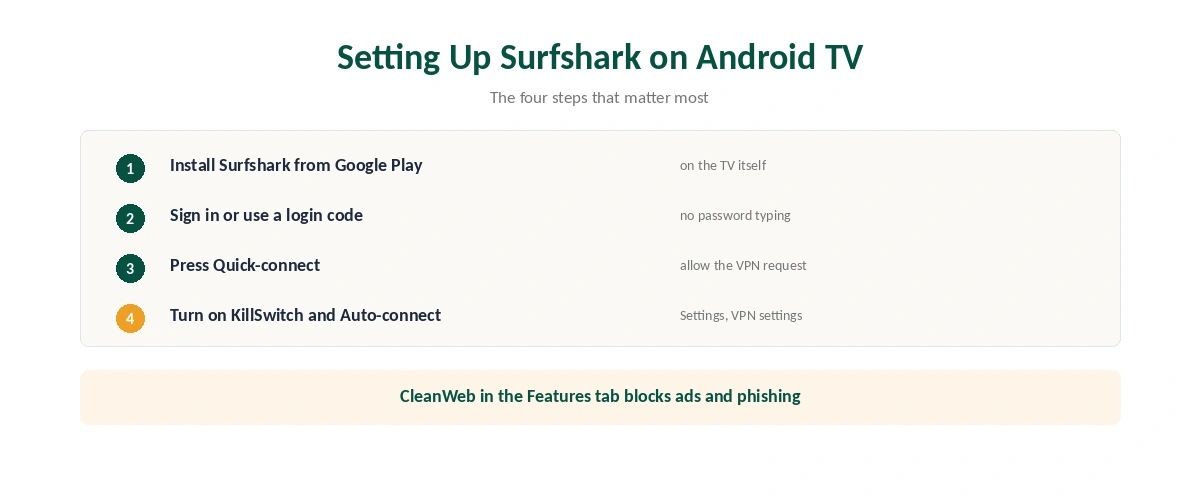
Setting Up Surfshark on Android TV
| Step | What to do | Note |
|---|---|---|
| 1 | Open the Google Play Store on the TV | Android TV and Google TV |
| 2 | Search Surfshark and install | Free to download |
| 3 | Sign in, or use a login code | Enter the code in the phone app’s account settings |
| 4 | Press Quick-connect | Allow the VPN request once |
| 5 | Turn on KillSwitch and Auto-connect | Settings, VPN settings |
| 6 | Turn on CleanWeb if you want ad blocking | In the Features tab |
The login code saves typing a password with a remote. Surfshark’s support page lists Enter a login code under My account; the phone app generates or accepts the code.
The same app runs on Sony and other Android TV sets, Nvidia Shield and Chromecast with Google TV. Our Chromecast guide explains which Chromecasts can run apps.
The Settings Worth Knowing
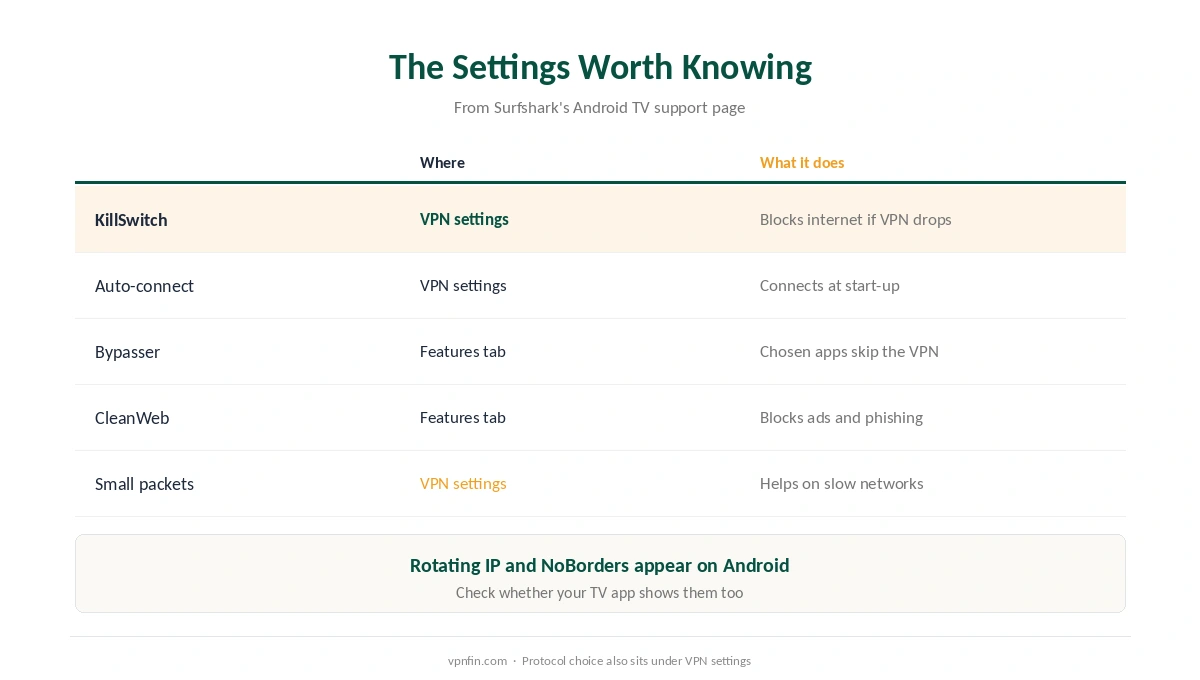
| Setting | Where | What it does |
|---|---|---|
| KillSwitch | Settings, VPN settings | Blocks internet if the VPN drops |
| Auto-connect | Settings, VPN settings | Connects when the TV starts |
| Bypasser | Features tab | Lets chosen apps skip the VPN |
| CleanWeb | Features tab | Blocks ads, trackers and phishing |
| Small packets | Settings, VPN settings | Helps on slower networks |
| Protocol | Settings, VPN settings | WireGuard or OpenVPN |
Small packets is the unusual one in Surfshark on Android TV. Surfshark says it improves connectivity on slower networks, which makes it worth trying on a TV far from the router. Our split tunnelling guide explains how Bypasser works.
Extra Features From the Android App
Surfshark’s Android support page lists more settings than its TV page: Rotating IP, which changes your address every five to ten minutes without disconnecting; NoBorders, for restrictive networks; and Override GPS location. Check whether your version of Surfshark on Android TV shows them, since the TV page does not list them.
NoBorders is the one that matters when travelling. It helps the app connect where networks restrict VPN traffic, as our obfuscation guide explains. For everyday home use, the kill switch matters more, as our kill switch guide describes.
Unlimited devices is the headline. Our multi-device guide compares Surfshark’s policy with the limits other providers set. After setup, our guide to checking a VPN shows how to confirm the TV’s new address.
What Breaks, and How to Fix It
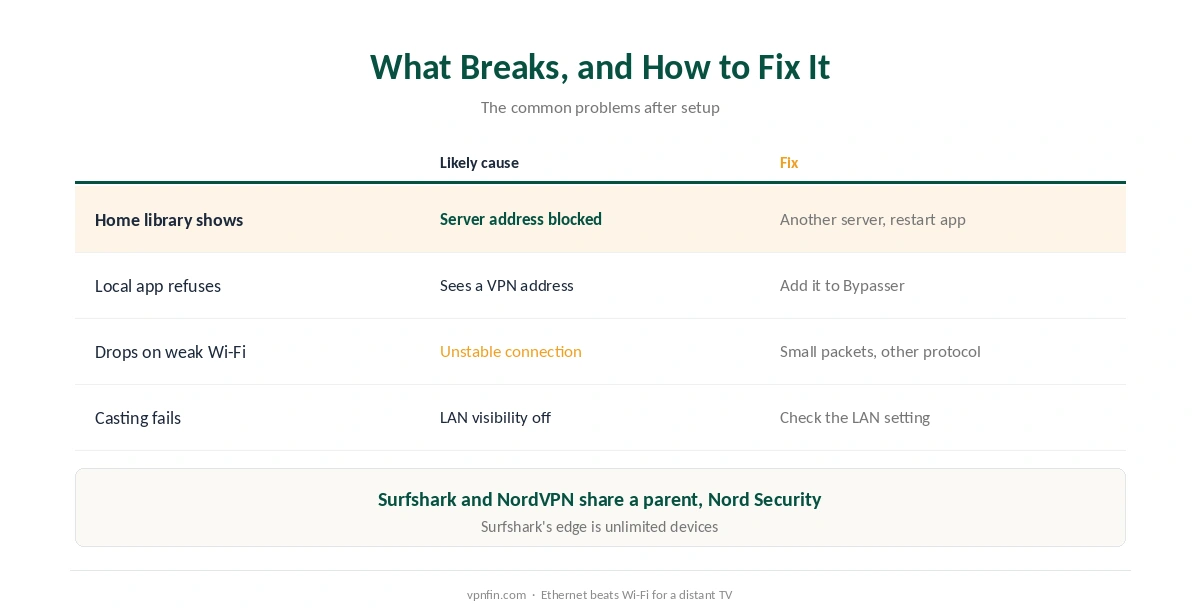
A streaming app shows your home library. Services block known VPN addresses; switch to another server in the same country and restart the app. Our Surfshark and Netflix page covers recent test results.
A local app refuses to work. Add it to Bypasser so it uses your normal connection.
Connections drop on weak Wi-Fi. Turn on Small packets, try the other protocol, or connect the TV by Ethernet. Our guide to dropping connections covers other causes.
Casting or local devices stop appearing. On Surfshark’s Android apps, the LAN setting controls whether the device is visible on your home network. Our smart TV guide covers televisions without the Play Store.
Surfshark or NordVPN on Android TV?
Both have full Android TV apps with a kill switch and split tunnelling. Surfshark’s case is unlimited devices at a lower price; NordVPN’s is a longer audit record. The two share a parent company, Nord Security. Our NordVPN on Android TV guide covers the alternative, and our Surfshark on Firestick guide covers Amazon devices.
How We Research
The settings and features come from Surfshark’s support pages for Android TV and Android and its Android download page. The login-code detail comes from an unofficial mirror of Surfshark’s help pages, and device coverage from Impulsec. We name each source where used; all were read on 26 September 2026. We did not test on an Android TV ourselves. Our full approach lives on the About Us page.
Surfshark on Android TV FAQ
Search for Surfshark in the Google Play Store on the TV, install it, sign in or use a login code, and press Quick-connect.
Yes. Turn it on under Settings, VPN settings. It blocks internet access if the VPN connection drops.
As many as you like. Surfshark allows unlimited simultaneous connections.
Surfshark’s split tunnelling feature. It lets chosen apps or websites use your normal connection instead of the VPN.
Surfshark says it improves connectivity on slower networks. Try it if the TV’s connection keeps dropping.
The Verdict
Surfshark on Android TV is a straightforward Play Store install, and unlimited devices make it a natural fit for a house full of screens.
Turn on the kill switch and auto-connect, use Bypasser for local apps, and try Small packets if the Wi-Fi is weak.