
Disclosure: VPNFin is reader-supported. If you buy a VPN through links on this page, we may earn a commission at no extra cost to you. This never affects our ratings — here’s our full disclosure.
Installing NordVPN on Android TV is the easy part: the app is in the Google Play Store on Android TV and Google TV devices, and has been since 2018. What trips people up comes afterwards. Casting stops working, a streaming app refuses to load, or the connection drops overnight. Often the cause is one of four settings in NordVPN’s own app.
This guide covers setup on Android TV, Google TV, Nvidia Shield and Chromecast with Google TV, then works through those settings using NordVPN’s own support documentation.
NordVPN on Android TV: The Short Answer
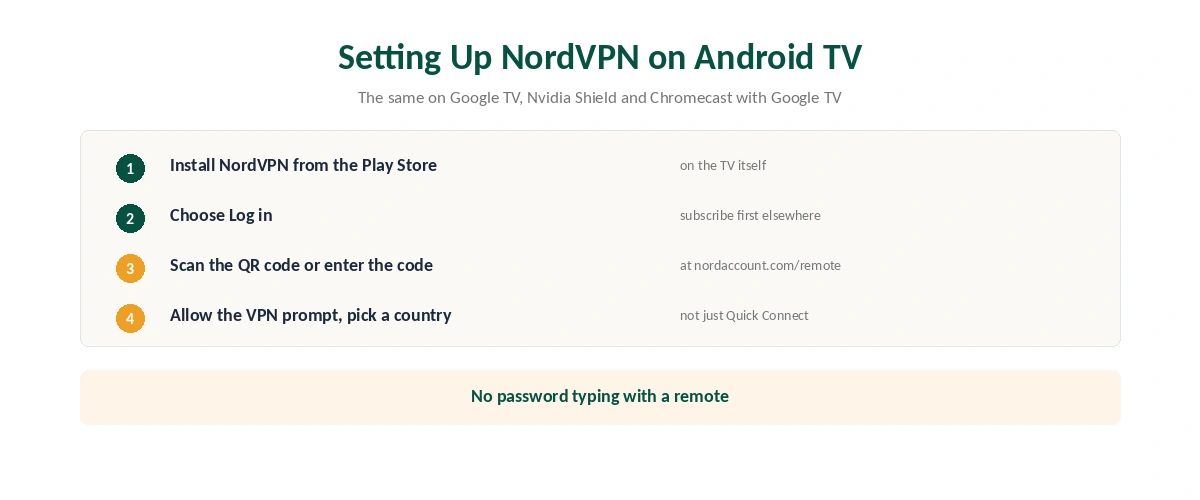
Install NordVPN from the Google Play Store, open it, choose Log in, and link the TV by scanning the QR code or entering the code at nordaccount.com/remote, as Experte describes.
If casting or your printer stops working, turn on the setting that makes the device visible on your local network; NordVPN’s support page says to do exactly that.
If a streaming app misbehaves, check you have not set a custom DNS server, which NordVPN warns can cause streaming problems. Our NordVPN review covers the service more broadly.
Setting Up NordVPN on Android TV
| Step | What to do | Note |
|---|---|---|
| 1 | Open the Google Play Store on the TV | Works on Android TV and Google TV |
| 2 | Search NordVPN and install | Free to download |
| 3 | Open the app and choose Log in | Subscribe first on a phone or computer |
| 4 | Scan the QR code, or enter the code at nordaccount.com/remote | No typing passwords with a remote |
| 5 | Allow the VPN connection request | A one-time system prompt |
| 6 | Pick a country, not just Quick Connect | Useful for streaming libraries |
Android TV and Google TV are the same system underneath, so the steps match on Sony, Hisense and Philips televisions, Nvidia Shield and Chromecast with Google TV. NordVPN’s own download page lists Chromecast with Google TV among supported devices. Our Chromecast guide covers casting-only models that cannot run apps.
The Four Settings That Break Things
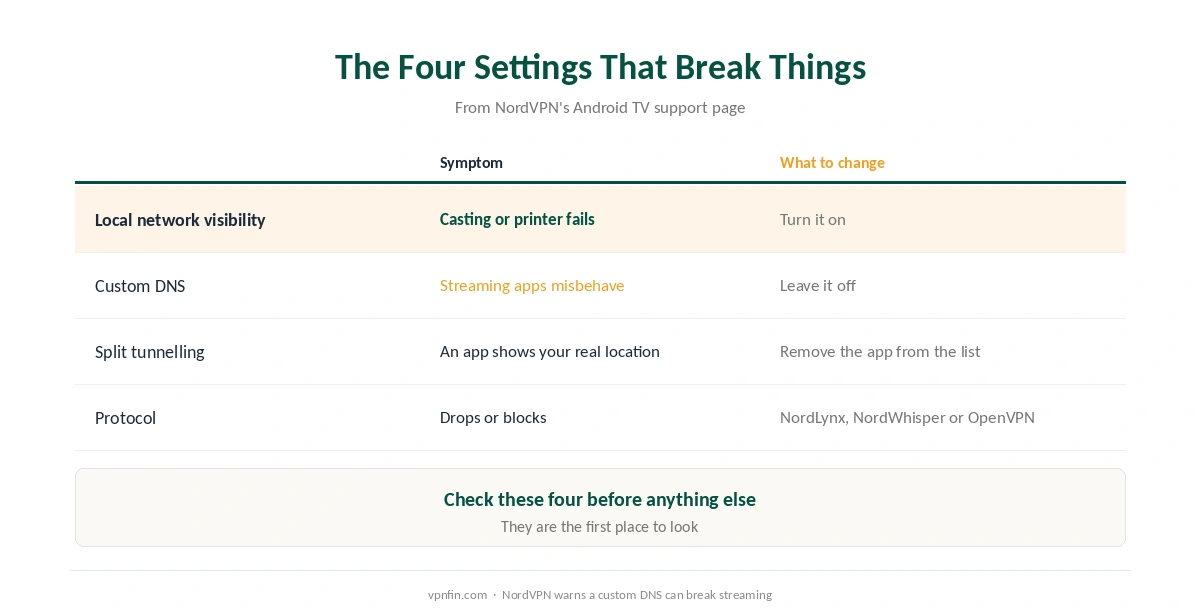
1. Local network visibility. NordVPN’s support page explains that when this is off, the device is invisible on your local network, which is safer. If you cannot reach your TV from a phone or a printer, turn it on. This is the usual cause of casting failing once the VPN connects.
2. Custom DNS. The app lets you set your own DNS server, which overrides NordVPN’s. NordVPN warns this can cause issues with streaming services, so leave it off unless you need it. Our DNS leak guide explains why DNS matters.
3. Split tunnelling. This excludes chosen apps from the VPN. It is useful for a banking or local app, but an app you forgot you excluded will show your real location. Our split tunnelling guide covers how it works.
4. Protocol. The Android TV app offers NordLynx, NordWhisper, OpenVPN over TCP and OpenVPN over UDP. NordLynx is fastest; NordWhisper disguises traffic on restrictive networks, as our obfuscation guide explains. Our WireGuard and OpenVPN comparison explains the difference.
Auto-Connect and the Kill Switch
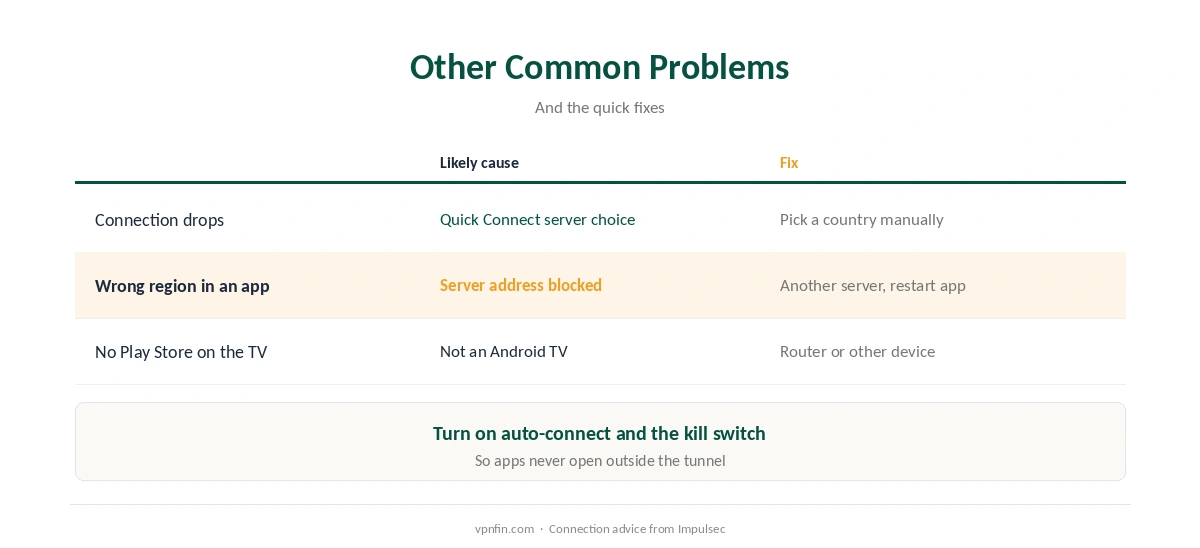
Set NordVPN on Android TV to connect automatically when the device starts, so streaming apps never open outside the tunnel. Then turn on the kill switch, which blocks traffic if the connection drops, as our kill switch guide explains.
Check it is working after any change, by confirming the IP address the TV shows, as our guide to checking a VPN describes. If you only want streaming access rather than encryption, our Smart DNS comparison explains the lighter alternative.
Other Common Problems
The connection keeps dropping. For NordVPN on Android TV, Impulsec suggests choosing a country manually rather than relying on Quick Connect. It also suggests trying each protocol in turn. Our guide to dropping VPN connections covers the other causes.
A streaming app still shows the wrong region. Services block known VPN addresses; switch to another server in the same country and restart the app. Our Netflix guide explains why this happens.
Your TV has no Play Store. Some televisions run their own systems rather than Android TV, and our smart TV guide covers the alternatives, including router setups. For Amazon devices, see our NordVPN on Firestick guide.
How We Research
The settings detail comes from NordVPN’s support page for Android TV and Nvidia Shield, the sign-in method from Experte, and device support from NordVPN’s download page. Impulsec supplied the connection advice. We name each source where used; all were read on 26 September 2026. We did not test on an Android TV ourselves. Our full approach lives on the About Us page.
NordVPN on Android TV FAQ
Search for NordVPN in the Google Play Store on the TV, install it, choose Log in, and link it by scanning the QR code or entering the code at nordaccount.com/remote.
Local network visibility is probably off, which hides the device on your network. NordVPN’s support page recommends turning it on if you cannot reach your TV or printer.
Yes. Google TV runs on Android TV, and NordVPN lists Chromecast with Google TV among supported devices. Older casting-only Chromecasts cannot run the app.
NordLynx for speed. Try NordWhisper on restrictive networks, or OpenVPN over TCP if connections keep dropping.
Either the app is excluded through split tunnelling, a custom DNS is set, or the service has blocked that server. Check the first two, then switch server.
The Verdict
NordVPN on Android TV installs in minutes from the Play Store, and QR-code sign-in spares you typing a password with a remote.
When something breaks, check the four settings first: local network visibility, custom DNS, split tunnelling and protocol. They are the first place to look.