
Disclosure: VPNFin is reader-supported. If you buy a VPN through links on this page, we may earn a commission at no extra cost to you. This never affects our ratings — here’s our full disclosure.
You disconnect the VPN and the internet goes with it. Wi-Fi shows connected, mobile data shows connected, and nothing loads.
Nothing is broken. A setting called Block connections without VPN is doing exactly what it promises. It cuts all traffic whenever the tunnel is down, including when you switched it off on purpose.
⚠️ And we told you to turn it on. Our Android guide recommends both system toggles, because they are the best free protection Android offers. This is the same fact from the other side: the switch that protects you when the tunnel drops unexpectedly also stops you when you drop it deliberately.
Here is how to turn it off without losing your connection, and the two other things that cause this.
The Short Answer
Settings → Network & Internet → VPN → gear icon → turn off Block connections without VPN. On Samsung: Settings → Connections → More connection settings → VPN.
Leave Always-on VPN enabled if you want, and turn off only the second toggle. That keeps automatic reconnection without the lockdown.
Your VPN app has its own kill switch too, and it behaves differently — most do not block traffic when you disconnect manually.
If nothing works and you are on Android 16, there is a known operating system bug that a reboot usually clears.
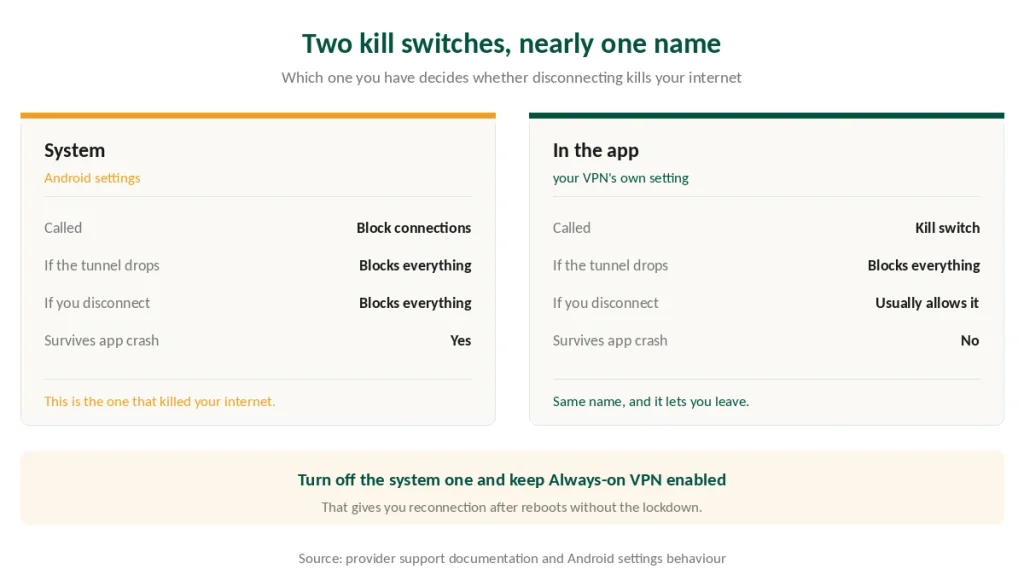
Two Kill Switches, Nearly the Same Name
This is the distinction that resolves most confusion, and almost no guide draws it.
The system one lives in Android settings. Enabling Block connections without VPN shows a warning that says you will have no internet until the VPN connects — and it means it, including when you disconnect on purpose.
The app one lives in your VPN app, and typically behaves differently. ExpressVPN documents this plainly: its own kill switch does not block connectivity when you disconnect manually, only when the connection drops unexpectedly.
⚠️ So if the internet dies the moment you press disconnect, it is the system switch rather than the app. If it dies only when the connection drops on its own, it is the app doing its job.
One more variant to know about. Google One’s VPN had a “block internet if VPN disconnects” option that Android’s own settings did not recognise as an always-on VPN, so it could not be controlled from the usual place. If a setting is behaving like a kill switch but does not appear in system settings, look inside the app.
Turning It Off, in Order
1. Disconnect in the app first. If the internet still works, you are done and nothing below applies.
2. If the internet died, open the system VPN settings:
- Most Android: Settings → Network & Internet → VPN
- Samsung: Settings → Connections → More connection settings → VPN
- Some builds: Settings → Connection & Sharing → VPN
3. Tap the gear icon beside your VPN, not the name itself.
4. Turn off Block connections without VPN. The internet should return immediately.
5. Decide about Always-on VPN separately. Turning this off stops automatic reconnection after reboots and crashes. Leaving it on while the second toggle is off gives you reconnection without lockdown, which is what most people actually want.
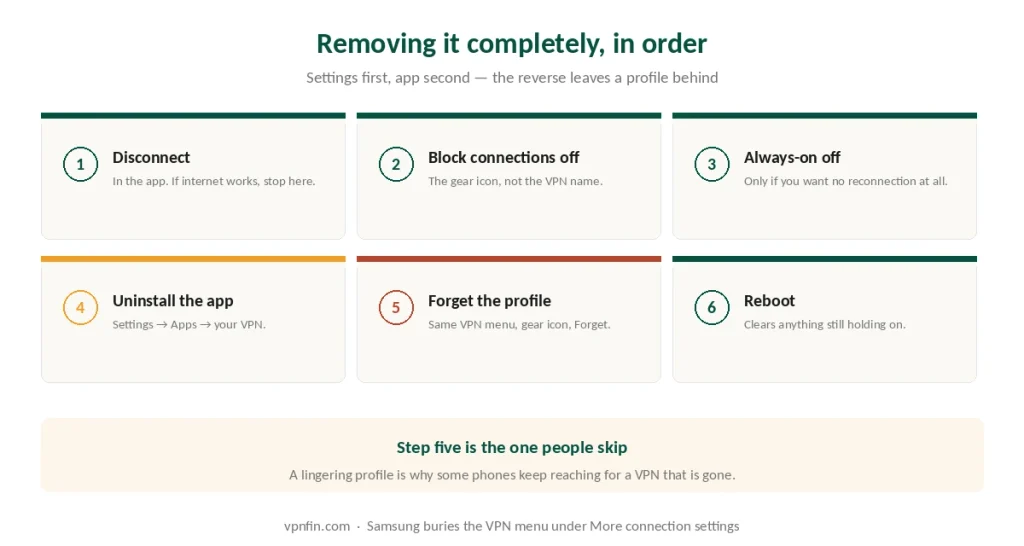
⚠️ Do not uninstall the app while Always-on is enabled. Remove the settings first, then the app, then any leftover connection under the same menu — tap the gear and select Forget. A lingering profile makes the phone try to reconnect to a server no app can reach.
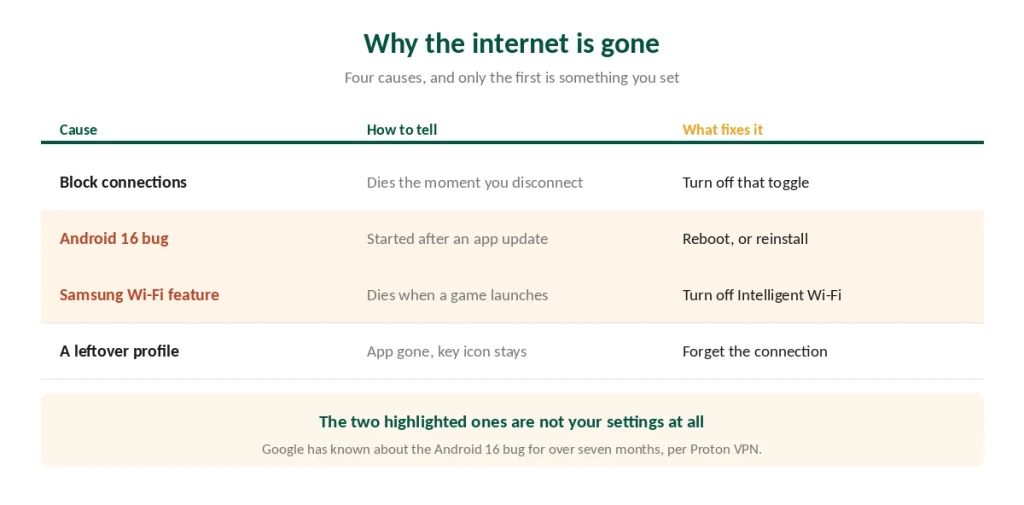
Three Things That Are Not Your Settings
If the toggles are off and it still misbehaves, one of these is likely.
The Android 16 bug. When a VPN app updates in the background, the operating system’s network stack can be left in a state where connectivity never returns. Proton VPN, Mullvad and Windscribe have all reported it publicly, and Proton says Google has been aware for more than seven months without a fix.
The workaround is a reboot, or reinstalling the VPN app. That is unsatisfying, and it is currently the whole answer.
Samsung kills the tunnel on purpose. Two Samsung features do this. Intelligent Wi-Fi prioritises traffic for games and apps it decides need uninterrupted connectivity, and in doing so terminates the streams the system VPN is using. It is found under Settings → Connections → Wi-Fi → three-dot menu → Intelligent Wi-Fi. Game Booster in performance mode closes background processes including the VPN app.
A work or school profile. If your organisation manages the device, the VPN is theirs and the toggles will be locked. That is policy rather than a fault, and it is a conversation with IT.
Removing It Completely
The order matters, for the same reason it does on iPhone.
- Disconnect the VPN
- Turn off Block connections without VPN
- Turn off Always-on VPN
- Uninstall the app: Settings → Apps → your VPN → Uninstall
- Remove the leftover connection: Settings → Network & Internet → VPN → gear → Forget
- Reboot
⚠️ Step five is the one people skip. Android usually cleans up after itself, but always-on rules can linger, and a stale profile is why some phones keep trying to connect to a VPN that is no longer installed.
⚠️ If you have used more than one VPN, check that menu for old profiles. Multiple configurations conflict, and the symptom looks like a possessed phone. Windows has the same problem in a worse form, where leftovers can block the connection entirely.
Why People Turn It Off, and What to Do Instead
Four reasons come up repeatedly, and three have a better answer than switching everything off.
Your banking app refuses to log in. Common, and the fix is split tunnelling rather than disconnecting — exclude the banking app and leave everything else protected. Our banking guide covers why banks treat shared VPN addresses as a fraud signal.
A streaming service blocks you. Switch server rather than switching off. If that fails repeatedly, the provider is the problem.
The connection feels slow. Try a closer server and a different protocol before concluding the VPN is at fault.
You want local devices — printers, drives, casting. Split tunnelling again, or a per-app exclusion.
⚠️ Only the last case genuinely requires the tunnel down, and even then only for that session.
And know what you give up. Your internet provider sees which sites you contact again — what a VPN actually hides sets out exactly what changes, and on a network you do not control that calculation is different.
Turning It Back On Properly
Re-enable Always-on VPN and leave the second toggle off if the lockdown was the problem. You get reconnection after reboots without losing internet when you disconnect deliberately.
Then verify it, rather than trusting the icon. Five tests, ten minutes — a key symbol in the status bar tells you a tunnel exists, not what is going through it.
⚠️ And set battery optimisation for the VPN app to unrestricted, or Android will shut it down in the background and you will be back here. Our Android guide covers that alongside the system toggles.
Troubleshooting: our fix guides cover a VPN not working on Android.
How We Research
This guide draws on Android’s own settings behaviour as documented by provider support pages including ExpressVPN’s, published reporting on the Android 16 connectivity bug and the statements Proton VPN, Mullvad and Windscribe made about it, Samsung community threads documenting Intelligent Wi-Fi and Game Booster behaviour, and our own Android guide — cross-checked and verified at publication. Menu paths differ by manufacturer, so we list the common variants rather than assuming yours matches. We do not publish steps for removing work or school management profiles. Our full approach lives on the About Us page.
Android VPN FAQ
Because Block connections without VPN is enabled. That system setting cuts all traffic whenever the tunnel is down, including when you disconnect deliberately. Turn it off under Settings, Network and Internet, VPN, then the gear icon beside your connection. Always-on VPN can stay enabled.
Settings → Connections → More connection settings → VPN. Samsung moves it a level deeper than stock Android. Two other Samsung features can also interrupt a VPN: Intelligent Wi-Fi, which prioritises traffic for games, and Game Booster in performance mode, which closes background apps.
Turn off Always-on VPN in the same menu, and check your VPN app for auto-connect or trusted-network settings. Leaving Always-on enabled while switching off Block connections without VPN gives you automatic reconnection without losing internet when you disconnect.
Remove the leftover connection: Settings, Network and Internet, VPN, tap the gear beside the old entry and select Forget. Always-on rules can linger after an app is removed, which makes the phone keep reaching for a server that no longer answers.
Yes. On Android 16, a background update to a VPN app can leave the network stack unable to restore connectivity. Proton VPN, Mullvad and Windscribe have all reported it, and Proton says Google has been aware for over seven months. A reboot or reinstalling the app is the current workaround.
The Verdict
If the internet died when you disconnected, that is Block connections without VPN, and it is working correctly. Turn off that one toggle and leave Always-on enabled — reconnection without lockdown is the setting most people actually want.
Two kill switches share nearly the same name and behave differently. The system one blocks manual disconnects; most app ones do not.
If neither explains it and you are on Android 16, reboot. There is a known bug, Google has known about it for months, and a restart is currently the fix.
And remove settings before apps. A leftover profile is why some phones keep reaching for a VPN that is no longer there. Our page on how to turn off CyberGhost covers disconnecting, uninstalling and restoring network settings.