
Disclosure: VPNFin is reader-supported. If you buy a VPN through links on this page, we may earn a commission at no extra cost to you. This never affects our ratings — here’s our full disclosure.
Windscribe for PC is one of the more configurable Windows VPN apps. TechRadar lists WireGuard, OpenVPN, IKEv2, Stealth and WStunnel among its protocols, found connections took one to two seconds, and saw no DNS or other leaks on Windows 10 with the firewall on. The firewall, Windscribe’s kill switch, has three modes in its open-source desktop code, including one that keeps blocking traffic after a reboot.
This guide covers setup, the firewall modes, protocols, split tunnelling, the free plan on Windows and the settings worth changing.
Windscribe for PC Setup
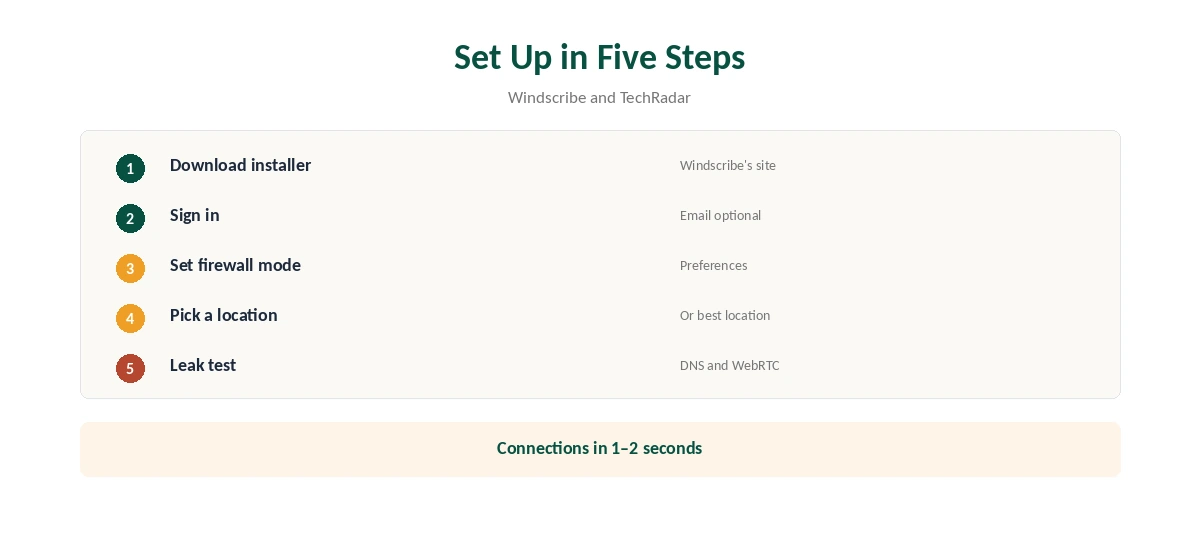
Download the installer from Windscribe’s site, run it and sign in, or create an account without an email. The app opens to a location list; pick a server or let it choose the best location, then connect. TechRadar timed connections at one to two seconds.
Before relying on it, open Preferences and set the firewall mode, since that decides what happens if the tunnel drops. Our Windows VPN guide compares Windscribe’s app with other providers’ Windows clients.
The Firewall and Its Three Modes
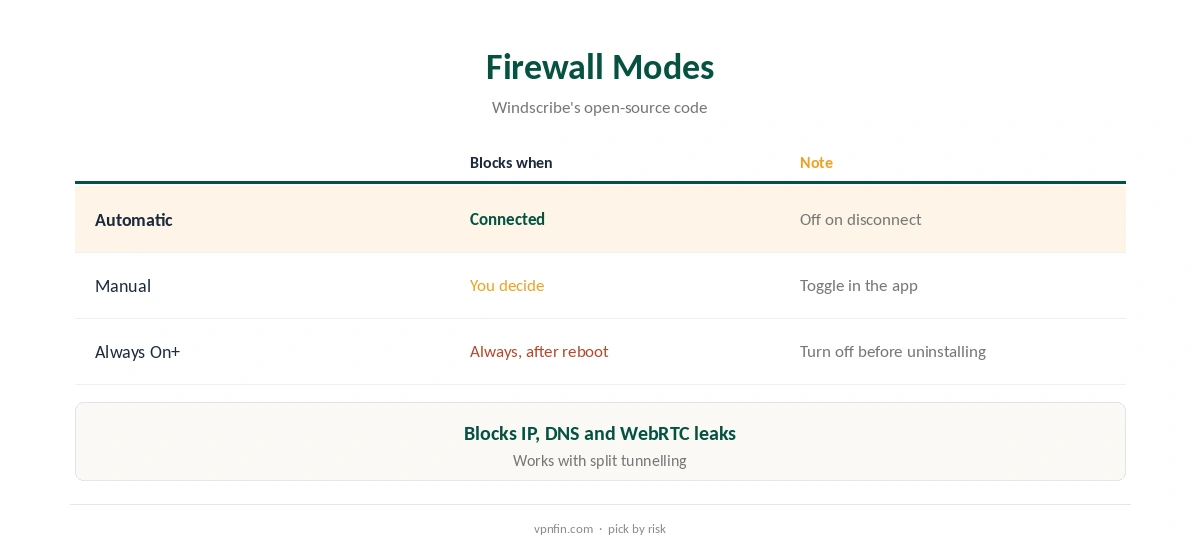
Windscribe’s open-source desktop code describes three firewall modes. Automatic turns the firewall on when you connect and off when you disconnect. Manual leaves the switch to you. Always On+ keeps blocking non-VPN traffic even after you disconnect or restart Windows, using the Windows Filtering Platform.
The firewall blocks IP, DNS and WebRTC leaks, the code notes, which is why TechRadar found no leaks with it on. Always On+ is the strictest mode; turn it off before uninstalling, or Windows may be left without internet. Our kill switch guide explains the trade-off.
Protocols on Windows
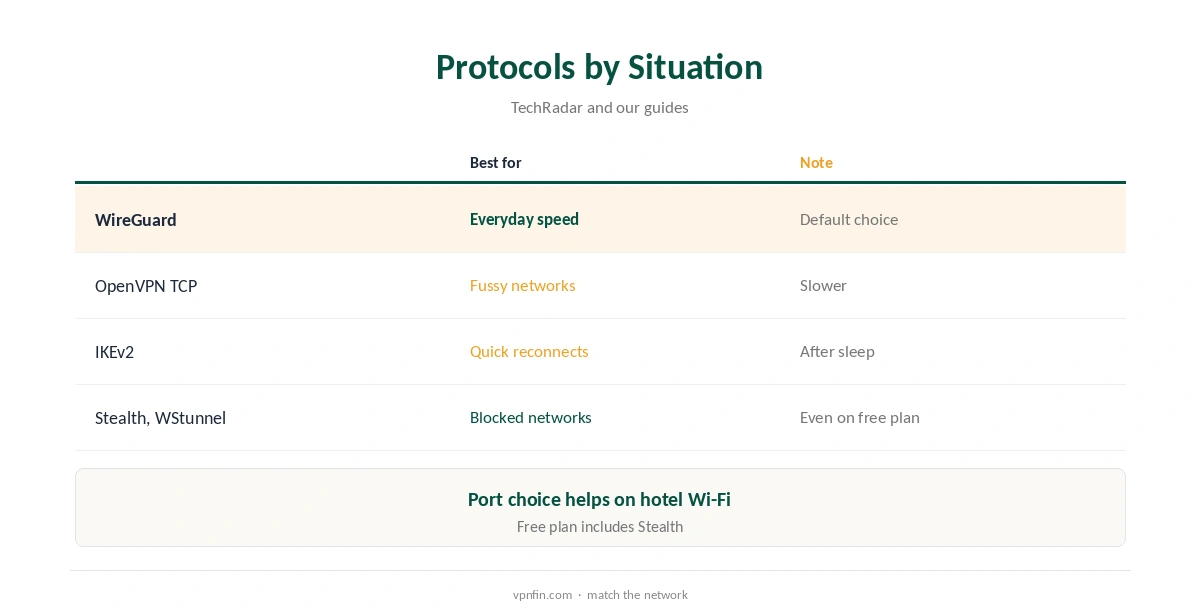
WireGuard is the fast everyday choice. OpenVPN over UDP or TCP helps on networks that dislike WireGuard, and IKEv2 reconnects quickly after sleep. Stealth and WStunnel wrap traffic to get past networks that block VPNs, which few free plans offer.
You can also choose the port, which helps on hotel or office networks that block common VPN ports. Our obfuscation guide explains how Stealth-type protocols work.
Split Tunnelling
Split tunnelling lets you choose which apps use the VPN and which bypass it, TechRadar notes. Exclude a local banking app or a game launcher, or include only a browser and a torrent client, depending on what you need protected.
The open-source code shows split tunnelling works alongside the firewall on Windows, so excluded apps can still reach the internet while the firewall guards the rest. Our split tunnelling guide explains inclusive and exclusive modes.
Advanced Settings Worth Knowing
TechRadar lists custom DNS, MAC address spoofing, network allow-listing and proxy support among the desktop settings. Allow-listing lets you mark your home network as trusted, so the VPN connects automatically only on others.
The R.O.B.E.R.T. tool blocks trackers and malware domains at the DNS level. Pro adds port forwarding on Pro or with a static IP, our tables record, which helps seeding and remote access to a home PC.
Windscribe for PC on Public Wi-Fi
Allow-listing lets you mark home and office networks as trusted, so the app connects automatically on every other network, such as a café or airport. Combined with the firewall in Automatic mode, that covers most laptop routines without thinking about it.
On restrictive hotel or office Wi-Fi, switch to Stealth or WStunnel, or change the port. Our public Wi-Fi guide explains what an unprotected network exposes.
Free Plan on Windows
The free plan runs in the same Windows app, with 10 GB a month once you confirm an email, 2 GB without, and servers in 10 countries. There is no device limit, so a desktop and a laptop can share one free account and its allowance.
Pro costs $9 a month or $69 a year and unlocks every location and unlimited data, our tables record; the refund window is only seven days, and only under 10 GB of use. Our Windscribe Free guide covers the free plan’s limits.
Leak Testing
After setup, run our DNS leak guide and WebRTC leak guide with the firewall on. TechRadar’s tests on Windows 10 found no leaks, but browser extensions and custom DNS settings can change the result.
Test the firewall too: start a download, disconnect Wi-Fi, and confirm traffic stops rather than continuing outside the tunnel.
Turning It Off
Disconnect in the app for a quick break. To stop Windscribe completely, set the firewall to Automatic or Manual first, then quit the app from the system tray, so Always On+ does not keep blocking traffic.
To uninstall, use Windows’ Apps settings after switching the firewall off. Our guide to turning off a VPN on Windows covers leftover adapters and settings.
Privacy Record
Windscribe’s no-logs claim held up when a Greek court dismissed charges against its CEO in April 2025, TechRadar reported. The audit picture is less settled: Windscribe cites a 2024 PacketLabs infrastructure audit, while Security.org found no no-logs audit.
Our Windscribe safety guide covers the court case, the 2021 Ukraine seizure and the audit question in full.
How We Research
This page draws on TechRadar’s 2026 Windscribe review, Windscribe’s open-source desktop code on its firewall, and our Windscribe price, free plan and safety tables. We cross-checked these sources against each other, and where they conflict or something can’t be verified, we say so in the text rather than guessing. We checked time-sensitive figures, including prices in US dollars, on 8 October 2026. The main source we relied on is TechRadar’s Windscribe review. Our full approach lives on the About Us page.
Windscribe for PC FAQ
It has a full Windows app with WireGuard, OpenVPN, IKEv2, Stealth and WStunnel.
The firewall does that job, with Automatic, Manual and Always On+ modes.
It does, with 10 GB a month after confirming an email.
TechRadar found no leaks on Windows 10 with the firewall on.
Traffic may stay blocked; turn the mode off first.
The Verdict
Windscribe for PC packs a strong firewall, split tunnelling and Stealth into a free-plan-friendly Windows app. Set the firewall mode before relying on it.