Disclosure: VPNFin is reader-supported. If you buy a VPN through links on this page, we may earn a commission at no extra cost to you. This never affects our ratings — here’s our full disclosure.
The app says connected. Nothing loads. So you disconnect, reconnect, switch servers, and end up exactly where you started.
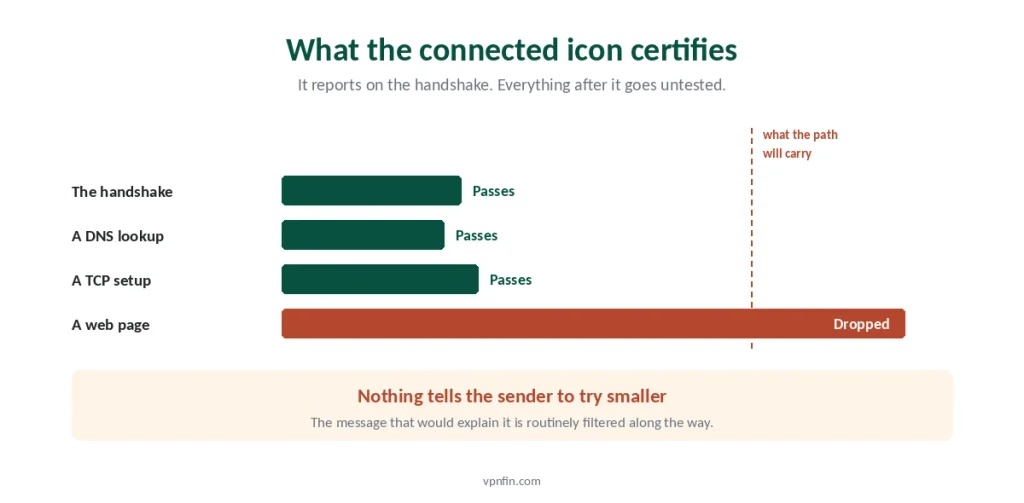
Here is why that loop never resolves anything. The icon is telling the truth about one thing and staying silent about everything after it. A VPN reports connected once the handshake completes, and a handshake is a handful of small packets. Every one of them fits. A web page does not.
So reconnecting re-runs the only part that already worked. The useful move is finding out which of the three later stages failed, and that takes about a minute.
Why Does My VPN Say Connected but Have No Internet?
Because connecting and carrying traffic are separate jobs. Three things fail after a successful handshake: DNS stops resolving names, packets grow too large for the path and get dropped silently, or a kill switch blocks everything after a partial failure. A short ping test tells you which one, and each has a different fix.
What “Connected” Actually Certifies
Worth understanding once, because it explains the whole category of problem.
The handshake is small. Key exchange, a DNS lookup, the TCP handshake — all of them are tiny packets that slip through almost any path.
Your actual traffic is not. A page of images, a video segment, a file upload — these fill packets to the maximum the link allows.
And nothing is obliged to tell you when they are dropped. When a packet is too large, a router is supposed to send back an ICMP message saying so. Firewalls along the way routinely filter those messages, so your device never learns to send smaller ones. It keeps sending the same oversized packets into a hole.
⚠️ That is why the app looks healthy while the browser hangs. The app is reporting on the part that succeeded. This is the same principle behind our position that a connection icon is a claim rather than a test — an indicator reports an intention, not a measurement.
The Sixty-Second Test
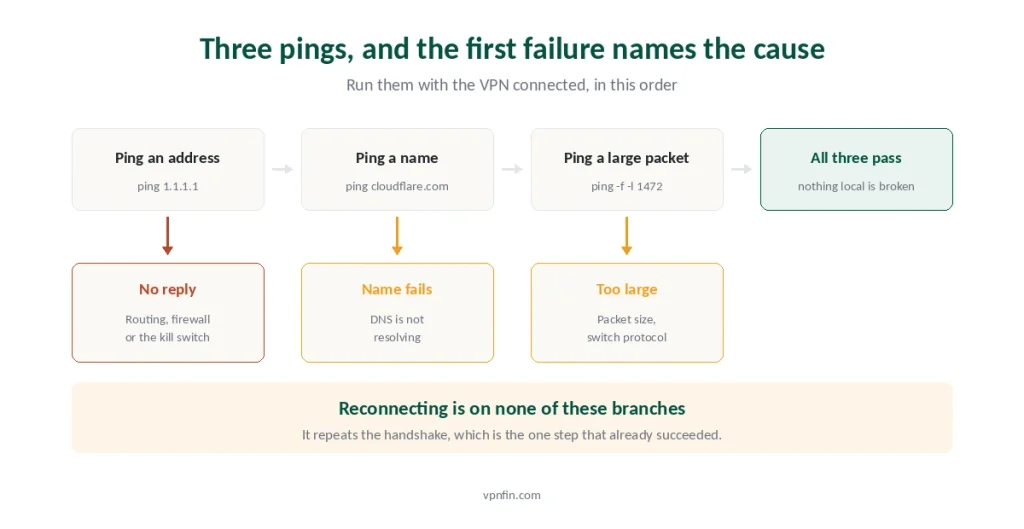
Three commands, and the answers narrow it to one cause. Open Command Prompt on Windows or Terminal on a Mac, with the VPN connected.
One: ping an address. Type ping 1.1.1.1 and press enter. Replies mean the tunnel carries traffic and routing works.
Two: ping a name. Type ping cloudflare.com. If the first test worked and this one fails, your problem is DNS and you can stop here.
Three: send a large packet. On Windows type ping -f -l 1472 1.1.1.1. On a Mac type ping -D -s 1472 1.1.1.1. If the small ping worked and this one reports that the packet needs fragmenting, or simply times out, your problem is packet size.
If nothing replies at all, the tunnel is not carrying traffic in either direction. That points at routing, a firewall, or the kill switch.
⚠️ Run the third test again with a smaller number — try 1372, then 1272. Finding the largest size that gets through tells you how far off you are, and it is the difference between guessing and knowing.
If It Is DNS
The most common single cause, and usually the easiest.
Let the app handle it. Most VPN clients offer to use the provider’s own DNS servers. Turn that on if it is off, and turn it off if it is on. Either change frequently resolves the problem, since one of the two configurations is failing.
Flush the cache. On Windows run ipconfig /flushdns. On a Mac run sudo dscacheutil -flushcache. Old entries pointing at unreachable servers cause exactly this symptom.
Check for servers left behind. A previous VPN may have written its own DNS addresses into your network settings and never removed them — this is a well-documented leftover on Windows and an equally common one on a Mac.
⚠️ On a router setup, the leftover lives one layer up. The router hands out DNS servers to every device, and those settings survive stopping the VPN client entirely.
If It Is Packet Size
This is the cause almost no consumer guide explains, and it produces the strangest symptom: some things work perfectly and others hang forever.
Every link has a maximum packet size. Ordinary Ethernet carries 1500 bytes. DSL over PPPoE carries 1492. Mobile connections often carry less, and a tunnel inside another tunnel less again.
A VPN adds its own headers. WireGuard needs roughly 60 to 80 bytes of overhead, which is why its interface defaults to 1420 rather than 1500. OpenVPN typically sits between 1400 and 1450.
When the sum exceeds what the path allows, packets die quietly. Small ones fit and succeed. Large ones do not, and the message that would explain it never arrives.
Most consumer apps hide the setting, which leaves you one useful lever.
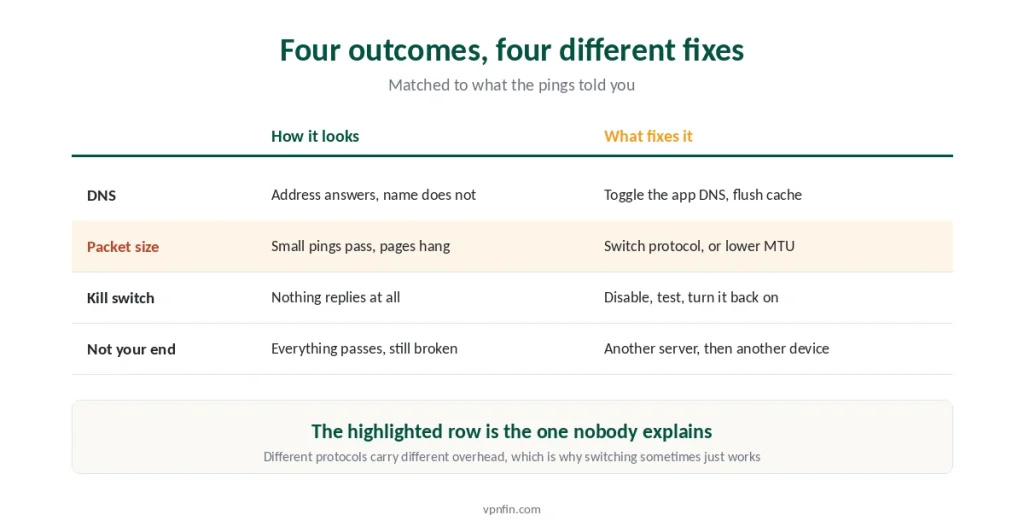
⚠️ Switch protocols, and now you know why it helps. Different protocols carry different overhead, so changing one changes the effective packet size — often by enough to fit. That is the entire mechanism behind advice everybody gives and nobody explains. What separates WireGuard from OpenVPN covers the rest of the trade.
If your client exposes an MTU field, lower it to 1400, test, then to 1280 if that fails. Mullvad and Proton VPN are among the clients that let you.
If It Is the Kill Switch
Sometimes the tunnel is fine and something on your own machine is blocking traffic on purpose.
It cannot always tell a crash from a hiccup. After a brief drop, some kill switches stay armed even though the app reconnected, which leaves you connected and blocked at the same time.
Test it by turning it off temporarily. Open the app’s settings, disable the kill switch, and see whether pages load. Turn it back on immediately afterwards either way.
⚠️ If that was the cause, the app has a bug worth knowing about, because a kill switch that stays armed after reconnection is not doing its job correctly. On a router the equivalent failure takes the whole house offline rather than one device.
Four Things Worth Ruling Out First
Quick checks, each about ten seconds.
A captive portal you never completed. Hotel and airport networks want you to accept terms before anything works, and a VPN connecting first prevents that page from ever appearing. Disconnect, complete the portal, reconnect — our public Wi-Fi guide covers what these networks actually see.
A clock that drifted. Encryption depends on accurate time. If your device’s clock is wrong by more than a few minutes, connections fail in confusing ways. Set it to automatic.
IPv6 going its own way. Some tunnels carry IPv4 only, so IPv6 traffic either leaks around them or vanishes. Most apps have an IPv6 setting worth toggling.
A second VPN you forgot about. A browser extension, a corporate client, or a router configuration can all be running underneath — and a browser extension covers the browser alone, which produces very confusing results when a desktop app is running too.
⚠️ If none of this applies and nothing has ever worked, the problem is likely at connection time rather than after it — our connection troubleshooting guide starts from the other end.
When It Is the Provider
Occasionally you have done nothing wrong.
Try a different server first, then a different country. A single overloaded or misconfigured server produces exactly these symptoms, and switching costs nothing.
Then try a different device on the same network. If one device fails and another works, the problem is local. If both fail, it is the server or the account.
Free services fail this way more often, since capacity is the first thing that gets cut when nobody is paying for it. Only three free tiers are worth trusting, and the rest are where this symptom lives.
⚠️ Speed complaints are a different problem entirely. Slow is not the same as broken, and the honest figures on what a VPN costs you are smaller than most people expect.
Troubleshooting: our fix guides cover a VPN not working on hotel Wi-Fi, iPhone and Android.
How We Research
This guide draws on the WireGuard protocol’s documented overhead and default interface size, published network engineering material on path MTU discovery and why filtered ICMP messages produce silent packet loss, and provider documentation on DNS handling within tunnels. The diagnostic commands are standard operating system tools rather than anything we built. We don’t run our own speed tests, and where a fix depends on a setting your particular client may not expose, we say so rather than assuming. Platform-specific leftovers are covered separately for Windows, Android and iPhone, since each system handles DNS differently. Our full approach lives on the About Us page.
VPN Connected but No Internet FAQ
Because connecting and carrying traffic are separate jobs. The app reports connected once the handshake finishes, and a handshake is a few small packets that fit almost any path. Web pages fill packets to the maximum, and those can fail afterwards without anything reporting it.
Ping an address first, then a name. Type ping 1.1.1.1, then ping cloudflare.com. If the address replies and the name does not, DNS is your problem. If both work but pages still hang, the cause is packet size rather than name resolution.
MTU is the largest packet a network link will carry. A VPN adds its own headers, so the total can exceed what the path allows. Oversized packets get dropped, and the message explaining why is often filtered out, so your device keeps sending them regardless.
Because protocols carry different amounts of overhead. Changing from one to another changes how much room is left for your data inside each packet, which is often enough to get under the limit. That is the mechanism behind advice most guides give without explaining.
Yes. After a brief drop, some kill switches stay armed even once the app reconnects, leaving you connected and blocked at the same time. Disable it temporarily to test, then turn it back on. If that was the cause, the client is not handling reconnection properly.
The Short Version
Stop reconnecting. The handshake already worked, and that is the only thing reconnecting repeats.
Run three pings. An address, then a name, then a large packet. Whichever fails first names your cause.
Name fails, address works — that is DNS. Toggle the app’s DNS setting, flush your cache, and check for servers a previous VPN left behind.
Large packet fails, small one works — that is packet size. Switch protocols, since different ones carry different overhead, or lower the MTU if your client lets you.
Nothing replies at all — look at the kill switch, then routing, then the server. And check for a captive portal before any of it, because that one takes ten seconds.