
Disclosure: VPNFin is reader-supported. If you buy a VPN through links on this page, we may earn a commission at no extra cost to you. This never affects our ratings — here’s our full disclosure.
Windscribe PS5 setups start from one fact: Sony’s console runs no VPN apps, and Windscribe has no PlayStation app or Smart DNS. The cleanest answer is a router with Windscribe on it. On a GL.iNet model, that takes a sign-in rather than file uploads. For a quick test, a laptop hotspot works even on the free plan.
Below we cover the router setup, the laptop option, PlayStation Portal and Remote Play, big downloads, and what changes for online matches.
Windscribe PS5 Setup on a Router
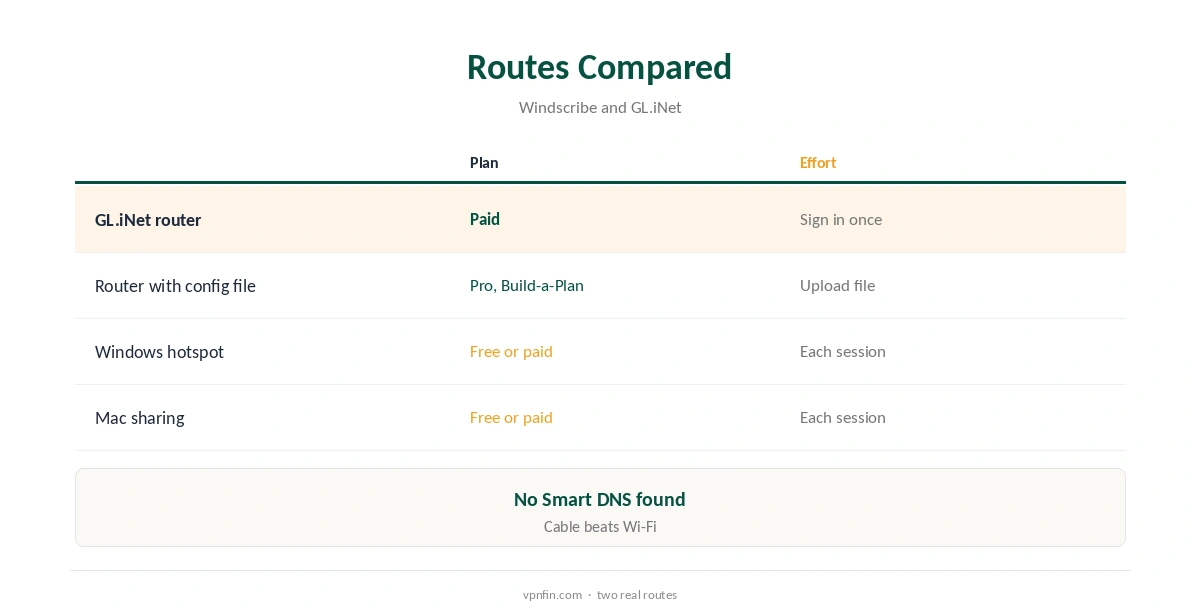
A router covers the PS5 the moment it joins the network, with no console settings to touch. GL.iNet’s firmware lists Windscribe among its built-in WireGuard providers, its documentation shows. You choose Windscribe, sign in and pick servers.
Other routers take a WireGuard or OpenVPN file generated on Pro or Build-a-Plan; free accounts cannot create them. Each file covers one location. Our Windscribe router guide covers both.
Wired or Wireless
Plug the PS5 into the router with an Ethernet cable if you can. A VPN already adds a hop, and Wi-Fi adds jitter on top, so the cable keeps ping steadier in matches.
If the router is in another room, a compact travel router running Windscribe next to the console solves both problems at once. It also lets the rest of the home stay off the VPN.
A Laptop as a Stand-In
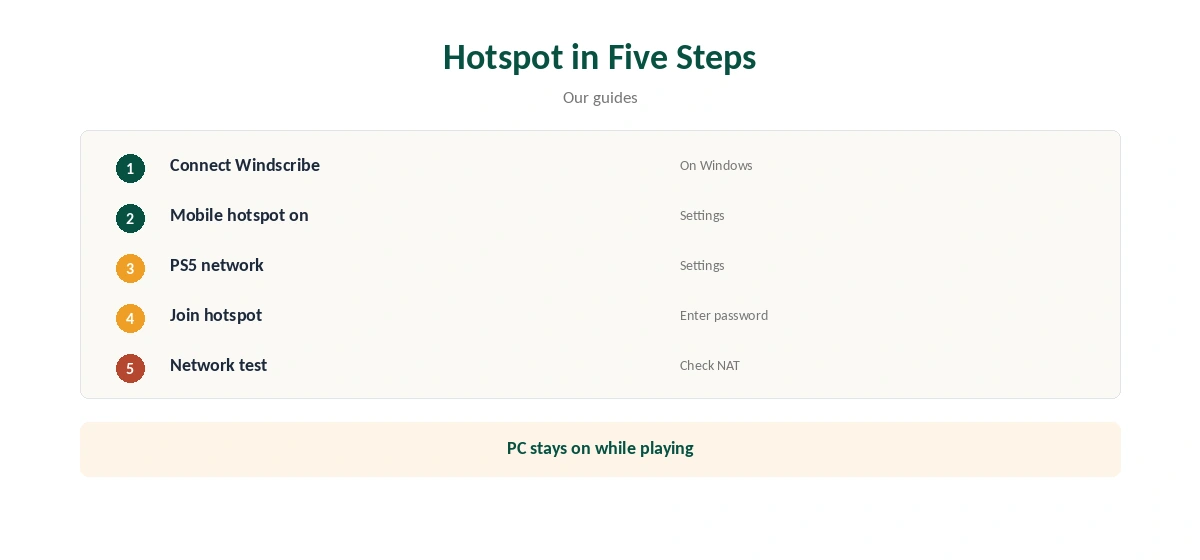
Connect Windscribe on a Windows laptop and turn on Mobile hotspot in Settings, Network and Internet; on a Mac, use Internet Sharing. On the PS5, open Settings, Network, Settings, Set Up Internet Connection and pick the shared network.
Keep the laptop plugged in and awake for the whole session, and connect Windscribe before starting the hotspot. It suits a weekend test on the free plan, not daily gaming, since the laptop becomes a single point of failure.
PlayStation Portal and Remote Play
Remote Play and the PlayStation Portal stream games from your PS5 over the network. Both are sensitive to latency. Putting the console behind a VPN can make the stream laggy or stop it connecting outside the home.
If either struggles, move the PS5 back to your normal network while you stream, and use the VPN for other sessions. A router with device rules can make that switch automatic.
Big Downloads
PS5 games and patches are large, and every byte goes through Windscribe when the console sits behind it. Pick a nearby location so downloads stay quick; distant servers can slow a large patch noticeably.
On the free plan’s 10 GB a month, a single game update can use the whole allowance, which is why a paid plan suits a router setup.
Online Matches and NAT
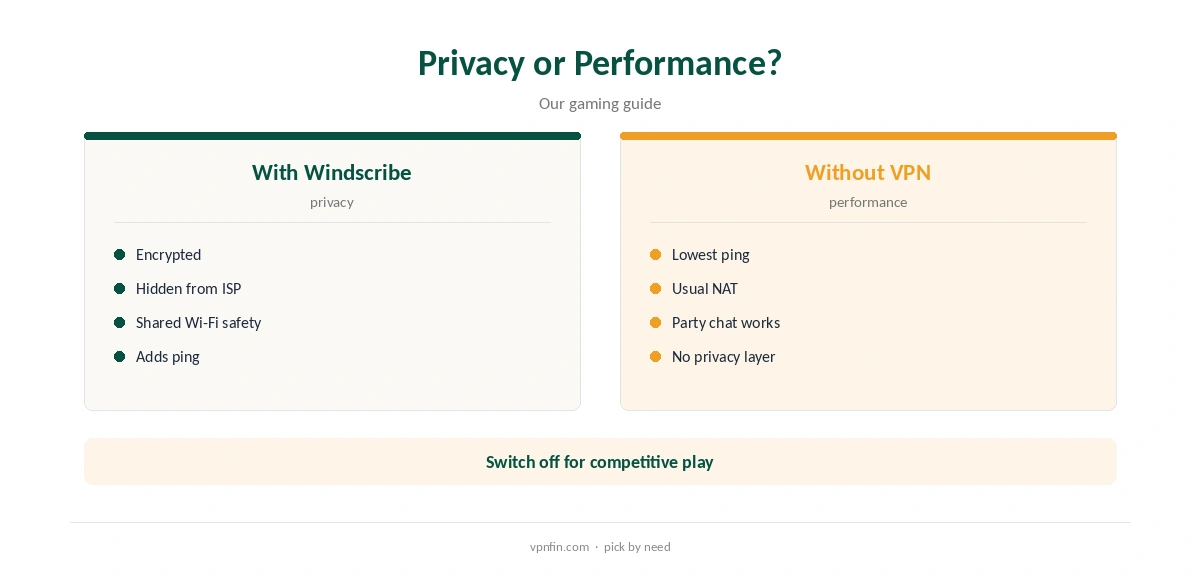
Expect some extra ping, our gaming VPN guide explains. Check the NAT type in the PS5’s connection test too, since a VPN can make it stricter.
Firmware with device rules, such as VPN Director on Asuswrt-Merlin, can keep the PS5 direct while other devices stay on Windscribe.
Streaming Apps on the PS5
Netflix, YouTube and other apps on the PS5 use the console’s connection, so a Windscribe router changes the region they see. Security.org reported Netflix problems on Windscribe, while Cloudwards reached Netflix after switching servers.
Close and reopen an app after changing location. Our Windscribe Netflix guide covers the proxy error.
Checking the Setup
Run the PS5’s connection test after joining the protected network, then confirm from a phone on the same network that the address belongs to Windscribe. A green status in GL.iNet’s admin panel confirms the router side.
If matches or downloads misbehave, test once without the VPN to find the cause, then try another nearby location.
Proxy Settings on the PS5
The PS5’s manual setup has a proxy field, and Windscribe’s Proxy Gateway can turn a computer into a proxy. Windscribe says its HTTP mode carries only web traffic, so games would not use it.
We would not rely on it, and traffic between console and computer is unencrypted; our Windscribe SOCKS5 guide explains what Proxy Gateway is for.
PS5 or PS4
The PS4 follows the same rules: no app, the same proxy field, the same router and hotspot routes. A single router covers both consoles if you own them.
Our Windscribe PS4 guide covers the older console’s menus.
Plans, Refund and Privacy
The free plan gives 10 GB a month with a confirmed email. Pro costs $9 a month or $69 a year with no renewal jump, or Build-a-Plan from $3. Windscribe’s terms allow a refund of the first payment within seven business days, under 10 GB used.
Windscribe’s no-logs claim held when an Athens court dismissed charges against its CEO in April 2025, because no user data existed. Sign-up needs no email, though confirming one raises free data to 10 GB.
How We Research
This page draws on Windscribe’s plans page, terms and Proxy Gateway guide, GL.iNet’s WireGuard client documentation and our Windscribe and PlayStation tables. We cross-checked these sources against each other, and where they conflict or something can’t be verified, we say so in the text rather than guessing. We checked time-sensitive figures, including prices in US dollars, on 8 October 2026. The main source we relied on is GL.iNet’s WireGuard client guide. Our full approach lives on the About Us page.
Windscribe PS5 FAQ
No; the PS5 has no VPN apps.
A GL.iNet router with Windscribe built in.
A little; pick a nearby location.
It may lag; switch the PS5 to your normal network if it does.
Through a laptop hotspot, within 10 GB a month.
The Verdict
A Windscribe PS5 setup is best done on the router, ideally GL.iNet. Use a laptop hotspot to test free, and keep Remote Play off the VPN if it lags.