
Disclosure: VPNFin is reader-supported. If you buy a VPN through links on this page, we may earn a commission at no extra cost to you. This never affects our ratings — here’s our full disclosure.
Connect a VPN on Windows and the tunnel does what it promises with your traffic. Your DNS queries are a separate matter.
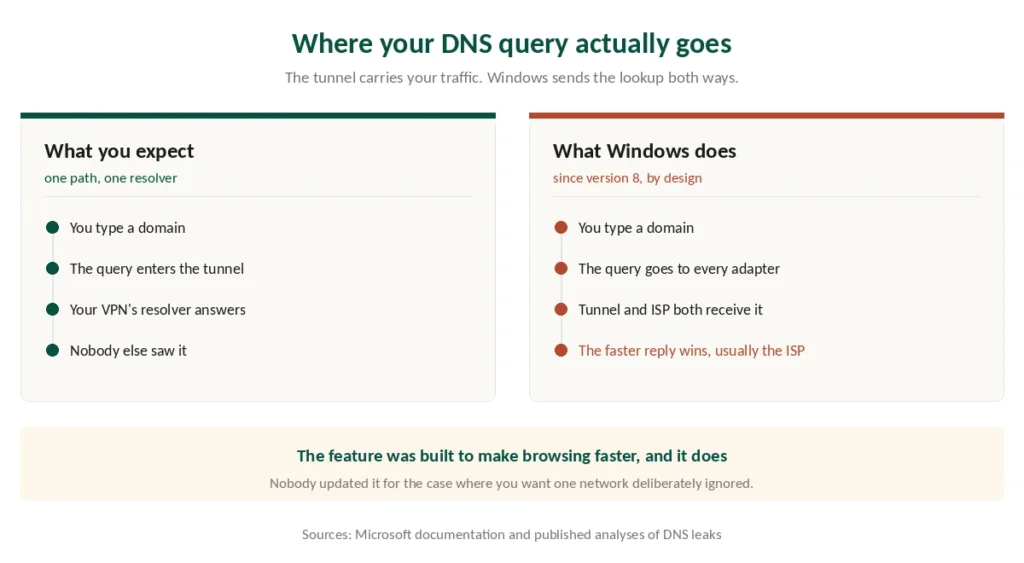
Since Windows 8, the operating system has sent every DNS request to all available network adapters at once and used whichever answer arrives first. With a VPN running, that means the request goes to your provider’s DNS and to your internet provider’s, over the underlying connection. On a home network the ISP usually replies faster — and it has now logged the domain you asked about.
The setting has a name, Smart Multi-Homed Name Resolution, and a fix. This guide covers the fix, the reason it stops working, and which VPNs handle it for you.
The Short Answer
Test first, at dnsleaktest.com with your VPN connected. If your ISP appears in the results, you have this problem.
Then check your VPN’s DNS leak protection — most paid providers now override the Windows behaviour, and turning that on is the whole fix for most people.
If it persists, disable the setting yourself, and recheck after every major Windows update, because feature updates turn it back on.
Best picks: NordVPN for speed and a reliable kill switch, Proton VPN for a free tier that handles DNS properly, Surfshark for a household. Our guide to Proton VPN on Windows covers split tunnelling with the kill switch, ports and protocols.
What Windows Is Actually Doing
The behaviour was introduced to make browsing feel faster, and it succeeds at that.
Before Windows 8, DNS requests followed a simple order of preference. One server was asked, then the next if it failed.
Since Windows 8, all of them are asked simultaneously. Windows keeps the first response and discards the rest. With no VPN this is harmless and genuinely quicker.
With a VPN it is a leak by design. Your machine has two active paths — the tunnel and the physical connection underneath it — so the query travels down both. Your ISP sees a list of the domains you looked up, which is most of what a VPN is supposed to prevent, as what a VPN actually hides explains.
⚠️ This drew an alert from US-CERT, the United States computer readiness team, which is not an organisation that comments on minor inconveniences. Antivirus vendors including Avast and AVG publish instructions for disabling it, which tells you how the security industry regards it.
Test It in Two Minutes
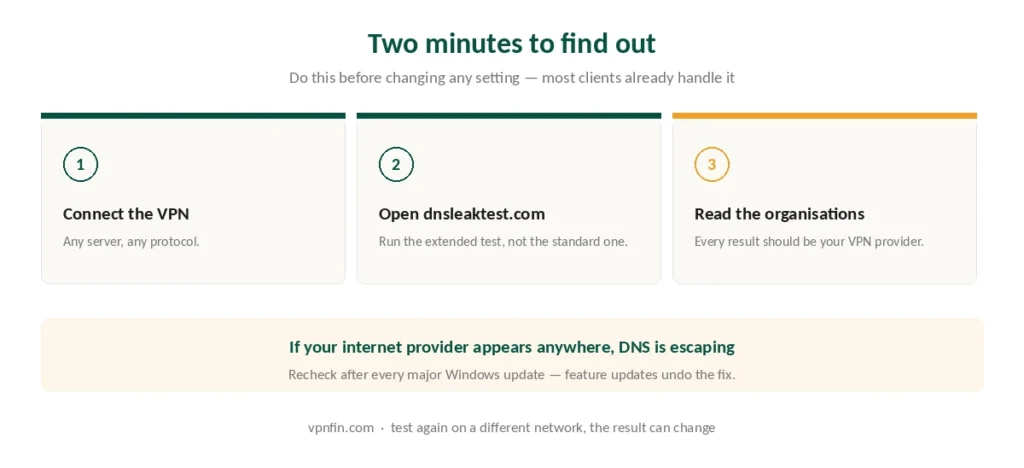
Do this before changing anything, because most modern VPN clients already handle it. DNS is one of five checks worth running together, and the first failure usually explains the rest.
- Connect your VPN
- Open dnsleaktest.com and run the extended test
- Look at the server names and organisations listed
If every result belongs to your VPN provider, nothing is leaking and you can stop here.
If your internet provider appears anywhere in that list, DNS is escaping the tunnel.
⚠️ Run it again after connecting to a different network. The behaviour depends on which adapters are active, so a laptop that tests clean at home can leak on café Wi-Fi — where it matters considerably more.
Three Fixes, in Order
First: turn on your VPN’s DNS leak protection. Most paid providers now force all queries through their own resolvers and override the Windows behaviour. In NordVPN, Proton VPN, Surfshark and ExpressVPN this is on by default, though worth confirming in settings.
Second: disable the setting through PowerShell. Open PowerShell as administrator and run:
Set-DnsClientGlobalSetting -SmartMultiHomedNameResolution $false
Then reboot. To reverse it later, run the same command with $true.
Third: use Group Policy, if you are on Windows Pro. Computer Configuration → Administrative Templates → Network → DNS Client → Turn off smart multi-homed name resolution → Enabled. Our page on TorGuard for PC covers the Windows client, Stealth, port forwarding and the defaults to change.
⚠️ Between the two manual routes, Group Policy is the weaker one. Reports going back years describe Windows falling back to the old behaviour anyway when a DNS query fails. PowerShell is the more thorough route.
The Part Nobody Mentions
Here is why this is not a one-time job.
Windows feature updates re-enable the setting. Not security patches — the large twice-yearly updates that change the version number. Your fix survives until then and quietly stops applying afterwards.
So build the check into your routine. After any major Windows update, reconnect the VPN and run dnsleaktest again. It takes two minutes and it is the only way to know.
⚠️ This is the strongest argument for letting the VPN handle it rather than doing it yourself. A provider’s DNS leak protection is part of the client and survives the update; a system setting you changed does not.
Two Other Leaks on Windows
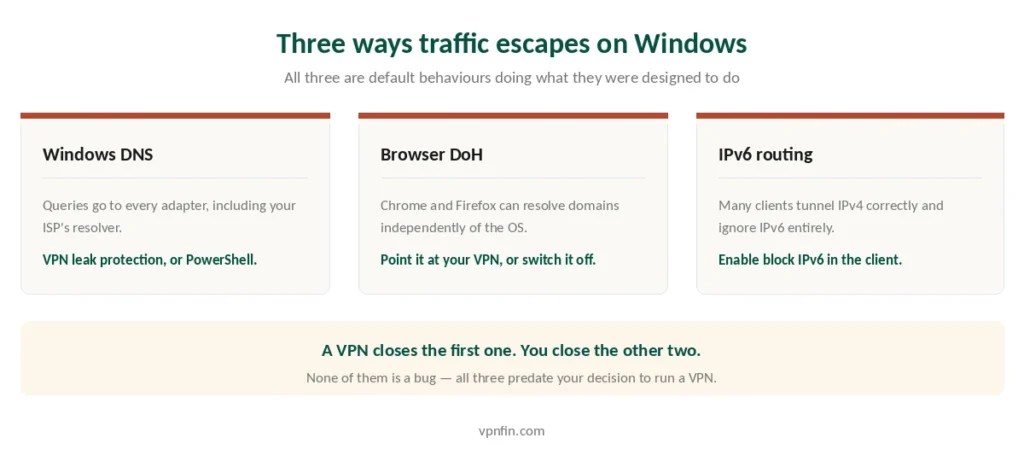
DNS escaping through Windows is the common one. Two others are worth knowing.
Your browser may be doing its own DNS. Chrome and Firefox both support DNS over HTTPS, which resolves domains independently of the operating system and therefore independently of your VPN. In Chrome: Settings → Privacy and Security → Security → Use Secure DNS. In Firefox: about:config, then network.trr.mode. Either point it at your VPN’s resolver or switch it off. Our guide to IPVanish on Windows covers a strict kill switch, split tunnelling and Double Hop.
IPv6 can route around the tunnel entirely. Many VPNs handle IPv4 correctly and ignore IPv6, so traffic finds its way out over the newer protocol. Most clients now include a “block IPv6” option, and enabling it is the fix. Our guide to Windscribe for PC covers the Windows app, its firewall modes and split tunnelling.
⚠️ None of this is exotic. All three are default behaviours doing what they were designed to do, and all three predate anyone’s decision to run a VPN. Two further causes exist outside Windows — Teredo and transparent proxying by your provider.
The Picks
NordVPN — fastest in CNET’s testing at 2.9% average download loss, DNS leak protection on by default, and a kill switch that behaves predictably when the connection drops. Six published no-logs audits, ten devices. Renewal reaches $139.08 a year, the highest we track — our renewal price table sets it against the rest. Our NordVPN review covers the whole picture.
Proton VPN — the free tier has no data cap and handles DNS the same way the paid one does, which is unusual and makes it a genuine option for a second machine. Five published annual audits, open-source apps on Windows included. Our Proton VPN review has the detail.
Surfshark — unlimited simultaneous connections, so every computer in the house runs the same subscription. Around $79 a year on renewal. Our Surfshark review sets it against the others.
CyberGhost — 45 days to change your mind, fifteen more than NordVPN, and $56.94 a year on renewal. Useful if you are unconvinced any of this is worth paying for. Our CyberGhost review has the rest.
Mullvad — the Windows client is open source like the rest, and the account is a sixteen-digit number rather than an email address. Five devices, no streaming, €5 a month forever. Our Mullvad review explains the trade.
The VPN Setting Already in Windows
Settings has a VPN section, and it is not a VPN service.
It is a client for connecting to a server you already have — a corporate network, or one you run yourself. Microsoft supplies the software; the service is your problem. Our guide to Mullvad on Windows covers setup, lockdown mode and split tunnelling.
It also supports fewer protocols than any commercial client, typically IKEv2 and L2TP rather than WireGuard, which costs you speed. Our protocol guide covers why that matters.
⚠️ And it has no kill switch. If the connection drops, Windows carries on without it and says nothing. The built-in client on a Mac has the same gap.
What Goes Wrong on Windows Specifically
The kill switch blocks everything after a crash. Some clients leave the firewall rules in place when the app closes unexpectedly, so the internet stops working until you reopen the VPN or restart. Reinstalling clears it, as our troubleshooting guide covers — and removing the client entirely has the same failure mode unless you disable the kill switch first.
Windows Firewall blocks the client. Add the VPN to the allowed list rather than switching protection off. ⚠️ When that happens through the built-in client rather than an app, Windows returns a numbered error, and the number names the cause on its own.
Split tunnelling excludes the wrong things. Applications you exclude lose the tunnel entirely, including their DNS. Check what you added before assuming the leak is Windows. Our page on PrivadoVPN for PC covers the Windows app’s kill switch, split tunnelling and SOCKS5.
Using one of the big three? Our provider guides walk through setup and the usual faults step by step: NordVPN on Windows, Surfshark on Windows and ExpressVPN on Windows.
Playing Valorant on PC? Our Valorant guide covers Riot’s region locks and VPN blocks.
How We Research
This guide draws on Microsoft’s documentation of Smart Multi-Homed Name Resolution and the Group Policy setting that controls it, published technical analyses of DNS leaks from named sources, support documentation from antivirus vendors including Avast and AVG that describe the same fix, and our own full reviews of the providers we rank — cross-checked and verified at publication. We don’t run our own speed or leak tests; the diagnostic order here follows what published sources agree resolves the problem. Our full approach lives on the About Us page.
Windows VPN FAQ
It can, and the cause is a built-in feature. Since Windows 8, Smart Multi-Homed Name Resolution has sent DNS queries to every active network adapter simultaneously and used the fastest reply. With a VPN connected that includes your internet provider’s servers, which usually answer first on a home network.
Open PowerShell as an administrator and run Set-DnsClientGlobalSetting -SmartMultiHomedNameResolution $false, then reboot. On Windows Pro you can also use Group Policy, though reports suggest Windows sometimes falls back to the old behaviour anyway. Check again after each major Windows feature update, since those re-enable it.
Connect your VPN, open dnsleaktest.com and run the extended test. Every server listed should belong to your VPN provider. If your internet provider appears anywhere in the results, queries are escaping the tunnel. Repeat the test on a different network, since the behaviour depends on which adapters are active.
It is a client rather than a service, so you still need a server to connect to. It supports fewer protocols than commercial apps, typically IKEv2 and L2TP rather than WireGuard, and it has no kill switch — if the connection drops, Windows carries on without one and does not tell you.
NordVPN for speed and a dependable kill switch, Proton VPN if you want a free tier that handles DNS the same way its paid tier does, Surfshark for covering every computer in a household, and CyberGhost if you want 45 days to decide.
The Verdict
Test before you change anything. Connect the VPN, open dnsleaktest.com, and look for your internet provider in the results. Most modern clients already prevent this. Our page on TunnelBear on Windows covers its fullest app, with split tunnelling and GhostBear.
If it leaks, let the VPN fix it rather than fixing it yourself. Provider-side DNS protection survives Windows updates. A system setting you changed does not, and feature updates switch it back on without telling you. Our page on PureVPN on Windows covers protocol settings, split tunnelling and repairs.
Then pick on what you actually need. NordVPN for speed, Proton VPN if you want something free that handles DNS properly, Surfshark for a household, CyberGhost for 45 days to decide. Our page on CyberGhost on Windows covers the Windows app’s protocols, settings and repair steps.
Windows is not doing anything malicious here. It is doing something helpful that nobody updated for the case where you deliberately want one network ignored — the same pattern as the iPhone leaving old connections outside the tunnel, and the opposite of Android, which gives you a proper switch for free.