
Disclosure: VPNFin is reader-supported. If you buy a VPN through links on this page, we may earn a commission at no extra cost to you. This never affects our ratings — here’s our full disclosure.
You slide the toggle, the icon disappears, and thirty seconds later it is back.
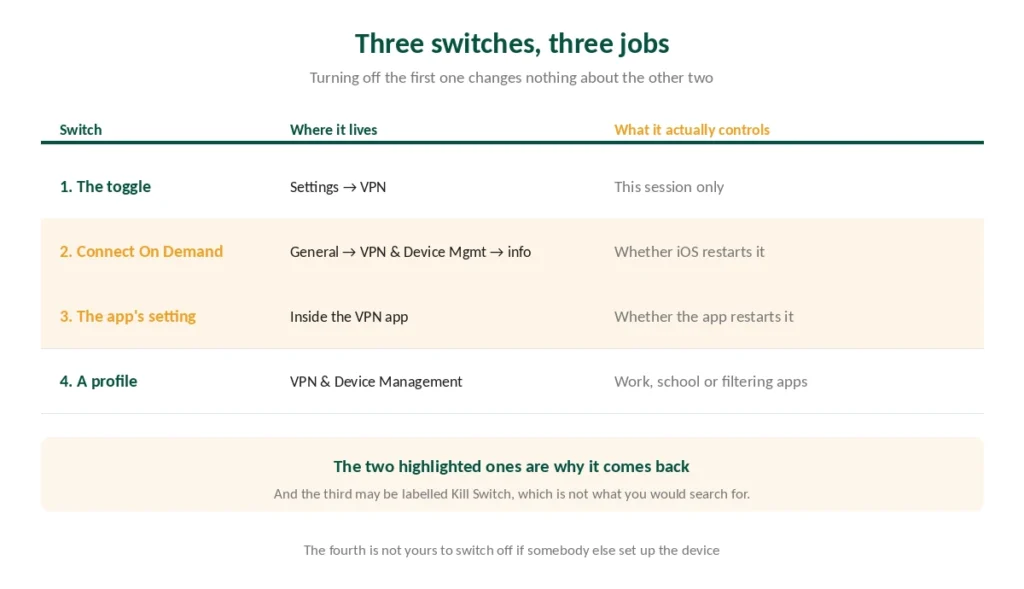
That is not a fault. It is a second switch you have not found yet. An iPhone has three separate controls over a VPN connection, and turning off the visible one does nothing to the other two. The setting that reconnects you is called Connect On Demand — except in your VPN app, where it may be called something else entirely. For iPad specifics, see our NordVPN on iPad guide.
This guide covers all three, in the order that works, plus the sequence that leaves people with no internet at all when they get it wrong.
The Short Answer
Switch one: the toggle. Settings → VPN. Disconnects now, holds until something reconnects it.
Switch two: Connect On Demand. Settings → General → VPN & Device Management → VPN → tap the ⓘ → toggle it off. This is the one causing your problem.
Switch three: your VPN app’s own setting. Auto-Connect, Always-On, Trusted Networks — or, confusingly, Kill Switch.
And if the icon is still there afterwards, something else is holding it: a work profile, a parental control app, or an app you forgot you installed.
Switch One: The Toggle
Settings → VPN → slide the switch to Not Connected.
Or open your VPN app and press disconnect, which does the same thing more reliably because the app knows its own state.
⚠️ This is temporary by design. It disconnects the current session and changes nothing about what starts the next one. If your VPN comes back within a minute, the toggle was never the problem.
Switch Two: Connect On Demand
This is the one, in the large majority of cases.
Connect On Demand is an iOS feature, not a VPN app feature. It re-establishes the tunnel automatically whenever the phone meets a condition you never set — joining an unfamiliar network, losing and regaining connectivity, or reaching certain domains.
To turn it off:
- Settings → General → VPN & Device Management
- Tap VPN
- Find the active configuration and tap the ⓘ next to it
- Toggle Connect On Demand off
- Go back and disconnect again
⚠️ If the toggle is greyed out or missing, the configuration was installed by an app or by a management profile, and the setting lives elsewhere. Skip to switch three or to the section on profiles.
⚠️ Many VPN apps enable this during installation without saying so. That is why the behaviour appears without you having configured anything.
Switch Three: The One With a Different Name
Here is the part that sends people in circles.
Your VPN app has its own reconnection setting, and it may not be called Auto-Connect. A moderator on Apple’s own support forum puts it plainly: the same behaviour appears under different labels depending on the app, and it will restart the tunnel whenever it drops.
Names to look for in the app’s settings:
- Auto-Connect · Always-On · Connect on Launch
- Trusted Networks · Untrusted Wi-Fi protection
- Reconnect Automatically · Persistent Connection
- Kill Switch — which is the confusing one
⚠️ A kill switch is not the same as auto-connect, and on iOS the distinction blurs. A kill switch is supposed to block traffic when the tunnel drops; several apps implement that by immediately re-establishing the tunnel, which looks identical to auto-reconnect from the outside. On Android the confusion runs the other way, where two kill switches share a name and behave differently.
Turn off whichever of these your app has, then disconnect again. If you want the protection back later, this is a one-tap reversal.
Getting the Order Wrong
This is the mistake worth avoiding, because the symptom looks much worse than the cause.
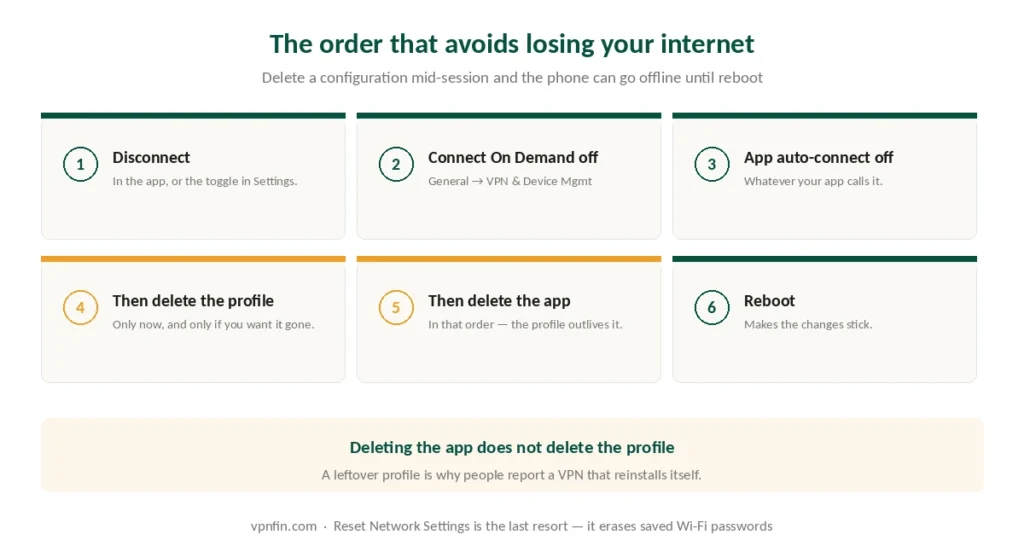
⚠️ Do not delete the VPN configuration while the VPN is connected. The tunnel is severed without a clean disconnect, and the phone can lose internet access entirely until you reboot or reset network settings.
The safe order:
- Disconnect the VPN
- Turn off Connect On Demand
- Turn off the app’s auto-connect setting
- Only then delete the configuration, if you want it gone
- Then delete the app
⚠️ Deleting the app does not delete the profile. They are separate, and a leftover profile is the reason people report a VPN that reinstalls itself. Check Settings → General → VPN & Device Management after uninstalling.
If the Icon Is Still There
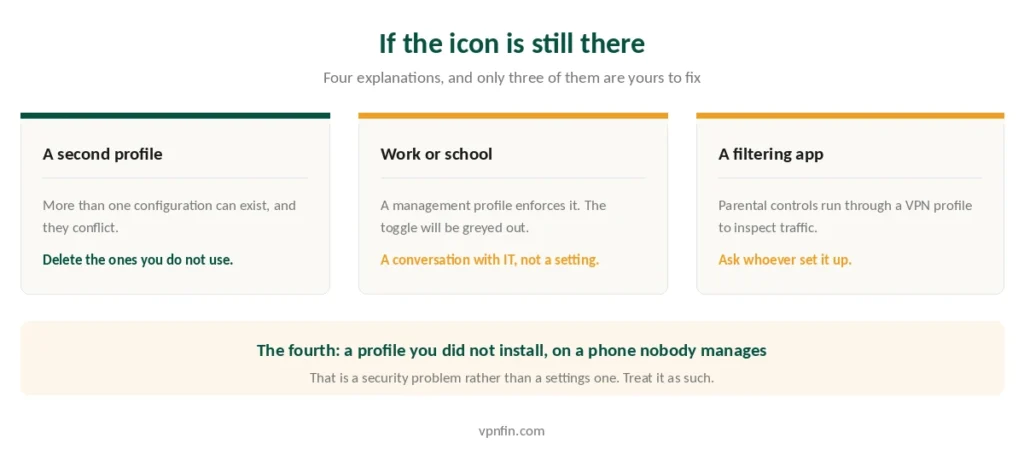
Four remaining explanations, in order of likelihood.
A second VPN configuration you forgot about. Under VPN & Device Management, more than one profile can exist, and they conflict. Delete the ones you do not use.
A work or school management profile. If your employer or institution manages the device, the VPN is theirs and enforced by policy. The toggle will be greyed out and no amount of setting changes will hold. That is working as intended, and removing it is a conversation with IT rather than a setting. The reverse question, whether your employer can see a VPN you run yourself, has its own page: they can see that you used one.
A parental control or content filter app. These commonly run through a VPN profile, because that is how iOS lets an app inspect traffic. The icon appears without any VPN being installed. ⚠️ If somebody set that up for this phone, removing it is a conversation with them, not a technical step — and on a managed device you will not be able to anyway.
Something you did not install at all. If none of the above applies, the phone is not managed, and a VPN profile you do not recognise keeps returning, treat that as a security problem rather than a settings problem. Delete the profile, run a reputable security scan, and change your Apple Account password.
Reset Network Settings is the last resort. Settings → General → Transfer or Reset iPhone → Reset → Reset Network Settings. It clears stuck configurations, and it also erases every saved Wi-Fi password.
Before You Turn It Off for Good
Two things worth knowing, and neither is a sales pitch.
What you lose. Your internet provider sees which sites you contact again, and the sites see your real address and approximate location. On your own home network that is often an acceptable trade — what a VPN actually hides sets out exactly what changes.
Where it matters more. On a network you do not control, the calculation is different, and our public Wi-Fi guide covers what is genuinely at risk there and what is not.
⚠️ And one iPhone-specific thing that surprises people. Even when connected, iOS leaves connections opened before you connected running outside the tunnel — a flaw no VPN app can fix, documented since 2020. If you were turning the VPN off because you suspected it was not doing anything, that may be part of why.
If the problem is the opposite — it will not connect rather than will not disconnect — our troubleshooting guide works through the causes in order.
Turning It Back On Properly
If you disabled the reconnection settings and later want protection back without the nagging:
Leave Connect On Demand off and connect manually. You get the tunnel when you want it and no surprises when you do not.
Or re-enable it deliberately for untrusted networks only, if your app supports per-network rules. That is the setting doing what it was designed for rather than what it does by default.
⚠️ Then check that it is actually working, because a VPN you re-enabled is not a VPN you verified — five tests, ten minutes.
Troubleshooting: our fix guides cover a VPN not working on iPhone.
How We Research
This guide draws on Apple’s own support documentation on configuration profiles, discussion threads on Apple’s community forums including moderator responses on Connect On Demand behaviour, and published guidance from named security vendors and VPN providers — cross-checked and verified at publication. Where an app’s naming of a feature differs from Apple’s, we list the alternatives rather than assuming yours matches. We do not publish steps for removing management or parental control profiles, because those are set by somebody with authority over the device. Our full approach lives on the About Us page.
iPhone VPN FAQ
Because of Connect On Demand, an iOS feature that re-establishes the tunnel whenever the phone meets a condition — joining an unfamiliar network, regaining connectivity, or reaching certain domains. Turn it off under Settings, General, VPN and Device Management, then tap the ⓘ beside your configuration.
Settings → General → VPN & Device Management → VPN, then tap the small ⓘ icon next to the active configuration. If the toggle is greyed out or absent, the configuration was installed by an app or a management profile, and the equivalent setting lives in the app instead.
Deleting an app does not remove its configuration profile. Check Settings, General, VPN and Device Management and delete the leftover profile there. A lingering profile is the usual reason a VPN appears to reinstall itself.
You likely deleted the configuration while the VPN was still connected, which severs the tunnel without a clean disconnect. Restart the phone, and if that does not restore it, reset network settings — noting that this erases saved Wi-Fi passwords.
On your own home network, usually yes. Your internet provider sees which sites you contact and websites see your real address, which many people accept at home. On a network you do not control the calculation changes, and there the tunnel does something a home connection does not need.
The Verdict
One toggle, three switches. The visible one disconnects the session, Connect On Demand starts the next one, and your app has a third with a name that may not match either.
Turn them off in that order, and disconnect before deleting anything. Removing a configuration mid-session is how people end up with no internet at all.
If the icon survives all three, something else owns it — a second profile, a work policy, a filtering app, or something you did not install. The first three are normal. The fourth is worth taking seriously. Our page on PureVPN on iPhone covers protocol choice on iOS and what the app lacks.