Disclosure: VPNFin is reader-supported. If you buy a VPN through links on this page, we may earn a commission at no extra cost to you. This never affects our ratings — here’s our full disclosure.
The question assumes an app with a switch in it. On a Samsung or an LG television, no such app exists and never has.
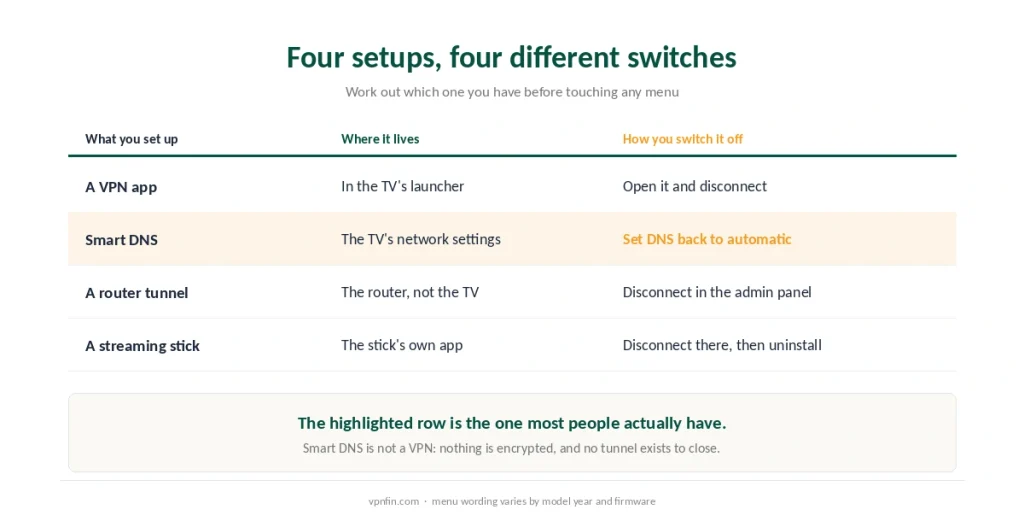
So the first job is working out what you actually turned on. Four setups get called “a VPN on the TV”, and only one of them is an app you can close.
How Do You Turn Off a VPN on a Smart TV?
It depends entirely on which of four things you set up. Android TV, Google TV, Fire OS and Apple TV run real VPN apps, so you open the app and disconnect. Samsung, LG, Roku and Vizio cannot, so what you configured was a DNS entry in the network settings. Alternatively the tunnel sits on your router, and the television knows nothing about it.
First, Work Out Which One You Have
Two minutes here saves an hour of poking at menus.
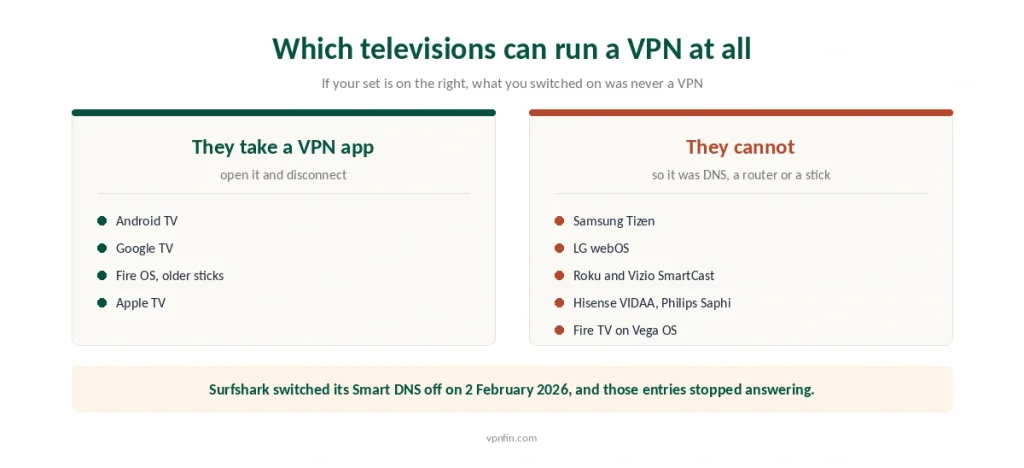
Check the brand. Sony, Philips, TCL, Xiaomi and Nvidia Shield run Android TV or Google TV. Amazon sticks run Fire OS. Those platforms take real VPN apps.
Samsung runs Tizen and LG runs webOS. Neither offers VPN apps in its store, and neither allows sideloading. Roku, Vizio SmartCast, Hisense VIDAA and Philips Saphi are in the same position. Amazon’s newer Vega OS sticks are not: they gained VPN apps through the Amazon Appstore in late 2025.
Therefore, if your set is on that second list, you did one of three things. You entered DNS addresses in the network settings. You configured the VPN on your router. Or you plugged in a streaming stick that runs its own app.
⚠️ The distinction matters because the symptoms differ. A connected VPN app makes streaming complain about proxies. A stale DNS entry makes the whole television look offline, which sends people to the wrong fix entirely.
If the Television Runs a Real VPN App
The straightforward case, and the one most guides describe as though it were the only one.
Open the app and press disconnect. On Android TV and Google TV the app sits in the launcher. On Fire OS you may need to hold the home button and pick the app from the row.
Then check the always-on setting. Android TV inherits the same VPN behaviour as phones, so a profile marked always-on reconnects by itself — the Android instructions apply unchanged here.
⚠️ Deleting the app is not the same as disconnecting. Remove it while a tunnel is up and the configuration can survive the uninstall, which is exactly the trap the Firestick page describes in detail. Disconnect first, uninstall second.
If What You Set Up Was a DNS Entry
Now the case that brings most people here, even though they rarely know it by name.
Smart DNS is not a VPN. It reroutes the lookups streaming services use to guess your region. Nothing is encrypted, no tunnel exists, and it lives in the television’s own network settings because there is nowhere else to put it.
On both Samsung and LG the route is roughly the same. Open Settings, go to Network, select the connection you are using, then open the advanced or edit view. Find the DNS field and set it back to automatic.
If your set offers no automatic option, enter a public resolver instead — 1.1.1.1 or 8.8.8.8 both work — rather than leaving the old value in place. A PlayStation behaves the same way, and the DNS field there is buried two menus deeper.
⚠️ A dead DNS entry looks exactly like a broken internet connection. The television reports no connection, apps fail to load, and nothing suggests the cause is a setting you typed months ago. Our page on connecting without internet covers the same failure on other devices.
⚠️ One provider made this concrete in February 2026. Surfshark discontinued its Smart DNS on 2 February, and its own support page now tells owners to set the DNS back to automatic or enter a resolver manually. Any television still holding those addresses stopped resolving names that day. Our Surfshark review covers what the change means for anyone who bought it for a TV.
If the Tunnel Is on the Router
Here the television is innocent, and so are its settings.
Nothing on the TV will turn this off. The router encrypts everything behind it, so the set has no knowledge of the arrangement and no switch for it.
You have two options. Disconnect the VPN in the router’s admin panel, which affects every device in the house. Alternatively, use policy routing if your firmware supports it, and exclude the television alone.
⚠️ Watch for the kill switch. Many router setups block traffic when the tunnel drops, so switching the VPN off can leave the whole network dark until the rule is cleared as well — the router page walks through that.
When Switching It Off Fails to Fix the Problem
Sometimes the VPN was never the culprit.
Netflix proxy errors survive a disconnect if the app cached your previous location. Force-close it, or sign out and back in — our Netflix page explains why the error usually blames the wrong thing.
Buffering is normally a bandwidth problem. Turning off the tunnel removes maybe ten per cent of overhead, which rarely accounts for a stream that stalls every minute. Our speed guide puts that overhead in numbers.
Regional apps stay missing. The app row on a Samsung set is tied to the account region, not to the network, so no DNS change adds or removes anything there. Our streaming guide explains which services check the account and which check the address.
Meanwhile a leak test settles the argument. Running one from the TV browser shows which IP address the set is presenting, which tells you whether anything is still routed.
What Not to Do
Three moves make things worse, and we see all three regularly.
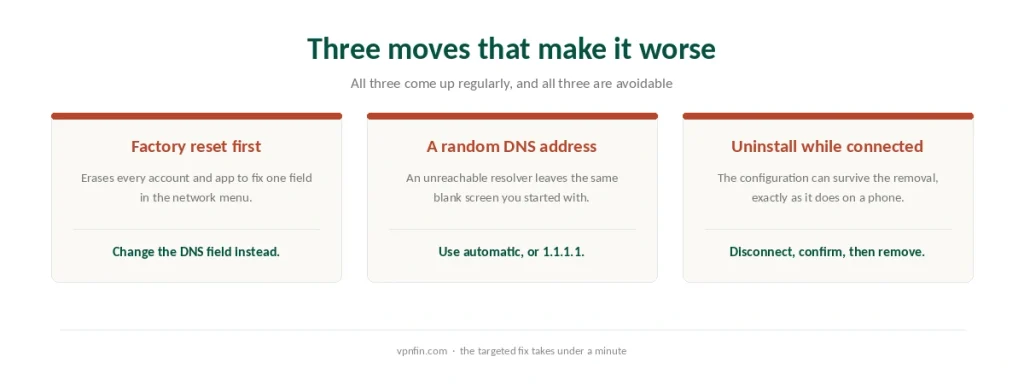
Do not factory reset first. It erases every account and app on the television to fix one field in the network menu.
Do not type a random DNS address. An unreachable resolver produces the same blank screen as the entry you were trying to remove.
Do not uninstall the app while it is connected. Disconnect, confirm, then remove.
Setting a VPN up in the first place? See our Samsung TV guide and our LG TV guide.
How We Research
This page draws on Surfshark’s own support notice discontinuing Smart DNS from 2 February 2026, on NordVPN’s published smart-TV documentation describing the absence of native VPN support on Tizen and webOS, on Gizmodo’s LG setup guide covering the three available configurations, and on the platform lists published by the manufacturers themselves. Menu paths vary by model year and firmware, so we describe the route rather than promising exact wording. We do not run our own tests, and where a provider’s feature has been withdrawn we date the withdrawal. Our full approach lives on the About Us page.
Smart TV VPN FAQ
There is nothing to turn off, because Tizen has never supported VPN apps. What you configured was almost certainly a Smart DNS entry in the network settings, or a tunnel on your router. Open Settings, Network, your connection, then the advanced view, and set DNS back to automatic.
Usually because a DNS address is still in place and no longer answers. The television resolves nothing, so every app fails while the network itself works fine. Setting DNS to automatic normally restores it within seconds, and no factory reset is needed.
Open Settings, then All Settings, then Network. Select your connected network, open the advanced or edit view, and set the DNS field to automatic. If your model offers no automatic option, enter a public resolver such as 1.1.1.1 rather than leaving the old address there.
Yes, and it removes everything else too — accounts, apps, picture settings and all. For a DNS entry or a VPN app, the targeted fix takes under a minute. Keep the reset for cases where nothing else has worked.
Not from the television, which has no visibility into the arrangement. You either disconnect in the router admin panel, which affects every device, or use policy routing if your firmware supports it and exclude the TV’s address alone.
The Verdict
On most televisions sold today there is no VPN app to turn off. Samsung and LG do not support them, and neither do Roku, Vizio, VIDAA or Saphi.
So identify the setup before touching anything. A real app gets disconnected. A DNS entry gets set back to automatic. A router tunnel gets switched off at the router.
And if the television now says it has no internet, the DNS field is the first place to look rather than the last. Our smart TV guide covers the setups themselves, and the parent page collects the same instructions for every other device.