Disclosure: VPNFin is reader-supported. If you buy a VPN through links on this page, we may earn a commission at no extra cost to you. This never affects our ratings — here’s our full disclosure.
The PlayStation 5 cannot run a VPN app. There is none in the store, Sony does not permit them, and no amount of searching changes that.
Three workarounds exist, and they are not equivalent. One protects the console, one protects nothing, and one protects it only while a computer stays switched on. Before any of them, there is a question worth answering first.
What a VPN Will Not Do on a PS5
Start here, because it is the reason most people are reading.
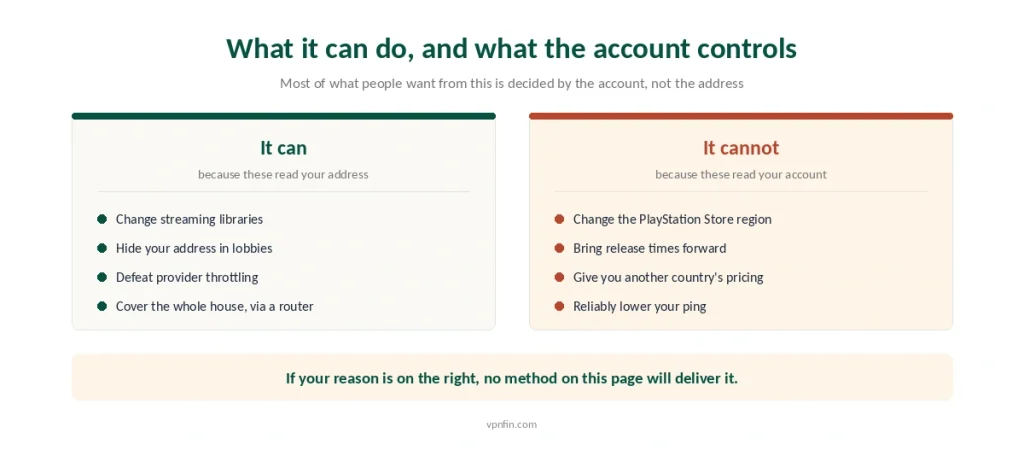
It will not change your PlayStation Store region. That is tied to the account, not to the address you connect from. Signing in through a German server does not produce German pricing.
It will not unlock early releases. Launch timing follows the account region as well, so the midnight-in-New-Zealand trick does not work through a tunnel.
It will not reliably lower your ping. A VPN adds a routing step, and latency usually rises by ten to twenty milliseconds — our gaming guide has the measurements. It helps only when your provider’s routing was inefficient to begin with.
⚠️ If any of those three was your reason, you can stop here. Nothing on this page will deliver them, and anyone telling you otherwise is selling something.
What It Will Do
Three genuine reasons remain, and they are narrower than the marketing.
Streaming apps on the console behave differently. Netflix, Disney+ and the rest read the address, not the account, so a different server changes the library — our streaming guide covers which platforms notice and which do not.
DDoS protection in party games is real. In lobbies where opponents can see your address, hiding it is the point. This matters most to people who stream their play publicly.
Throttling by your internet provider disappears. If your connection slows during large downloads, an encrypted tunnel removes the ability to identify them as game traffic.
The Three Methods
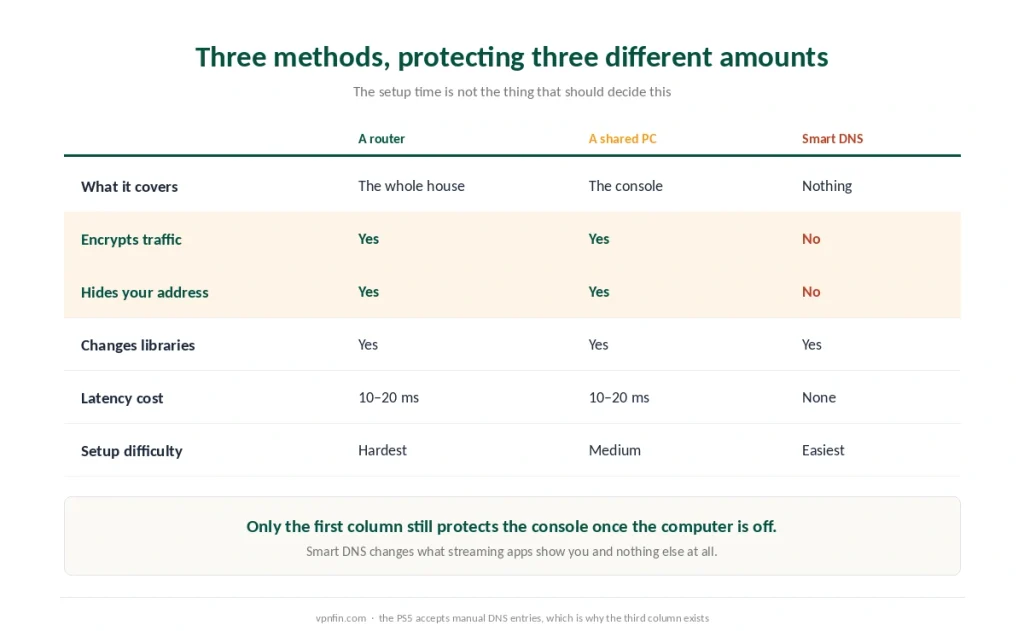
They differ in what they protect, and that difference matters more than the setup time.
A router covers everything. Install the VPN on the router and the console picks it up over Ethernet or Wi-Fi without knowing anything happened. Every other device in the house is covered too — our router setup guide walks through it.
A shared connection from a PC or Mac covers the console while the computer runs. Connect the VPN on the computer, share the connection over an Ethernet cable, and set the PS5 to Wired LAN. Ethernet sharing is considerably more stable than a wireless hotspot.
Smart DNS covers nothing at all. It reroutes lookups so streaming apps see a different country. Nothing is encrypted, your address does not change, and gameplay latency is untouched because gameplay traffic is not rerouted. Our guide to Windscribe on PS5 covers router first, laptop for testing, and Remote Play caveats.
⚠️ The PS5 accepts manual DNS entries, which is why this method exists here. Samsung and LG televisions do too, and the same setting causes the same confusion later when a stale entry looks like a dead connection.
Setting Up Smart DNS, Since It Is the Common Case
Five steps, and the path is easy to lose.
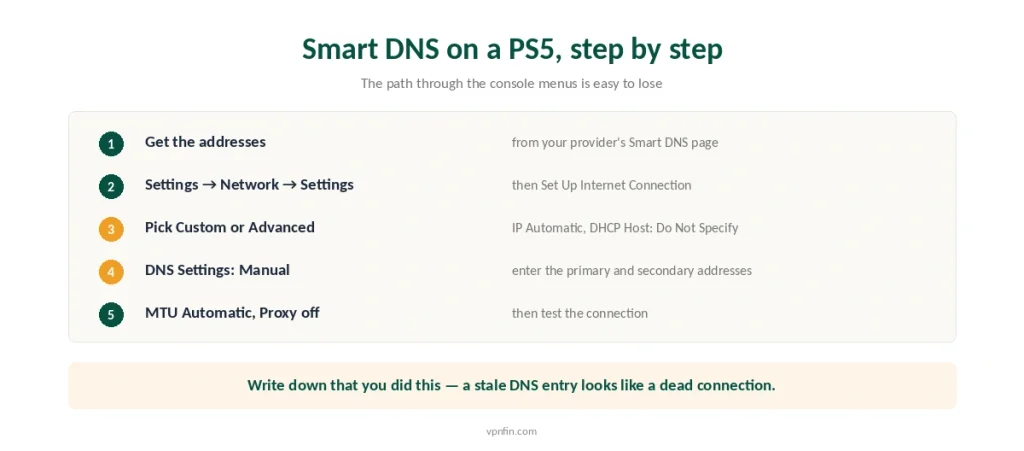
Get the DNS addresses from your provider’s dashboard, under the Smart DNS or MediaStreamer section. Register your home address there if asked. Our guide to Windscribe on PS4 covers router or hotspot, and a free way to test.
On the console: Settings → Network → Settings → Set Up Internet Connection.
Choose your connection, then Custom or Advanced Settings. IP Address: Automatic. DHCP Host Name: Do Not Specify.
DNS Settings: Manual. Enter the primary and secondary addresses.
Leave MTU on Automatic and Proxy Server on Do Not Use, then test the connection.
⚠️ Write down that you did this. When the provider retires the feature — as Surfshark did in February 2026 — the console reports no connection and nothing points at DNS as the cause.
What It Costs in Speed
Honest numbers, because gaming is where this matters most.
Expect ten to twenty per cent less throughput through an encrypted tunnel, and ten to twenty milliseconds of added latency. Our guide to IPVanish on PS4 covers router or shared connection, and the gaming trade-offs.
Distance is the main variable. Roughly ten to twenty milliseconds per thousand kilometres to the server, which is why the nearest server beats the fastest-sounding one. Our guide to ExpressVPN on PS4 covers router, PC sharing or MediaStreamer, with the PS4’s menus.
Use a cable. Ethernet to the router or to the sharing computer is measurably steadier than Wi-Fi, and in competitive lobbies that stability matters more than raw speed. Our page on PureVPN on PS4 covers the router and Windows PC routes, NAT and ping.
Protocol choice matters too. WireGuard costs less overhead than OpenVPN — our speed page puts the published measurements against the claims.
Which Providers Suit a Console
Named picks, with the reason attached.
NordVPN for the router route. It scores highest on our scale at 4.8, publishes console-specific setup documentation, and its Smart DNS covers the streaming apps people actually use on a PS5.
ExpressVPN if you would rather not flash firmware. It sells a router with the VPN already installed, which removes the hardest step of the hardest method.
Surfshark for a household. Unlimited simultaneous connections matter when the console shares a house with phones and laptops. Our page on Surfshark on PS5 covers the router and Windows PC routes now that Smart DNS is gone.
⚠️ Check the Smart DNS situation before subscribing for that reason. Surfshark discontinued its own on 2 February 2026, and a feature that existed when a review was written may not exist when you read it.
| Provider | Speed loss | Source |
|---|---|---|
| NordVPN | 2.9% | CNET |
| Surfshark | 21% | CNET |
| ExpressVPN | 18% | CNET |
| CyberGhost | 31–38% | independent labs |
| PureVPN | 12–67% | four labs, varies by server |
| Proton VPN | 16% | CNET |
Before You Start
Test the tunnel on a computer first. Run the leak checks before wiring anything into a console that gives you no diagnostics at all.
Know which method you chose. Six months later, the difference between a router rule and a DNS entry is the difference between a five-minute fix and an evening — and the router version has its own order of operations.
And keep the basics in view. A VPN moves who can see your traffic rather than making you anonymous, on a console as much as anywhere else.
Game rules differ: our Fortnite guide covers Epic’s account and tournament rules.
How We Research
This guide draws on TheBestVPN and Eneba for the absence of any native VPN app on the PlayStation Store and the three workarounds available, on Comparitech, CyberGhost and playmoTV for the exact Smart DNS path through the console’s network settings, on Eneba and vpn.com for the account-bound nature of the PlayStation Network region and the latency figures, and on our own gaming and speed pages for what a tunnel costs in practice. Several of those sources sell VPN subscriptions, so we have used them for setup steps and platform behaviour rather than for rankings. We do not run our own tests. Our method lives on the About Us page.
PS5 VPN FAQ
No. The PlayStation Store carries no VPN apps and Sony does not permit them. The console can only be covered indirectly: by running the VPN on your router, by sharing a computer’s VPN connection over Ethernet, or by pointing the console at a Smart DNS service, which does not encrypt anything.
No, and this is the most common misunderstanding. The PlayStation Network region is tied to your account rather than your IP address, so connecting through another country changes neither the store you see nor the prices in it, and it does not bring release times forward.
Usually the opposite. A VPN adds a routing step, and latency typically rises by ten to twenty milliseconds. It only helps where your internet provider was routing traffic inefficiently. For competitive play, a nearby server on a wired connection limits the damage.
It is faster and less useful. Smart DNS reroutes only the lookups that streaming apps make, so it changes which library you see without encrypting anything or hiding your address. Use it for streaming; use a router-based VPN if protection is the point.
Settings, then Network, then Settings, then Set Up Internet Connection. Choose your connection and pick Custom or Advanced. Set IP Address to Automatic and DHCP Host Name to Do Not Specify, then set DNS Settings to Manual and enter the addresses from your provider. Leave MTU automatic and Proxy off.
The Verdict
The PS5 runs no VPN app, and it never has. A router covers the console properly, a shared PC connection covers it conditionally, and Smart DNS covers nothing while changing what streaming apps show you.
The store region is not on the list. It follows the account, so regional pricing and early releases stay where they are regardless of the address.
Which leaves three real reasons: streaming libraries on the console, hiding your address in party games, and defeating provider throttling. If none of those is yours, save the money. Our page on NordVPN on PS5 covers router, shared PC and Smart DNS routes for the console.
An Xbox behaves differently in one respect. Cloud gaming there reads the account region and the address together, so a VPN can break a service you are already paying for.
A Switch behaves differently again. Nintendo reads the account country in exactly the same way — and then lets you change it yourself, for free, on a web page.