
Disclosure: VPNFin is reader-supported. If you buy a VPN through links on this page, we may earn a commission at no extra cost to you. This never affects our ratings — here’s our full disclosure.
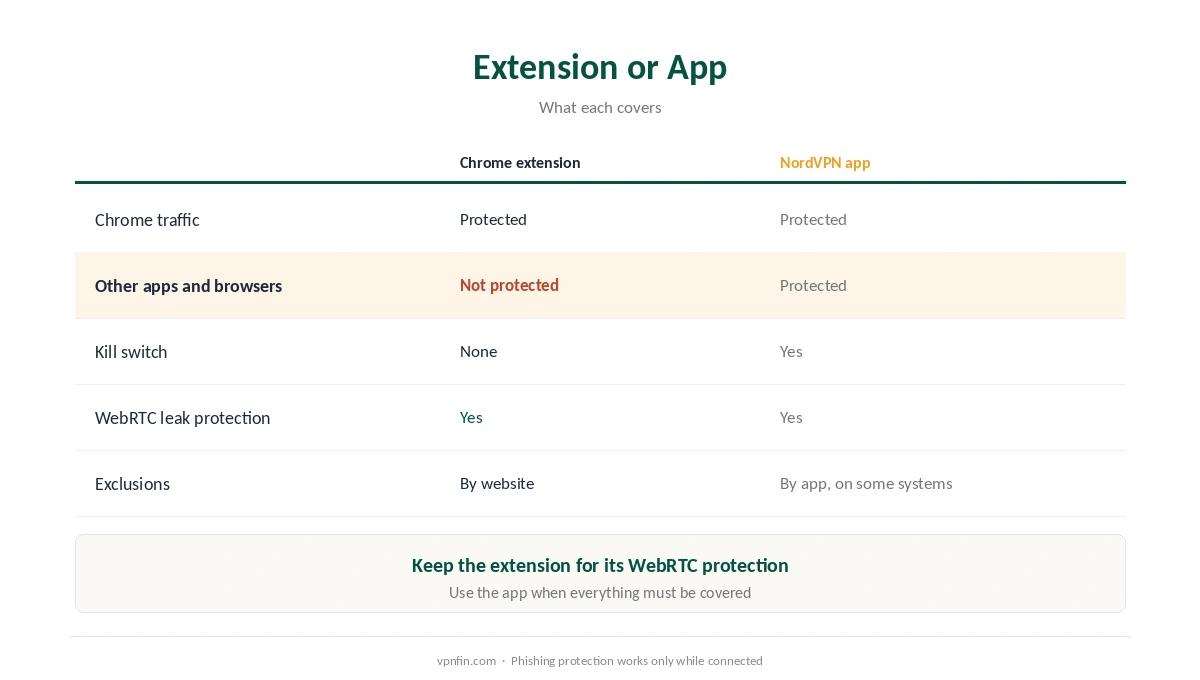
NordVPN on Chrome is not the same product as the NordVPN app. The Chrome extension is a proxy: NordVPN’s own support page says it sends your browser’s traffic through a proxy server, and its features page adds that other apps and services keep using your real IP address. Gizmodo notes that no major VPN extension, NordVPN’s included, has a kill switch.
That does not make it useless. It is quick, works without the desktop app, and blocks a leak that even full VPN users can suffer. This guide explains what it protects, what it does not, how to set it up and what breaks.
NordVPN on Chrome: The Short Answer
Install the extension from the Chrome Web Store, sign in, and turn on WebRTC protection before you connect, as Gizmodo advises.
It protects Chrome only. For your whole device, use the NordVPN app; our NordVPN on Windows guide and our NordVPN on Mac guide cover those.
The extension has no kill switch, so if the proxy drops, Chrome carries on over your normal connection. Our VPN and proxy comparison explains the difference.
What the Extension Protects, and What It Doesn’t
| Chrome extension | NordVPN app | |
|---|---|---|
| Chrome traffic | Protected | Protected |
| Other apps and browsers | Not protected | Protected |
| Kill switch | None | Yes |
| WebRTC leak protection | Yes | Yes |
| Per-site exclusions | Yes, by URL or domain | Per-app, on some systems |
WebRTC is the reason to install it even alongside the app. Browsers can reveal your real IP address through WebRTC even when traffic is encrypted, NordVPN explains, and the extension disables it. Our DNS leak guide covers the related check.
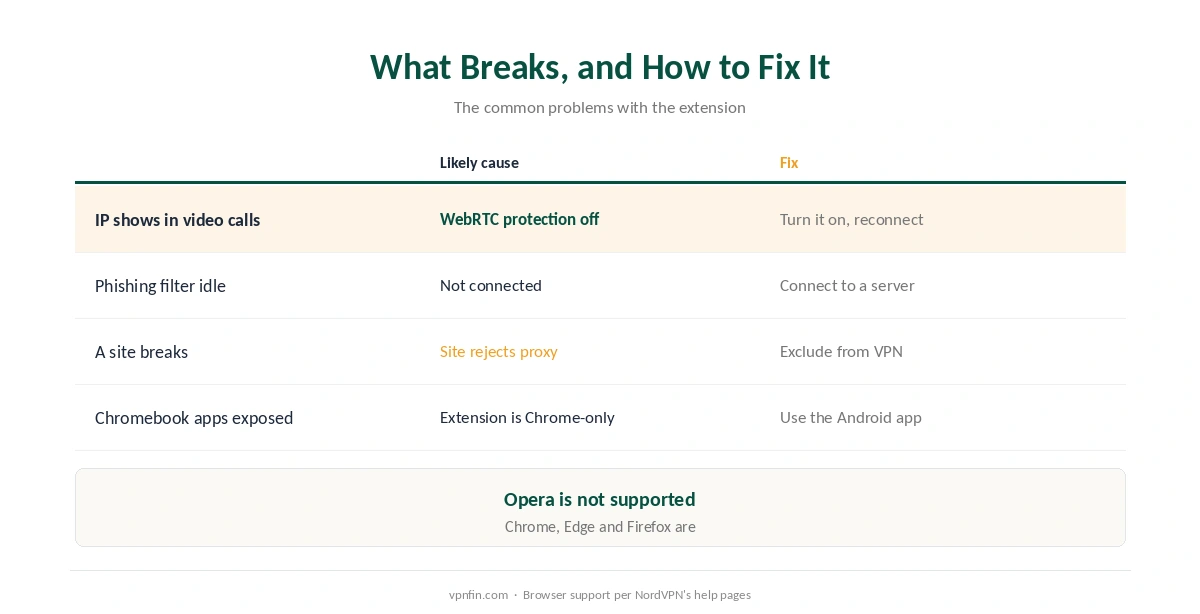
Scam and phishing protection filters dangerous domains at the DNS level, but NordVPN’s support page notes it works only while you are connected to a server.
Setting Up NordVPN on Chrome
| Step | What to do | Note |
|---|---|---|
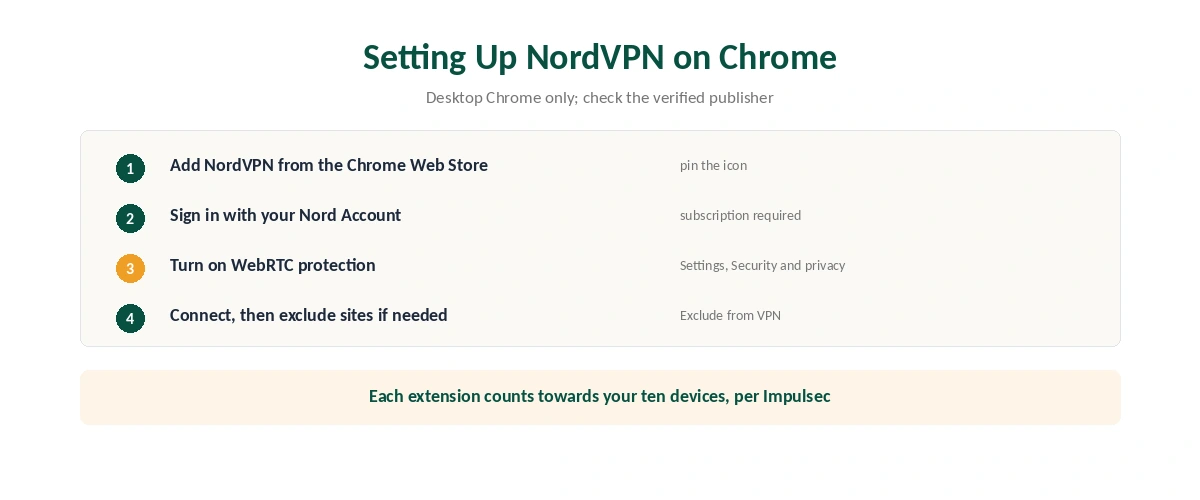
| 1 | Open the Chrome Web Store and search NordVPN | Check the verified publisher domain |
| 2 | Select Add to Chrome, then pin the icon | Desktop Chrome only |
| 3 | Sign in with your Nord Account | A subscription is required |
| 4 | Turn on WebRTC protection | Settings, then Security and privacy |
| 5 | Pick a country and connect | Or use quick connect |
| 6 | Add sites to Exclude from VPN if needed | Split tunnelling by website |
Check the permissions. Every VPN extension asks to read and change data on all sites, which a proxy needs, and Gizmodo notes NordVPN also asks for download access. Install only from the verified NordVPN listing.
Mind your device count. Impulsec reports that each browser extension counts towards NordVPN’s limit of ten devices.
What Breaks, and How to Fix It
Your IP still shows through a video call. WebRTC protection is off. Turn it on under Settings, then Security and privacy, and reconnect.
The phishing filter does nothing. You are not connected; it works only with an active connection, per NordVPN.
A site breaks or refuses the connection. Add it to Exclude from VPN, which routes that site over your normal connection, as our split tunnelling guide explains.
On a Chromebook, Android apps are not protected. The extension covers Chrome only; RottenWiFi notes the NordVPN Android app gives broader protection where supported. Our Chromebook guide covers both.
Extension or App?
Use NordVPN on Chrome for quick browser privacy, such as on public Wi-Fi when you only need the browser, as our public Wi-Fi guide explains.
Use the app when everything must be covered, including other browsers, apps and background connections, and when you want a kill switch. Our kill switch guide explains why that matters, and our NordVPN review covers the rest.
Edge, Firefox and Turning It Off
The same extension exists for Edge and Firefox, NordVPN’s support page confirms, while Opera is not supported. Setup follows the same steps in each browser’s add-on store, and the experience of NordVPN on Chrome carries over.
To turn it off, click the extension icon and disconnect, or remove it from Chrome’s extensions page. Our guide to turning off a VPN in Chrome covers each method. Afterwards, our guide to checking a VPN shows how to confirm which address sites now see.
Remember what a proxy leaves visible. Your internet provider still sees traffic from every other app, as our guide to what a VPN hides explains.
How We Research
The extension’s features and limits come from NordVPN’s support page, features page and blog. Gizmodo’s September 2026 Chrome guide supplied the kill switch and permissions detail, Impulsec the device count, and RottenWiFi the Chromebook note. We name each source where used; all were read on 26 September 2026. We did not test the extension ourselves. Our full approach lives on the About Us page.
NordVPN on Chrome FAQ
No. It is a proxy that protects Chrome’s traffic only. Other apps and browsers keep using your real IP address, and it has no kill switch.
Yes. It works on its own, and you sign in with your Nord Account.
Turn on WebRTC protection in the extension’s settings, under Security and privacy, before you connect.
Yes. The extension’s Exclude from VPN feature routes chosen sites or domains over your normal connection.
No. It covers Chrome only. Use the NordVPN Android app where your Chromebook supports it.
The Verdict
NordVPN on Chrome is a useful proxy, not a full VPN. It covers the browser, blocks WebRTC leaks and lets you exclude sites.
For whole-device protection and a kill switch, use the NordVPN app, and keep the extension for its WebRTC protection and quick browser-only sessions.