
Disclosure: VPNFin is reader-supported. If you buy a VPN through links on this page, we may earn a commission at no extra cost to you. This never affects our ratings — here’s our full disclosure.
Surfshark on Windows comes with a few conveniences worth knowing about before you start. According to Surfshark’s support page, the system tray icon shows green when you are connected and grey when you are not, and lets you switch location, auto-connect or the kill switch without opening the app. Bypasser, its split tunnelling tool, works for both apps and websites.
It is worth knowing what the Windows app does not have yet. Surfshark’s September 2026 update notes say its new Dausos protocol is currently available on macOS, and its FastTrack speed feature was extended for Mac users. This guide covers setup, the settings worth changing, and what breaks.
Surfshark on Windows: The Short Answer
Download the app from Surfshark’s site, sign in, and connect. One account covers unlimited devices, as our multi-device guide explains. Our Windows VPN guide compares Surfshark with other providers.
Turn on the Kill Switch and Auto-connect. VPNAlert notes the kill switch cannot be limited to particular apps: when the VPN drops, it cuts the whole connection.
Use Bypasser for apps and sites that need your real connection, such as a work VPN client or a banking site. Our Surfshark review covers the service.
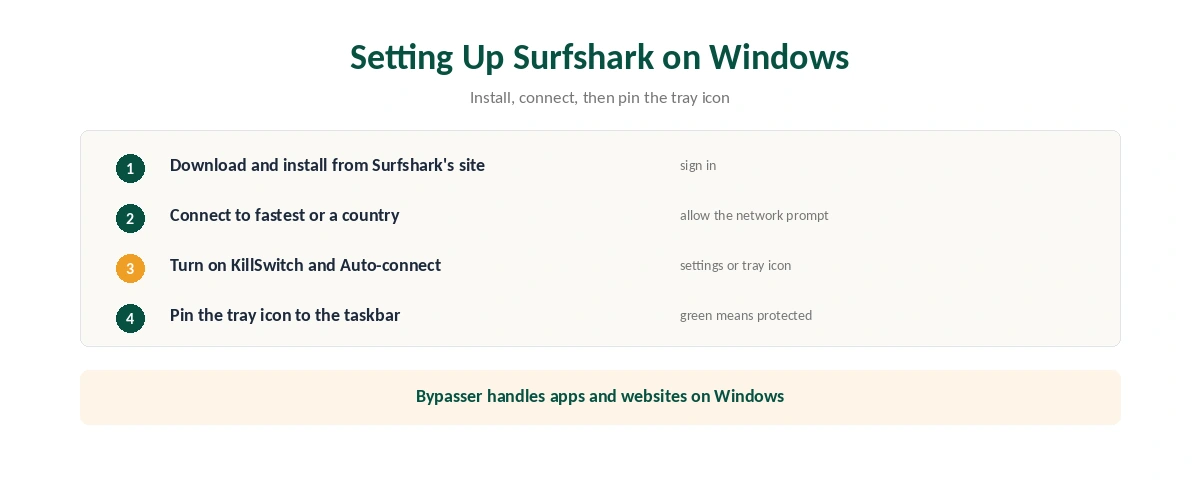
Setting Up Surfshark on Windows
| Step | What to do | Note |
|---|---|---|
| 1 | Download the Windows app from Surfshark’s site | Run the installer |
| 2 | Sign in | Or create an account |
| 3 | Connect to the fastest location or a country | Allow Windows’ network prompt |
| 4 | Turn on KillSwitch and Auto-connect | Settings, VPN settings, or the tray icon |
| 5 | Set up Bypasser if needed | Apps and websites |
| 6 | Pin the tray icon to the taskbar | Green means connected |
The tray icon does most of the everyday work for Surfshark on Windows. Even with the main window closed, it stays active and shows whether you are protected, Surfshark’s support page says. Drag it from the hidden icons to the taskbar so it is always visible, which matters most on laptops that hop between networks, as our public Wi-Fi guide explains.
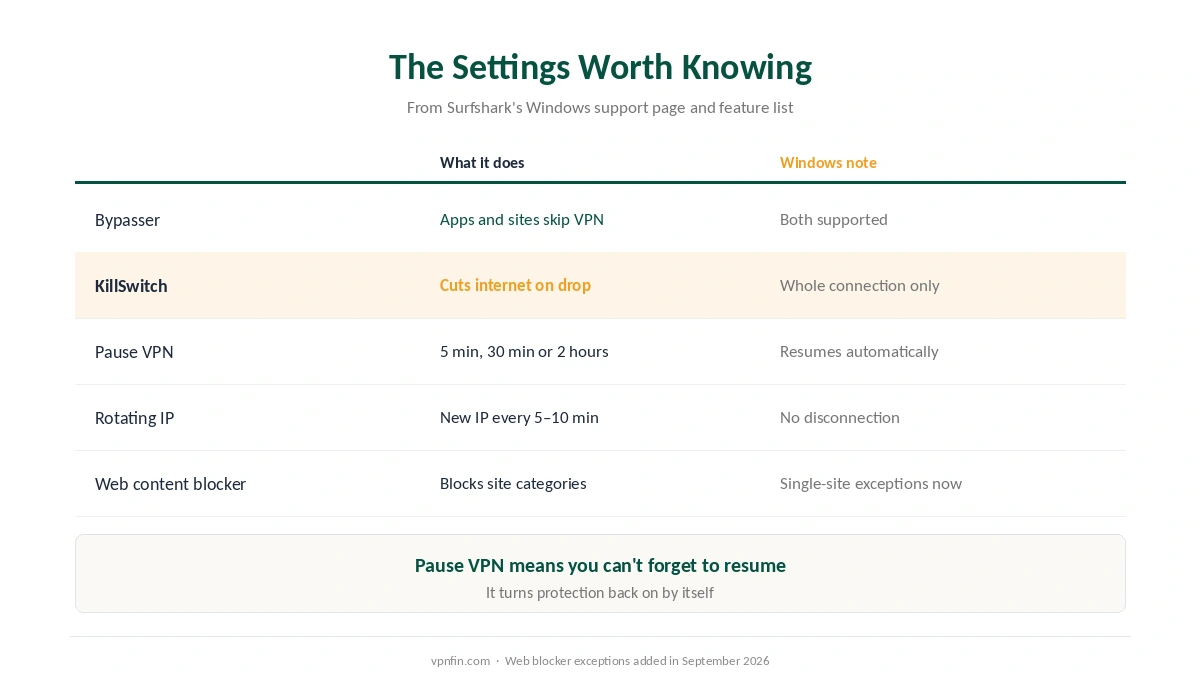
The Settings Worth Knowing
| Setting | What it does | Windows note |
|---|---|---|
| Bypasser | Chosen apps and sites skip the VPN | Apps and websites |
| KillSwitch | Cuts internet if the VPN drops | Whole connection, not per app |
| Pause VPN | Pauses for 5 or 30 minutes, or 2 hours | Resumes automatically |
| Rotating IP | New IP every 5–10 minutes | No disconnection |
| Web content blocker | Blocks website categories | Can now exclude single sites |
| Discover on LAN | Local network visibility | Invisible on LAN in older versions |
Pause VPN is the underrated one. Surfshark’s feature list says it pauses the connection for five minutes, 30 minutes or two hours, then resumes on its own, so you cannot forget to turn protection back on. Our split tunnelling guide explains when Bypasser is the better tool.
The web content blocker gained site exceptions in September. You can now allow a single site inside a blocked category, Surfshark’s update notes explain, such as a sports statistics page inside a blocked gambling category.
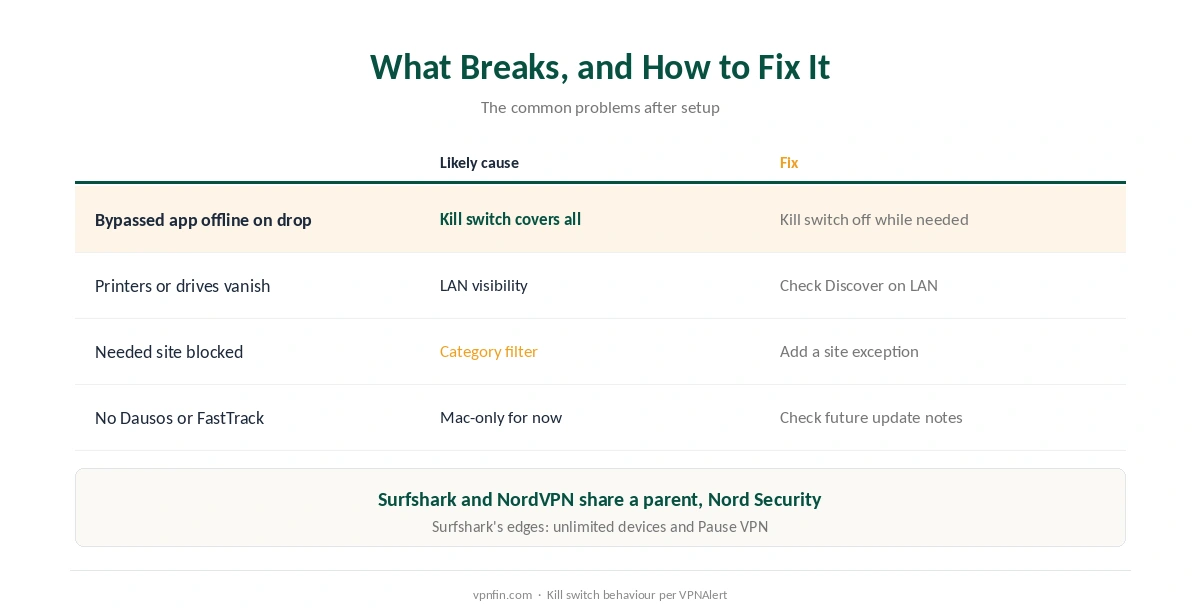
What Breaks, and How to Fix It
A bypassed app loses internet when the VPN drops. The kill switch covers the whole connection, not individual apps, VPNAlert found. If an app must stay online through drops, keep the kill switch off while you use it. Our kill switch guide explains the trade-off.
Network printers or shared drives disappear. Check Discover on LAN in the VPN settings, and run a DNS leak test after changing network settings. Our Windows troubleshooting guide covers adapter and firewall problems.
A site in a blocked category is needed. Add it as an exception in the web content blocker rather than turning the whole category off.
You expected Dausos or FastTrack. Surfshark’s September notes place both on macOS for now, so they will not appear in the Windows app yet; our Surfshark on Mac guide covers them.
Surfshark or NordVPN on Windows?
Both Windows apps are full-featured. NordVPN’s kill switch and split tunnelling conflict when the VPN drops, as our NordVPN on Windows guide explains; Surfshark’s kill switch behaves the same way across the whole connection. Surfshark’s advantages are unlimited devices and Pause VPN. The two share a parent, Nord Security. After setup, confirm the tunnel with our guide to checking a VPN, and our guide to turning off a VPN on Windows covers disconnecting.
How We Research
The setup and settings come from Surfshark’s Windows support page and feature list, and the Dausos, FastTrack and web blocker changes from Surfshark’s September 2026 update notes. VPNAlert supplied the kill switch behaviour. We name each source where used; all were read on 26 September 2026. We did not test on Windows ourselves. Our full approach lives on the About Us page.
Surfshark on Windows FAQ
Download the app from Surfshark’s site, install it, sign in and connect. Then turn on KillSwitch and Auto-connect, and pin the tray icon to the taskbar.
Yes. Bypasser lets chosen apps and websites skip the VPN on Windows.
No. VPNAlert notes it applies to the whole connection, so when the VPN drops, all internet access stops until it reconnects.
Not yet. Surfshark’s September 2026 update notes say Dausos is currently available on macOS.
It pauses the VPN for five minutes, 30 minutes or two hours, then resumes automatically.
The Verdict
Surfshark on Windows is quick to set up and easy to live with, thanks to the tray icon, Bypasser for apps and sites, and Pause VPN.
Its kill switch covers the whole connection, and Dausos and FastTrack are Mac-only for now. Beyond that, it is a full-featured Windows app.