
Disclosure: VPNFin is reader-supported. If you buy a VPN through links on this page, we may earn a commission at no extra cost to you. This never affects our ratings — here’s our full disclosure.
Putting Surfshark on a router has one clear advantage over many rivals: Surfshark gives you WireGuard keys for manual router setups. Its support page walks through generating a key pair under VPN, Manual setup, Router, and it publishes step-by-step WireGuard guides for GL.iNet, OpenWRT, DD-WRT, Asus VPN Fusion, TP-Link, Keenetic and FRITZ!Box routers.
That matters because router processors handle WireGuard more efficiently than OpenVPN, as our WireGuard and OpenVPN comparison explains. This guide covers which routers suit Surfshark, how the WireGuard setup works, and what goes wrong.
Surfshark on a Router: The Short Answer
Check that your router supports a WireGuard client. Surfshark’s own research says WireGuard works best with GL.iNet, OpenWRT and DD-WRT firmware.
Generate a WireGuard key pair in your Surfshark account, download a server configuration, and paste it into the router. The credentials are not your email and password.
Unlimited devices matter less here, since a router covers the whole home anyway, but they mean you can still run the apps on phones away from home. Our router setup guide explains the general process.
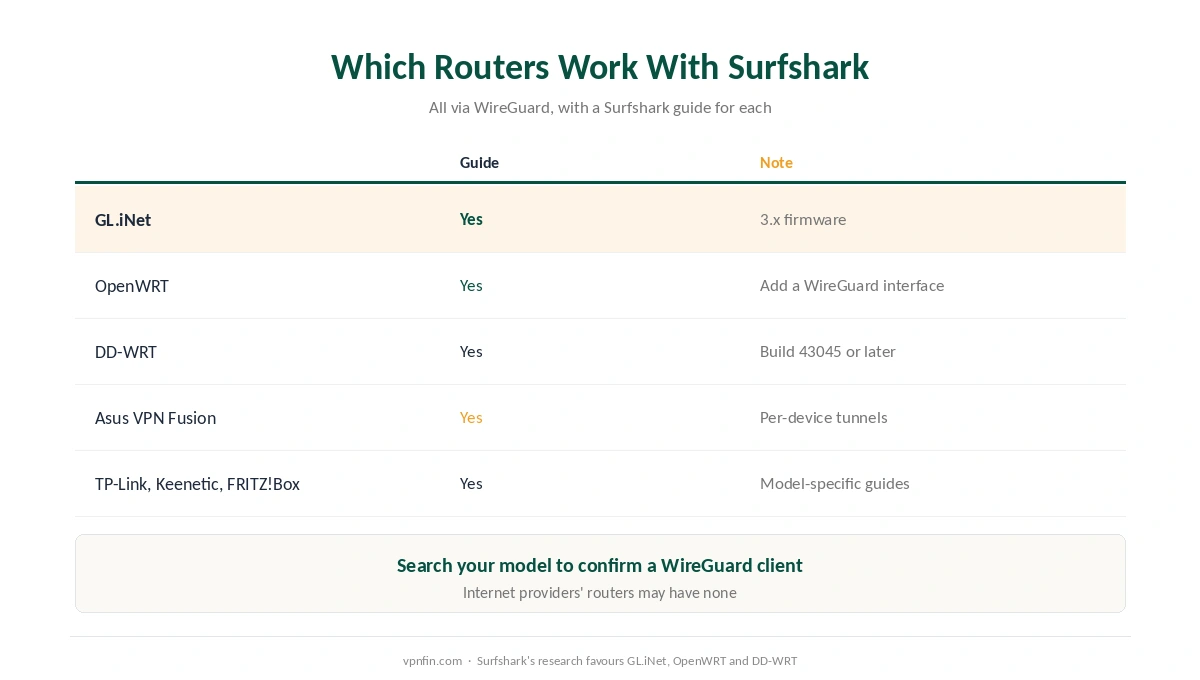
Which Routers Work With Surfshark
| Router or firmware | Protocol | Surfshark guide |
|---|---|---|
| GL.iNet | WireGuard | Yes, 3.x firmware |
| OpenWRT | WireGuard | Yes |
| DD-WRT | WireGuard | Yes, build 43045 or later |
| Asus with VPN Fusion | WireGuard | Yes |
| TP-Link, Deco, Keenetic, FRITZ!Box | WireGuard | Yes |
| Internet provider’s router | May have none | Check the model |
Asus VPN Fusion is the flexible option. Surfshark’s guide explains it can run several VPN connections at once and assign a tunnel per device, so a console can skip the VPN while a TV uses it. It is available on some Asus models as a firmware update.
Search your model first before putting Surfshark on a router. Surfshark’s advice is to look up your router’s make and model to confirm it supports a WireGuard client before you start.
Setting Up WireGuard on a Router
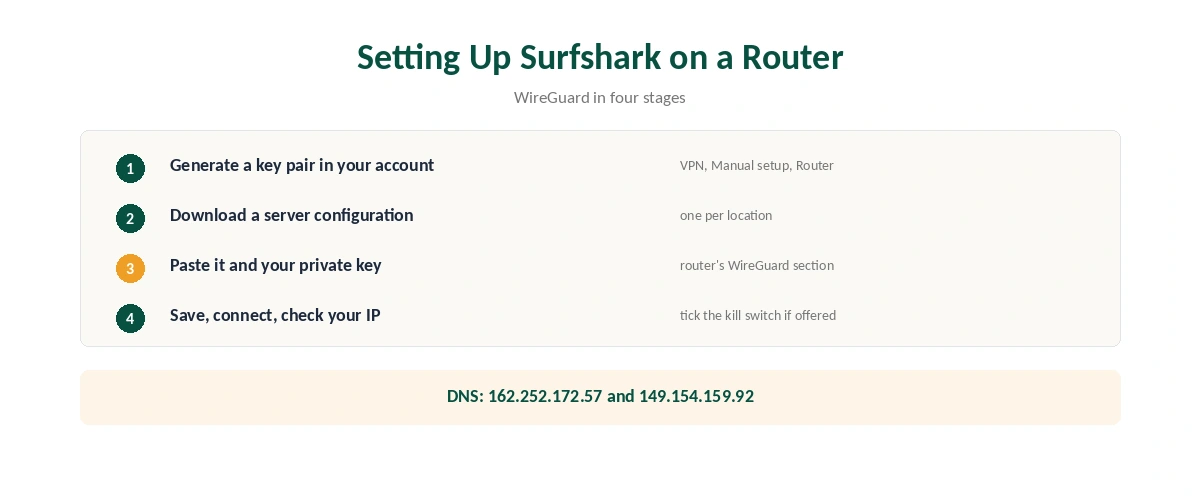
| Step | What to do | Note |
|---|---|---|
| 1 | Log in to your Surfshark account | On the website |
| 2 | Go to VPN, Manual setup, Router, WireGuard | Generate or add a key pair |
| 3 | Choose a server and download its configuration | One file per location |
| 4 | Open the router’s VPN client settings | WireGuard section |
| 5 | Paste the configuration and your private key | DNS lines included |
| 6 | Save, connect and check your IP | From any device on the network |
DD-WRT has a few extra fields. Surfshark’s DD-WRT guide lists its DNS servers as 162.252.172.57 and 149.154.159.92, and includes a kill switch checkbox in the tunnel settings. Tick it, so devices lose connection rather than leak if the tunnel drops. Our kill switch guide explains why.
What Breaks, and How to Fix It
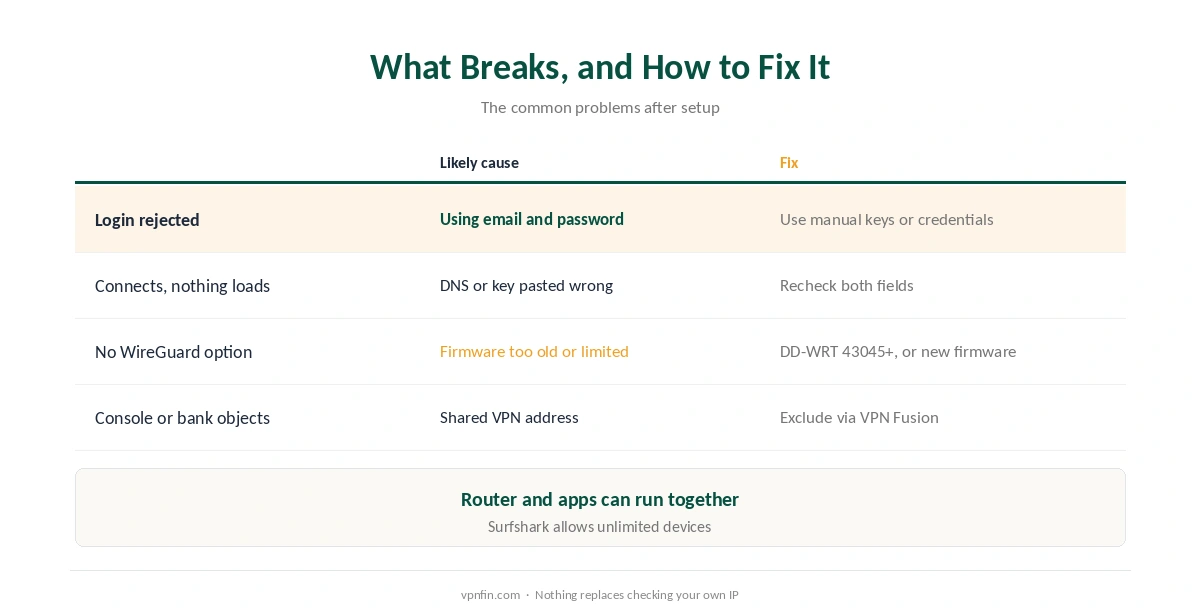
The router rejects the login. Manual setups use separate credentials or keys from your Surfshark account, not your email and password, Surfshark’s guides stress.
The tunnel connects but nothing loads. Check the DNS lines and the private key were pasted correctly, then confirm with our guide to checking a VPN. Our DNS leak guide shows how to confirm DNS goes through the tunnel.
Your router has no WireGuard option. It may support only OpenVPN, or no VPN client at all. Older DD-WRT builds, below 43045, lack the WireGuard support Surfshark’s guide requires.
A console or bank objects to the VPN address. Use Asus VPN Fusion or your firmware’s policy routing to exclude that device. Our gaming guide covers latency, and our Xbox guide the console side.
Router or Apps?
A router covers devices that cannot run apps, such as consoles and many smart TVs, as our PS5 guide and our smart TV guide explain.
The apps cover everything else, and travel with you. With unlimited devices, you can run both. For comparison, our NordVPN on a router guide explains why most routers run NordVPN, which shares Surfshark’s parent company Nord Security, over OpenVPN instead. Our Surfshark review covers the service, and our guide to turning off a router VPN covers disconnecting.
How We Research
The router list, key-pair steps and DD-WRT details come from Surfshark’s support pages for manual WireGuard, DD-WRT, GL.iNet, OpenWRT and Asus VPN Fusion. We name each source where used; all were read on 26 September 2026. We did not configure a router ourselves. Our full approach lives on the About Us page.
Surfshark on a Router FAQ
Yes. Generate a WireGuard key pair under VPN, Manual setup, Router in your Surfshark account, then paste a server configuration into the router.
Surfshark says WireGuard works best with GL.iNet, OpenWRT and DD-WRT firmware. It also has guides for Asus VPN Fusion, TP-Link, Keenetic and FRITZ!Box.
Its DD-WRT guide lists 162.252.172.57 and 149.154.159.92.
No. Manual router setups use separate credentials or WireGuard keys from your Surfshark account.
On Asus routers with VPN Fusion, yes: it assigns tunnels per device. Other firmware may offer policy-based routing.
The Verdict
Surfshark on a router can run WireGuard, thanks to key pairs from your account and guides for the most popular firmware.
Check your router supports a WireGuard client, use the manual credentials rather than your login, and tick the kill switch where your firmware offers one.