
Disclosure: VPNFin is reader-supported. If you buy a VPN through links on this page, we may earn a commission at no extra cost to you. This never affects our ratings — here’s our full disclosure.
A CyberGhost uninstall takes a minute, but the fixes you made for CyberGhost may outlast it. Its support articles tell Windows users to disable IPv6, because CyberGhost does not support it. Once the app is gone, that setting is no longer needed, so switch it back on. This guide covers that clean-up as well as the removal.
Removing the app never stops a payment. If you want to leave CyberGhost entirely, start with our guide to cancelling CyberGhost.
Turn Off, Uninstall or Cancel?
Turning CyberGhost off means disconnecting on one device. Uninstalling removes the app from that device. Cancelling stops the next payment for the whole account, on CyberGhost’s website or in the app store you paid through.
How to Turn CyberGhost Off Without Removing It
Before any CyberGhost uninstall, press the power button in the app to disconnect. If CyberGhost reconnects at startup or on new Wi-Fi, check its Smart Rules, which control what the app does on launch and on new networks. Our guides for Windows and Mac show the system side.
The automatic kill switch is worth a thought too. Disconnect properly before you uninstall, so the app closes its own tunnel first. Our kill switch guide explains why.
CyberGhost Uninstall Steps on Each Device
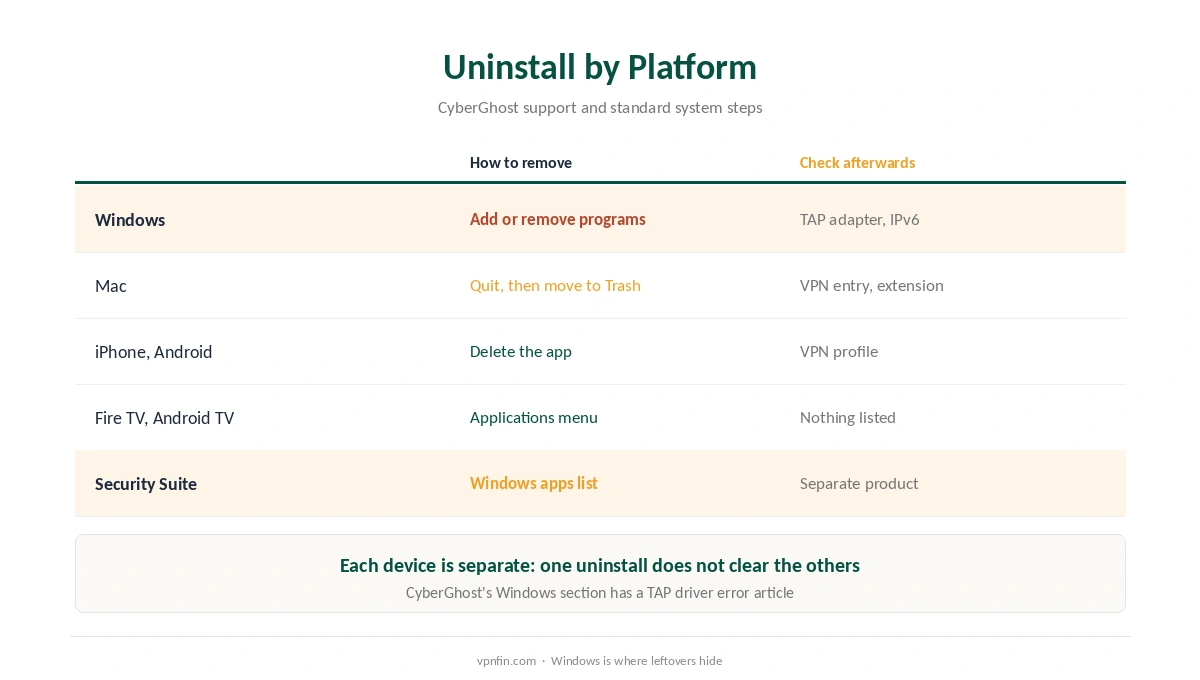
CyberGhost’s own support gives the Windows route: press Start, type Add or remove programs, find CyberGhost, click the three dots and choose Uninstall. Its Windows section also has an article on TAP driver errors, which helps if a leftover adapter causes trouble later.
On a Mac, quit the app, move it from Applications to the Trash, and check System Settings for a leftover VPN entry or network extension. For a CyberGhost uninstall on a phone, delete the app and check the VPN settings for a stray profile. TV boxes work through the Applications menu instead. Our Firestick guide shows the menus, and our CyberGhost Mac guide covers the Mac app.
Settings to Undo After a CyberGhost Uninstall
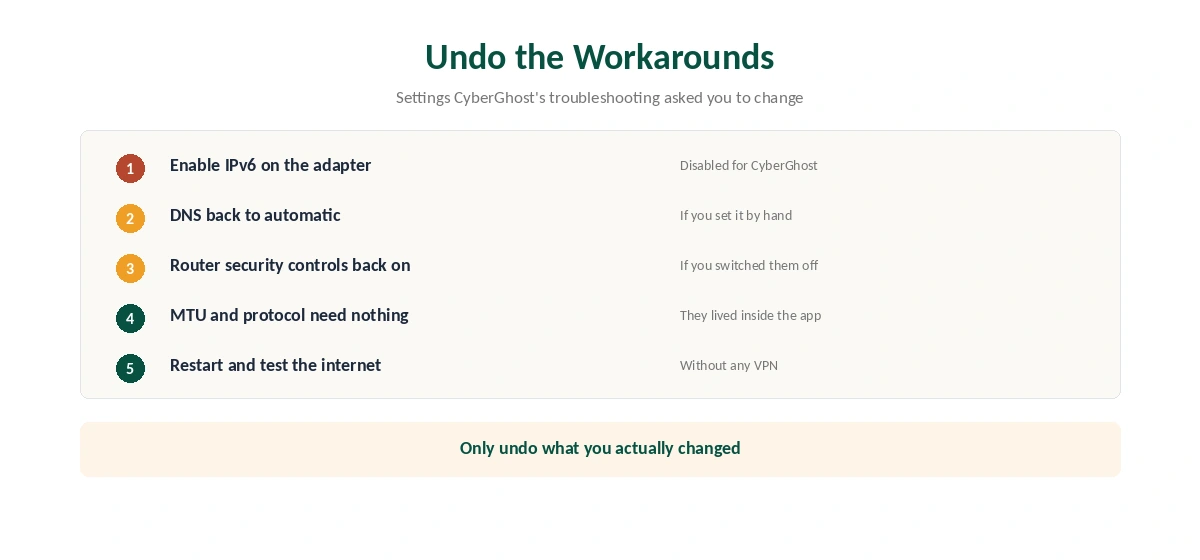
Three changes from CyberGhost’s troubleshooting may still sit on your device. First, if you disabled IPv6 on the network adapter, enable it again; our IPv6 guide explains what it does. Second, if you changed DNS settings, return them to automatic.
Third, if you switched off security or parental controls on your router to help CyberGhost connect, turn them back on. Each of these was a workaround for the VPN, and none is needed once it is gone.
CyberGhost Security Suite Is a Separate Product
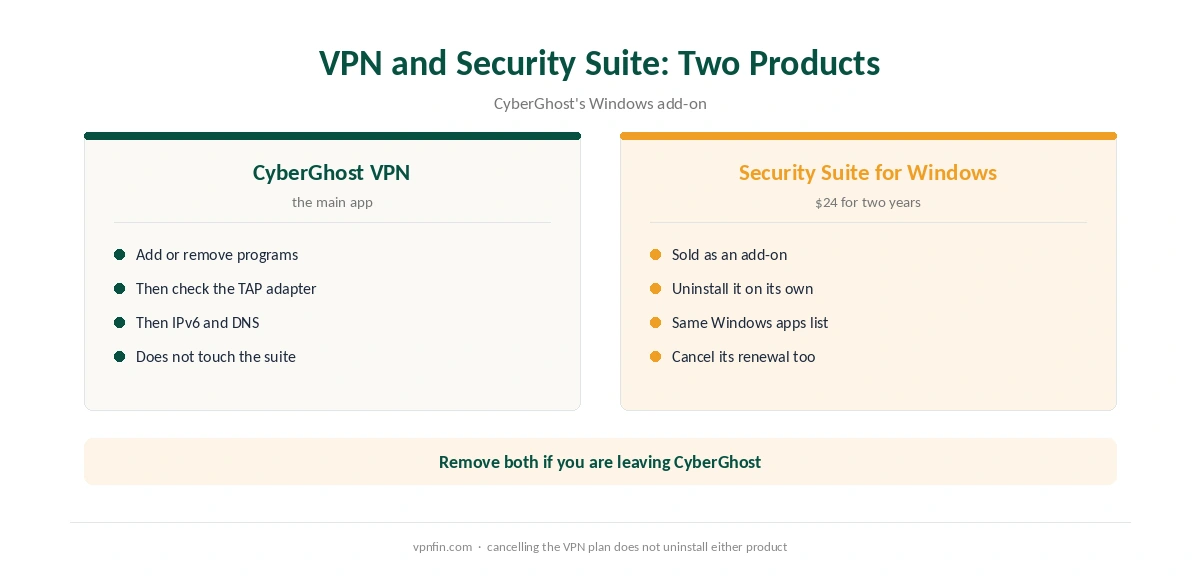
CyberGhost sells a Security Suite for Windows as an add-on, at $24 for two years. It is a separate product, so removing the VPN does not remove it. Uninstall it on its own from the same Windows apps list. Our VPN vs antivirus page explains how the two differ.
If You Uninstalled CyberGhost to Fix a Problem
A reinstall is a step in CyberGhost’s own troubleshooting, but other fixes come first. Before a CyberGhost uninstall for a fault, try our CyberGhost not connecting guide. Our disconnection guide or our speed guide cover the other common faults.
Device setup sits in our CyberGhost Windows guide if you decide to reinstall. CyberGhost belongs to Kape Technologies, a London-based company that also owns ExpressVPN and Private Internet Access. Our VPN ownership map shows the group.
Restoring IPv6
CyberGhost’s support suggests disabling IPv6 while using CyberGhost, since it does not support it. If you turned IPv6 off for that reason, turn it back on after uninstalling, in the network adapter settings.
Restoring DNS
If you set custom DNS servers for CyberGhost, set DNS back to automatic. Otherwise sites may resolve slowly or fail after the VPN is gone.
Security Suite
CyberGhost Security Suite is a separate product for Windows. Uninstalling the VPN does not remove it. Remove it separately from the Windows app list if you no longer use it.
Checking Nothing Is Left Behind
After uninstalling, check your network adapters for a leftover virtual adapter, and remove it if it remains. Then confirm your normal connection works by visiting a few sites. If pages fail to load, restart the computer, since some network changes apply only after a restart.
If problems persist, CyberGhost’s support lists network reset commands that return Windows networking to a clean state. Our CyberGhost troubleshooting guide lists them in order.
On a Mac, check System Settings for any leftover VPN profile and remove it. On phones, deleting the app removes its VPN profile, but check the VPN section of the settings once to be sure.
How We Research
This page draws on CyberGhost’s Windows connection article, the list of its Windows troubleshooting articles and its add-on prices. We cross-checked these sources against each other, and where they conflict or something can’t be verified, we say so in the text rather than guessing. We read every source on 5 October 2026. The main source we relied on is CyberGhost’s Windows support article. Our full approach lives on the About Us page.
How to Turn Off CyberGhost FAQ
No. Cancel on CyberGhost’s website or in the app store you paid through. The plan renews even with the app removed.
Press Start, type Add or remove programs, find CyberGhost, click the three dots and choose Uninstall, as CyberGhost’s support describes.
Yes, if you disabled it for CyberGhost. CyberGhost does not support IPv6, but most other setups do not need it switched off.
No. The Security Suite for Windows is a separate product. Uninstall it on its own.
Check the app’s Smart Rules, which control what CyberGhost does on launch and on new networks.
The Verdict
A clean CyberGhost exit means cancelling the plan, uninstalling on each device and undoing the workarounds: IPv6, DNS and router controls. Remove the Security Suite separately if you bought it.