
Disclosure: VPNFin is reader-supported. If you buy a VPN through links on this page, we may earn a commission at no extra cost to you. This never affects our ratings — here’s our full disclosure.
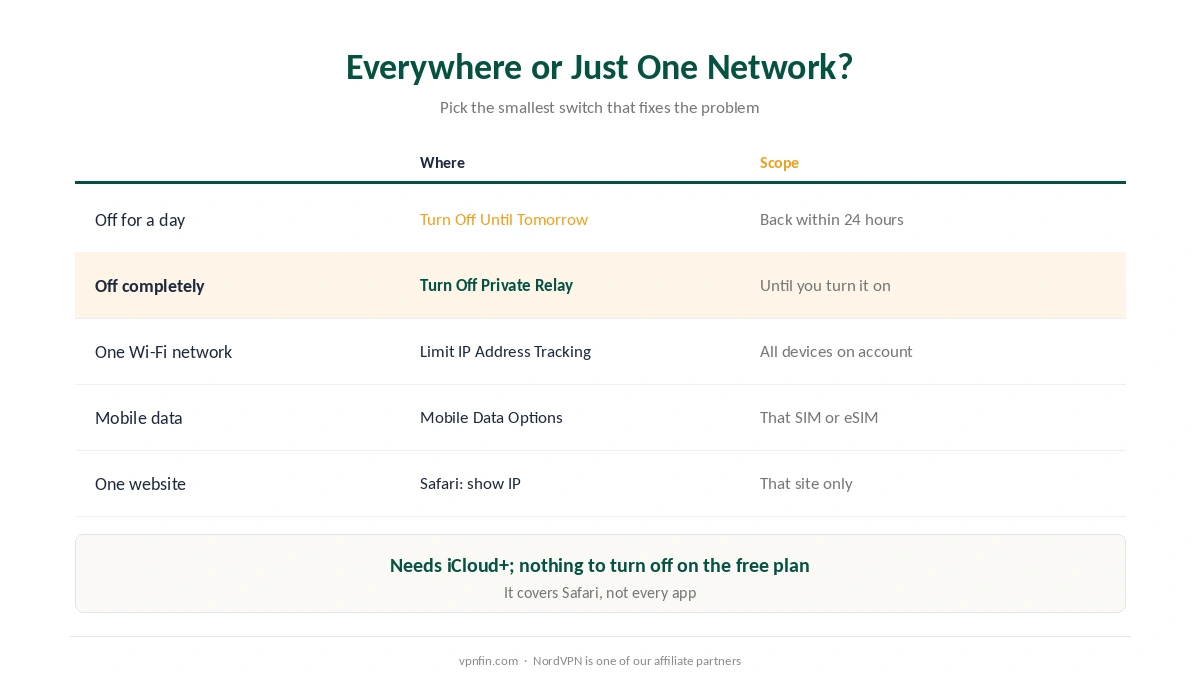
How do you turn off Private Relay? On an iPhone, go to Settings, your name, iCloud, Private Relay. Apple offers two choices there, its iPhone User Guide explains. Turn Off Until Tomorrow switches it back on by itself within 24 hours. Turn Off Private Relay stops it until you turn it on again. On a Mac, the same options sit in System Settings, under your name and iCloud.
Often you don’t need to turn it off everywhere. Apple lets you disable it for a single Wi-Fi network, mobile line or website instead. That is often the better fix when one network or site misbehaves.
How to Turn Off Private Relay: Everywhere or Just One Network?
| What you want | Where | Scope |
|---|---|---|
| Off for a day | iCloud, Private Relay, Turn Off Until Tomorrow | All networks, back within 24 hours |
| Off completely | iCloud, Private Relay, Turn Off Private Relay | All networks, until you turn it on |
| Off on one Wi-Fi network | Wi-Fi, the network’s info icon, Limit IP Address Tracking | That network, on all your devices |
| Off on mobile data | Mobile Data Options, Limit IP Address Tracking | That SIM or eSIM only |
| Off for one website | Safari: let the site see your IP address | That site only |
A Wi-Fi change follows your account when you turn off Private Relay per network. Switching off Limit IP Address Tracking for a Wi-Fi network on your iPhone affects every device on the same Apple Account, Apple notes. Private Relay stops for that network on all of them.
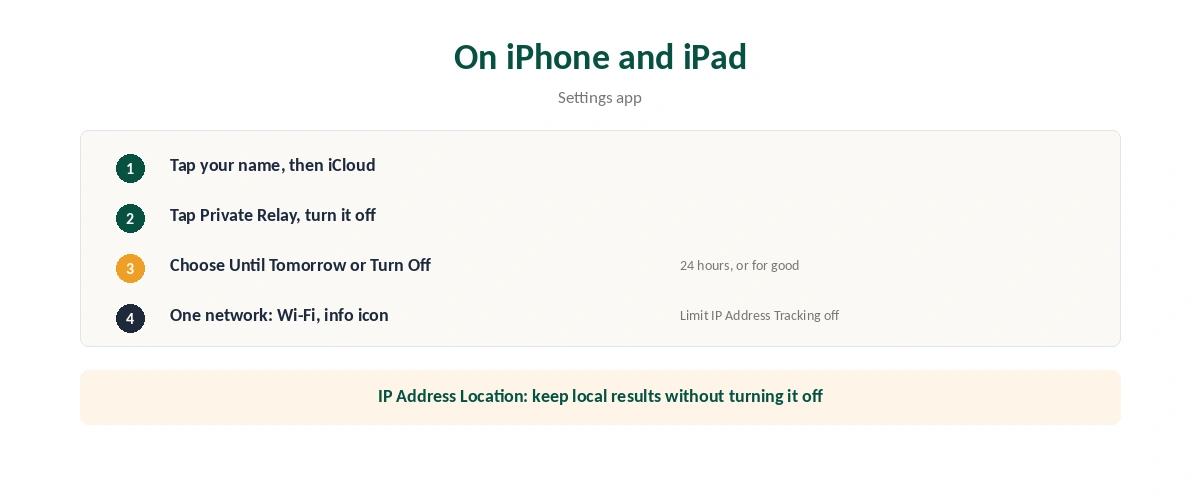
Turn Off Private Relay on iPhone and iPad
| Step | What to do |
|---|---|
| 1 | Open Settings and tap your name |
| 2 | Tap iCloud, then Private Relay |
| 3 | Turn Private Relay off |
| 4 | Choose Turn Off Until Tomorrow or Turn Off Private Relay |
For one network only, go to Settings, Wi-Fi, tap the info icon next to the network and turn off Limit IP Address Tracking. For mobile data, open Settings, Mobile Data, Mobile Data Options, and do the same. With two lines, each SIM has its own setting, Apple explains.
Keep it on but show local content: under Private Relay, IP Address Location offers two settings. Maintain General Location keeps local results in Safari; Use Country and Time Zone gives more privacy. Our iPhone VPN guide covers VPN apps separately.
Turn Off Private Relay on a Mac
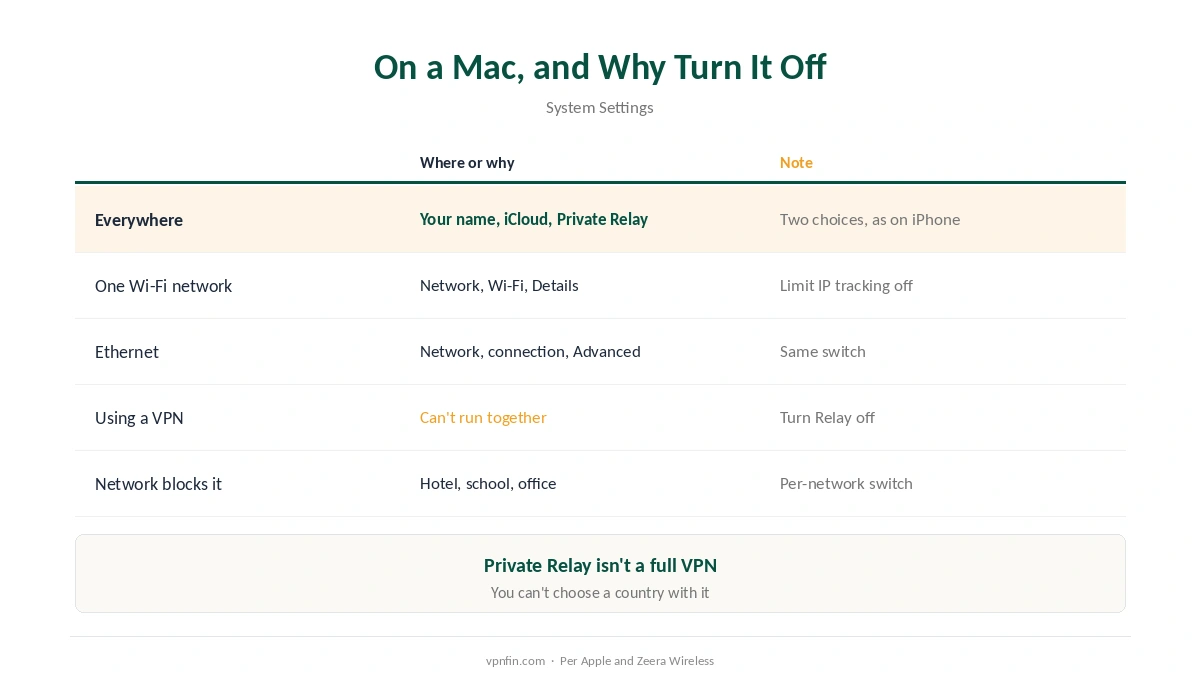
Open System Settings, click your name, then iCloud and Private Relay, and choose Turn Off Until Tomorrow or Turn Off Private Relay, Apple’s Mac User Guide describes.
For one network, go to System Settings, Network, click Wi-Fi, then Details next to the network, and turn off Limit IP address tracking. For Ethernet, select the connection, then Advanced. Our Mac guide covers VPN apps on macOS, and our IP check guide shows which address sites now see.
Why Turn It Off?
VPN apps clash with it. Private Relay and a VPN can’t run together. A VPN may connect but load nothing until Private Relay is off, as our iPhone fix guide explains.
Some networks and sites reject it. Hotel, school and office networks may block it, and Apple’s per-network switch handles that without turning it off everywhere, as our school and work guide also discusses. Our hotel Wi-Fi guide covers login pages.
Private Relay isn’t a full VPN. Coverage is limited to Safari and some system traffic, and you can’t choose a country, Zeera Wireless notes. You also need an iCloud+ subscription for it; on the free plan there’s nothing to turn off. Our VPN vs proxy guide explains the difference.
How We Research
The settings paths, the 24-hour option, per-network and per-line controls, account-wide Wi-Fi behaviour and location options come from Apple’s iPhone and Mac User Guides. The iCloud+ requirement and scope come from Zeera Wireless and Apple; the unavailable message from Intego. We read all sources on 28 September 2026. NordVPN is one of our affiliate partners. Our full approach lives on the About Us page.
Turn Off Private Relay FAQ
Settings, your name, iCloud, Private Relay. Choose Turn Off Until Tomorrow or Turn Off Private Relay.
You probably chose Turn Off Until Tomorrow, which switches it back on within 24 hours. Choose Turn Off Private Relay to keep it off.
Yes. Turn off Limit IP Address Tracking for that network. On iPhone, the change applies to that network on all devices on your Apple Account.
Yes. Private Relay and a VPN can’t run together, so turn Private Relay off while the VPN is on.
It requires iCloud+. It can also be unavailable in some countries or regions.
The Verdict
To turn off Private Relay, use iCloud settings, and pick Turn Off Private Relay if you want it to stay off.
If only one network or site misbehaves, switch it off there instead and keep the protection elsewhere.