
Disclosure: VPNFin is reader-supported. If you buy a VPN through links on this page, we may earn a commission at no extra cost to you. This never affects our ratings — here’s our full disclosure.
Smart DNS and a VPN can both make a TV think it is somewhere else. The providers who sell both are unusually frank about the difference. ExpressVPN’s own setup pages say its Smart DNS service, MediaStreamer, is not a VPN, does not offer a VPN’s privacy or security, and cannot change your location.
That is the trade in one sentence. Smart DNS is lighter and works on devices that cannot run a VPN app, yet it encrypts nothing and hides nothing. This guide explains how it works, where it breaks, and how to set up the two versions still on sale from major providers, since Surfshark retired its own in February 2026.
Smart DNS vs VPN: The Short Answer
Smart DNS changes where streaming sites think you are, and nothing else. Your traffic is not encrypted, your address stays visible, and it only works for the services the provider supports.
A VPN encrypts everything and changes your address for every app. It costs a little speed and needs an app or a router, but it protects you on public Wi-Fi and hides your activity from your internet provider.
Use Smart DNS only on a device that cannot run a VPN, such as many Samsung and LG televisions, and only at home. Our smart TV guide covers which TVs need it.
How Smart DNS Works
Every time a device opens a website or app, it first asks a DNS server for the address to connect to. Smart DNS replaces your provider’s DNS with one that answers differently for a list of streaming services.
For those services, the answer points your device to a proxy server in another country, so the streaming service sees the proxy’s location. For everything else, the answer is normal, and your traffic goes straight out as it always did.
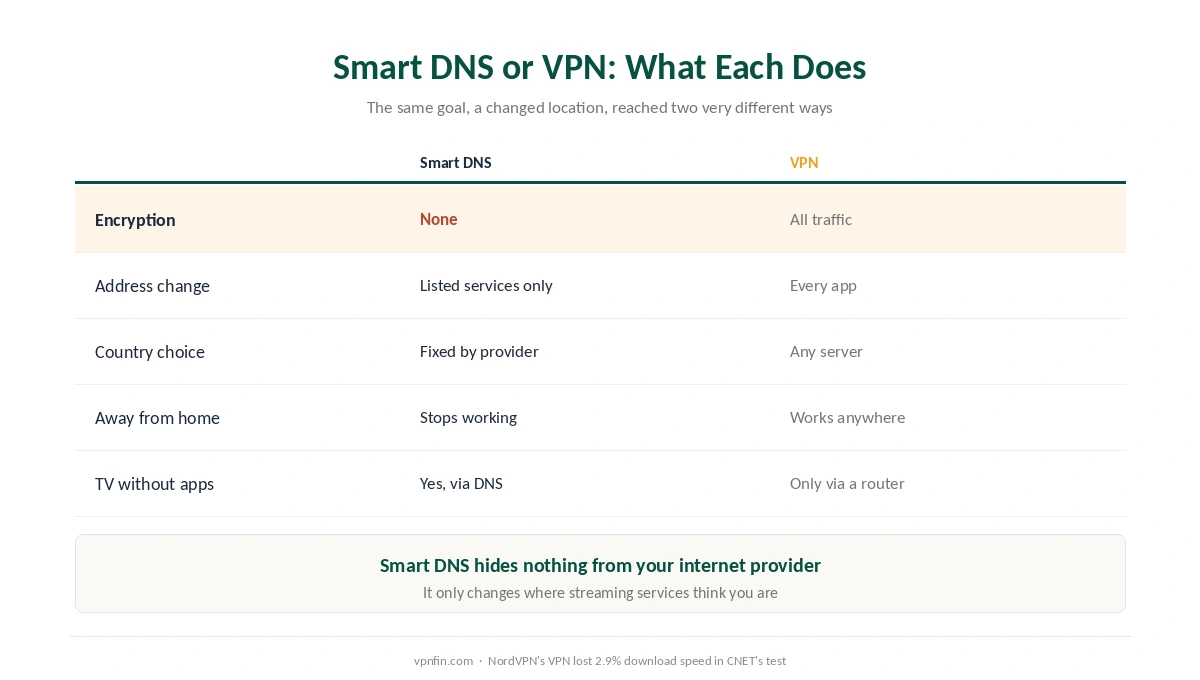
⚠️ No part of this is encrypted. Your internet provider still sees your traffic, and websites still see your real address unless they are on the provider’s list. Our guide to what a VPN hides explains what that means in practice.
| Smart DNS | VPN | |
|---|---|---|
| Encryption | None | All traffic |
| Changes your address | Only for listed services | For every app |
| Choose a country | Fixed by the provider | Any server location |
| Works away from home | No, tied to your home address | Yes, anywhere |
| Runs on a TV without apps | Yes, via DNS settings | Only through a router |
Why It Is Not Private at All
The providers say so themselves. ExpressVPN’s support pages repeat on every MediaStreamer guide that it is not a VPN and offers none of a VPN’s privacy or security benefits.
Your internet provider sees everything. Ordinary DNS queries travel unencrypted, so your provider can see which sites you look up, including the streaming services. On a hotel or café network, anyone monitoring it can too. Our public Wi-Fi guide covers that risk.
Your address stays yours. Anything outside the provider’s streaming list sees your real home address, exactly as it would with no service at all.
Why It Can Be Faster
A VPN encrypts every packet and routes it through a distant server. Smart DNS does neither for most of your traffic, so ordinary browsing runs at your normal speed.
The gap is smaller than it used to be. CNET measured an average download loss of 2.9% with NordVPN, according to our speed table. On a good connection, a modern VPN rarely slows 4K streaming, and our speed guide explains what does.
Where Smart DNS Stops Working
When your home address changes. Both NordVPN and ExpressVPN tie the service to your registered IP address. If your internet provider changes it, Smart DNS stops until you register again. ExpressVPN offers automatic registration, but its guide says it needs an occasional prompt, such as signing in to the website or opening the app on the same network.
When you leave home. Because the service is tied to your home address, it does not work on mobile data or in a hotel. Our travel guide covers what to use instead.
When something bypasses it. A browser using its own secure DNS, or a device using IPv6, can skip Smart DNS entirely. CaptainDNS lists both as things to check, and ExpressVPN’s setup pages tell you to turn IPv6 off.
⚠️ When the provider retires it. Surfshark, which shares a parent company with NordVPN in Nord Security, stopped supporting its SmartDNS on 2 February 2026, and televisions left pointing at the old servers could lose their connection entirely. Our Surfshark and Netflix page covers what replaced it.
Setting Up NordVPN SmartDNS
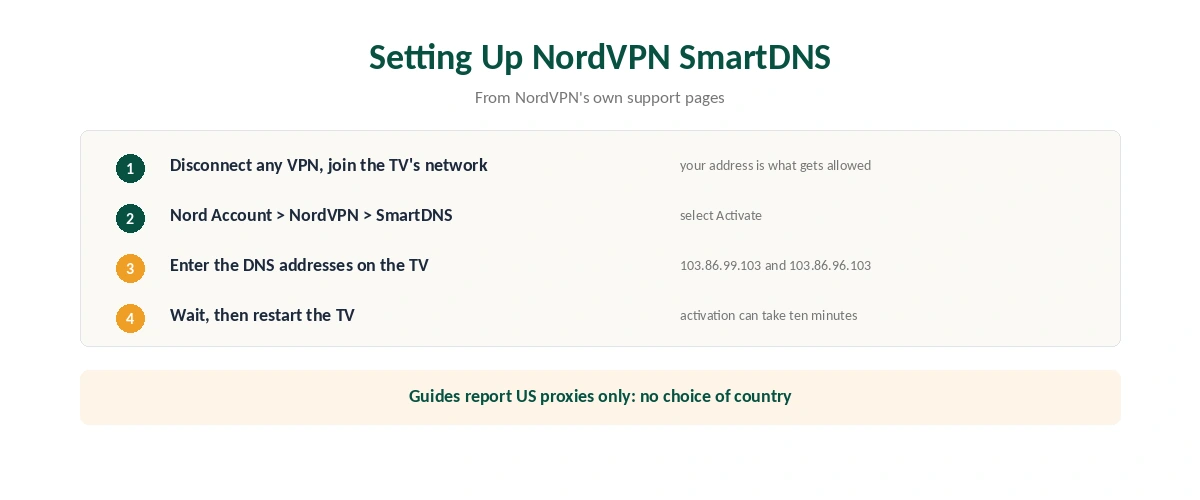
First, disconnect from any VPN and connect your phone or computer to the same network as the TV. Then open Nord Account, go to Services, choose NordVPN, and select Activate under SmartDNS. NordVPN’s support pages say this adds your current address to its allowed list.
Next, enter the DNS addresses on the TV. NordVPN’s Apple TV guide gives 103.86.99.103 as the primary and 103.86.96.103 as the secondary. Other published guides list the same two addresses in the opposite order, which makes no practical difference.
Then wait and restart. Comparitech notes that activation can take up to ten minutes. Guides to the service also report that it routes through US proxies, so it opens American versions of supported services rather than letting you choose a country. Our NordVPN review covers the VPN itself.
Setting Up ExpressVPN MediaStreamer
Register your address first. In your ExpressVPN account, open DNS Settings and choose Register my IP address, then switch on automatic registration.
Then copy the MediaStreamer addresses. They appear on the setup page under Network and smart home, as MediaStreamer IP #1 and #2. Enter them as the TV’s DNS servers and turn IPv6 off.
If your address changes often, ExpressVPN suggests a free dynamic DNS name from Dynu instead, registered in the same settings page. Its guide warns that detecting a change can take up to ten minutes. Our ExpressVPN review covers the rest of the service.
When to Use Which
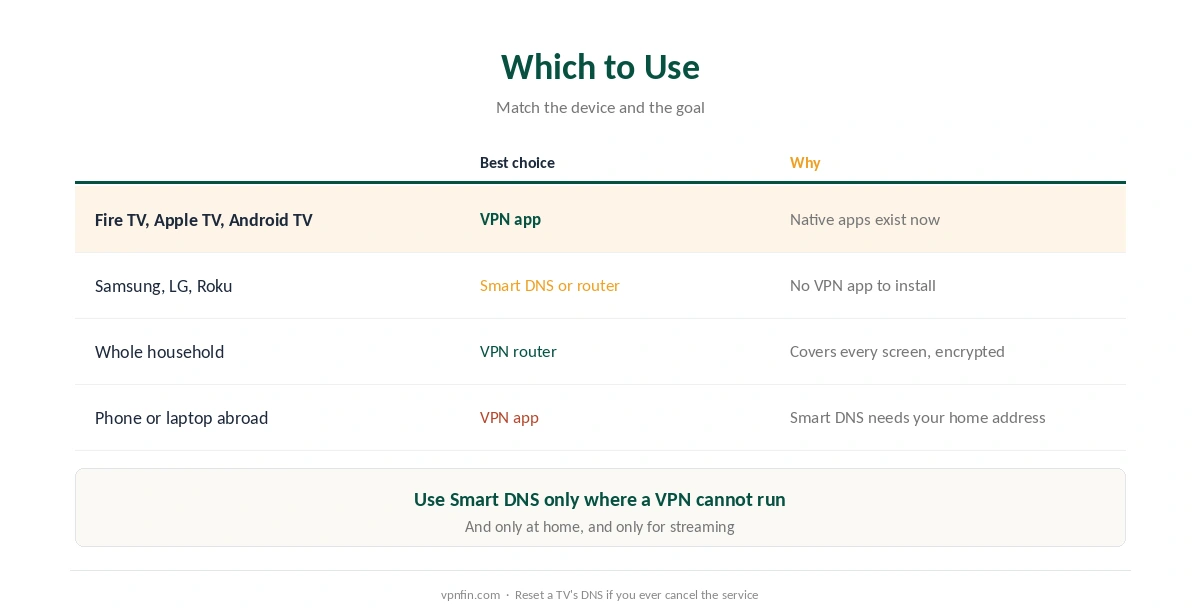
Use a VPN app wherever one exists. Fire TV, Apple TV and Android TV all have native apps now. Our ExpressVPN Fire Stick guide and our Apple TV guide cover two of them.
Use Smart DNS for a TV that cannot run an app, at home, and only for streaming. Our Roku guide covers a device with no VPN app at all.
Use a VPN router to cover everything, including TVs without apps, with full encryption. Our router guide explains the setup, and our guide to switching a TV back covers undoing either change.
How We Research
We took the MediaStreamer description and setup steps from ExpressVPN’s own support pages, dated August and September 2026. NordVPN’s SmartDNS steps and addresses come from its support pages, the activation delay from Comparitech, and the US-only routing from published guides to the service, named where used. Surfshark’s retirement date comes from its support notice, and the bypass checks from CaptainDNS. The speed figure is CNET’s, via our speed table. We did not set up either service ourselves. Our full approach lives on the About Us page.
Smart DNS vs VPN FAQ
No. Smart DNS changes where selected streaming services think you are, but it encrypts nothing and leaves your real address visible to everything else. ExpressVPN’s own pages say its Smart DNS offers none of a VPN’s privacy or security.
For ordinary browsing, yes, because most traffic is not rerouted or encrypted. The difference is smaller than it was; CNET measured a 2.9% average download loss with NordVPN.
Not with NordVPN or ExpressVPN. Both tie it to your registered home address, so it stops working on mobile data or another network. Use a VPN app when travelling.
NordVPN offers SmartDNS and ExpressVPN offers MediaStreamer, both included with the VPN. Surfshark retired its SmartDNS on 2 February 2026.
Most often your home IP address changed and needs registering again. A browser’s secure DNS or IPv6 can also bypass it, so check both settings.
The Verdict
Smart DNS is a streaming shortcut, not a privacy tool. It is faster for everyday browsing and runs on TVs that cannot install apps, but it encrypts nothing and hides nothing, and the providers who sell it say so.
So use a VPN app wherever one exists, Smart DNS only for an app-less TV at home, and a VPN router if you want the whole household covered properly.