Disclosure: VPNFin is reader-supported. If you buy a VPN through links on this page, we may earn a commission at no extra cost to you. This never affects our ratings — here’s our full disclosure.
Two Fire TV Sticks currently sell under the same name and run different operating systems. On both you now turn a VPN off in its app, but the newer system installs apps only from the Amazon Appstore, so a VPN set up another way may not be on the stick at all.
That split decides everything else here, and Amazon does not print it on the box. So the first step is not a setting — it is finding out which stick is plugged into your television.
After that the answer is short. Disconnect in the app, force stop it, uninstall it if you want it gone, and restart the stick.
How Do You Turn Off a VPN on a Firestick?
Open the VPN app and choose disconnect. To stop it restarting, go to Settings → Applications → Manage Installed Applications, select the VPN, and use Force stop. Choose Uninstall on the same screen to remove it completely. If no VPN app appears in that list, the tunnel is not on the stick at all.
Three Levels of Off
They sound alike and they do different jobs, so pick by what you want.
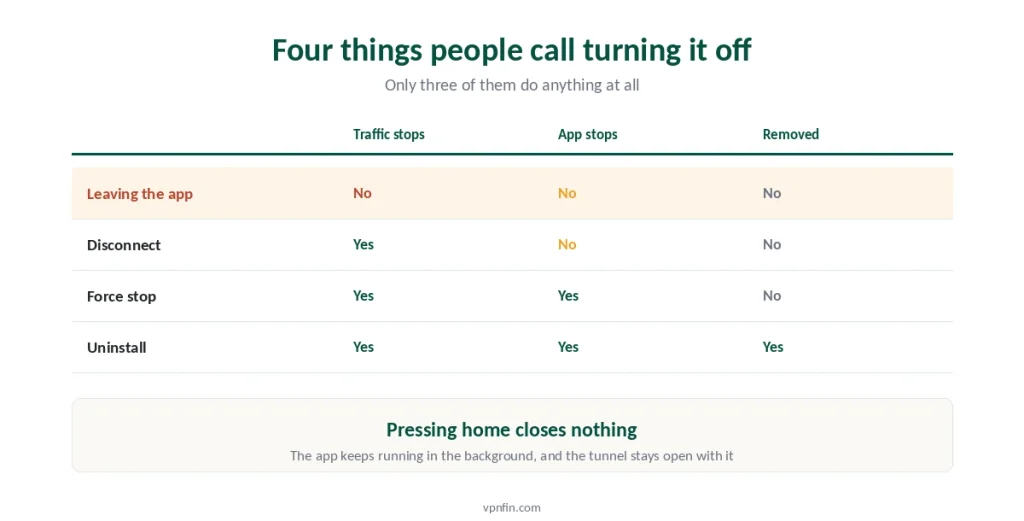
Disconnect. Open the app, press disconnect. Traffic goes back to normal immediately, and the app stays installed and running.
Force stop. Settings → Applications → Manage Installed Applications → your VPN → Force stop. This ends the process rather than the connection, which matters because backing out of an app does not close it on Fire OS.
Uninstall. Same screen, one option down. This removes it, and the same list also offers Clear cache and Clear data if you want to keep the app but reset it.
⚠️ Leaving the app is not any of these three. Press the home button and the app carries on in the background. That is standard behaviour on an Android-based system rather than anything a VPN does deliberately, and it is why the connection survives what feels like closing it.
Where the App Actually Lives
This is the step that trips people up, and it takes ten seconds once you know it.
Sideloaded apps are not on the home row. Anything installed through Downloader or a similar tool never appears in the main app list, so the home screen tells you nothing about whether it is there.
They are all in one place. Settings → Applications → Manage Installed Applications shows everything the stick has, sideloaded or not.
Scroll the whole list. Names differ from the icons people remember, and a VPN installed a year ago may be listed under something unfamiliar.
⚠️ Plenty of people conclude the VPN is gone when it is still running. The home screen removed nothing, and the app is quietly holding a tunnel open. Five tests confirm what is actually happening on the network, which beats trusting a screen that was never showing you the answer.
First, Check Which Stick You Have
Now the part that decides whether any of the above applies.
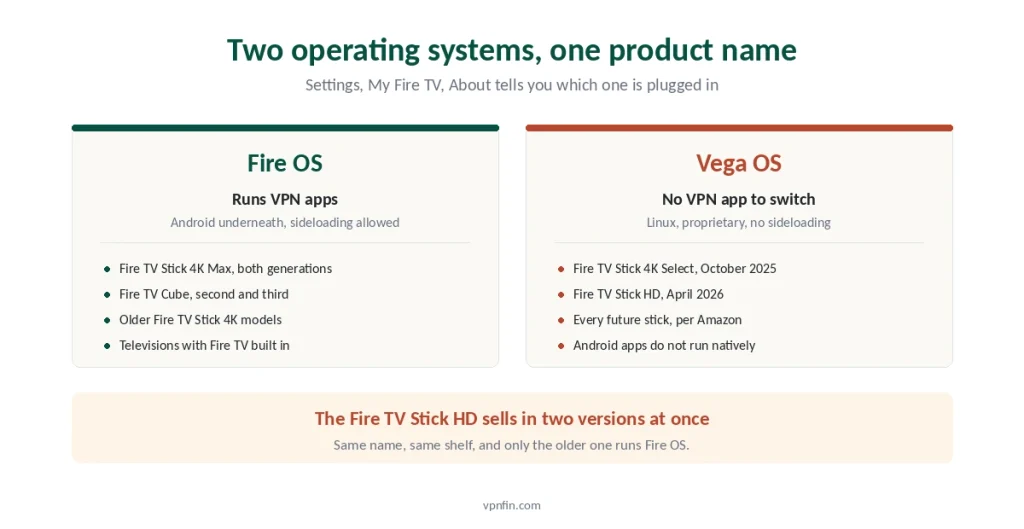
Go to Settings → My Fire TV → About and read the software version. That tells you whether the device runs Fire OS or Vega OS.
Fire OS is Android underneath. It runs Android VPN apps, allows sideloading, and everything described above works normally. The Fire TV Stick 4K Max, the Fire TV Cube and older Fire TV Stick 4K models are in this group, as are televisions with Fire TV built in.
Vega OS is Linux and proprietary. It does not natively run Android apps and offers no consumer-facing sideloading switch. Amazon’s product pages for these devices state plainly that the device prevents installing apps from unknown sources. VPN apps arrived through the Amazon Appstore after an update in late November 2025, and NordVPN, IPVanish, Surfshark, ExpressVPN and Proton VPN now offer Vega versions.
Two models ship with it today: the Fire TV Stick 4K Select, released in October 2025, and the Fire TV Stick HD announced in April 2026. Amazon’s developer documentation says that from the 4K Select onward, all future Fire TV Sticks run Vega.
⚠️ The Fire TV Stick HD is sold in two versions at once, and only the older one runs Fire OS. Same name, same shelf, different capabilities. If you bought recently, check rather than assume — and note that a stick you already own does not change operating system through an update. This is a hardware decision applied to new products.
If There Is No VPN App to Turn Off
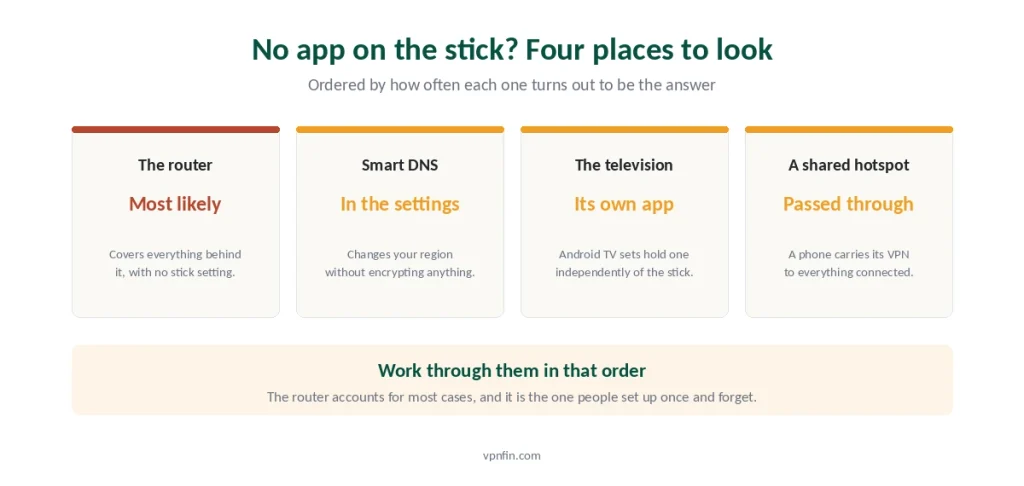
You checked the list, nothing is there, and streaming still thinks you are abroad. The tunnel exists somewhere else, and there are four candidates.
Your router. The most common answer, and the stick has no control over it at all. Turning that off has its own order of operations, and getting it wrong takes the whole house offline rather than one device.
Smart DNS in the network settings. This is not a VPN and encrypts nothing, but it changes which region services think you are in. Look in the stick’s network configuration for manually set DNS servers, and set them back to automatic.
The television itself. If the stick is plugged into a set running Android TV or Google TV, the TV can hold its own VPN app independently — which platforms can and cannot is worth checking, and switching one off there follows different rules.
Another device sharing its connection. A phone or laptop acting as a hotspot passes its own VPN through to everything connected.
⚠️ Work through them in that order. The router accounts for most cases, and it is also the one people forget precisely because they set it up once and never opened it again.
When Streaming Still Fails Afterwards
The VPN is off and the app still refuses. Three causes, in order of likelihood.
Cached network state. Fire OS holds onto network settings, so restart the stick after any change. Unplug it for ten seconds if the menu restart does not help.
Cached app data. Streaming apps remember the region they last saw. Settings → Applications → Manage Installed Applications → the streaming app → Clear cache usually resolves it.
Leftover DNS. If you set custom DNS servers for Smart DNS, they stay set until you change them back, whatever happened to the VPN.
⚠️ If nothing loads at all rather than being blocked, that is a different problem — our connection troubleshooting guide works through the causes in order. And a platform refusing a specific server is normal rather than broken, since streaming blocks change monthly.
Before You Turn It Off for Good
Usually the reason points at something narrower than removal.
If a service started blocking you, switching servers within the same country often clears it. Platforms block individual addresses rather than whole providers, and our streaming guide covers which ones hold up.
If playback stutters, the stick’s processor is a bigger factor than the provider. Encryption costs more on modest hardware, though the honest speed figures are smaller than the complaints suggest.
If it was for privacy on a device you barely use, that is a fair reason to stop. We answer the do-I-need-one question honestly rather than commercially.
⚠️ Do not replace it with a free app on the way out. Only three free tiers are worth trusting, and a stick is a poor place to experiment with the rest. If you decide to set one up again later, our Firestick guide covers which models still support what — as does our Kodi guide for the sideloading side of it.
How We Research
This guide follows Amazon’s published developer documentation on the move to Vega OS, the product-page notices on Vega devices about installing apps from unknown sources, reporting from named outlets on which models ship with which operating system, and the standard Fire OS paths for managing installed applications. Where a model’s operating system depends on which revision you bought rather than on the product name, we say so. We don’t run our own speed tests, and we do not publish methods for installing apps a device is designed to refuse. The same job on other devices follows different rules on each, and the Android version is the closest relative to this one. Our full approach lives on the About Us page.
Turning Off a Firestick VPN FAQ
Open the VPN app and press disconnect. To stop it running in the background, go to Settings, then Applications, then Manage Installed Applications, select the VPN and choose Force stop. Uninstall sits on the same screen if you want it removed rather than paused.
Either the tunnel comes from somewhere else, such as your router, or your provider has no app for your stick. The Fire TV Stick 4K Select and the 2026 Fire TV Stick HD run Vega OS, which installs apps only from the Amazon Appstore; NordVPN, IPVanish, Surfshark, ExpressVPN and Proton VPN have versions there. Check Settings, My Fire TV, About to see which you have.
Only in Settings, Applications, Manage Installed Applications. They never show on the home row, which is why people assume an app was removed when it is still installed and running. Scroll the full list, since names often differ from the icons you remember.
Usually cached state. Restart the stick first, since Fire OS holds network settings until it reboots. Then clear the streaming app’s cache from Manage Installed Applications. If you set custom DNS servers for Smart DNS, those stay in place until you reset them.
Yes, and this is common. A VPN configured on your router covers everything behind it with no setting on the stick. A television running Android TV can hold its own app, and a phone sharing a hotspot passes its VPN through. Check the router first.
The Short Version
Disconnect in the app first. That solves the immediate problem in one press.
Then force stop it from Settings → Applications → Manage Installed Applications. Backing out of an app does not close it, and the connection survives what feels like quitting.
Uninstall from the same screen if you want it gone rather than paused. Sideloaded apps live in that list too, which is why the home screen never showed them.
Check your operating system before any of this. Settings → My Fire TV → About tells you whether you have Fire OS or Vega OS, and the newest sticks install VPN apps only from the Amazon Appstore.
And if no app exists to turn off, look at the router, then Smart DNS, then the television. One of them is doing it.