
Disclosure: VPNFin is reader-supported. If you buy a VPN through links on this page, we may earn a commission at no extra cost to you. This never affects our ratings — here’s our full disclosure.
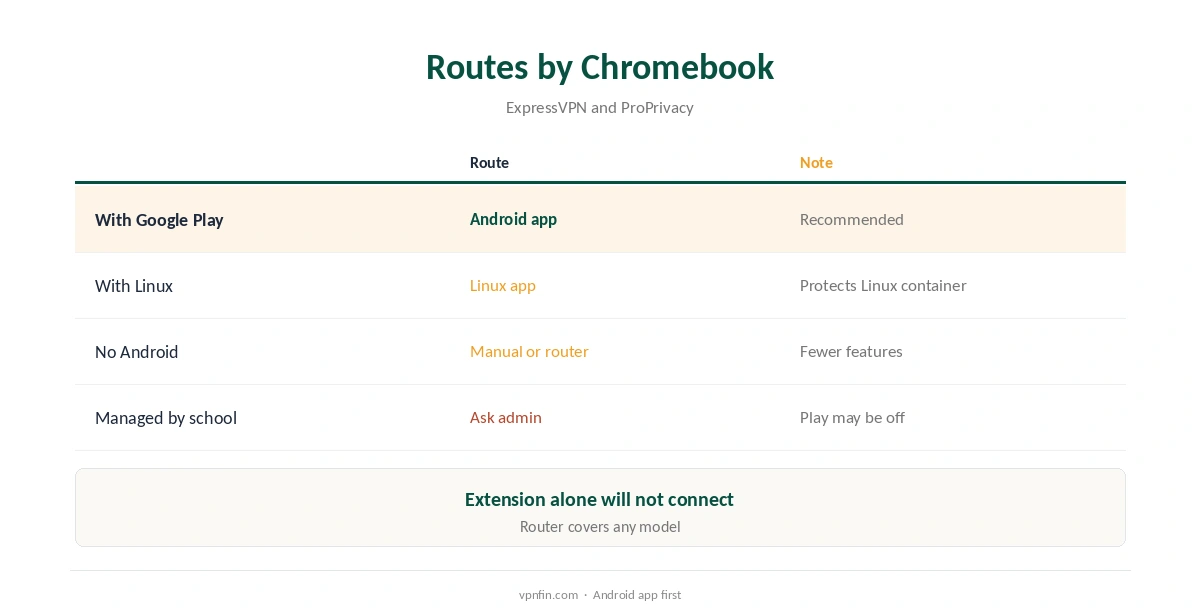
ExpressVPN on Chromebook runs through its Android app from Google Play, on any Chromebook that supports Android apps, ExpressVPN’s support pages say. Its Chrome browser extension will not work on its own there, because ExpressVPN’s extensions need the desktop app on Windows, Mac or Linux. Chromebooks with the Linux environment can also run ExpressVPN’s Linux app, and older models without Android can use manual setups. Our guide to ExpressVPN on Ubuntu and Linux covers the GUI app, Network Lock and split tunnelling.
This guide covers each route, the setup, what the app protects on ChromeOS and the limits.
Check Your Chromebook First
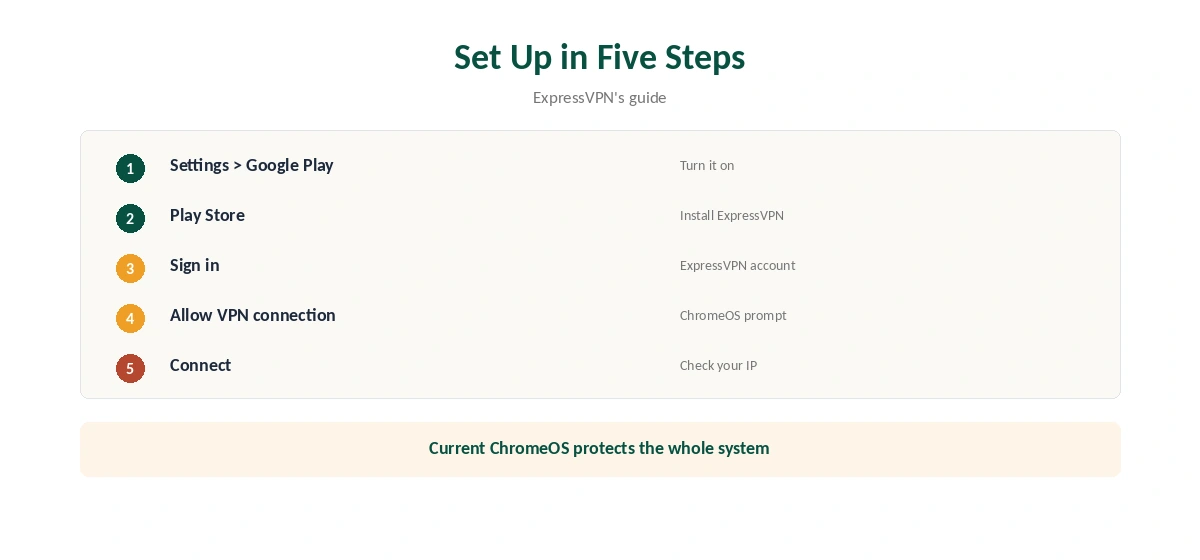
Open Settings and look for the Google Play Store section. If you can turn on Google Play, your Chromebook supports Android apps and the ExpressVPN app will install normally. If the option is missing, your model does not support Android apps, Cloudwards explains, and you need another route.
Google keeps a list of Chromebooks with Android support, and ExpressVPN’s guide asks you to check it before installing. If your model is on it but Play is missing, update ChromeOS first. School and work Chromebooks may have Google Play turned off by an administrator, in which case only the administrator can enable it.
ExpressVPN Chromebook Setup Through Google Play
Open the Play Store, search for ExpressVPN and install it. Open the app, sign in with your ExpressVPN account, and allow it to set up VPN connections when ChromeOS asks. The app suggests a location; connect, or pick another country from the list.
ExpressVPN’s guide notes that on ChromeOS versions older than 64, only apps from Google Play were protected. Current ChromeOS versions route the whole system through the Android VPN, so Chrome and other apps use the tunnel too. Our VPN test page confirms it.
Why the Chrome Extension Is Not Enough
ExpressVPN’s download page says its Chrome, Firefox and Edge extensions require the ExpressVPN app for Windows, Mac or Linux. On a Chromebook, there is no such desktop app, so the extension alone cannot connect.
That differs from some rivals whose extensions work as standalone browser proxies. Our ExpressVPN Chrome guide explains how the extension works on desktop computers.
The Linux Route
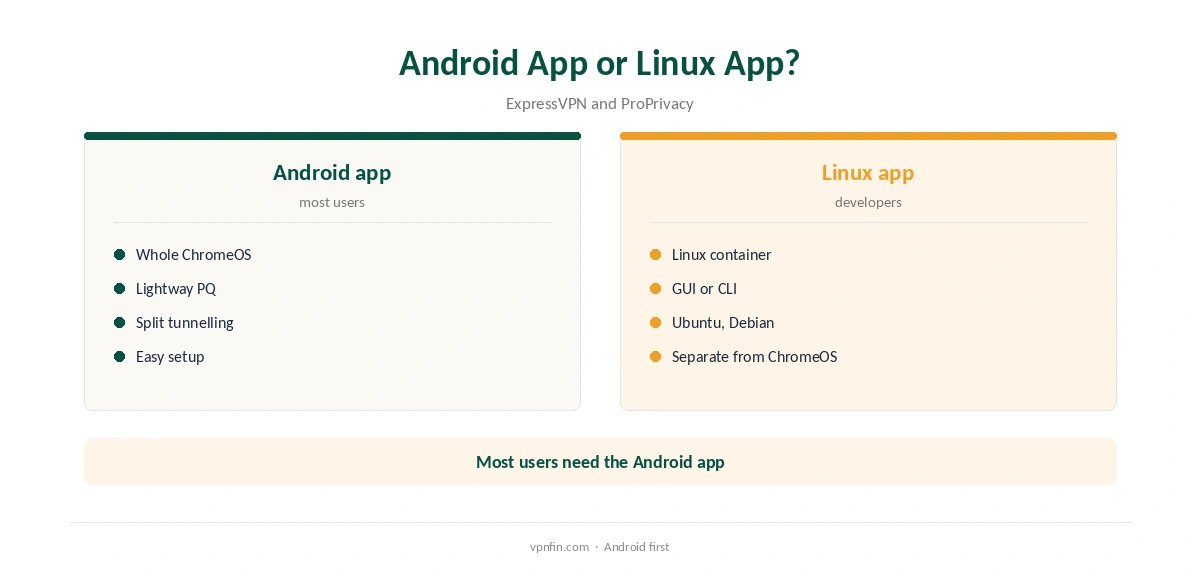
Chromebooks with the Linux development environment can install ExpressVPN’s Linux app, which now has a graphical interface for Ubuntu, Debian, Fedora, Arch, Raspberry Pi and Linux Mint, its download page lists. ProPrivacy found the command-line version works in a Linux-enabled Chromebook.
The Linux app protects the Linux container rather than the whole of ChromeOS, so for everyday browsing the Android app remains the simpler choice. Running both at once can conflict, so pick one route and stick with it. The Linux route suits developers who work inside the Linux environment.
Chromebooks Without Android Apps
For older Chromebooks without Android support, ProPrivacy notes ExpressVPN supplies manual setup instructions using ChromeOS’s built-in VPN settings. A manual connection lacks the app’s features, such as automatic location selection and Network Lock.
If your Chromebook is that old, a router running ExpressVPN covers it without any setup on the laptop. Our ExpressVPN router guide explains the router apps.
Features on ChromeOS
The Android app brings ExpressVPN’s Lightway protocol, with post-quantum key exchange by default, and its server list across 113 countries. Split tunnelling in the Android app lets chosen apps bypass the VPN, which helps with local services such as a bank app that blocks foreign addresses, or a printer on your home network.
ExpressVPN allows 10 devices on Basic, 12 on Advanced and 14 on Pro, so a Chromebook takes one slot alongside phones and laptops. Our Chromebook VPN guide compares other providers’ Chromebook support.
Streaming on a Chromebook
ExpressVPN reached Netflix in several regions in TechRadar’s 2026 testing, and its Android app on ChromeOS uses the same servers. Connect before opening the streaming site or app, and pick a server in the library’s country.
If a service still shows your home catalogue, close it fully and reopen it, or try another server in the same country. Our Netflix VPN guide explains why services block some servers and not others.
When the App Will Not Connect
Update ChromeOS and the ExpressVPN app first, then restart the Chromebook. If that does not help, try another protocol in the app’s settings, or another nearby location, before reinstalling.
On school or work networks, the administrator may block VPN traffic altogether. Our school Wi-Fi VPN guide explains why connections fail there and what you can do.
Turning It Off or Removing It
Disconnect in the app to stop the VPN. To remove it, open the Play Store, find ExpressVPN and uninstall it, as ExpressVPN’s guide shows. Our guide to turning off a VPN on Chromebook covers ChromeOS’s own settings.
If websites stop loading after uninstalling, check ChromeOS’s network settings for a leftover VPN entry and remove it.
How We Research
This page draws on ExpressVPN’s Chromebook setup guide and download page, ProPrivacy’s and Cloudwards’ 2026 Chromebook VPN guides and our ExpressVPN tables. We cross-checked these sources against each other, and where they conflict or something can’t be verified, we say so in the text rather than guessing. We checked time-sensitive figures, including prices in US dollars, on 8 October 2026. The main source we relied on is ExpressVPN’s Chromebook guide. Our full approach lives on the About Us page.
ExpressVPN Chromebook FAQ
Yes, through its Android app on Chromebooks that support Android apps.
Not on its own; it needs the desktop app on Windows, Mac or Linux.
On current ChromeOS, yes; older versions protected only Play apps.
Use the Linux app, a manual setup or a router.
10, 12 or 14 by tier.
The Verdict
ExpressVPN on Chromebook works best through the Android app. Check that your model supports Google Play, and use a router or the Linux app if it does not.