
Disclosure: VPNFin is reader-supported. If you buy a VPN through links on this page, we may earn a commission at no extra cost to you. This never affects our ratings — here’s our full disclosure.
The PureVPN Chrome extension is a proxy, and PureVPN’s own help centre says it protects only your web browser. Within that limit it offers a bypass list for chosen sites, GPS spoofing and WebRTC leak protection. The Chrome Web Store listing showed more than 300,000 users in July 2026.
What the PureVPN Chrome Extension Does
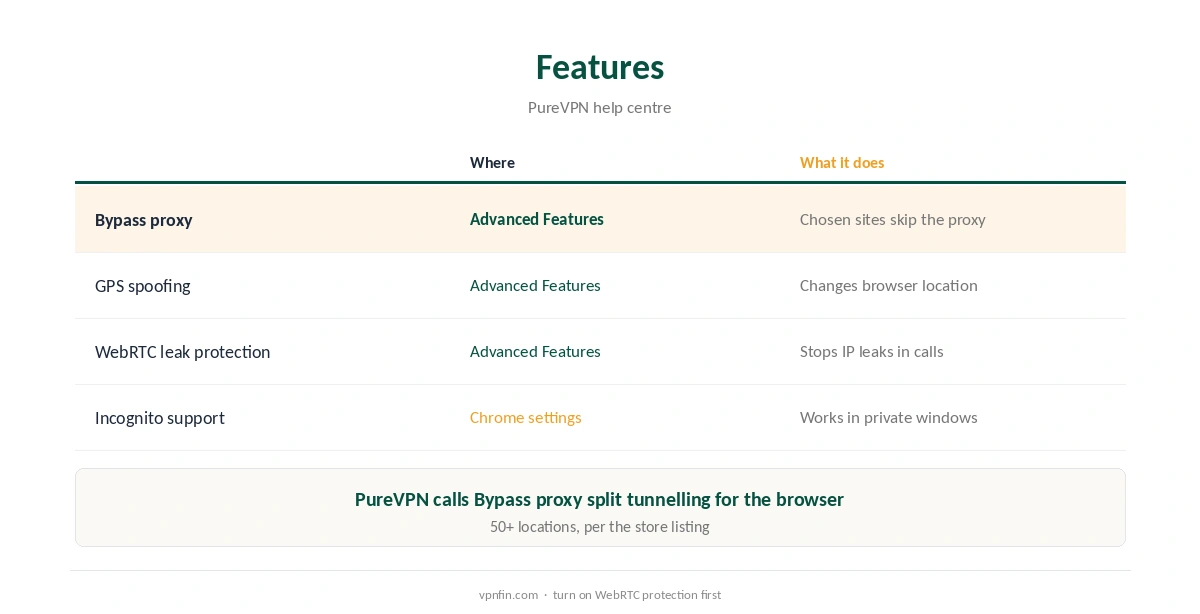
PureVPN’s help centre lists the features under Advanced Features. Bypass proxy lets chosen domains use your normal connection, which PureVPN describes as split tunnelling for the browser. GPS spoofing changes the location sites read from the browser, and WebRTC leak protection stops your real IP leaking through browser calls.
The extension is also available for Firefox, Edge and Brave, according to its store listing. Our WebRTC leak guide explains why that protection matters.
Installing the PureVPN Chrome Extension
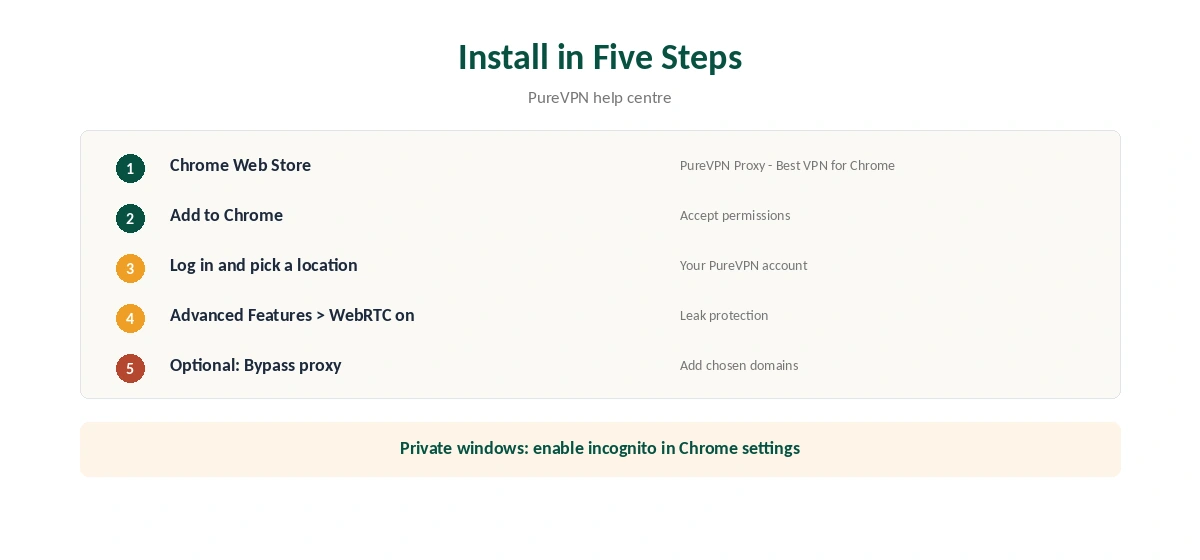
Open the Chrome Web Store and add PureVPN Proxy – Best VPN for Chrome, as the help centre names it. Open the extension, log in with your PureVPN account and pick a location. Then open Advanced Features to turn on WebRTC leak protection and, if needed, Bypass proxy.
To use it in private windows, enable the extension in incognito mode from Chrome’s extension settings, as PureVPN’s guide describes.
Extension or Desktop App?
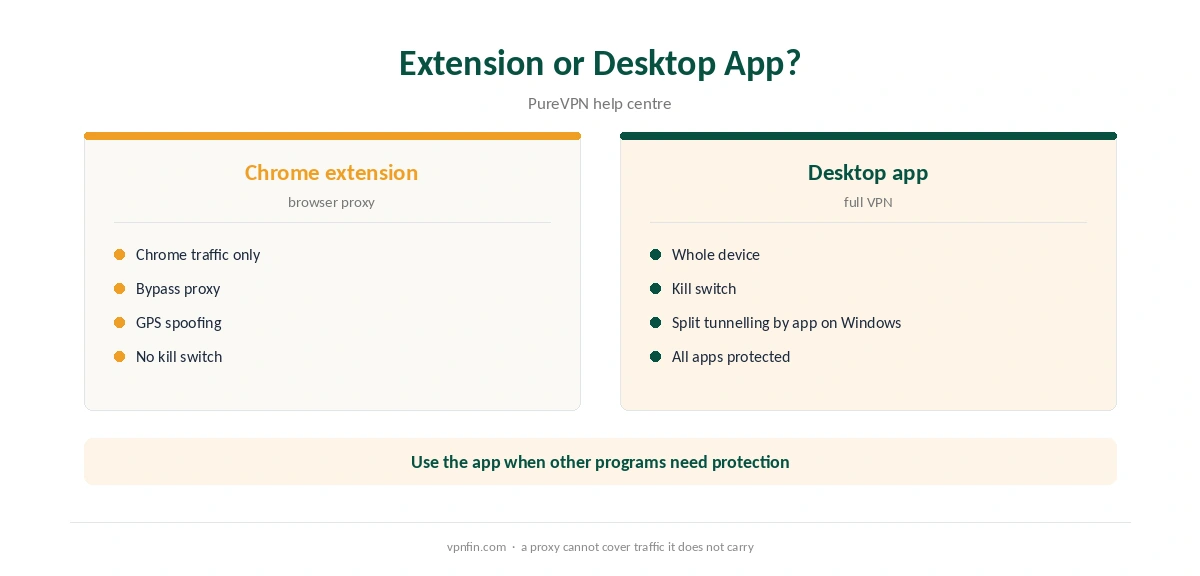
The PureVPN Chrome extension covers Chrome only, so other apps keep your real IP. For full-device protection with a kill switch, use the desktop app; our PureVPN Windows guide and Mac guide cover them.
Web-highlights notes the extension’s historical rating of 4.14 out of 5, with concerning recent reviews, so test it inside the refund window. Our PureVPN refund guide explains the 31 days, and our trial guide covers the 7-day paid trial.
Leak checks apply to extensions too; our DNS leak guide shows one. Our split tunnelling explainer compares bypass lists with app-based splitting. Our PureVPN iPhone guide covers phones, where the extension does not run.
Other Extensions Compared
NordVPN’s extension works the same way, as our NordVPN Chrome guide shows, and our Surfshark extension guide covers another option. NordVPN and Surfshark share an owner, Nord Security. PureVPN belongs to Gaditek, which absorbed Ivacy in 2024.
To switch the PureVPN Chrome extension off, our browser VPN guide explains the steps. Our PureVPN review covers the wider service.
GPS Spoofing Explained
Websites can ask your browser for your location through its geolocation feature, separately from your IP address. PureVPN’s help centre lists GPS spoofing under Advanced Features: it makes the browser report a location that matches the proxy instead of your real one.
That matters for map-based sites and some streaming pages that check both signals. Turn it on when a site still shows your home location after the proxy connects. Leave it off for sites where your real location helps, such as local delivery services.
What to Put on the Bypass List
Bypass proxy sends chosen domains over your normal connection. Good candidates are your bank, which may challenge logins from proxy addresses, local services that need your real region. Work tools that check your location. PureVPN’s help centre describes it as split tunnelling for the browser.
Keep the list short. Every domain on it uses your real IP, so adding too many defeats the point of the extension. Our split tunnelling guide explains the trade-off.
Firefox, Edge and Brave
The store listing says PureVPN also offers the extension for Firefox, Edge and Brave. The features follow the same pattern. But each browser handles WebRTC and permissions slightly differently. So run the leak test in each browser you use.
Testing the Extension
After connecting, check that the browser shows a PureVPN address with our VPN test page. Then run a WebRTC test; with protection on, it should not reveal your real IP. Our WebRTC leak guide shows how.
Remember that other apps on the same computer are not covered. A mail client, game or torrent client still uses your real address unless the desktop app is running.
Is the Extension Encrypted?
PureVPN’s store listing describes the extension as an encrypted proxy, and its help centre says it protects only the browser. That means traffic between Chrome and PureVPN’s proxy is encrypted, but nothing outside the browser goes through it.
For banking on public Wi-Fi or anything outside Chrome, the desktop app is the safer choice. It adds a kill switch and covers every app. Use the extension for quick location changes and browser privacy, and the app when the whole connection matters. On a Chromebook, our Chromebook VPN guide explains how extensions and Android apps differ. Our page on PureVPN on Chromebook covers the Android app, the extension and proxy mode.
Sign out of the extension on shared computers. Otherwise anyone using the same browser profile can switch your locations and settings. A separate Chrome profile for VPN browsing keeps those settings apart. It costs nothing.
How We Research
This page draws on PureVPN’s help centre articles on the Chrome extension, its Chrome Web Store listing via Chromeboard, and web-highlights’ extension comparison. We cross-checked these sources against each other, and where they conflict or something can’t be verified, we say so in the text rather than guessing. We read every source on 5 October 2026. The main source we relied on is PureVPN’s Chrome extension guide. Our full approach lives on the About Us page.
PureVPN on Chrome FAQ
No. PureVPN’s help centre says it is a proxy that protects only the browser.
Yes, as Bypass proxy: chosen domains skip the proxy, which PureVPN calls split tunnelling for the browser.
Yes. Turn on WebRTC leak protection under Advanced Features.
Chrome, Firefox, Edge and Brave, according to the store listing.
Yes, after enabling the extension for incognito in Chrome’s settings.
The Verdict
The PureVPN Chrome extension is a capable browser proxy with useful extras. Turn on WebRTC protection, use the bypass list sparingly, and run the desktop app when everything needs covering.