
Disclosure: VPNFin is reader-supported. If you buy a VPN through links on this page, we may earn a commission at no extra cost to you. This never affects our ratings — here’s our full disclosure.
Surfshark Chromebook support is official: Surfshark’s help centre has a Chromebook setup article, and its site says the app supports all Chromebooks that run Android apps, naming Asus, Acer, Dell, HP, Lenovo and Samsung. The Android app protects the whole device, and Surfshark sets no device limit, so a Chromebook costs nothing extra and can share a plan with every other device at home.
This guide follows Surfshark’s own steps, then covers the extension, older and managed models, and common fixes.
Installing the Surfshark Chromebook App
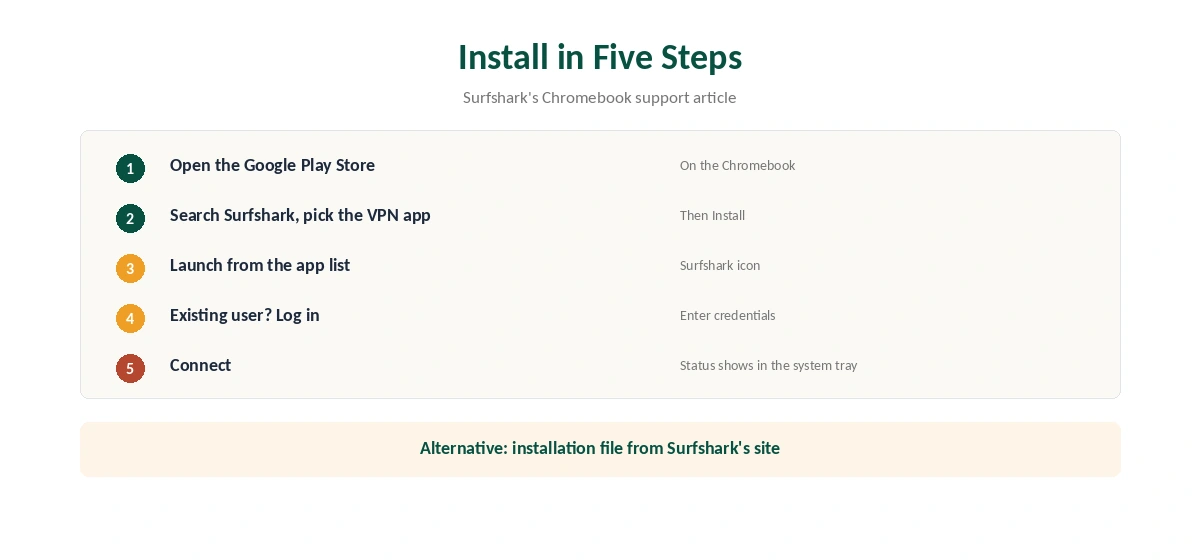
Surfshark’s support article gives the steps. Open the Google Play Store, type Surfshark in the search bar, and pick Surfshark VPN – Secure VPN for Privacy and security. Click Install and wait for it to finish.
Find the app in the Chromebook’s app list and launch it. Click Existing user? Log in, enter your credentials, then connect. Surfshark notes you can see whether it is running from the Chromebook’s system tray. Surfshark’s site also offers an installation file as an alternative to Google Play.
Surfshark Chromebook Settings Worth Checking
The Chromebook uses Surfshark’s Android app, so its settings match the phone version. Turn on the kill switch so traffic stops if the VPN drops; our kill switch guide explains the trade-off. WireGuard is the faster protocol in the comparisons we read.
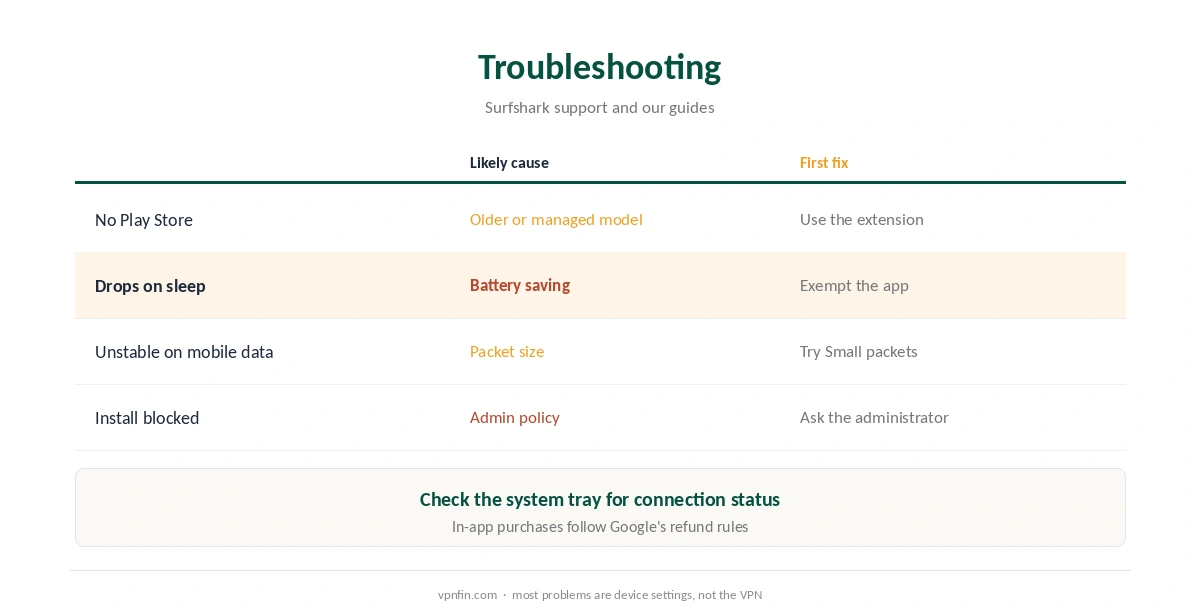
If the connection drops when the Chromebook sleeps, check battery settings for the app. Our Surfshark disconnection guide covers the Android-specific fixes, including battery saving and Small packets.
Surfshark on Older and Managed Chromebooks
Older Chromebooks without Google Play cannot run Android apps, as NordVPN’s own Chromebook support also notes for its service. On those models, the browser extension is the practical option, with the limit that it protects Chrome only. ChromeOS also includes a built-in IKEv2 client under the network settings, according to Google.
School and work Chromebooks follow the administrator’s rules. Google’s admin help shows that administrators can set or block VPN apps, so ask before installing one on a managed device. Our Chromebook VPN off guide covers switching a VPN off again.
App or Extension?
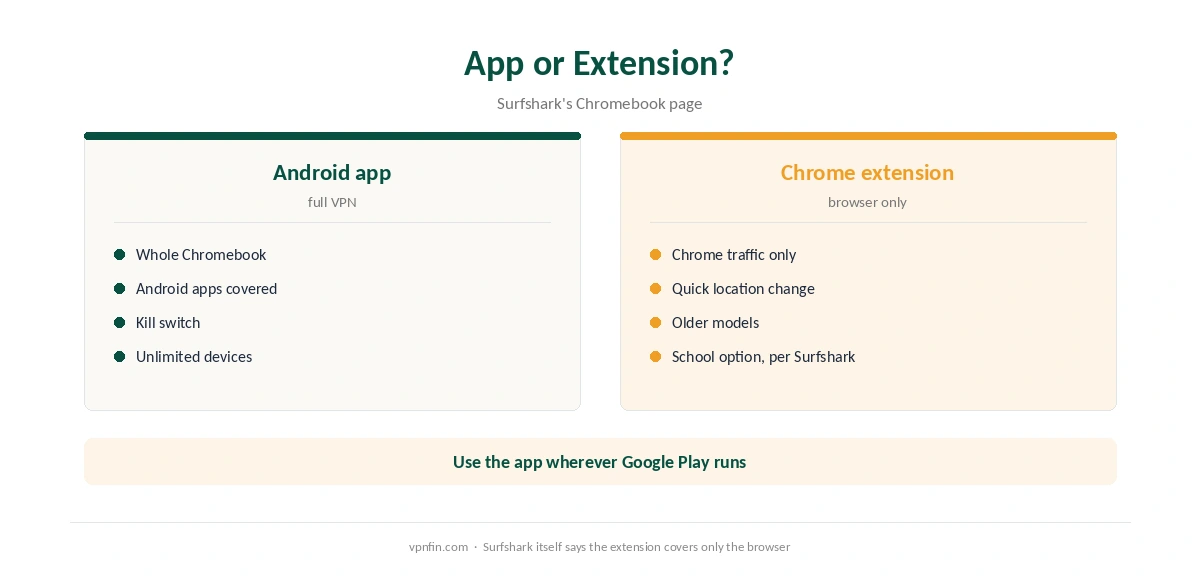
The Android app protects the whole Chromebook, including Android apps and system traffic, SpeedTestHQ explains. The extension routes only Chrome’s traffic, which leaves Android apps on your real IP. Surfshark’s own Chromebook page says the extension secures only browser traffic.
Use the app where the Chromebook supports Google Play, and the extension for quick location changes in the browser or on older models. Our Surfshark extension guide covers the extension, and our WebRTC leak guide explains why browser protection matters.
School Chromebooks
Surfshark’s Chromebook page mentions school devices directly, suggesting either the Play Store app or the Chrome extension. Managed devices still follow the administrator’s rules, and school policies may forbid VPN use. Check the school’s rules before installing anything.
Price and Refund
Surfshark offers a 30-day money-back guarantee, which its Chromebook page confirms. Purchases made inside the Android app through Google Play follow Google’s rules, as our Surfshark refund guide explains. Unlimited devices mean the Chromebook adds nothing to your plan.
Testing a Surfshark Chromebook Connection
After connecting, check your IP in Chrome with our VPN test page, then confirm an Android app also shows the new location. Our DNS leak guide covers the DNS side. If the Surfshark Chromebook app connects but pages stall, change protocol or server.
For slow connections, our Surfshark speed guide lists Surfshark’s own fixes, including WireGuard for computers and OpenVPN UDP first on Android devices. A Chromebook uses the Android app, so the Android advice applies.
Choosing a Server on a Chromebook
Surfshark’s server list on the Chromebook is the same as on phones. For everyday use, pick the fastest nearby location. For a specific catalogue, pick that country, then the nearest city within it. Favourites in the app keep frequent choices one tap away, which helps on a small Chromebook screen. Our Surfshark review covers the network as a whole.
Streaming and Battery Life
Connect Surfshark before opening a streaming app or site, so the service reads the right location. If a catalogue looks wrong, force-close the app and reopen it. On Chrome, clear the site’s cookies if the old region sticks.
The VPN adds some processing work, which can shorten battery life on low-power Chromebooks. Choosing a nearby server and WireGuard keeps that cost low.
Surfshark Features on a Chromebook
The Android app brings Surfshark’s usual features to the Chromebook: CleanWeb for ads and trackers, the kill switch and the server list. Check the app’s settings for Bypasser, Surfshark’s split tunnelling, which VPNAlert lists on Windows; our split tunnelling guide explains the idea.
Phones and other devices can share the same plan with no limit, as our Surfshark iPhone guide shows for iOS. That makes a Chromebook an easy addition to a household plan.
How We Research
This page draws on Surfshark’s Chromebook support article and Chromebook page, SpeedTestHQ’s guide and Google’s ChromeOS help. We cross-checked these sources against each other, and where they conflict or something can’t be verified, we say so in the text rather than guessing. We read every source on 5 October 2026. The main source we relied on is Surfshark’s Chromebook support article. Our full approach lives on the About Us page.
Surfshark on Chromebook FAQ
Yes. Surfshark says its app supports all Chromebooks that run Android apps.
Search Surfshark in Google Play, install Surfshark VPN, open it, choose Existing user? Log in, and connect.
No. Surfshark says the extension secures only browser traffic.
Surfshark sets no device limit.
Only within the school’s rules; administrators can block VPN apps.
The Verdict
Surfshark Chromebook setup is official and simple: install the Android app, log in and connect. Keep the extension for browser-only use, and check managed-device rules first. Surfshark belongs to Nord Security, which also owns NordVPN.