Disclosure: VPNFin is reader-supported. If you buy a VPN through links on this page, we may earn a commission at no extra cost to you. This never affects our ratings — here’s our full disclosure.
The advice that works for Netflix is to switch servers. On YouTube TV it usually changes nothing, and the reason is that these two services are not doing the same thing.
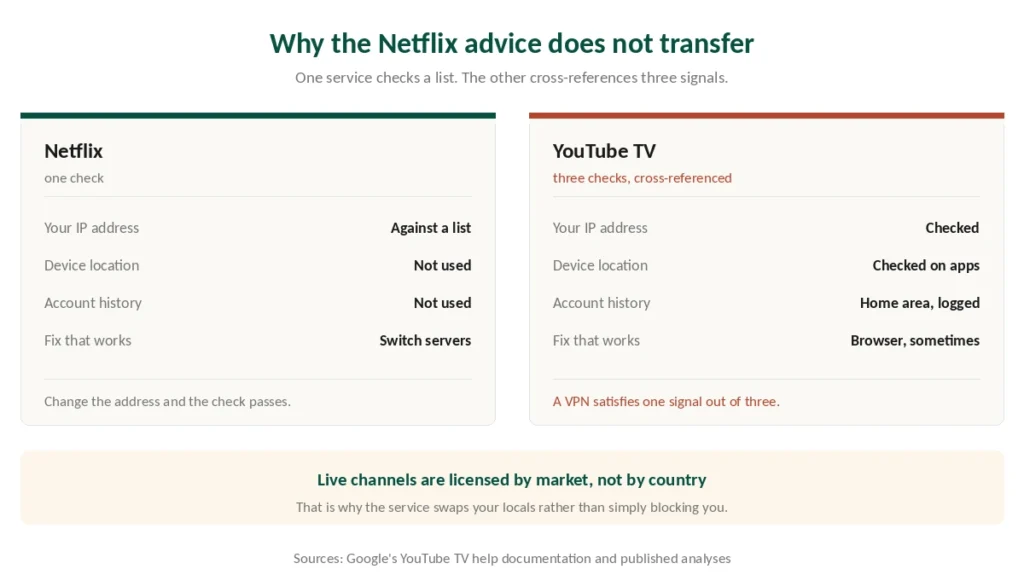
Netflix checks one thing: whether your IP address appears on a list. YouTube TV checks three — your IP address, your device’s location services, and the home area recorded against your account. A VPN changes the first. It cannot touch the other two.
Google’s own help pages state the position plainly: while connected to a VPN or proxy, you will not be able to stream. This guide covers what that means in practice, what a VPN genuinely helps with, and the rule about three months that almost nobody mentions.
The Short Answer
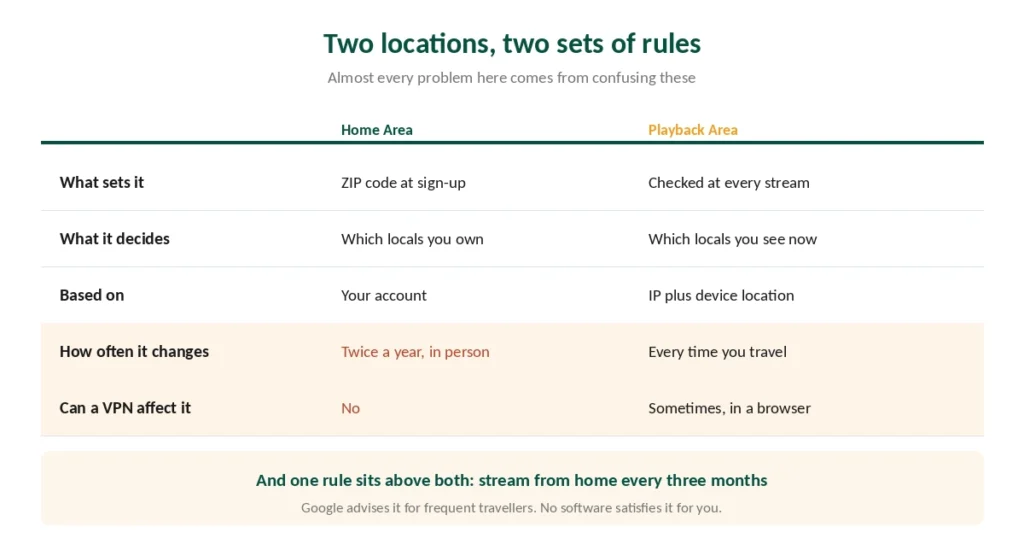
Two locations control what you see. Home Area is the ZIP code on your account and decides which local channels you are entitled to. Current Playback Area is re-checked every time you stream.
A VPN can influence the second, not the first. On a browser it often works. On phones and smart TVs, device location services override it.
Return to your home area every three months. Google advises frequent travellers to use the service from home at least that often, or local networks stop working.
And there is no official access outside the United States, at any tier, with or without a VPN.
The Two Locations, and Why It Matters
Almost every problem people have with YouTube TV comes from confusing these. Ordinary YouTube has different problems, and our YouTube guide separates the two.
Home Area is set by the ZIP code you enter at sign-up. It determines which local broadcast channels and regional sports networks your subscription includes — the ABC, CBS, FOX and NBC affiliates for that market, plus regional sports.
You can change it twice a year, and you must be physically present in the new area to do it. Google may ask you to verify by checking your device’s location.
Current Playback Area is re-checked every time you stream. It is based on your IP address and, on mobile devices and smart TVs, on your device’s location services.
⚠️ When you travel, YouTube TV does not block you — it switches you. Your local channels are replaced with those of wherever you currently are. People often describe this as losing access, but the service is doing exactly what the licensing requires.
Why a VPN Alone Often Fails
A VPN changes your IP address and nothing else. That satisfies one of three checks.
Device location services satisfy the second, and they contradict you. On a phone, tablet or smart TV, YouTube TV can read GPS or network-based location, which will report where you actually are regardless of what your IP says. When the two disagree, the service asks you to verify at a Google-run page that requests device location.
The account history satisfies the third. Home area changes are limited and logged, and the service knows where you have been streaming from.
⚠️ Google’s position is explicit. Its help pages state that while connected to a VPN or proxy you will not be able to stream YouTube TV, and the remedy it offers is to disable the VPN. That is the provider telling you this is unsupported, and it is worth reading before you buy anything on the strength of a review promising otherwise.
Where a VPN does tend to work: a desktop browser, where location services can be declined and the IP address carries more weight.
The Three-Month Rule
This is the finding that matters most for anyone travelling long, and it appears in almost no guide.
Google advises frequent travellers to use YouTube TV from their home area at least once every three months. Stay away longer and local networks can stop working until you stream from home again.
Home area changes are capped at twice in twelve months, and you cannot change to an area you are not physically in.
⚠️ For an expat, those two rules compound. You cannot change your home area from abroad, and you cannot maintain the one you have without returning. No VPN resolves either, because both are account rules rather than network checks.
What a VPN Genuinely Helps With
Being precise here is more useful than a list of providers that “work”.
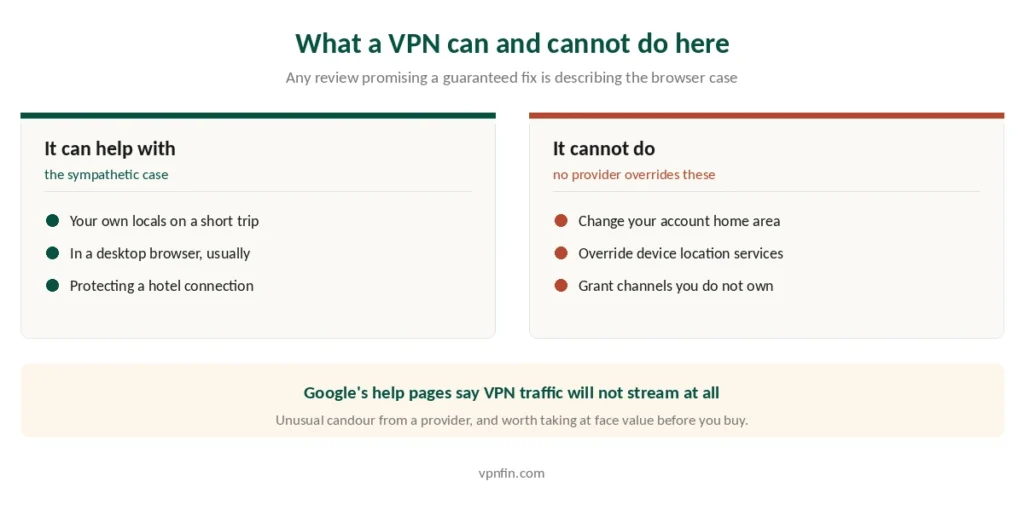
Keeping your own local channels on a short trip. You pay for a market’s affiliates, you travel for a week, and the service swaps them for another city’s. Connecting to a server in your home market is the sympathetic case, and on a browser it frequently works. Our IPVanish and YouTube TV page goes into mixed results and Google’s rules.
Protecting the connection on hotel and airport networks, which is a separate benefit that applies whatever you are watching — our travel guide covers why those networks break VPNs in the first place.
⚠️ What it does not do is grant entitlements you do not have. Out-of-market games are sold as a separate product precisely because the rights are separate — sport restricts by local market rather than by country, which is why it behaves unlike anything else here. A VPN does not change what your subscription includes.
⚠️ And it violates the terms. Google may restrict access if it detects unsupported use. Reported outcomes are playback errors and location prompts rather than account closures, but the risk sits with you rather than with us.
If It Stops Working
Six steps, in the order that resolves things fastest.
- Switch to a different server in your home market — one blocked address says nothing about the rest
- Clear cookies and app cache, then relaunch. The service caches your detected location
- Try the browser if the app fails, or the app if the browser fails. Detection differs between them
- Turn off location permissions for YouTube TV on the device, so it stops updating your playback area automatically
- Check for leaks — a DNS or IPv6 leak makes the VPN look connected while your real location shows
- Ask your provider’s support which US servers currently work for it
⚠️ If none of that works after twenty minutes, it is the service rather than the setup. Our troubleshooting guide covers the general causes, but YouTube TV’s checks are stricter than most.
The Picks
NordVPN — fastest in CNET’s testing at 2.9% average download loss, which matters because live television drops resolution rather than buffering. Ten devices, six published audits, and Smart DNS for televisions that cannot run an app. Renewal reaches $139.08 a year, the steepest we track, as our renewal price table shows. Our NordVPN review has the detail.
ExpressVPN — the widest streaming record among providers we cover, plus MediaStreamer for consoles and older televisions. Renewal is $99.95 a year. Our ExpressVPN review covers the audit history.
Surfshark — unlimited devices, so every television in the house is covered, at around $79 a year on renewal. Our Surfshark review sets it against the rest. Our page on Surfshark and YouTube TV covers home area rules and what a VPN can realistically do.
⚠️ Note what none of these can do. No provider overrides device location services, and no provider changes your account’s home area. Any review promising a guaranteed fix is describing the browser case and not saying so.
On Televisions and Streaming Sticks
This is where it gets hardest, because smart TVs and streaming devices report location and cannot easily be told not to. Our guide to ExpressVPN and YouTube TV covers home area, playback area and local channels.
Router-level VPN covers the television without an app, and our router guide explains the setup. It still does not address device location services on the TV itself.
Smart DNS is faster but weaker here, since it changes what the service thinks your location is without encrypting anything — and YouTube TV cross-checks more than one signal. Our guide to ExpressVPN and YouTube covers regional videos, YouTube TV and local channels.
⚠️ The browser on a laptop remains the most reliable route, which is an unsatisfying answer for a television service, and it is the honest one. Our smart TV guide covers which sets can run apps at all.
How We Research
This guide draws on Google’s own YouTube TV help documentation on home area and playback area, published analyses of its location-checking behaviour from named outlets, and our own reviews of the providers listed — cross-checked and verified at publication. We don’t run our own unblocking tests, and we do not publish instructions for spoofing device location, because that addresses a use case the subscription does not cover and the consequences fall on the reader. Where Google’s stated position and reviewers’ claims conflict, as they do here, we give both and say which is which. Our full approach lives on the About Us page.
YouTube TV VPN FAQ
Sometimes, and Google says it should not. Its help pages state that while connected to a VPN or proxy you will not be able to stream. In practice a VPN often works in a desktop browser, where location services can be declined, and usually fails on phones and smart TVs where device location overrides your IP address.
YouTube TV switched your playback area rather than blocking you. Local broadcast channels are licensed by market, so the service replaces your home affiliates with those of wherever you currently are. Connecting to a server in your home market can restore them on a browser.
Twice in twelve months, and you must be physically present in the new area to do it. Google may ask you to verify by checking your device’s location. This is an account rule rather than a network check, so no VPN affects it.
Not officially. There is no international access at any tier. Google also advises frequent travellers to stream from their home area at least once every three months, or local networks can stop working — a requirement no software satisfies on your behalf.
Because two of its signals disagree. When your IP address says one place and your device’s location services say another, the service sends you to a Google page that requests device location to settle it. Turning off location permissions for the app prevents automatic playback-area updates.
The Verdict
Understand which location is causing the problem before buying anything. If your local channels changed while travelling, that is the playback area. If you moved house, that is the home area, and no VPN addresses it. We also have a separate guide to PureVPN and YouTube TV.
On a desktop browser a VPN often restores your home market. On phones and televisions, device location usually wins. There is also a guide to CyberGhost and YouTube TV.
Google’s own documentation says this is unsupported, which is unusual candour and worth taking at face value. Our page on NordVPN and YouTube TV covers home area rules and what a VPN cannot change.
And if you are abroad long term, the three-month rule is the thing that will catch you — not the tunnel, not the server, but a scheduling requirement no software can satisfy on your behalf. Our page on NordVPN and YouTube covers region-locked videos and the Premium pricing rules.