
Disclosure: VPNFin is reader-supported. If you buy a VPN through links on this page, we may earn a commission at no extra cost to you. This never affects our ratings — here’s our full disclosure.
Disconnecting a VPN on Windows takes one click. Removing one is where people end up on a forum at midnight with a laptop that says it is connected to Wi-Fi and cannot load anything.
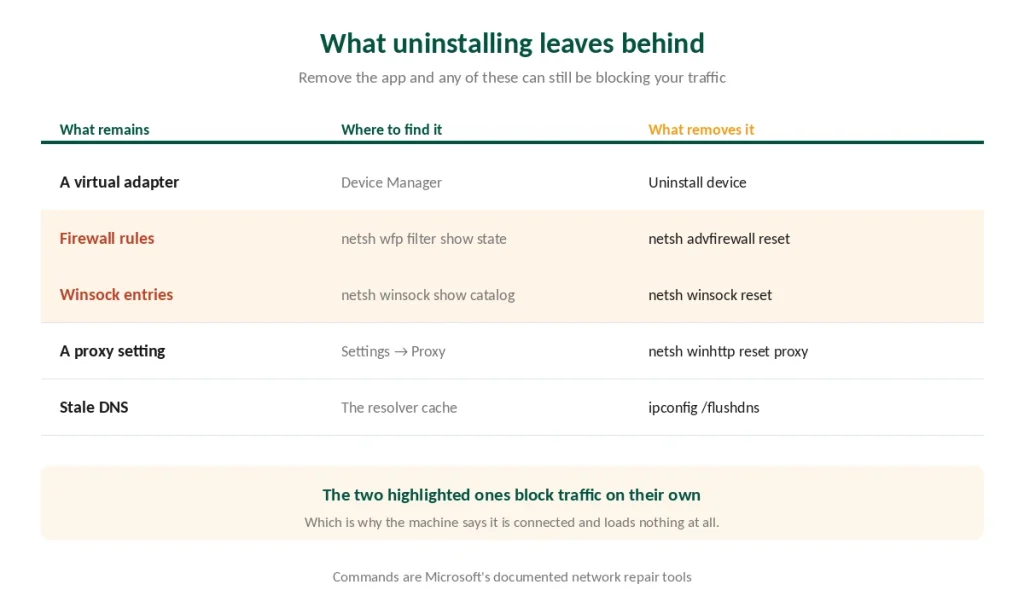
The reason is that a VPN client is not just an app. It installs a virtual network adapter, writes firewall rules, and inserts itself into the Winsock catalogue that every networking application uses. Uninstalling removes the app. It does not always remove the rest, and what remains can block traffic on its own. Our page on Astrill on Windows covers App Guard, Smart Mode and the OpenWeb catch in its fullest client.
This guide covers disconnecting properly, and then the removal sequence that avoids the midnight forum — including the command that shows you exactly which rule is still there.
The Short Answer
To disconnect: open the VPN app and press disconnect, or Settings → Network & Internet → VPN → Disconnect.
Check the kill switch before assuming it worked. Some clients leave firewall rules in place after an unexpected close, and the internet stays blocked until you reopen the app.
To remove it completely: disconnect, disable the kill switch, uninstall, then remove leftover adapters and reset the network stack — in that order.
If the internet is already gone, four commands and a reboot fix nearly all of it.
Three Ways to Disconnect
In the app. Most reliable, because the client knows its own state and tears the tunnel down cleanly.
In Windows settings. Settings → Network & Internet → VPN, then Disconnect beside the connection. This works for both the built-in client and connections created by an app.
In the system tray. Right-click the VPN icon; most clients offer disconnect there.
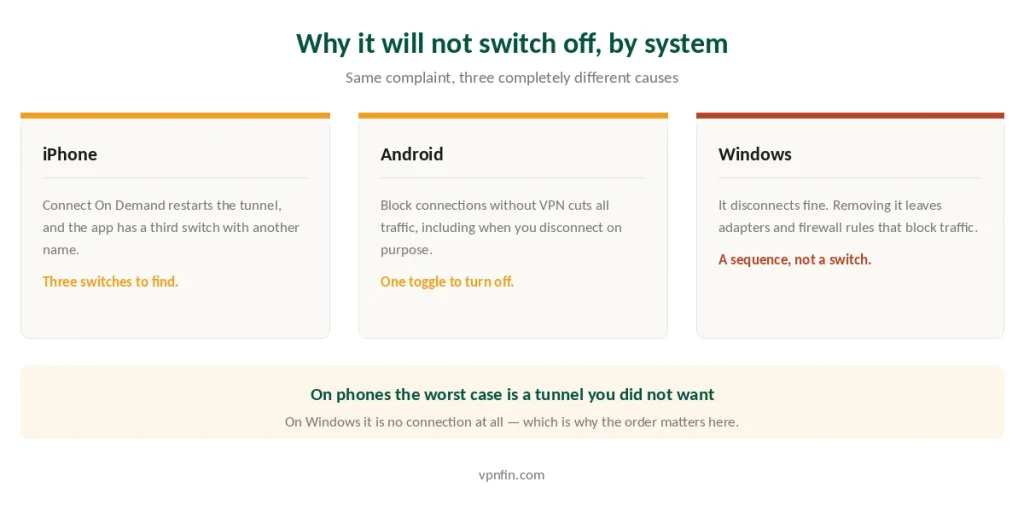
⚠️ If the internet stops when you disconnect, that is the kill switch, and it is doing its job. Open the app and turn it off there rather than fighting Windows.
⚠️ And if the app crashed rather than closed, the firewall rules it wrote can survive. The symptom is a machine with no internet and no VPN running. Reopening the app usually clears it; if the app is gone, the removal section below applies.
Turning Off Auto-Connect
Windows VPN clients start themselves in three ways, and the setting is in a different place each time.
Inside the app: look for Auto-Connect, Launch on Startup, Connect on Untrusted Networks, or Trusted Networks. Names vary, as they do on iPhone for the same reason.
In Windows startup: Task Manager → Startup apps. Disable the VPN entry here and it stops launching with the machine.
As a Windows service: press Win+R, type services.msc, find the provider’s service. ⚠️ Set it to Manual rather than Disabled. Disabled means the app will not start at all when you do want it, and the error it gives is unhelpful.
Removing It Completely, in Order
Follow this and you will not need the recovery section.
1. Disconnect the VPN.
2. Turn off the kill switch in the app, before uninstalling anything. This is the step that prevents the whole problem.
3. Uninstall: Settings → Apps → Installed apps → your VPN → Uninstall.
4. Remove leftover adapters. Open Device Manager, expand Network adapters, and look for entries named TAP-Windows Adapter, Wintun, TUN, or the provider’s own name. Right-click → Uninstall device. Your physical Wi-Fi and Ethernet adapters stay.
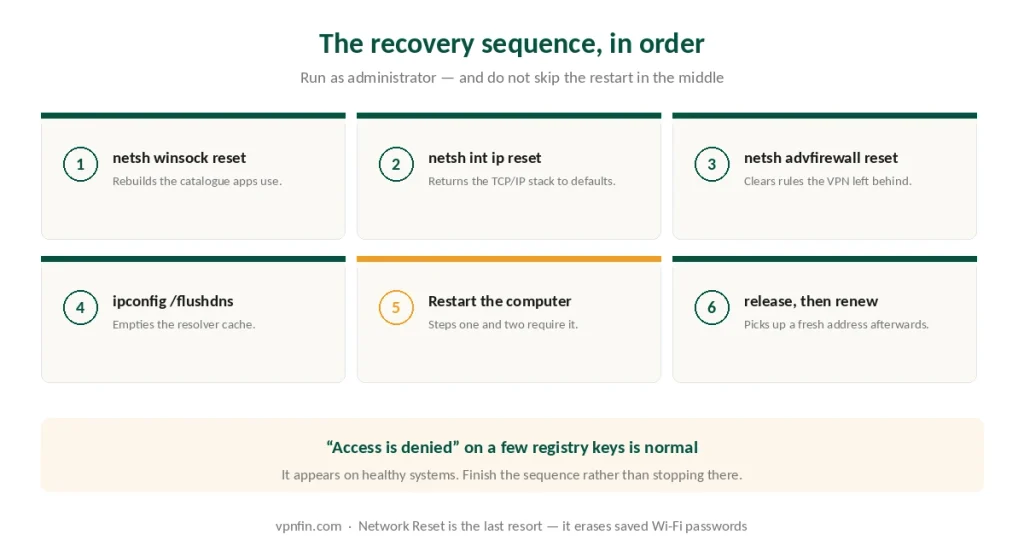
5. Reset the network stack. Open Command Prompt as administrator and run these in order:
netsh winsock reset
netsh int ip reset
netsh advfirewall reset
ipconfig /flushdns
6. Restart the computer. The first two commands require it.
7. After the reboot, run ipconfig /release then ipconfig /renew to pick up a fresh address.
⚠️ “Access is denied” on a couple of registry keys during netsh int ip reset is normal. It appears on healthy systems and does not mean the reset failed. People see it, assume the worst and stop halfway.
If the Internet Is Already Gone
You uninstalled first and asked questions later. This is recoverable.
Run the four commands above, reboot, then release and renew. That resolves the large majority.
If it does not, check the proxy. Settings → Network & Internet → Proxy — make sure “Use a proxy server” is off. Then run netsh winhttp reset proxy as administrator. A leftover proxy setting produces exactly this symptom.
Then find the actual firewall rule. Run this as administrator:
netsh wfp filter show stateIt writes a file called filters.xml in the current directory. Open it and search for your VPN’s name. If entries appear, the client left filtering rules behind, and netsh advfirewall reset should have cleared them — if it did not, reinstalling the VPN and uninstalling it properly usually will.
Check Device Manager again for virtual adapters you missed, including WAN Miniport entries if you used the built-in Windows client.
⚠️ The same mistake on a Mac produces a different failure. Nothing is left behind in a driver list; instead macOS strands the network extension, which keeps filtering traffic with no app left to remove it.
⚠️ Network Reset is the last resort, not the first. Settings → Network & Internet → Advanced network settings → Network reset. It removes and reinstalls every adapter and returns everything to defaults — and it erases saved Wi-Fi passwords and any VPN configuration.
⚠️ If the internet works in Safe Mode with Networking but not normally, that points at a third-party network component rather than Windows itself, which usually means something the VPN installed is still loading.
Before You Remove It
Three of the four common reasons for uninstalling have a better answer.
Your banking app or site refuses to work. Split tunnelling excludes it while everything else stays protected — our banking guide covers why banks treat shared VPN addresses as a fraud signal.
The connection is slow. Try a closer server and a different protocol first. WireGuard against OpenVPN explains what changes.
A game or app will not connect. Split tunnelling again, or a temporary disconnect for that session.
You genuinely do not want it any more. Then the sequence above applies, and doing it in order costs five minutes instead of an evening.
⚠️ And know what changes when it is gone. Windows sends DNS queries to every network adapter at once, which is why your provider sees your browsing again the moment the tunnel closes — and on a network you do not control, that matters more.
Turning It Back On Properly
Reinstall as administrator. VPN clients install a driver, and a non-elevated install is a common source of the adapter problems above. Our guide to turning off or uninstalling ExpressVPN covers disconnecting, the kill switch and a clean uninstall.
Leave auto-connect off and connect manually if the automatic behaviour was what annoyed you. You keep the protection and lose the surprise. Our guide to turning off Proton VPN covers disconnect, kill switch and uninstall.
Then verify rather than trust the icon. Five tests, ten minutes — and on Windows the DNS one matters most, because the operating system leaks by design unless the client prevents it.
If it will not connect at all rather than will not turn off, our troubleshooting guide works through the causes in order.
How We Research
This guide draws on Microsoft’s own documentation of the netsh repair commands, support threads on Microsoft Q&A where the leftover-adapter and firewall-rule symptoms are diagnosed, published technical guides to the Winsock catalogue, and our own Windows guide — cross-checked and verified at publication. Command sequences are the ones Microsoft documents rather than ones we invented, and we say which steps require a restart because skipping it is the usual reason a reset appears not to work. Our full approach lives on the About Us page.
Windows VPN FAQ
Because the app is not the only thing it installed. A VPN client adds a virtual network adapter, writes firewall rules and inserts entries into the Winsock catalogue. Uninstalling removes the program while some of that can remain, and what remains can block traffic on its own.
Open Command Prompt as administrator and run netsh winsock reset, netsh int ip reset, netsh advfirewall reset and ipconfig /flushdns, then restart. After the reboot, run ipconfig /release and ipconfig /renew. The restart is required, and skipping it is why the reset often appears not to work.
No. That message appears on a couple of registry keys during netsh int ip reset on healthy systems and does not indicate a problem. Finish the sequence and restart rather than stopping there.
Three places control it. Inside the app, look for Auto-Connect or Launch on Startup. In Task Manager, open Startup apps and disable the VPN entry. If a Windows service is starting it, open services.msc and set that service to Manual rather than Disabled.
Only as a last resort. It removes and reinstalls every network adapter and restores defaults, which does resolve stubborn cases — but it also erases every saved Wi-Fi password and any VPN configuration, and you will need to set those up again.
The Verdict
Disconnecting is one click. Removing is a sequence, and the order is what separates five minutes from an evening.
Turn off the kill switch before you uninstall. That single step prevents most of what this guide exists to fix. Our page on how to turn off NordVPN covers disconnecting, quitting and fully removing the app on each platform.
If the internet is already gone, four commands and a reboot recover nearly every case, and “access is denied” along the way is normal rather than fatal. Our page on how to turn off CyberGhost covers disconnecting, uninstalling and restoring network settings.
And Network Reset is genuinely last. It works, and it takes your saved Wi-Fi passwords with it.