
Disclosure: VPNFin is reader-supported. If you buy a VPN through links on this page, we may earn a commission at no extra cost to you. This never affects our ratings — here’s our full disclosure.
NordVPN on iPhone takes a minute to install, but the settings deserve a few minutes more. Researchers have shown that iOS can let traffic leave the phone outside the VPN tunnel, and NordVPN’s iPhone app now has a setting built for exactly that problem: Prevent VPN bypass.
This guide covers setup, the settings worth changing, and what breaks. NordVPN recently removed IKEv2 from the app and moved its obfuscated servers to NordWhisper, according to its iOS release notes, so older guides may describe options that no longer exist.
NordVPN on iPhone: The Short Answer
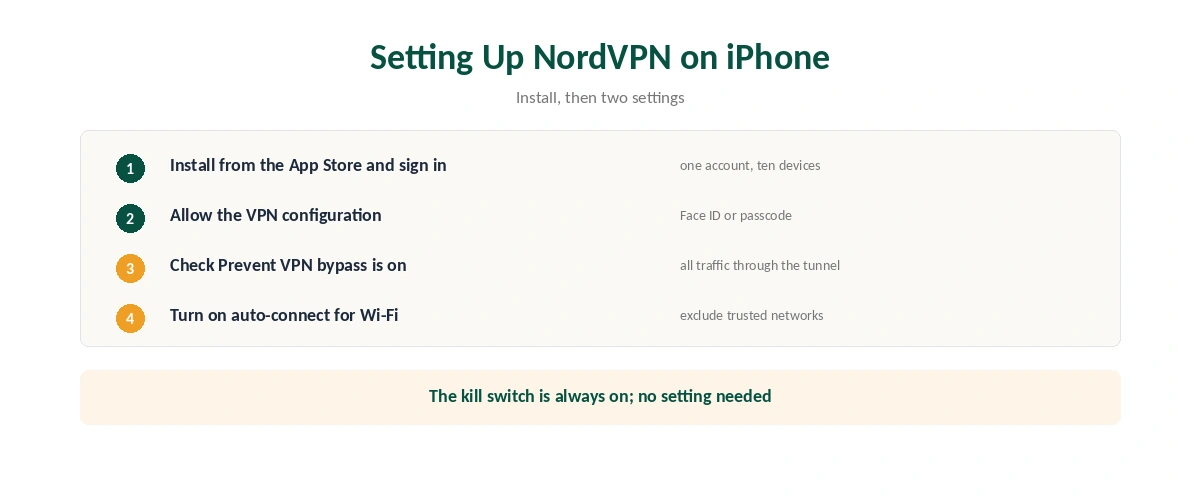
Install NordVPN from the App Store, sign in, allow the VPN configuration, and connect. One account covers up to ten devices.
Then open Settings in the app and check that Prevent VPN bypass is on. It forces all traffic through the tunnel, as NordVPN’s support page describes.
Set auto-connect for Wi-Fi, excluding your trusted home network if you like. Our iPhone VPN guide compares NordVPN with other providers.
Setting Up NordVPN on iPhone
| Step | What to do | Note |
|---|---|---|
| 1 | Install NordVPN from the App Store | Free to download |
| 2 | Open it and sign in | Or subscribe in the app |
| 3 | Allow the VPN configuration | iOS asks once, with Face ID or passcode |
| 4 | Tap Quick Connect or pick a country | Automatic protocol by default |
| 5 | Open Settings and check Prevent VPN bypass is on | The important one |
| 6 | Turn on auto-connect for Wi-Fi | Exclude trusted networks if you want |
The kill switch for NordVPN on iPhone needs no setting. On iOS it is always on, blocks internet access if the connection drops, and reconnects to the last server, NordVPN’s support pages explain. Our kill switch guide covers how that differs from desktop apps.
The Settings Worth Changing
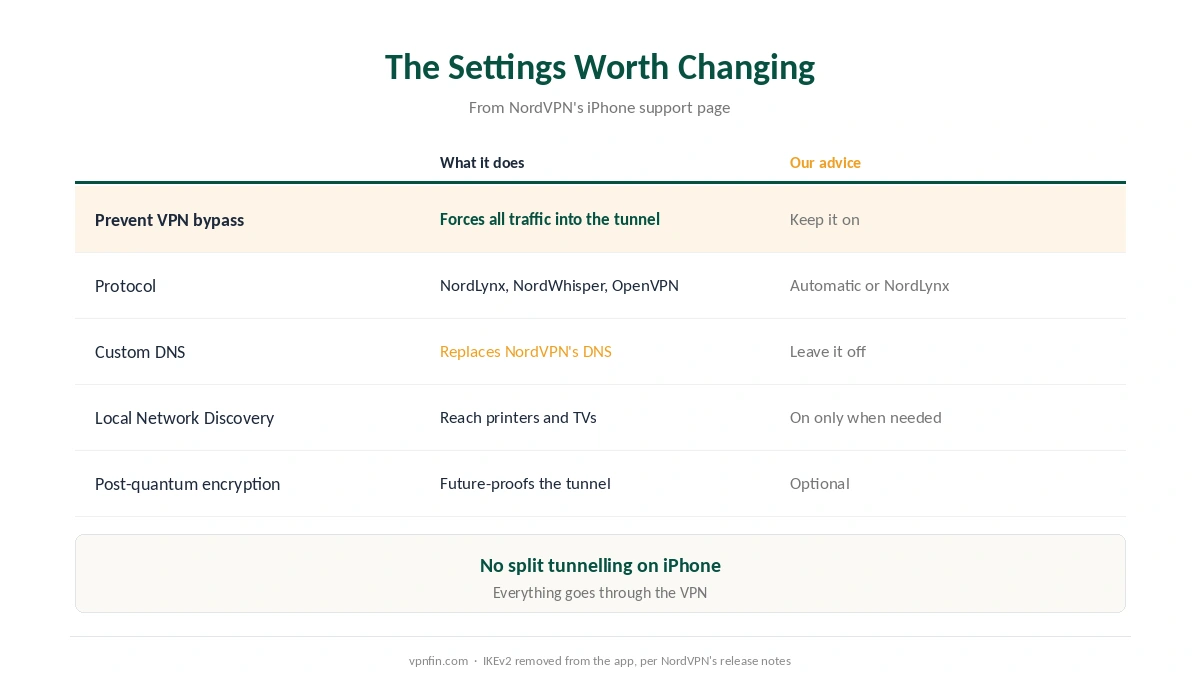
Prevent VPN bypass. The security researcher Michael Horowitz found data leaving iPads outside the tunnel across several VPN apps, and Proton traced a similar flaw in iOS in 2020, as our NordVPN on iPad guide explains. NordVPN’s setting forces all traffic through the tunnel. Make sure it is on.
Protocol. The app offers Automatic, NordLynx, NordWhisper and OpenVPN over TCP or UDP. IKEv2 is gone. NordLynx is fastest; NordWhisper disguises traffic on restrictive networks, as our obfuscation guide explains.
Post-quantum encryption. A toggle adds protection against future quantum-computer attacks. It is optional.
No split tunnelling. Unlike NordVPN’s Android and desktop apps, the iPhone app does not let you exclude apps from the tunnel, as our split tunnelling guide notes. Everything goes through the VPN.
Local Network Discovery. Turn it on only if you need to reach a printer or TV at home; NordVPN added a setting to keep the phone invisible on local networks to prevent leaks caused by system limitations.
What Breaks, and How to Fix It
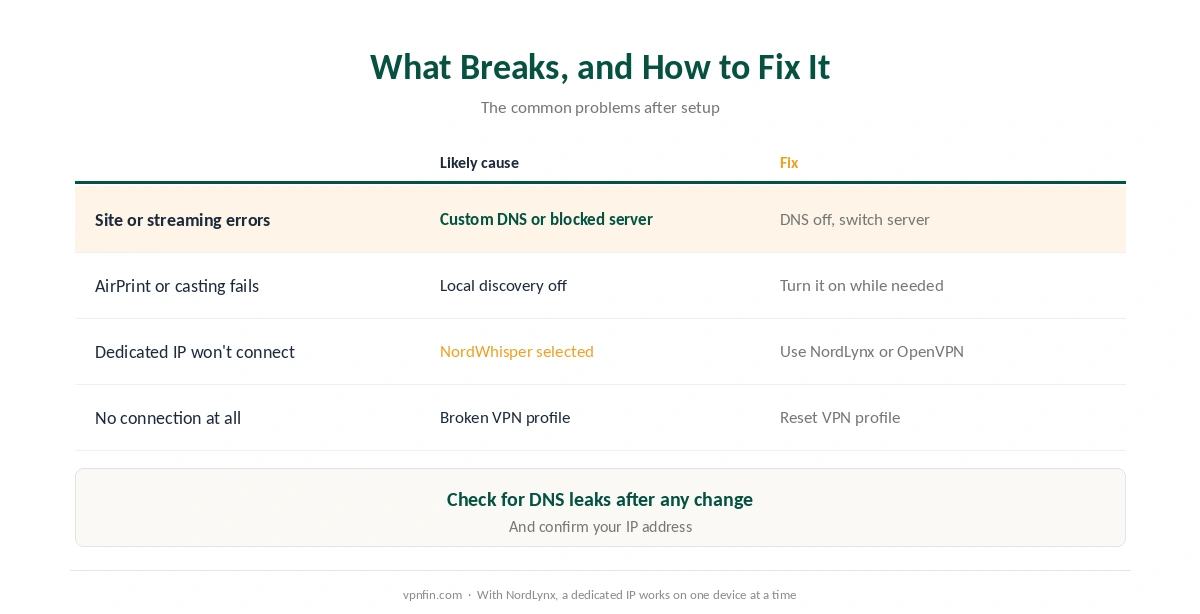
A website or streaming app misbehaves. Check you have not set a custom DNS: NordVPN warns it can cause problems with sites and streaming. Otherwise switch server and restart the app, then confirm the change with our guide to checking a VPN. Our Netflix guide explains server blocks.
AirPrint or casting stops working. Local Network Discovery is off. Turn it on while you need it, then off again on public Wi-Fi, as our public Wi-Fi guide suggests.
Your dedicated IP will not connect. Dedicated IPs do not work over NordWhisper, and with NordLynx only one device can use one at a time, NordVPN’s support explains. Our dedicated IP guide covers the trade-offs.
NordVPN on iPhone will not connect at all. Use Reset VPN profile in the app’s settings, which rebuilds the iOS configuration. Our troubleshooting guide covers the rest, and our DNS leak guide the check to run afterwards.
Turning It Off
Disconnect in the app, from the home screen widget, or with a Siri shortcut, which NordVPN’s app supports. Our guide to turning off a VPN on iPhone covers every method, including from iOS Settings. Our NordVPN review covers the service as a whole.
How We Research
The settings come from NordVPN’s support pages for iPhone and iPad, the protocol changes from its iOS release notes, and the leak research from Michael Horowitz and Proton, as set out in our iPad guide. We name each source where used; all were read on 26 September 2026. We did not test on an iPhone ourselves. Our full approach lives on the About Us page.
NordVPN on iPhone FAQ
Install it from the App Store, sign in, allow the VPN configuration, and connect. Then check Prevent VPN bypass is on and turn on auto-connect in the app’s settings.
It forces all traffic through the VPN tunnel. That addresses leaks researchers have found on iOS, where some connections could leave the device outside the VPN.
Yes. On iOS it is always on and has no separate setting. It blocks internet access if the connection drops and reconnects to the last server.
Not in the app. NordVPN removed IKEv2 and recommends NordLynx. The app offers NordLynx, NordWhisper and OpenVPN.
Local Network Discovery is off, which keeps your phone invisible on the network. Turn it on while you need a printer or TV.
The Verdict
NordVPN on iPhone installs in a minute, and the settings deserve a few more. Check Prevent VPN bypass is on, turn on auto-connect, and leave custom DNS off.
Most problems after that come from a custom DNS, local network settings or a blocked server, and each has a quick fix.