
Disclosure: VPNFin is reader-supported. If you buy a VPN through links on this page, we may earn a commission at no extra cost to you. This never affects our ratings — here’s our full disclosure.
VPN not working on Mac? On recent macOS versions, a common cause is a permission you never saw. Since macOS Sequoia, VPN apps need their network extension switched on in System Settings, under General, Login Items and Extensions, then Network Extensions, with an administrator password, Bitdefender’s support guide explains. The other frequent culprit is a second network tool, such as a firewall or content filter, fighting the VPN for the same traffic.
This page covers the permission first, then conflicts, leftovers from old apps, and problems after macOS updates.
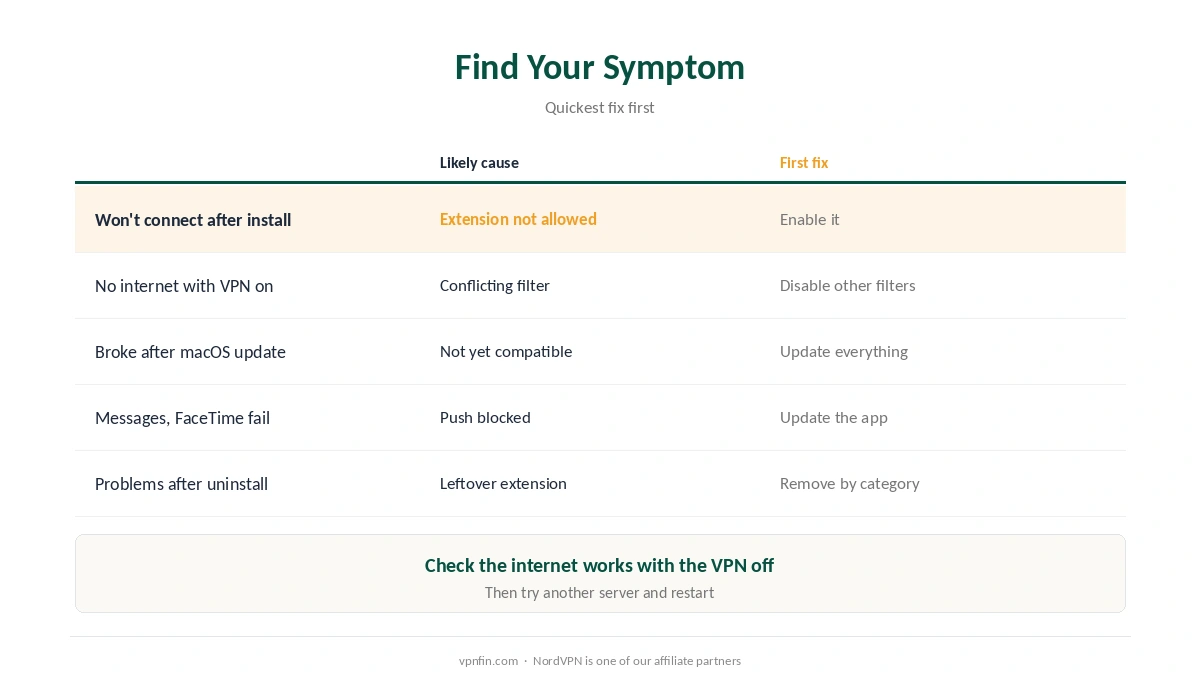
VPN Not Working on Mac: Find Your Symptom
| Symptom | Likely cause | First fix |
|---|---|---|
| App won’t connect after install | Network extension not allowed | Enable it in Network Extensions |
| No internet at all with the VPN on | Conflicting filter or firewall | Disable other network filters |
| Broke after a macOS update | App or filter not yet compatible | Update the VPN and other network tools |
| Messages or FaceTime fail on VPN | Push notifications blocked | Update the app; check its bypass options |
| Old VPN removed, problems remain | Leftover network extension | Remove it by category |
Start with the basics when a VPN is not working on Mac. Check the internet works with the VPN off, try another server, and restart the Mac. Our VPN check guide helps confirm what is failing. Then work down the table.
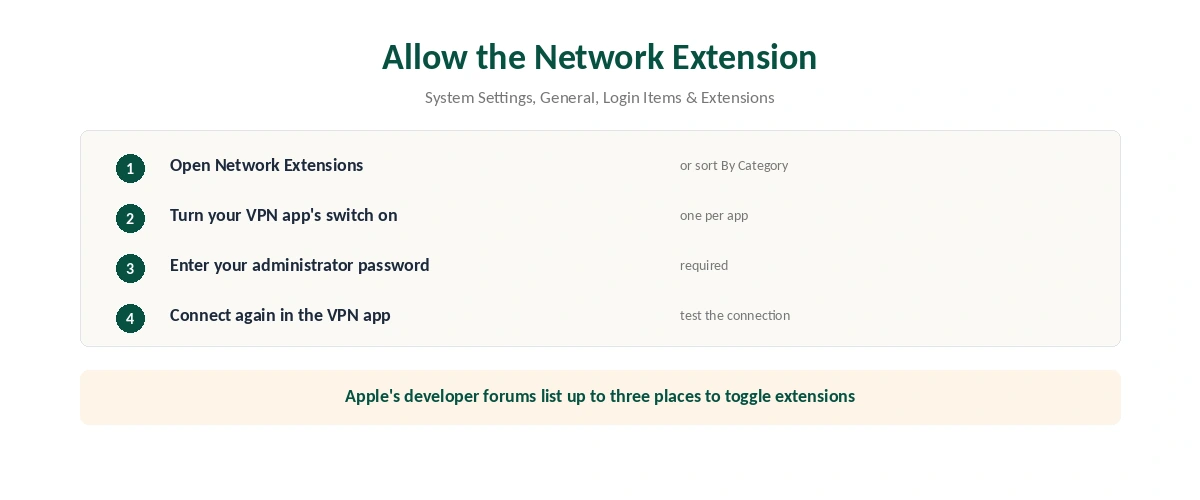
Allow the Network Extension
| Step | Where | What to do |
|---|---|---|
| 1 | System Settings, General | Open Login Items & Extensions |
| 2 | Extensions section | Click Network Extensions (or sort By Category) |
| 3 | Your VPN app | Turn the switch on |
| 4 | Password prompt | Enter your Mac administrator password |
| 5 | VPN app | Connect again |
The setting moved in Sequoia. Little Snitch’s release notes and Apple’s developer forums both record the move to Login Items and Extensions. Apple’s forum also notes up to three places where a network extension can be switched on or off, including Network, Filters.
Brand guides show the exact prompts. NordVPN, Surfshark (both owned by Nord Security) and ExpressVPN each have a Mac setup guide on our site. Each guide shows the prompt that app displays on first launch. If you dismissed it, the switch in Network Extensions does the same job.
If Another Network Tool Is in the Way
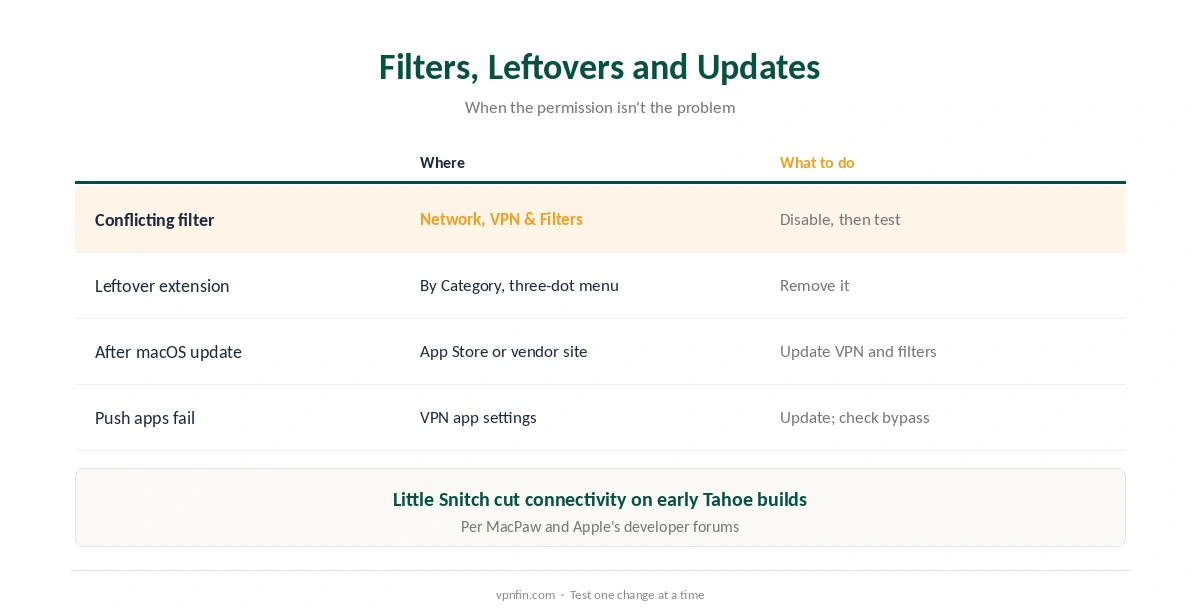
Firewalls and filters can break connectivity, as a kill switch can when the tunnel fails. Little Snitch, for example, caused lost internet on early macOS Tahoe builds until updated or removed, MacPaw and Apple’s developer forums report. The same can apply to any network filter.
Disable or remove the conflicting filter. Go to System Settings, Network, VPN and Filters, or to Login Items and Extensions, sort By Category, open Network Extensions and switch it off, MacPaw explains. Test the VPN, then decide which tool you need.
Uninstalled apps can leave extensions behind. A MacRumors forum user found leftover network extensions removable only from the By Category view, through a three-dot menu. Our connected-but-no-internet guide covers DNS causes too.
After a macOS Update
Update the VPN app first if the VPN is not working on Mac after an update. Major releases change the networking framework. When macOS Sequoia launched, some VPNs broke iMessage and FaceTime until Apple’s 15.0.1 update improved compatibility, TechRadar reported; Surfshark and Windscribe said they weren’t affected.
Then update every network tool, including firewalls and security suites. On hotel networks, the login page is a separate issue, as our hotel Wi-Fi guide explains. Our guide to VPNs that keep disconnecting and our Mac VPN off guide cover related settings.
How We Research
The network extension steps come from Bitdefender’s support guide and Little Snitch’s release notes; the three locations from Apple’s developer forums; filter conflicts from MacPaw, which sells Mac software, and Apple’s forums; leftover extensions from a MacRumors forum thread; the Sequoia push-notification issue from TechRadar. Menu names are from macOS Sequoia and Tahoe. We read all sources on 27 September 2026. NordVPN is one of our affiliate partners. Our full approach lives on the About Us page.
VPN Not Working on Mac FAQ
Often because its network extension isn’t allowed, or another firewall or filter conflicts with it. Check Login Items and Extensions first.
System Settings, General, Login Items and Extensions, Network Extensions. Turn the VPN on and enter your administrator password.
Network filters can conflict with VPNs, especially after major macOS updates. Update or temporarily disable the filter and test.
In Login Items and Extensions, sort By Category, open Network Extensions and use the three-dot menu.
Update the VPN app and any other network tools, then recheck the network extension permission.
The Verdict
A VPN not working on Mac often needs one permission: the network extension in Login Items and Extensions.
If that’s on, look for a conflicting filter or a leftover extension, and update everything after a macOS release.