
Disclosure: VPNFin is reader-supported. If you buy a VPN through links on this page, we may earn a commission at no extra cost to you. This never affects our ratings — here’s our full disclosure.
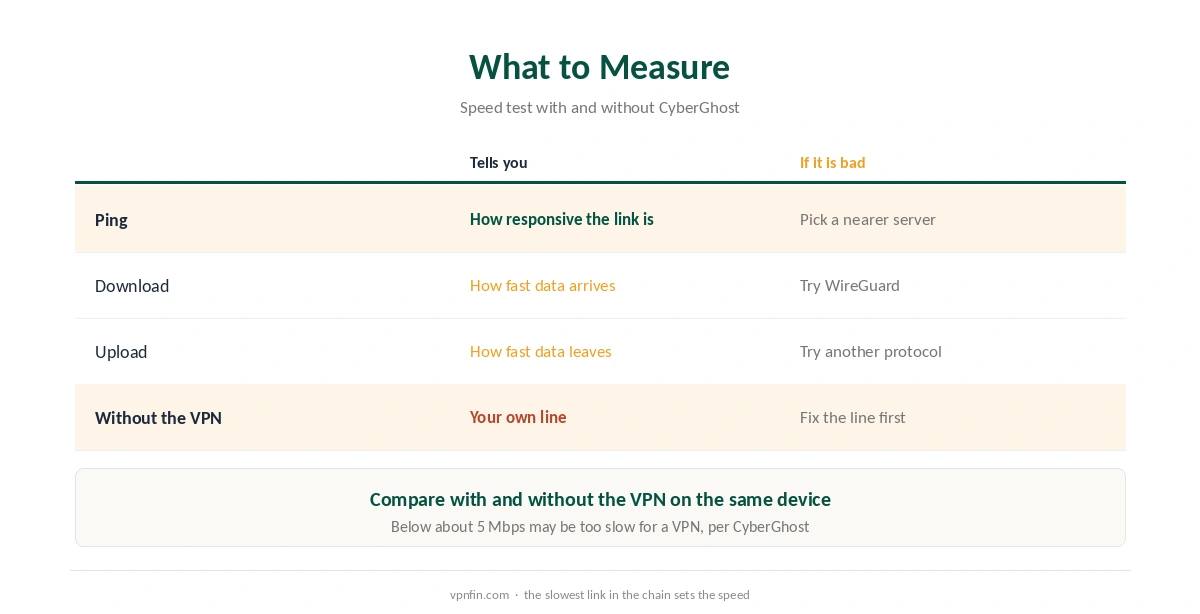
If CyberGhost is slow, measure three numbers before changing anything: ping, download and upload, with and without the VPN. CyberGhost’s own Privacy Hub suggests exactly that, and TechAdvisor adds a useful rule: if every server is slow, the problem may be a wider outage rather than your settings.
This guide covers the measuring, then the fixes in order.
Step 1: Measure the Baseline
Disconnect CyberGhost and test your connection, then connect and test again on the same device. TechAdvisor starts every CyberGhost speed problem with this check. If the plain connection is already slow, the VPN cannot make it faster.
Our guide to VPN speed loss explains how much loss is normal, and our VPN test page confirms the tunnel works at all.
Step 2: Why CyberGhost Is Slow on a Distant Server
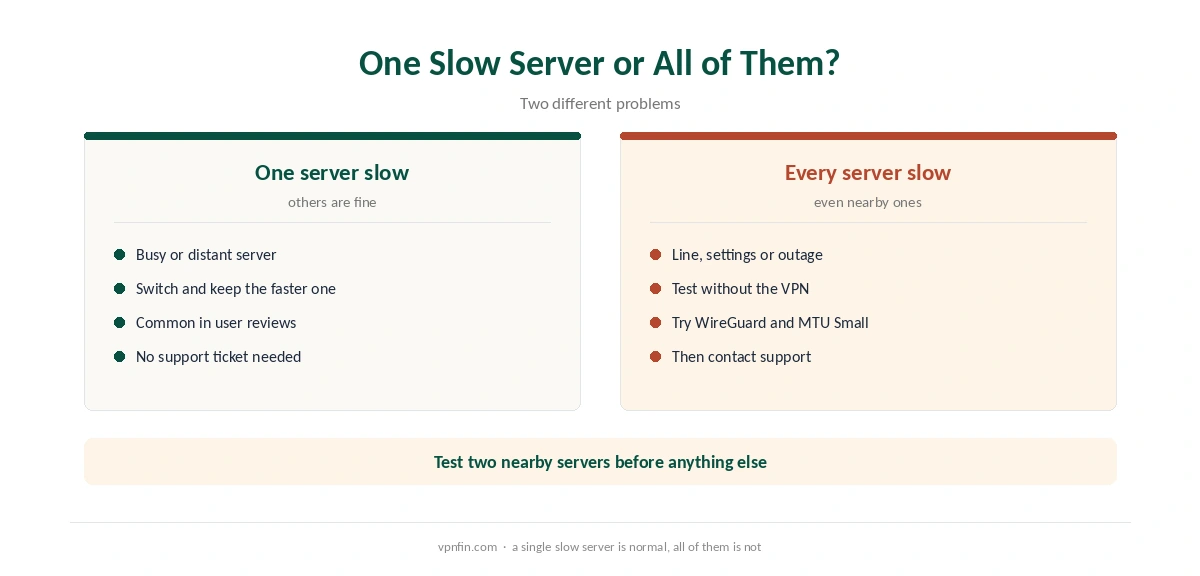
Distance adds delay, CyberGhost’s Privacy Hub notes, so connect to a nearby server first. If one server is slow and others are fine, keep using a different one. Several Capterra reviewers describe the same pattern: some servers slow, others fast.
For calls and games, ping matters more than download speed. Our gaming VPN guide covers that side, and our CyberGhost Mac guide shows the server list on a Mac.
Step 3: CyberGhost Slow? Switch to WireGuard
CyberGhost’s Privacy Hub names WireGuard as the speed-focused choice. Change it in Settings, away from Automatic selection. TechAdvisor adds that changing protocol helps when equipment along the route handles UDP traffic badly, so OpenVPN over TCP is worth a test on stubborn networks. Our WireGuard vs OpenVPN page explains the trade-off.
Step 4: Settings and Hardware
On Windows, CyberGhost’s support says a Small MTU may improve connection performance, so test it. Next, plug in a cable if you can; CyberGhost’s Privacy Hub lists a wired connection among its speed fixes.
Updates matter too, since the Privacy Hub calls outdated software a common cause of slow VPN performance. Finally, split tunnelling can keep heavy traffic off the tunnel. On CyberGhost, that works by app on Android and by website on Windows, as our CyberGhost Windows guide explains. See also our split tunnelling explainer.
When Every Server Is Slow
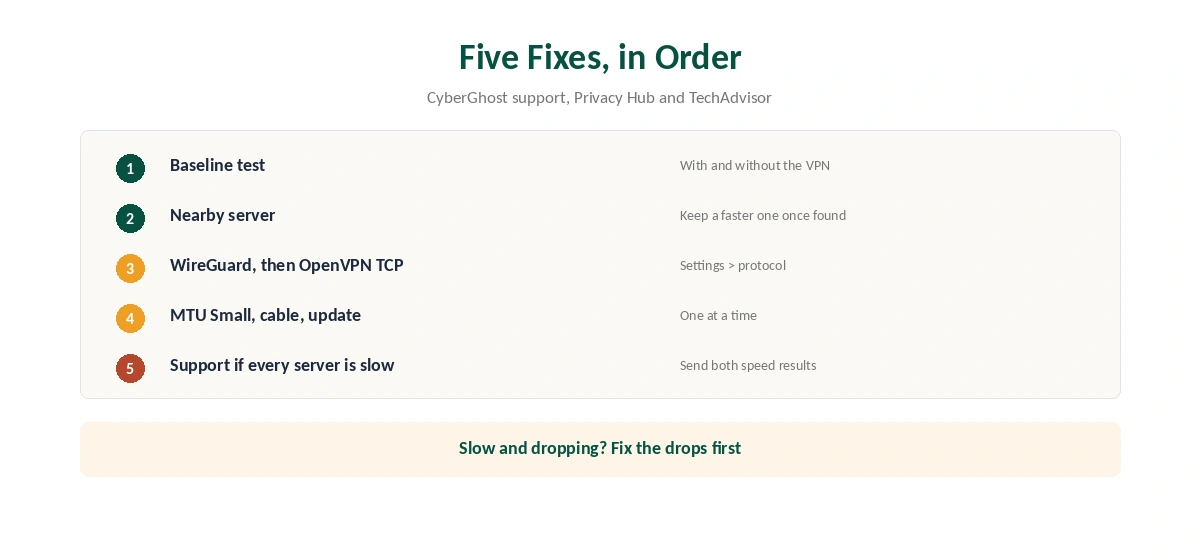
If CyberGhost is slow on every server, TechAdvisor suggests contacting support to check for an outage. Send your speed results with and without the VPN. If the drops come with the slowness, start with our CyberGhost disconnection guide; for a connection that fails outright, see our CyberGhost not connecting guide.
If speeds stay too low within the refund window, our CyberGhost refund guide explains the 45-day request. For alternatives, our NordVPN vs CyberGhost and Surfshark vs CyberGhost pages compare two rivals that share an owner, Nord Security. CyberGhost belongs to Kape Technologies, a London-based company that also owns ExpressVPN and Private Internet Access.
Smaller MTU and Slow Speeds
CyberGhost’s Windows support lists the MTU size option, with Small as a setting that may improve how the connection works. A smaller packet size helps on some networks that fragment or drop large packets. If speeds are poor on one network only, try the Small setting there.
Repairing the Network Adapter
On Windows, CyberGhost’s settings include an option to repair the virtual network card. A damaged adapter can cause both dropped connections and poor speeds. Run the repair, wait for the confirmation, then restart the computer and test again.
Security Software
CyberGhost’s support suggests briefly turning off firewall or antivirus software to test, then adding CyberGhost to its allowlist. Some security tools inspect VPN traffic and slow it down. If speeds jump with the tool paused, the allowlist is the lasting fix.
When to Contact Support
If every server is slow after these steps, TechAdvisor suggests asking CyberGhost’s support. Give them a speed test with and without the VPN, the server you tried and the protocol. Our CyberGhost not connecting guide covers the deeper Windows reset steps.
Choosing a Server
Distance adds delay, so start with the nearest country that works for what you need. Busy servers slow down at peak hours. Try two or three nearby cities and keep the fastest as a favourite. Streaming-optimised servers suit the services they are labelled for, not general browsing.
Re-test after changing protocol. A change that helps on one network can hurt on another, so test where you will actually use the VPN. A note of which server worked where saves time on the next trip.
How We Research
This page draws on CyberGhost’s Privacy Hub guide to slow VPNs, its Windows connection article, TechAdvisor’s CyberGhost speed guide and Capterra user reviews. We cross-checked these sources against each other, and where they conflict or something can’t be verified, we say so in the text rather than guessing. We read every source on 5 October 2026. The main source we relied on is CyberGhost’s guide to slow VPN speeds. Our full approach lives on the About Us page.
Slow CyberGhost FAQ
The usual causes are a slow line, a distant or busy server, the protocol and outdated software. Test with and without the VPN first.
CyberGhost’s Privacy Hub names WireGuard as the speed-focused choice. Try OpenVPN over TCP if a network handles UDP badly.
CyberGhost’s Windows article says a Small MTU may improve connection performance. Test it against Default.
Load and distance differ between servers. Several user reviews describe the same pattern, so keep a faster server once you find one.
Contact support to check for an outage, as TechAdvisor suggests, and include your speed results.
The Verdict
In CyberGhost’s own guides, a slow CyberGhost needs a nearer server, WireGuard or an update. Measure first, change one thing at a time, and contact support if every server crawls.