
Disclosure: VPNFin is reader-supported. If you buy a VPN through links on this page, we may earn a commission at no extra cost to you. This never affects our ratings — here’s our full disclosure.
ExpressVPN on Android TV installs from the Google Play Store like any other app, but its split tunnelling has a quirk worth knowing first. ExpressVPN’s own setup guide says that if you change split tunnelling while connected, the change applies only the next time you reconnect. It is easy to adjust the setting, see no difference and assume it is broken.
This guide covers setup on Android TV, Google TV and Nvidia Shield, the settings ExpressVPN’s support page lists, and the fixes for what goes wrong.
ExpressVPN on Android TV: The Short Answer
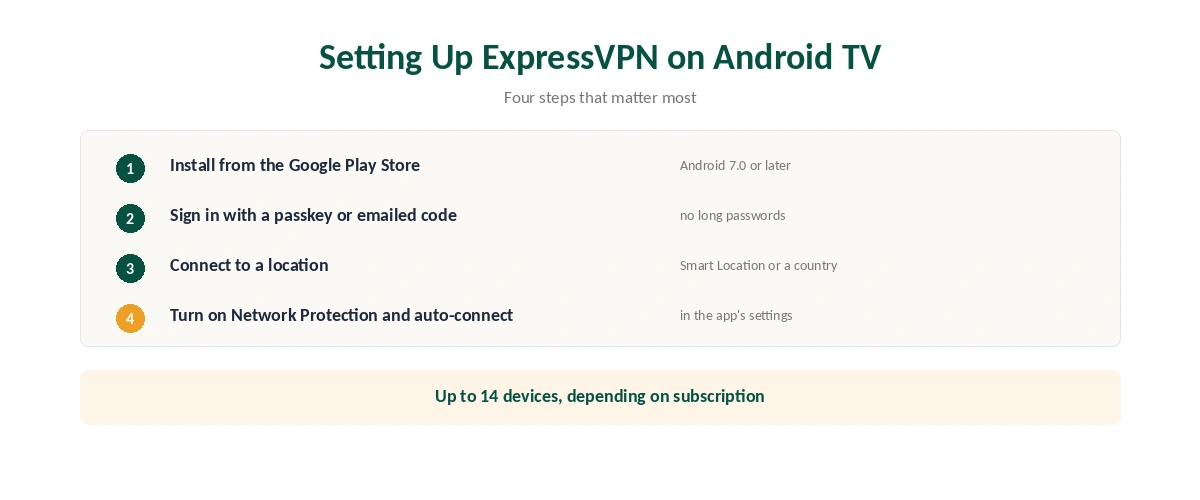
Install ExpressVPN from the Google Play Store on the TV, sign in and connect. ExpressVPN’s guide covers devices running Android 7.0 or later, and offers sideloading if the TV has no Play Store.
Turn on Network Protection and auto-connect, both listed in ExpressVPN’s Android TV guide, so the TV never streams outside the tunnel.
Reconnect after changing split tunnelling. Changes made while connected wait for the next connection. Our ExpressVPN review covers the service as a whole.
Setting Up ExpressVPN on Android TV
| Step | What to do | Note |
|---|---|---|
| 1 | Open the Google Play Store on the TV | Android 7.0 or later |
| 2 | Search ExpressVPN and select Install | Sideload if no Play Store |
| 3 | Open the app and sign in | Passkey or an emailed code |
| 4 | Connect to a location | Smart Location or a country |
| 5 | Turn on Network Protection | Blocks traffic if the VPN drops |
| 6 | Set up auto-connect | Connects when the TV starts |
Signing in to ExpressVPN on Android TV avoids long passwords. ExpressVPN’s Android guide describes signing in with a passkey or a verification code sent to your email.
One plan covers up to 14 devices, depending on the subscription, ExpressVPN’s Android TV page says. Our multi-device guide compares limits.
The Settings Worth Knowing
| Setting | What it does | Note |
|---|---|---|
| Protocol | Lightway or others | Lightway has advanced options |
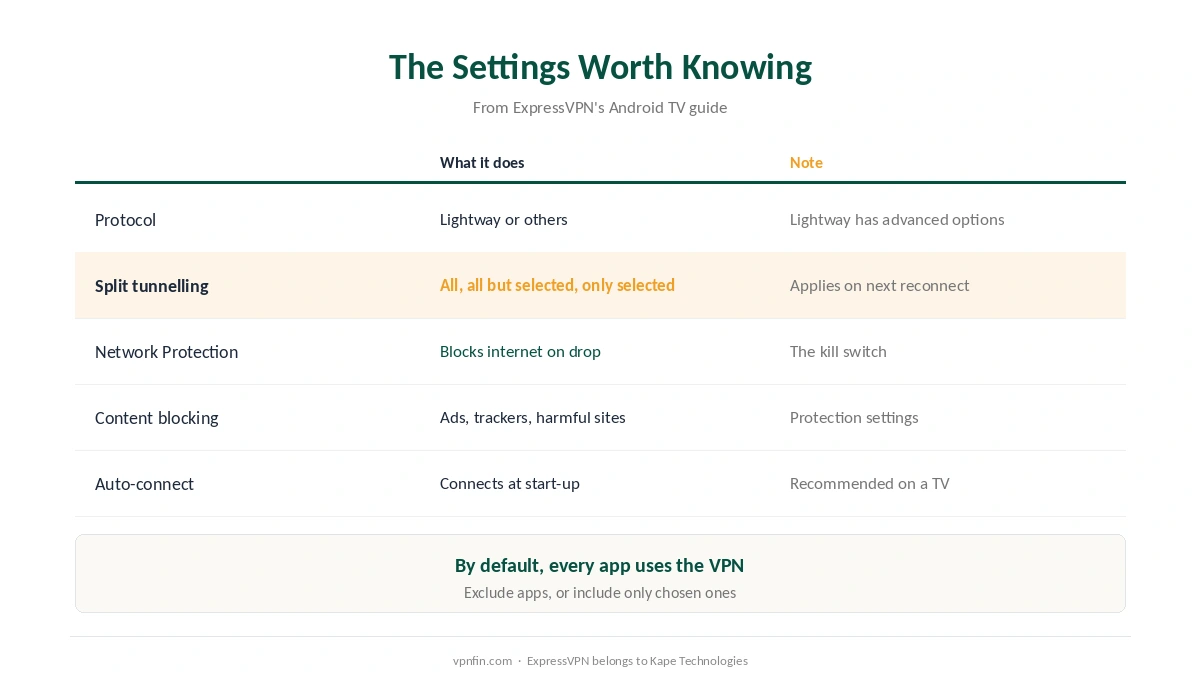
| Split tunnelling | All apps, all except selected, or only selected | Applies on next reconnect |
| Network Protection | Blocks internet if the VPN drops | ExpressVPN’s kill switch |
| Ad, tracker and site blocking | Filters harmful content | In the app’s protection settings |
| Auto-connect | Connects on start-up | Recommended on a TV |
Split tunnelling in ExpressVPN on Android TV has three modes. By default every app uses the VPN; you can exclude chosen apps, or send only chosen apps through it, ExpressVPN’s guide explains. Our split tunnelling guide covers when each makes sense.
Lightway, Network Protection and Travel
Lightway is ExpressVPN’s own protocol, built for fast reconnection when Wi-Fi changes or drops, ExpressVPN’s Android TV page says, which suits a TV on a shaky connection. Our protocol comparison explains how modern protocols differ.
Network Protection is the safety net for ExpressVPN on Android TV. It stops the TV streaming outside the tunnel if the connection drops, as our kill switch guide explains, and a DNS leak test confirms nothing slips past it.
Taking a streaming box on holiday? Hotel Wi-Fi is where a VPN earns its place, as our travel guide explains.
What Breaks, and How to Fix It
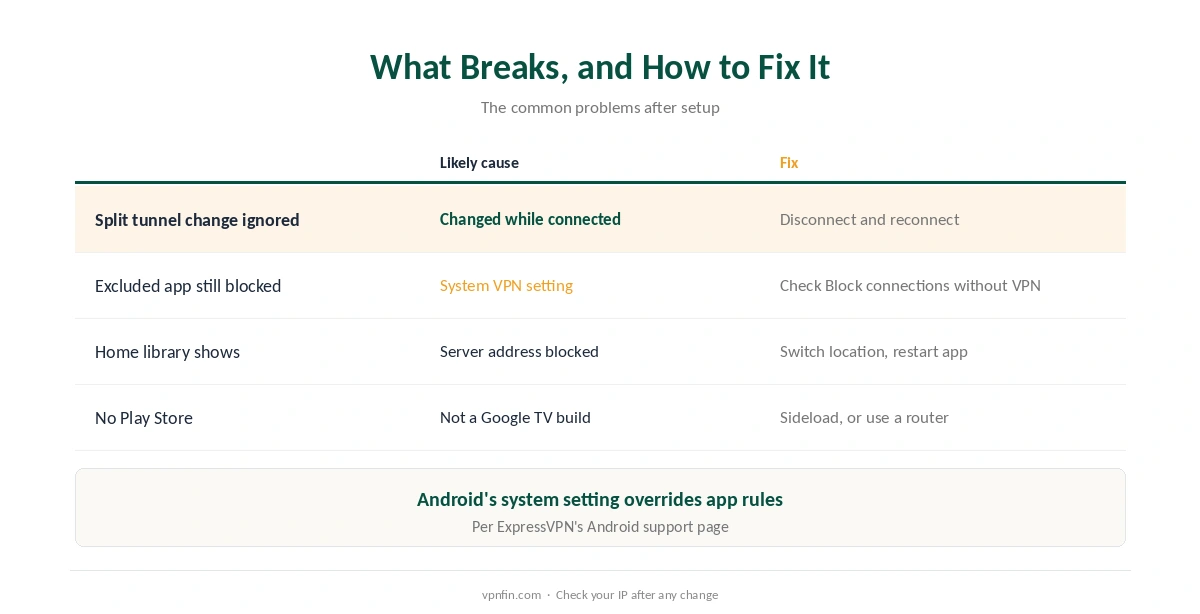
Split tunnelling changes do nothing. Disconnect and reconnect; ExpressVPN says changes made while connected apply only on the next connection.
An excluded app still cannot connect. On Android, ExpressVPN warns that the system setting Block connections without VPN overrides its split tunnelling rules. If your TV exposes that setting, check it.
A streaming app shows your home library. Switch location and restart the app. Our ExpressVPN and Netflix page covers recent results.
No Play Store on the TV. ExpressVPN supports sideloading its app; otherwise our smart TV guide covers router options.
ExpressVPN or the Alternatives on Android TV?
ExpressVPN’s case is Lightway and a simple app; ExpressVPN belongs to Kape Technologies. NordVPN and Surfshark, which share a parent in Nord Security, also have full Android TV apps, as our NordVPN on Android TV guide and our Surfshark on Android TV guide explain.
For Amazon devices, our ExpressVPN Firestick guide covers Fire OS and Vega OS. After setup, confirm the tunnel with our guide to checking a VPN.
How We Research
The setup steps and settings come from ExpressVPN’s Android TV and Android support pages, the device limit from its Android TV download page, and device coverage from CyberInsider. We name each source where used; all were read on 26 September 2026. We did not test on an Android TV ourselves. Our full approach lives on the About Us page.
ExpressVPN on Android TV FAQ
Open the Google Play Store on the TV, search ExpressVPN, select Install, then sign in and connect. Devices need Android 7.0 or later.
ExpressVPN applies changes made while connected only on the next connection. Disconnect and reconnect.
Yes. It is called Network Protection and blocks internet access if the VPN connection drops.
Up to 14 at once, depending on your subscription, according to ExpressVPN’s Android TV page.
Yes. ExpressVPN supports sideloading its Android TV app.
The Verdict
ExpressVPN on Android TV is a straightforward Play Store install with Lightway, Network Protection and three-mode split tunnelling.
Remember to reconnect after changing split tunnelling, and keep Network Protection and auto-connect on.