Disclosure: VPNFin is reader-supported. If you buy a VPN through links on this page, we may earn a commission at no extra cost to you. This never affects our ratings — here’s our full disclosure.
Before any of this: if you’re not certain you need one, our honest answer to that question covers when a VPN earns its cost and when it doesn’t — and what a VPN is in the first place if that part is not obvious yet.
Setting up a VPN takes about four minutes: download, sign in, press connect. Every guide covers that part. Almost none cover what comes next, and that omission matters — the word Connected in your VPN app confirms that a tunnel was established. It does not confirm that your IP is hidden, that your DNS queries are going through the tunnel, or that your kill switch will actually fire when the connection drops. All three can fail silently while the app shows green.
This guide covers the install, the three settings worth changing, and the four tests that prove the whole thing works.
What You’ll Need
- A paid VPN subscription. Free services impose data caps, sell browsing data, or both. Our current top 5 covers the five we recommend.
- Five to ten minutes, including verification.
- Nothing else. No technical knowledge, no network configuration, no command line.
Step 1: Choose a Provider
Two questions decide this, and neither is speed.
How many devices do you need to cover? Count honestly — two phones, two laptops, a tablet, a TV and a console is seven before anyone visits. Surfshark allows unlimited simultaneous connections, NordVPN and ExpressVPN allow 10 on entry plans, and CyberGhost caps at 7.
| Provider | Simultaneous | Notes |
|---|---|---|
| NordVPN | 10 | — |
| Surfshark | Unlimited | no cap in terms |
| ExpressVPN | 10/12/14 | by tier |
| CyberGhost | 7 | router counts as one |
| PureVPN | 10 | up to 50 with paid add-on |
| IPVanish | Unlimited | no cap on any plan |
| Windscribe | Unlimited | including Build a Plan |
| Private Internet Access | Unlimited | no tier gating |
| Mullvad | 5 | no paid add-on |
| TunnelBear | Unlimited | no cap on any plan |
| Norton VPN | 5 | 10 on Ultimate, US only |
| Hotspot Shield | Disputed | sources give five and ten |
| IVPN | 5 | 10 on Pro Suite |
| PrivadoVPN | 10 | 1 on the free tier |
| StrongVPN | 12 | more than either market leader |
| PrivateVPN | 10 | free dedicated IP on one plan |
| VyprVPN | Disputed | sources give five and ten |
| Astrill | 5 or unlimited | sources disagree; Astrill's page says unlimited in the household |
| TorGuard | 8, 12 or 30 | by plan |
| ZoogVPN | 10 | 1 on the free tier; some reviews say unlimited |
| FastestVPN | 10 | 15 on the PRO lifetime plan |
| Hide.me | 10 | 1 on the free tier |
What are you actually using it for? Streaming, privacy, and travel through restrictive networks point to different providers — our streaming guide covers the first case in detail.
Every provider we recommend offers at least a 30-day refund window, so this decision is reversible — our free trial guide covers the conditions attached to each. If you’re travelling somewhere with internet restrictions, check whether VPNs are legal there before you go — and install the app before you fly.
Step 2: Install the App
⚠️ Download only from the provider’s official site or your device’s official app store. Search results for VPN downloads attract fake listings, and a counterfeit VPN app is worse than no VPN at all. On Linux the choice is wider — graphical client, terminal, or config files by hand.
Windows and macOS: download the installer from your account dashboard, run it, and sign in with the credentials you created at purchase. Our page on PureVPN IKEv2 covers where the protocol works and the manual Windows setup.
iOS and Android: download the app from the App Store or Google Play, sign in, and tap connect. On an iPhone there is one extra step that no app performs for you.
Linux: most providers ship a command-line client with setup instructions in their support documentation.
The app will ask for permission to add a VPN configuration to your system. That prompt is normal and required — the VPN cannot route your traffic without it.
Step 3: Change Three Settings
Defaults are usually sensible, but three settings deserve a look before you rely on the connection.
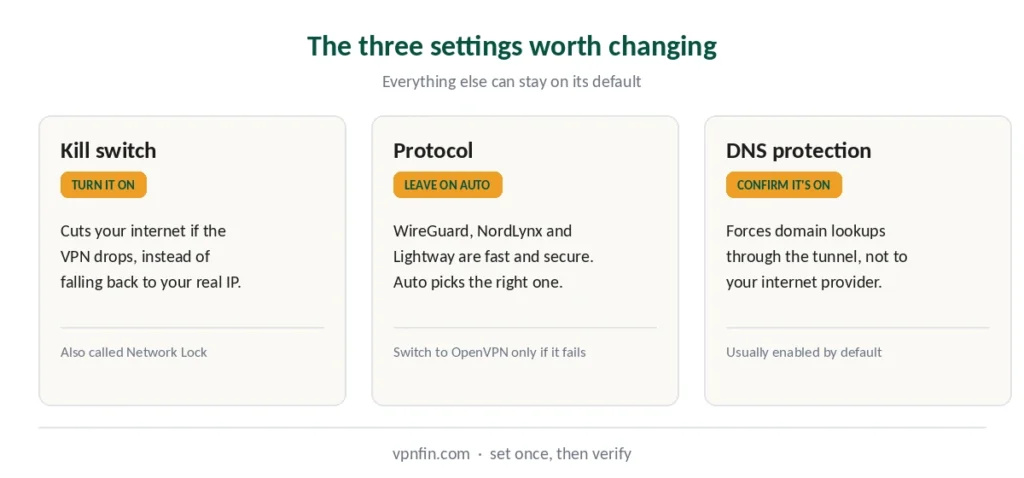
Kill switch — turn it on. This cuts your internet if the VPN connection drops, rather than letting traffic fall back to your real IP. Without it, a Wi-Fi flicker or an app crash exposes you for seconds to minutes — long enough for any open browser tab to report your real location. Find it under Settings, sometimes called Network Lock (ExpressVPN) or Internet Kill Switch.
Protocol — leave it on automatic. Modern protocols like WireGuard, NordLynx and Lightway are faster than OpenVPN and secure. The automatic setting picks the right one for your network. Change it only if a connection fails, in which case try OpenVPN.
DNS leak protection — confirm it’s enabled. Most providers turn this on by default. It forces domain lookups through the tunnel rather than to your internet provider’s servers.
Step 4: Connect
Press the large connect button. The app selects the fastest nearby server automatically, which is what you want unless you have a specific reason to appear somewhere else.
Choosing a location matters for two things: accessing content from another country, and speed. Closer servers are faster. If you are connecting for privacy alone, the default is correct.
Step 5: Verify It Works — The Part That Matters
Four tests, about five minutes total. Run them once now, and again after any major OS update or app reinstall.
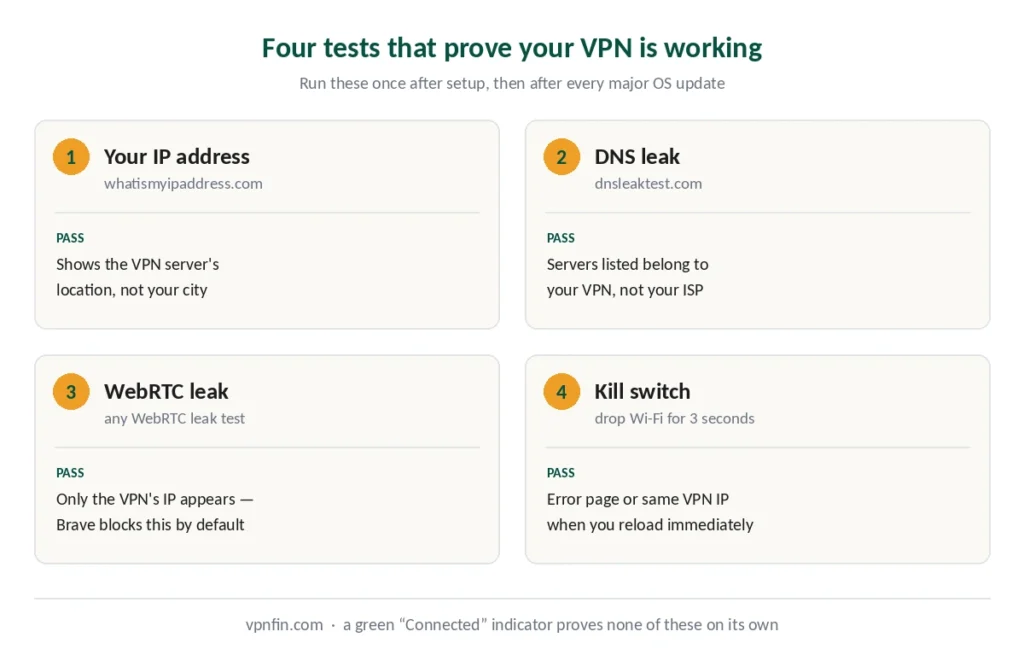
Test 1 — Your IP address. With the VPN connected, open whatismyipaddress.com. The IP and location shown should be your VPN server’s, not yours. If your real city appears, the tunnel is not carrying your traffic.
Test 2 — DNS leaks. Open dnsleaktest.com and run the extended test. The servers listed should belong to your VPN provider. If your internet provider’s servers appear, your DNS queries are escaping the tunnel — meaning your ISP can still see which sites you visit even though the traffic itself is encrypted. Why this specific leak matters: your traffic stays encrypted, but the list of domains you asked for doesn’t.
⚠️ Windows users, this one hits you specifically. Windows has a feature called smart multi-homed name resolution that sometimes queries your ISP’s DNS servers even while a VPN is active. If your provider’s app has a “force DNS through VPN” or similar option, enable it.
Test 3 — WebRTC leaks. WebRTC is a browser feature for video calls that can send your real IP directly to websites, bypassing the tunnel entirely. Chrome, Firefox and Edge are all affected; Safari handles it differently and Brave blocks it by default. Search for a WebRTC leak test, run it with the VPN connected, and confirm only the VPN’s IP appears. If your real IP shows, install a WebRTC-blocking extension.
Test 4 — Kill switch. This is the one nobody tests, and it takes thirty seconds.
- Connect the VPN and open
whatismyipaddress.com. Note the IP. - Turn off Wi-Fi (or unplug the ethernet cable) for three seconds.
- Turn it back on and immediately reload the page, before the VPN reconnects.
Pass: you see a connection error, a blank page, or the same VPN IP. Fail: your real IP appears — the kill switch did not fire, and you should check that it is enabled.
Devices That Can’t Run VPN Apps
Smart TVs, games consoles and streaming sticks mostly cannot install VPN software — Roku blocks them entirely, and the workarounds there apply to most of these devices. Three ways around this:
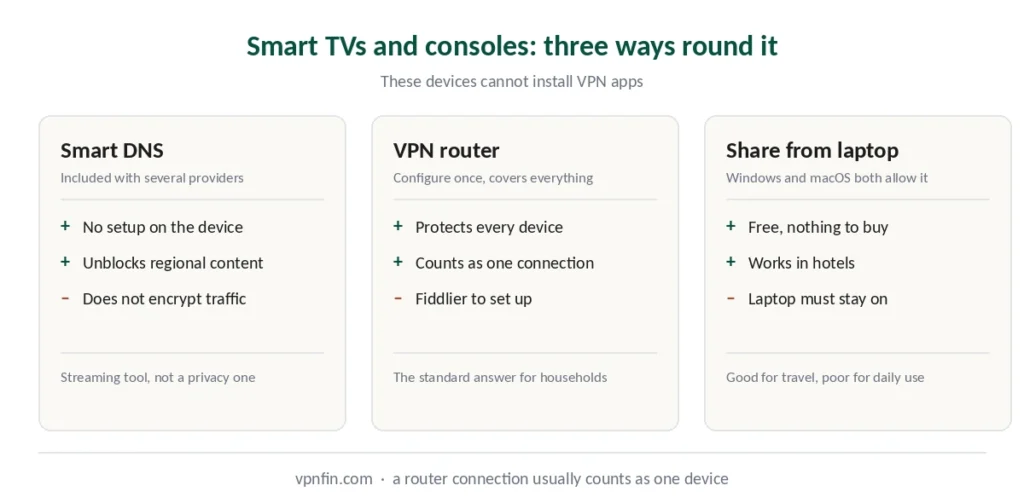
Smart DNS. Several providers include this — NordVPN’s SmartPlay, for instance — which handles geo-restrictions on devices that cannot run apps. It changes what content you can reach but does not encrypt your traffic, so it is a streaming tool rather than a privacy one.
A VPN-capable router. Configure the VPN once at the router and every device on the network is covered, including the ones that cannot run apps. ExpressVPN sells Fortify, a router built with GL.iNet that replaced its Aircove models in September 2026; other providers publish setup guides for common router firmware. For consoles specifically, the extra hop costs a few milliseconds of latency worth knowing about. Our router setup guide covers the three paths and the one that can break your hardware. For a router that arrives with the VPN built in, see our Aircove review.
⚠️ A router connection usually counts as one device against your connection limit, which is why this is the standard answer for households on providers that cap you at 7 or 10.
Sharing a connection from a laptop. Windows and macOS can share a VPN-protected connection over Wi-Fi. Fiddly, but free. Chromebooks are a case apart — three installation paths, and only two cover the whole device.
When Things Go Wrong
Slow speeds. Switch to a closer server first. If that fails, change the protocol to WireGuard or the provider’s own — Lightway, NordLynx — and test again.
A site blocks you. Some banking and shopping sites reject VPN traffic. Use split tunneling, which routes chosen apps outside the tunnel while everything else stays protected. Surfshark calls it Bypasser. If you’d rather disconnect entirely, here’s how on every platform.
Streaming platform says you’re using a proxy. Switch to another server in the same country — platforms block individual servers, not entire providers. Clearing browser cookies helps.
Frequent disconnections. Usually the protocol. Try switching to OpenVPN, which is slower but more tolerant of unstable networks.
Nothing connects at all. Some networks block VPN traffic entirely. Look for an obfuscation or camouflage setting, which disguises VPN traffic as ordinary HTTPS. Our troubleshooting guide works through the full diagnostic order. In countries with active filtering, obfuscation is the setting that decides whether it works at all.
How We Research
This guide draws on published technical documentation from VPN providers, independent leak-testing methodology from named security sources, and our own full reviews of the five providers we recommend — cross-checked and verified at publication. We do not run our own network tests; where we cite figures, they come from named third-party labs and are attributed. Our full approach lives on the About Us page.
VPN Setup FAQ
No. Modern VPN apps require no technical knowledge: download, sign in, press connect. The whole process takes about four minutes. The part worth spending time on is verification — confirming your IP is hidden, DNS is not leaking, and the kill switch works — which adds roughly five minutes.
Not necessarily. “Connected” confirms a tunnel was established. It does not confirm your DNS queries are going through it, that your browser is not exposing your real IP through WebRTC, or that your kill switch will fire if the connection drops. Each of those can fail while the app shows green, which is why the four tests in this guide exist.
For most people, yes. The speed cost is minimal — even the slowest provider we reviewed leaves far more bandwidth than streaming or browsing requires. Exceptions are banking sites that reject VPN traffic and local network devices like printers, both of which split tunneling handles without disabling protection entirely.
Automatic, unless something breaks. Modern protocols — WireGuard, NordLynx, Lightway — are faster than OpenVPN and equally secure, and the automatic setting picks correctly for your network. If connections fail or drop repeatedly, switch to OpenVPN, which is slower but more tolerant of unstable networks.
Those devices usually cannot install VPN apps. Three options: Smart DNS, which several providers include and which handles geo-restrictions without encryption; configuring the VPN on your router, which covers every device on the network; or sharing a VPN connection from a laptop over Wi-Fi. A router connection typically counts as one device against your connection limit.
After any major operating system update, after reinstalling the VPN app, after changing routers, and whenever you connect from an unfamiliar network — hotel Wi-Fi in particular. Configurations drift silently, and a leak that appears after an update gives no warning that anything changed.
The Short Version
Install the app, turn on the kill switch, leave the protocol on automatic, and connect. Then spend five minutes on the four tests above — because a VPN you have not verified is a VPN you are trusting on faith.
Retest after major operating system updates, after reinstalling the app, and whenever you connect from an unfamiliar network. Configurations drift, and the failure is silent.