
Disclosure: VPNFin is reader-supported. If you buy a VPN through links on this page, we may earn a commission at no extra cost to you. This never affects our ratings — here’s our full disclosure.
Most troubleshooting guides hand you twelve fixes and let you try them at random. That works eventually, but it wastes time — because “my VPN isn’t working” describes three different problems with three different causes.
Work out which one you have first. The right fix is usually two steps away, not twelve.
Which Problem Do You Actually Have?
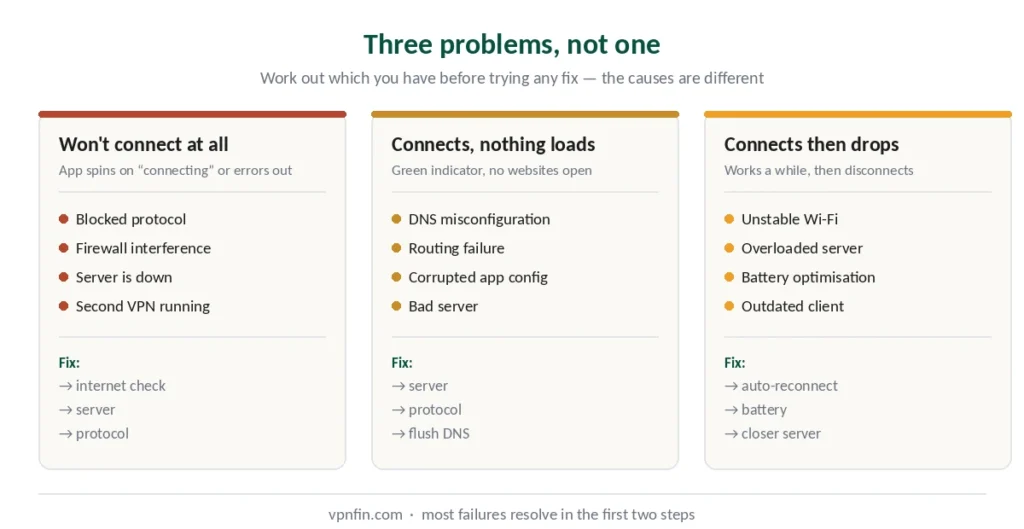
It won’t connect at all. The app spins on “connecting” or throws an error. Usually a blocked protocol, a firewall, or a server that is down.
It connects but nothing loads. Green indicator, no internet. The tunnel exists and something after it fails — DNS, packet size, or a kill switch that stayed armed.
It connects then drops. Works for a while, then disconnects. Network instability, an overloaded server, or your device killing the app in the background.
Each section below covers one of these. Skip to yours.
If It Won’t Connect at All
Five steps in order. Most connection failures resolve in the first two.
⚠️ On Windows, look for a number before you start. If the failure carries an error code, that code names the cause and skips most of this list — 809 is blocked ports, 691 is credentials, 13801 is a certificate.
Step 1 — Check the internet without the VPN. Disconnect the VPN entirely and load a few websites. If those fail, the problem is your connection, not the VPN. Unplug your router for 30–60 seconds and try again.
This step is first for a reason: it takes twenty seconds and rules out the most common cause before you touch any settings.
Step 2 — Switch servers. Servers go offline, get overloaded, or get blocked by the network you’re on. Pick a different one, preferably nearby. If a second server works, you’ve found the problem.
Step 3 — Change the protocol. Many VPNs default to a protocol your current network blocks. In app settings, switch from the automatic option to WireGuard — or the provider’s own version, NordLynx or Lightway. If that fails, try OpenVPN over TCP, which is slower but gets through more restrictive networks because it looks like ordinary HTTPS.
Protocol changes fix “stuck on connecting” more often than anything else on this list.
Step 4 — Check your firewall and antivirus. Security software blocks the ports VPNs use. Temporarily disable it and try connecting — if that works, add your VPN app to the allowed list rather than leaving protection off.
⚠️ Turn the firewall back on either way. Testing with it off is fine; leaving it off is not.
Step 5 — Look for a second VPN. If you connect to a work VPN, you likely cannot run a personal one at the same time. Disconnect one before starting the other. This catches people who never think to check it.
If It Connects but Nothing Loads
The app says connected, websites don’t open. The tunnel exists, and something after it is failing — DNS, packet size, or a kill switch that stayed armed.
Three pings tell you which. Ping an address, then a name, then a large packet. The first one that fails names the cause, and the full diagnostic runs through each fix in turn.
The quick version: if the name fails but the address answers, flush your DNS cache — ipconfig /flushdns on Windows, sudo dscacheutil -flushcache on macOS. If small pings pass and pages still hang, change protocol, because different protocols leave different room inside each packet.
⚠️ Reconnecting and switching servers rarely help here. Both repeat the handshake, and the handshake is the one step that already succeeded.
Reinstalling is worth one exception on a Mac. A network extension left behind by a previous VPN can block traffic on its own, and reinstalling is how you reach it. Check afterwards that your kill switch is back on, because it resets to default.
⚠️ On an iPhone, the opposite problem exists and looks like nothing at all. Everything loads normally, the icon is in the status bar, and part of your traffic is still travelling outside the tunnel — because iOS does not close connections that were already open. It is not a fault you can troubleshoot, and no app can fix it, but toggling Airplane Mode after you connect does.
If It Keeps Disconnecting
The most annoying variant, and the one where the timing matters more than the symptom. Screen off points at battery management; drops while you are using it point at the network or the server — the full diagnostic splits them properly. The short list below covers what works most often.
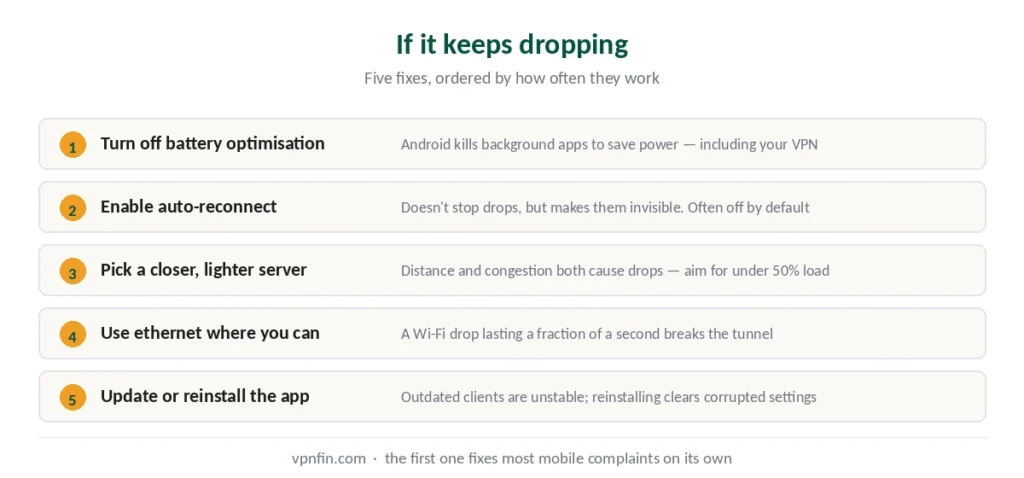
Enable auto-reconnect. Most apps have it in settings, and it is not always on by default. This does not stop drops but makes them invisible. The reverse problem — a VPN that reconnects when you don’t want it to — is covered in our guide to turning one off.
Turn off battery optimisation. On Android especially, the system kills background apps to save power — including your VPN. Find your VPN in battery settings and set it to unrestricted. This single change fixes a large share of mobile disconnection complaints, and our Android guide covers the two system toggles worth setting at the same time. On iOS the equivalent setting does not exist, so set the VPN to connect on demand instead — the same setting that stops people switching it off when they want to.
Pick a closer, less loaded server. Distance and congestion both cause drops. Most apps show server load; pick one under 50% — the same two factors decide how much speed you lose.
Use ethernet where you can. Wi-Fi drops that last a fraction of a second are enough to break a tunnel. A cable eliminates them.
Update or reinstall the app. An outdated client is a common source of instability, and reinstalling clears corrupted settings. You will need to log in again.
On Public and Restricted Networks
Public Wi-Fi, school and corporate networks often block VPN protocols or ports deliberately.
What to try: switch to OpenVPN over TCP port 443, which looks like ordinary HTTPS traffic and passes through most filters. If your provider offers obfuscation — sometimes called camouflage or stealth mode — turn it on.
In heavily censored countries the blocking is more sophisticated: deep packet inspection identifies VPN traffic by its signature rather than its port. Obfuscation is the only reliable answer, and our legality guide covers where these restrictions apply before you travel.
When It Isn’t Your Fault
Worth saying plainly, because most troubleshooting guides never do.
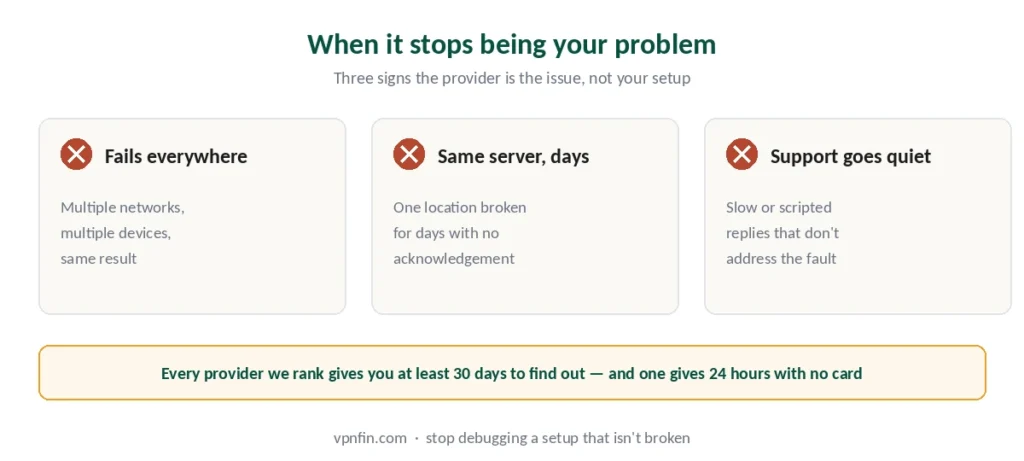
If your VPN fails consistently across multiple networks and multiple devices, the problem is the provider. Servers that are chronically overloaded, apps that crash, protocols that haven’t been updated — these are not things you can fix from your end.
Signs it’s them rather than you: the same server fails for days, support responses are slow or scripted, and switching providers on a trial immediately works. Our guide to IPVanish not working covers the fixes that work, in order.
This is where the refund window earns its keep. Every provider we rank offers at least 30 days, and CyberGhost asks for no payment card at all — 24 hours on desktop, three days on Android, seven days on iOS — which is enough to test whether the problem follows you to a different service. Our free trial guide covers the conditions attached to each.
Troubleshooting: our fix guides cover a VPN not working on iPhone, Android, Mac and hotel Wi-Fi.
Brand-specific fixes: Proton VPN, Surfshark and ExpressVPN.
How We Research
This guide draws on published troubleshooting documentation from VPN providers, technical guides from named sources including Engadget, Top10VPN and TheBestVPN, and our own full reviews of the providers we rank — cross-checked and verified at publication. We do not test failure scenarios ourselves; the diagnostic order here reflects what published sources agree resolves problems most often. Our full approach lives on the About Us page.
VPN Connection FAQ
Most often a blocked protocol, firewall interference, or a server that is down. Work through it in order: check your internet with the VPN off, switch to a different server, then change the protocol in app settings. On Windows, check first whether the failure carries a numbered error code, because that number identifies the cause directly.
Usually network instability, an overloaded server, or your device killing the app in the background. On Android especially, battery optimisation shuts down background processes including VPNs — setting your VPN app to unrestricted in battery settings fixes a large share of mobile disconnection complaints.
The tunnel exists and something after it is failing. Three pings identify which: an address, then a name, then a large packet. Name fails means DNS, so flush your cache. Large packet fails means packet size, so change protocol. Nothing replies at all points at the kill switch.
Yes. Firewalls including Windows Defender and third-party antivirus block the ports VPNs use, causing failed connections or intermittent drops. Temporarily disabling it identifies the cause; the proper fix is adding the VPN app to the allowed list rather than leaving protection off.
Public, school and corporate networks frequently block VPN protocols or ports on purpose. Switching to OpenVPN over TCP port 443 usually works because that traffic resembles ordinary HTTPS. If your provider offers obfuscation or stealth mode, enabling it is the more reliable answer.
When it fails consistently across multiple networks and multiple devices. That pattern points to the provider rather than your setup — chronically overloaded servers or an unstable client are not fixable from your end. Every provider we rank offers at least a 30-day refund window, which exists for exactly this situation.
The Short Version
Identify the symptom first — won’t connect, connects without internet, or keeps dropping. They have different causes and mixing the fixes wastes time.
For most connection failures: check the internet without the VPN, then switch servers, then change protocol. Those three steps resolve the large majority of problems.
For persistent drops: auto-reconnect on, battery optimisation off, closer server, wired connection.
And if it fails on every network and every device, stop debugging your setup. The problem is upstream, and a refund window exists for exactly this. Our page on CyberGhost not working covers CyberGhost’s own repair steps for failed connections.