Disclosure: VPNFin is reader-supported. If you buy a VPN through links on this page, we may earn a commission at no extra cost to you. This never affects our ratings — here’s our full disclosure.
ChromeOS doesn’t ship with a VPN of its own, and it offers three different ways to add one. They aren’t equivalent.
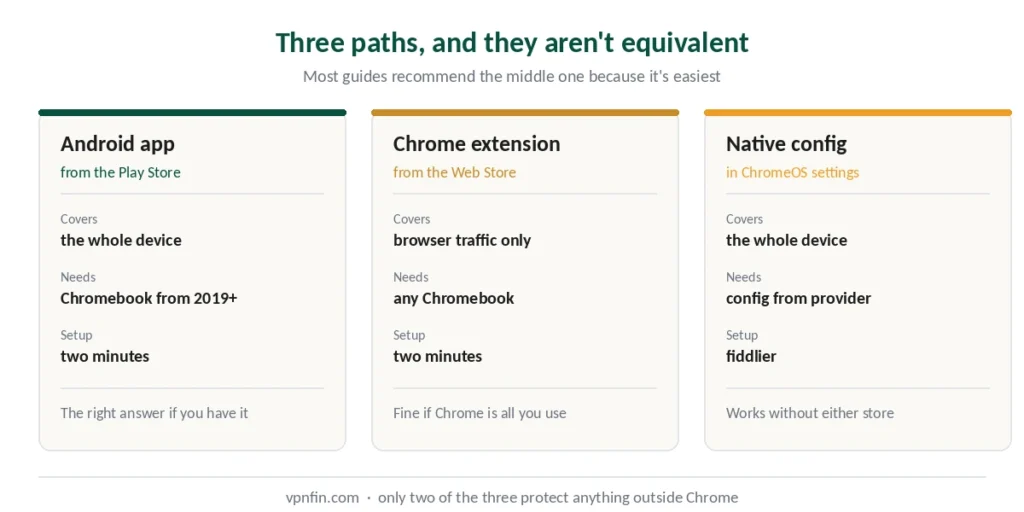
An Android app encrypts everything leaving the device. A Chrome extension encrypts your browser traffic and nothing else. Native configuration in ChromeOS settings supports certain protocols manually. Our page on PureVPN on Chromebook covers the Android app, the extension and proxy mode.
Most guides recommend the extension because it’s easiest. That’s fine if you only use Chrome — and misleading if you don’t.
The Short Answer
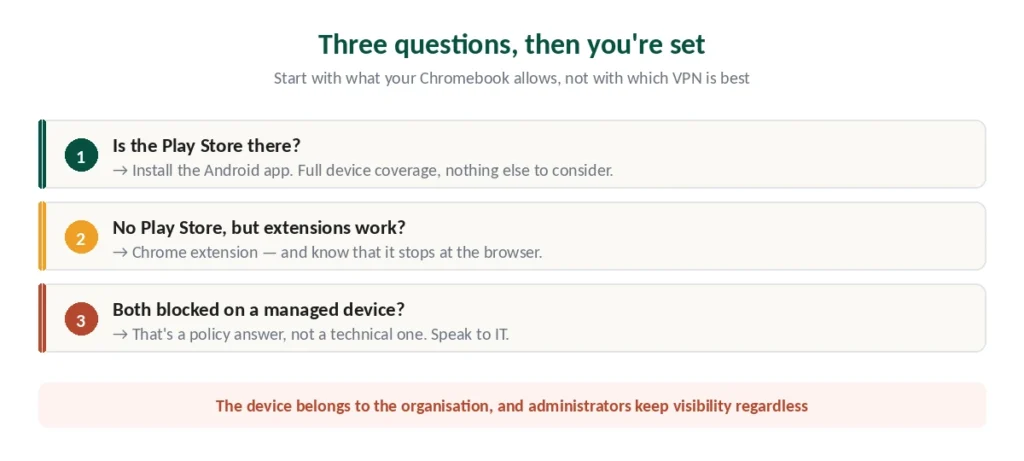
Chromebook from 2019 or later: install the provider’s Android app from the Play Store. Full device coverage, two minutes. Our page on Norton VPN on Chromebook covers the Android app route and the caveats testers found.
Older Chromebook without Android support: the Chrome extension is your option, covering browser traffic only. Our page on TunnelBear on Chromebook covers the Android app and the Chrome extension compared.
Managed device: whether either works depends on your administrator, and if both are blocked there’s no user-level workaround.
Check What Yours Supports
Android app support arrived by default on Chromebooks launched in 2019 and later. If the Google Play Store appears in your app drawer, you have it. Our page on VyprVPN on Chromebook covers the Android app and manual L2TP setup.
No Play Store? Either the device predates 2019 or an administrator removed it. Both lead to the same place — the extension.
Managed by a school or employer? Look for a briefcase icon or a “managed by your organisation” notice in settings. That changes what’s possible, covered below.
Path 1: The Android App
The recommended route, because it covers the whole device rather than one application.
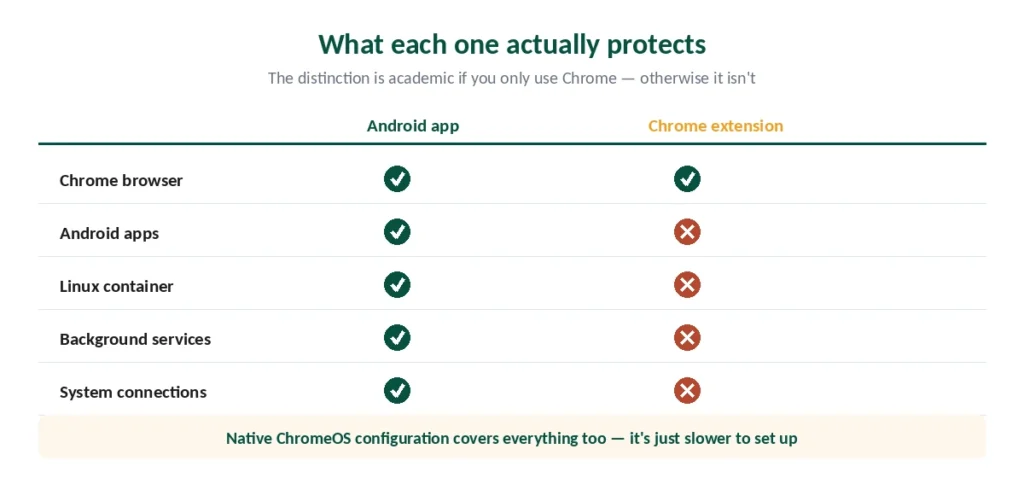
Open the Play Store, search for your provider, install, sign in, connect. Everything on the Chromebook routes through the tunnel — Chrome, Android apps, Linux container, background services. The Linux container has its own options if you use it heavily. Our page on TorGuard on Chromebook covers the Android app, L2TP and Linux routes.
Protocol matters on ChromeOS hardware. WireGuard performs best, along with provider implementations like NordLynx and Lightway. Older OpenVPN tunnels are noticeably heavier on lower-end Chromebooks, which most Chromebooks are.
⚠️ Set auto-connect on untrusted networks while you’re in settings. Chromebooks travel, and that’s when the protection matters most.
Path 2: The Chrome Extension
Covers your browser and stops there.
Install from the Chrome Web Store, sign in, connect. Simple, lightweight, works on any Chromebook including ones without Play Store access.
What it doesn’t cover: Android apps, the Linux container, system-level connections, anything outside Chrome. If your Chromebook is genuinely just a browser, that distinction is academic. If you run Android apps, it isn’t.
Extensions sometimes add features apps don’t have — ExpressVPN’s includes WebRTC blocking and location spoofing for the browser specifically.
Path 3: Native ChromeOS Configuration
Less known, and occasionally useful.
ChromeOS supports several VPN protocols natively in network settings — including L2TP/IPsec and OpenVPN. You can add a VPN profile manually under Settings without installing anything. Our guide to IPVanish on Chromebook covers the Android app, and why there is no VPN extension.
Why you’d bother: it works without the Play Store or extensions, and it covers the whole device.
Why most people shouldn’t: it’s slower to set up, gives you fewer features than an app, and requires configuration details from your provider. For most users the app or extension is faster and better. Our guide to ExpressVPN on Chromebook covers the Android app, the Linux route and older models.
Managed Chromebooks: The Honest Answer
School and workplace Chromebooks are administered through Google Admin, and the administrator controls what installs.
They can block the Play Store, block Chrome extensions, or both.
If only the Play Store is blocked, a browser extension may still install.
If both are blocked, there is no clean user-level workaround — and this is where the honest answer differs from most guides. For the Android app or the Chrome extension, see our page on Windscribe on Chromebook.
⚠️ Working around an organisation’s IT policy isn’t a technical problem. It’s a policy question, and the consequences of getting it wrong land on you rather than on your device. If a VPN is genuinely needed for legitimate reasons — remote work, protecting credentials on public Wi-Fi — the conversation belongs with your IT department, not with a workaround.
Note also that the device belongs to the organisation, and administrators typically retain visibility regardless of what’s installed on it. Our guide to Mullvad on Chromebook covers the Android app, or ChromeOS’s built-in WireGuard.
Which Provider to Choose
Three things matter for ChromeOS specifically.
Support for both paths. Providers offering an Android app and a Chrome extension give you options if your situation changes. NordVPN, ExpressVPN and Surfshark all do.
Modern protocol support. Chromebook hardware is typically modest, and WireGuard-based protocols are measurably lighter than OpenVPN — our speed guide covers the difference.
Device limits, if the Chromebook is one of several. Surfshark’s unlimited connections remove the arithmetic.
| Provider | Simultaneous | Notes |
|---|---|---|
| NordVPN | 10 | — |
| Surfshark | Unlimited | no cap in terms |
| ExpressVPN | 10/12/14 | by tier |
| CyberGhost | 7 | router counts as one |
| PureVPN | 10 | up to 50 with paid add-on |
| IPVanish | Unlimited | no cap on any plan |
| Windscribe | Unlimited | including Build a Plan |
| Private Internet Access | Unlimited | no tier gating |
| Mullvad | 5 | no paid add-on |
| TunnelBear | Unlimited | no cap on any plan |
| Norton VPN | 5 | 10 on Ultimate, US only |
| Hotspot Shield | Disputed | sources give five and ten |
| IVPN | 5 | 10 on Pro Suite |
| PrivadoVPN | 10 | 1 on the free tier |
| StrongVPN | 12 | more than either market leader |
| PrivateVPN | 10 | free dedicated IP on one plan |
| VyprVPN | Disputed | sources give five and ten |
| Astrill | 5 or unlimited | sources disagree; Astrill's page says unlimited in the household |
| TorGuard | 8, 12 or 30 | by plan |
| ZoogVPN | 10 | 1 on the free tier; some reviews say unlimited |
| FastestVPN | 10 | 15 on the PRO lifetime plan |
| Hide.me | 10 | 1 on the free tier |
⚠️ On free options: the usual problems apply — data caps, slow speeds, and the question of how a service with no paid product makes money. Proton VPN’s free tier is the exception worth knowing about, and our free VPN guide covers what it does and doesn’t offer.
Need to disconnect? Our Chromebook guide covers system VPNs, Android apps and admin-locked school devices.
How We Research
This guide draws on published documentation from Google and VPN providers, technical testing from named sources including TheBestVPN, Security.org and Cloudwards, and our own full reviews of the providers we rank — cross-checked and verified at publication. Several sources are VPN companies describing their own ChromeOS support; we used those only for their own product details. Our full approach lives on the About Us page.
Chromebook VPN FAQ
If your Chromebook has the Google Play Store — standard on models from 2019 onwards — install the provider’s Android app. That covers the whole device. Without Play Store access, install the provider’s Chrome extension instead, which covers browser traffic only. ChromeOS also supports manual VPN configuration in network settings.
The app encrypts all traffic leaving the device, including Android apps, the Linux container and background services. The extension encrypts only what passes through Chrome. If your Chromebook is genuinely just a browser, the difference doesn’t matter — if you run Android apps, it does.
It depends entirely on your administrator. School devices are managed through Google Admin, which can block the Play Store, Chrome extensions, or both. If only one is blocked, the other route may work. If both are blocked, there’s no user-level workaround — and that’s a policy matter rather than a technical one.
Not a service of its own, but it supports several VPN protocols natively in network settings, including L2TP/IPsec and OpenVPN. You can add a profile manually using configuration details from your provider. Most people find the app or extension faster to set up and more featured.
WireGuard, or a provider’s implementation of it — NordLynx or Lightway. Chromebook hardware is typically modest, and these are measurably lighter than OpenVPN tunnels, which show up as better speed and battery life on lower-end devices.
The usual concerns apply regardless of device: data caps that make streaming impractical, slow speeds, and the question of how a service with no paid product funds itself. Proton VPN’s free tier is the notable exception, with an audited no-logs policy and open-source clients, though it limits you to three locations and one device.
The Short Version
If your Chromebook has the Play Store, install the Android app. Whole-device coverage, and the only option that protects everything.
If it doesn’t, use the Chrome extension and understand what it covers — your browser, nothing more.
Native configuration exists in ChromeOS settings if neither suits, though it’s slower to set up for fewer features. Our page on NordVPN on Chromebook covers the Android app versus the browser extension.
And on a managed device, what’s possible is decided by your administrator. If both routes are blocked, that’s a policy answer rather than a technical one. Our page on CyberGhost on Chromebook covers the Android app versus the free extension.